

Turn recordings into transcripts and summaries in minutes
Upload audio or video for multilingual transcription, AI notes, and action items
The Complete Guide to Image Text Recognition in 2026: OCR Principles, Tool Selection, and Practical Workflow
Image text recognition tools generally fall into three categories: online web-based tools, mobile apps, and the built-in features already on your phone and computer.
Which one to use usually isn't about which has the most features, but about three things: where your images come from, how many you need to process at once, and what you plan to do with the recognized text.
Here's the bottom line. For a single image, occasional use, and no desire to install anything, built-in or online tools are enough. For batch processing and preserving formatting, consider a dedicated app or paid service.
In this article, I'll cover OCR principles, the key factors for choosing a tool, and the actual workflow all at once.
Before You Start | What You Need to Prepare
- A set of original images. Use the original files as much as possible—don't "screenshot a screenshot." Secondary compression blurs the edges of text and significantly increases recognition errors.
- First, determine the image type. Printed text, screen captures, invoices and receipts, and handwritten notes—these four have completely different recognition difficulty levels, and the logic for choosing a tool differs accordingly.
- Think about what you'll do after recognition. Will you paste it into a Word report, save it as plain text for archiving, or translate it? This determines whether you need a service that can directly export files.
- If the data is sensitive, first confirm how it will be handled after upload. Some online tools state that uploaded files are automatically deleted within 30 minutes; others don't specify, so use your own judgment.
- One mental preparation: OCR is not 100% accurate. You must proofread after recognition.
How Does Image Text Recognition Work? First, Understand OCR Principles
OCR stands for Optical Character Recognition.
It works by scanning an image, identifying patterns and shapes that resemble letters and words, then matching these patterns against a database to convert them into text. For example, if the tool finds two diagonal lines connected at the bottom in an image, it will compare them against the database and determine that it's a V.
In other words, the scanner or camera is only responsible for "producing an image." To turn that image into an editable document, the step in between is OCR.
Common technical implementations include open-source models like Tesseract, and in practice, they are usually combined with other libraries for processing.
Note that recognition accuracy is not a fixed value. Some online tools explicitly state their accuracy is around 90%, and it varies depending on image clarity, font, and language.
Understanding this is important: when you think "this tool is terrible," many times the problem isn't the tool—it's the image.
Step 1 | First, Get a "Good-to-Recognize" Image
The purpose of this step is to reduce proofreading time later.
Recognition quality is almost half-determined before you even hit upload. Text that's too small, uneven lighting, shadows, crooked shots, or watermarks over text will all degrade recognition results.
The practical approach is simple: if you can retake the photo, do so; if not, crop. Most online tools support cropping before upload, keeping only the area you need to convert, which saves considerable editing time. If you have multiple images, you can crop them separately to get the best results.
Why emphasize this step? Because proofreading errors takes time. Rather than fixing ten typos afterward, spend 30 seconds cropping the image properly.
After completing this, you should have an image with a clear subject, text occupying most of the frame, and no extraneous background.
Step 2 | Choose the Right Recognition Method: Online Tools, Mobile Apps, or Built-in Features
The purpose of this step is to pick a tool that "matches your usage scenario," not the one with the most features.
Online web-based tools: No installation, cross-device, suitable for occasional processing of one or two images. The trade-offs are usually usage limits and privacy concerns. For example, some tools explicitly state a limit of 5 times per day and note that uploaded image files are automatically deleted within 30 minutes.
Mobile apps: Suitable for taking photos and recognizing on the go. These apps typically emphasize high-accuracy recognition, converting image text into editable formats, and can scan documents, receipts, books, and notes. Some also support text recognition and translation in over 41 languages and can save results as PDF, Word, or plain text.
Web-based OCR services: Some tools focus on language breadth, supporting Simplified Chinese, Traditional Chinese, English, Korean, Japanese, Russian, and more simultaneously. Recognition results can be copied directly or downloaded as txt or word. These services usually allow dragging and dropping images or pasting screenshots from the clipboard, with a low barrier to entry.
Built-in device features: The most convenient, suitable for single images, occasional use, and situations where you don't want to upload files. Features are relatively basic, but often sufficient for the average office worker.
My own selection order is usually: first look at how many images I have, then whether the data can be uploaded, and finally recognition quality. If you reverse the order, you'll easily be swayed by feature specifications.
Step 3 | After Recognition, You Must Proofread
The purpose of this step is to confirm you have "correct text," not "something that looks like text."
Proofreading has a priority order. In the first pass, check numbers—amounts, dates, phone numbers, quantities. These errors have the highest cost. In the second pass, check names of people, companies, and products. The third pass is for typos and punctuation.
Why this order? Because OCR most often makes mistakes on characters and symbols with similar shapes. The number 0 and the letter O, 1 and l, 5 and S—on low-resolution images, they look almost identical.
Stop organizing recordings by hand
Upload audio or video and automatically get a transcript, summary, and action items
If your image is handwritten notes, lower your expectations further. These tools can indeed recognize handwriting and printed text, but handwriting is inherently harder to recognize, so verify character by character.
Step 4 | Turn Recognition Results into Usable Content
The purpose of this step is to make the text actually usable in your work.
After getting plain text, first do a "structure restoration." If it was originally a table, put the columns back. If it had heading levels, add heading styles. OCR gives you line-by-line text, not a formatted document.
If it's an invoice or receipt, you usually need field-based data, so directly capture the numbers into a spreadsheet. If it's a scanned contract or report, spend some time verifying paragraph order.
Here's an easily overlooked situation: when your image is a "screenshot of slides shared during a meeting," OCR only gets you the text on the screen. The truly important discussion process, decisions, and who's responsible for what aren't in that image—they're in the meeting recording.
In this case, image text recognition and speech-to-text are complementary tasks—I'll cover this specifically later.
Step 5 | Export and Archive
The purpose of this step is to make recognition results findable and reusable.
Export format depends on use: for further editing, choose Word or plain text; for archiving, choose PDF; for databases, choose CSV. Most web-based tools mentioned earlier support copying or downloading txt or word, while mobile apps often offer PDF, Word, and plain text options.
It's recommended to set a file naming convention upfront, such as "date_source_purpose," like 20260412_ClientContract_Scan. Many people recognize hundreds of images and then can't find a single one—the problem is always the file names.
Common Questions and Troubleshooting
Q: I got a bunch of typos. Is my tool that bad?
Probably not. First check the image itself: is it too blurry, too small, or crooked? Low-resolution photos and blurry images can still be recognized, but the error rate will definitely be higher. Try using the crop function to enlarge the text area and try again.
Q: Can handwriting be recognized?
You can try, but don't expect the same accuracy as printed text. These tools are designed to recognize all types of text in an image, including handwriting and printed text. Actual accuracy still depends on how neat the handwriting is and image quality.
Q: What are the limitations of free tools?
Mainly two things: usage limits and privacy. Common limitations are only a few uses per day, or uploaded image files are automatically deleted within a short time. If you only use it occasionally, that's actually enough.
Q: Is it safe to upload company documents to online tools?
It depends on the nature of your data. If the documents require confidentiality, first check the service's data handling policy, or switch to built-in local features on your device.
Q: Does it support Chinese?
Most mainstream tools support Simplified and Traditional Chinese, and some also support English, Korean, Japanese, Russian, and other languages. Just check whether your language is on the list before using.
Q: Will table formatting be lost after recognition?
Usually yes. OCR produces a stream of text, not a table structure, so columns usually need to be manually restored.
Advanced Tips | 3 Ways to Make Recognition Results More Usable
1. Crop first, then upload. Keeping only the area you need to convert is the most direct way to improve accuracy. Multiple images can also be cropped separately.
2. Adjust contrast before recognition. If the original image is grayish or yellowish, first convert to grayscale and increase contrast. The boundary between text and background becomes clearer, which helps recognition.
3. Use consistent naming when batch processing. Processing ten images at once easily gets messy. Name as you go so you can find them later.
Bonus | If What You're Actually Dealing With Is Meeting Recordings, You Need a Different Tool
Image text recognition solves "text in the image." But if you have meeting recordings, interview recordings, courses, or videos, OCR is completely useless—you need speech-to-text.
For this, I usually use Tinrec. It's an AI meeting notes and collaboration tool for individuals and teams. Its positioning isn't just converting sound to text, but organizing meeting content into searchable, summarizable, queryable, exportable, and further processable data.
Some of its distinctive features:
- Desktop version records without a bot. It directly captures computer system audio to process Zoom, Google Meet, Microsoft Teams, Webex, and other online meetings, without needing an extra meeting bot to join as a participant.
- Multiple input sources. It handles live recording, online meetings, audio and video files, and mobile recording. It also supports importing some web links.
- The real value is after transcription. It automatically generates AI summaries, chapters, and key points, extracts action items from discussions, and supports AI Q&A around meeting content.
- Output integrates into existing workflows. Beyond transcripts, summaries, and action items, it can generate reports, tables, and documents, and export to Notion, Google Docs, OneNote, Dropbox, and other tools.
- Real-time translation. Cross-language meetings can be viewed by original text, translation, or bilingual mode.
- Team space. Meeting data belongs to the team and is stored centrally, so new members can view historical data. Administrators can manage member roles and seats, view usage analytics, query and export audit logs, and handle accidentally deleted audio files via the audio recycle bin (currently retained for 30 days).
For pricing, the personal version has a free plan, weekly pass, Pro monthly, and Pro annual. Choose based on usage frequency. The team version is a separate team collaboration space. Eligible teams can try it for 7 days with 1 free seat and 300 minutes of shared team import quota. Team monthly is USD 29.80 per paid seat per month, and annual is USD 199 per paid seat per year (about USD 16.58 per month). Each paid seat provides 2,000 minutes of shared team import quota per month, and live recording under an active team plan and active seat is currently not deducted by minutes. Actual prices and benefits are subject to the official purchase page.
By the way, similar tools include Otter, Fireflies, Notta, Granola, etc., each with advantages in maturity for English business meetings. I'd recommend Tinrec for users who need Chinese meeting notes, bot-free recording, and want to turn meeting data into a team asset.
One final reminder: recording and transcription involve others' privacy. Before use, confirm local regulations and obtain participant consent as appropriate. Also, AI transcription may still miss or misinterpret details. For important content, verify against transcript timestamps and recording playback.
Summary
The image text recognition workflow is really just five steps: get a clear image, choose the right recognition method, proofread carefully, restore structure, and archive correctly.
What really determines success is the first two steps—if the image is clear enough, the tool won't make much difference.
If someday your source changes from "images" to "meeting recordings," remember that's a different tool's job. AI meeting tools like Tinrec handle the audio content beyond images. You can try the free version with one of your own recordings to see the results.
References
Turn every recording into actionable outcomes
Get 60 free transcription minutes when you sign in. No credit card required.
Related Reading
You might also like
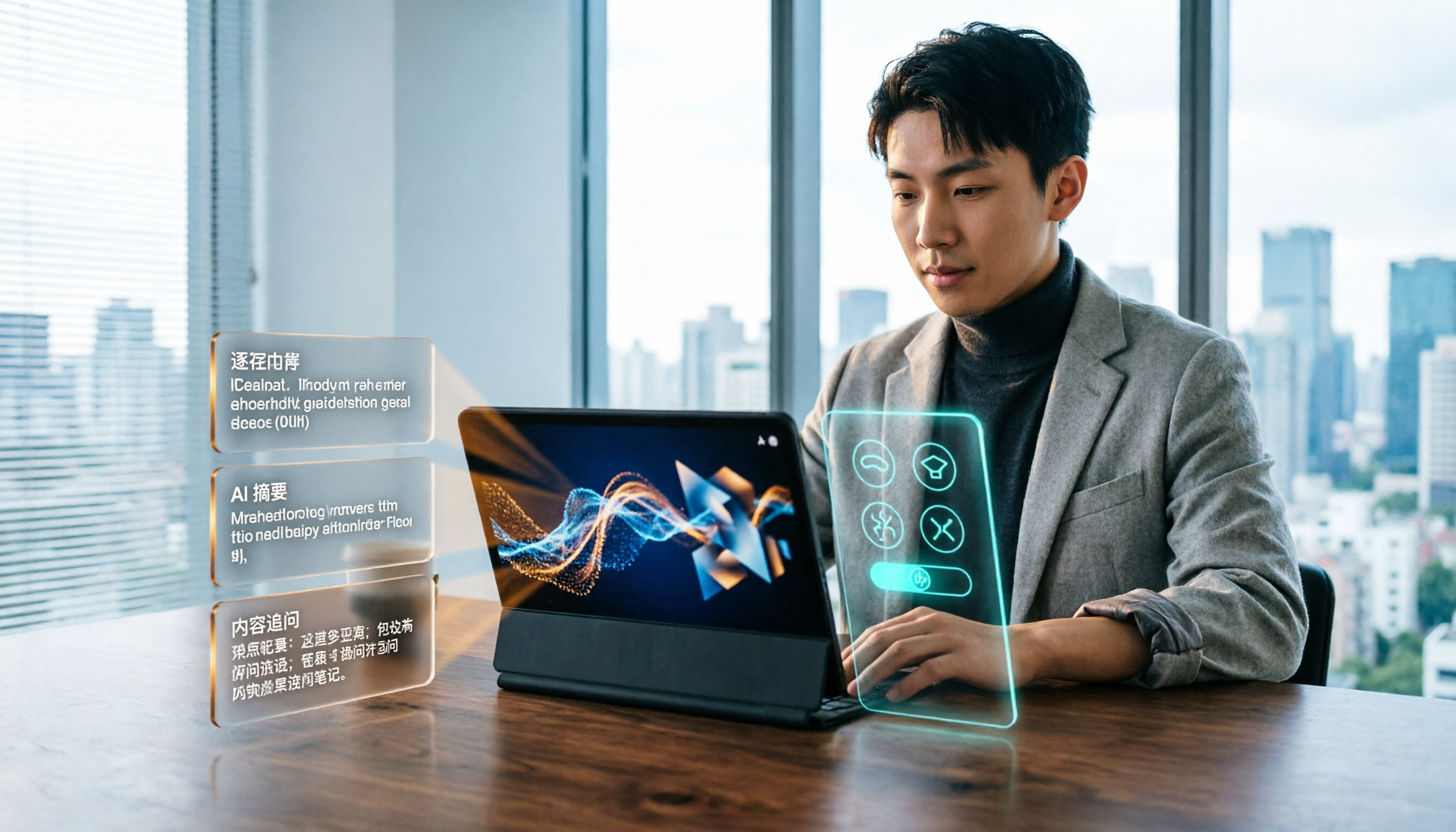
2026 Short Video Learning Efficiency Tools Buying Guide: 4 Tested Picks and Recommendations
Watched tons of short videos but can't remember them? This article breaks down 5 key points for choosing short video learning tools, compares 4 tools with hands-on testing, and shares 5 common pitfalls to avoid. It also explains how to use transcripts, AI summaries, and content Q&A to turn fragmented viewing into notes you can find and explain.
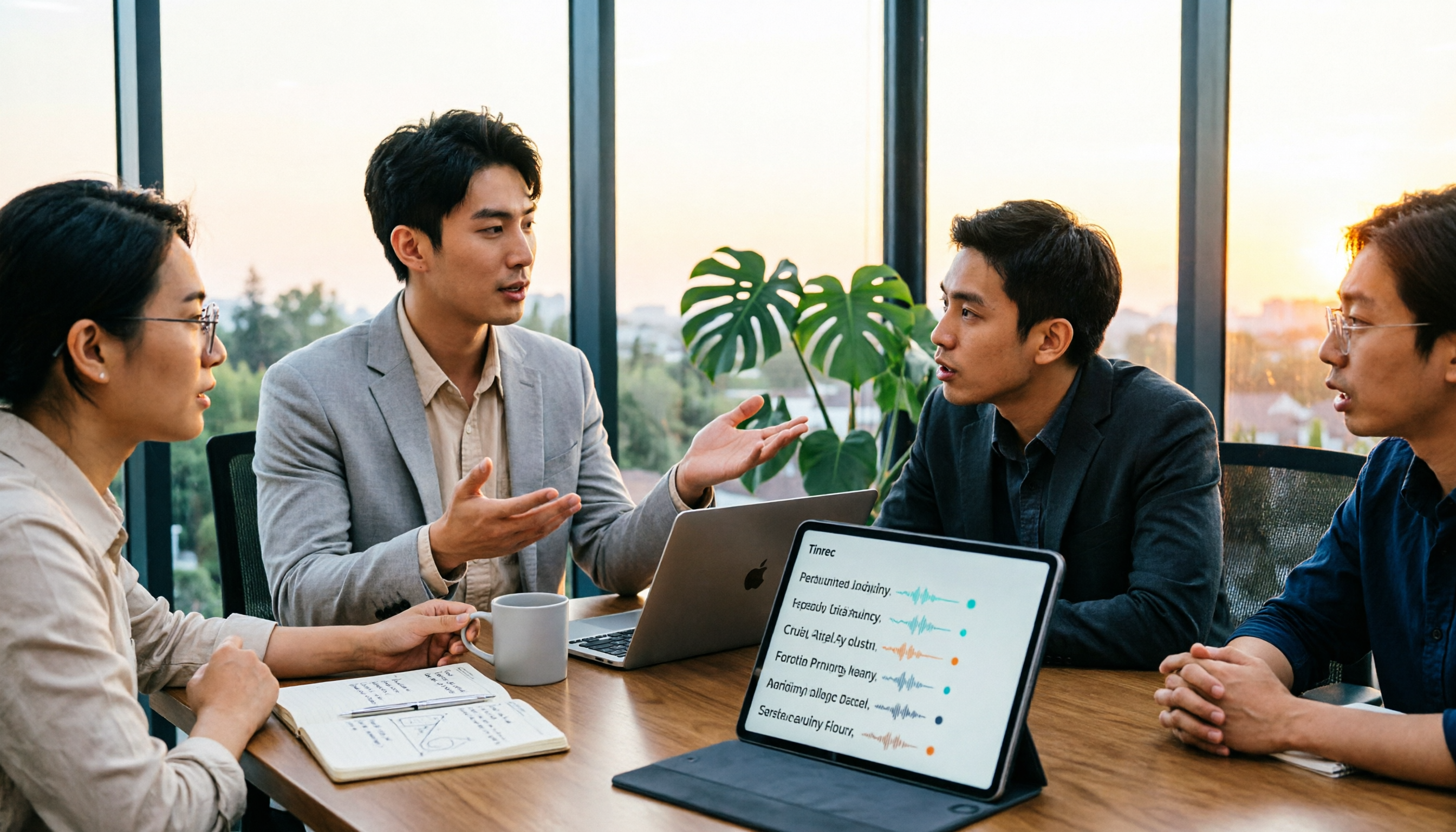
4 Real-Time Speech-to-Text Tools Compared for 2026: Which One Is Best for Chinese Meetings?
Chinese meetings, mixed Chinese-English, multiple people talking over each other—how do you choose a real-time speech-to-text tool? This article compares Tinrec, Otter.ai, Granola, and PLAUD based on real-world usage scenarios, covering meeting recording methods, post-meeting organization, AI follow-up questions, team collaboration, and pricing limits, and summarizes key buying factors and common pitfalls to help you decide which tool best fits your workflow.

6 Best MP3 to Text Tools in 2026: Which Free Version Is Actually Enough?
Meeting and interview MP3s pile up on your phone, and manual transcription takes far too long. This guide compares 6 MP3-to-text tools, from free online transcription to AI meeting assistants with summarization and Q&A, covering free limits, pricing, and best use cases to help you find the most time-saving option.
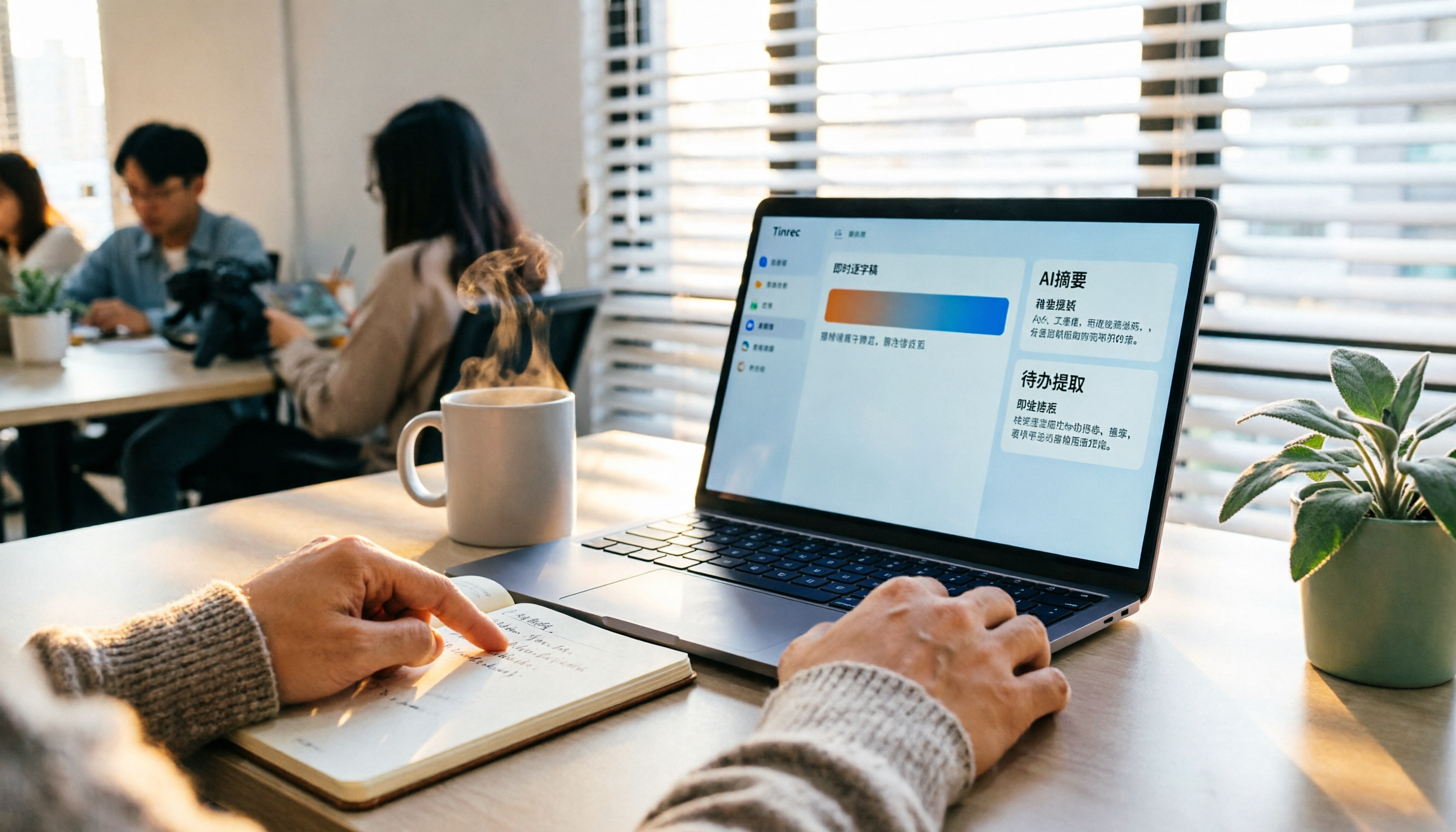
2026 Speech-to-Text Comparison: Tencent Cloud ASR vs. Meeting Bots vs. Tinrec
Speech-to-text isn't just about uploading an audio file. This article addresses three common mistakes office workers make, comparing cloud ASR services like Tencent Cloud Speech Recognition, AI assistants that join meetings as bots, and Tinrec's desktop-based bot-free meeting transcription workflow. It covers real-time transcription, AI summaries, action item extraction, team spaces, and key purchasing considerations.

2026 Comparison of 4 Automatic Meeting Minutes Software: From Free to Team Editions
How to choose automatic meeting minutes software? This article addresses common misconceptions and compares Tinrec, Otter.ai, Notta, and Granola on meeting capture methods, post-meeting organization, Chinese language support, and team collaboration. It also provides selection criteria and pitfalls to help you find the right solution for Chinese meetings and team knowledge retention.
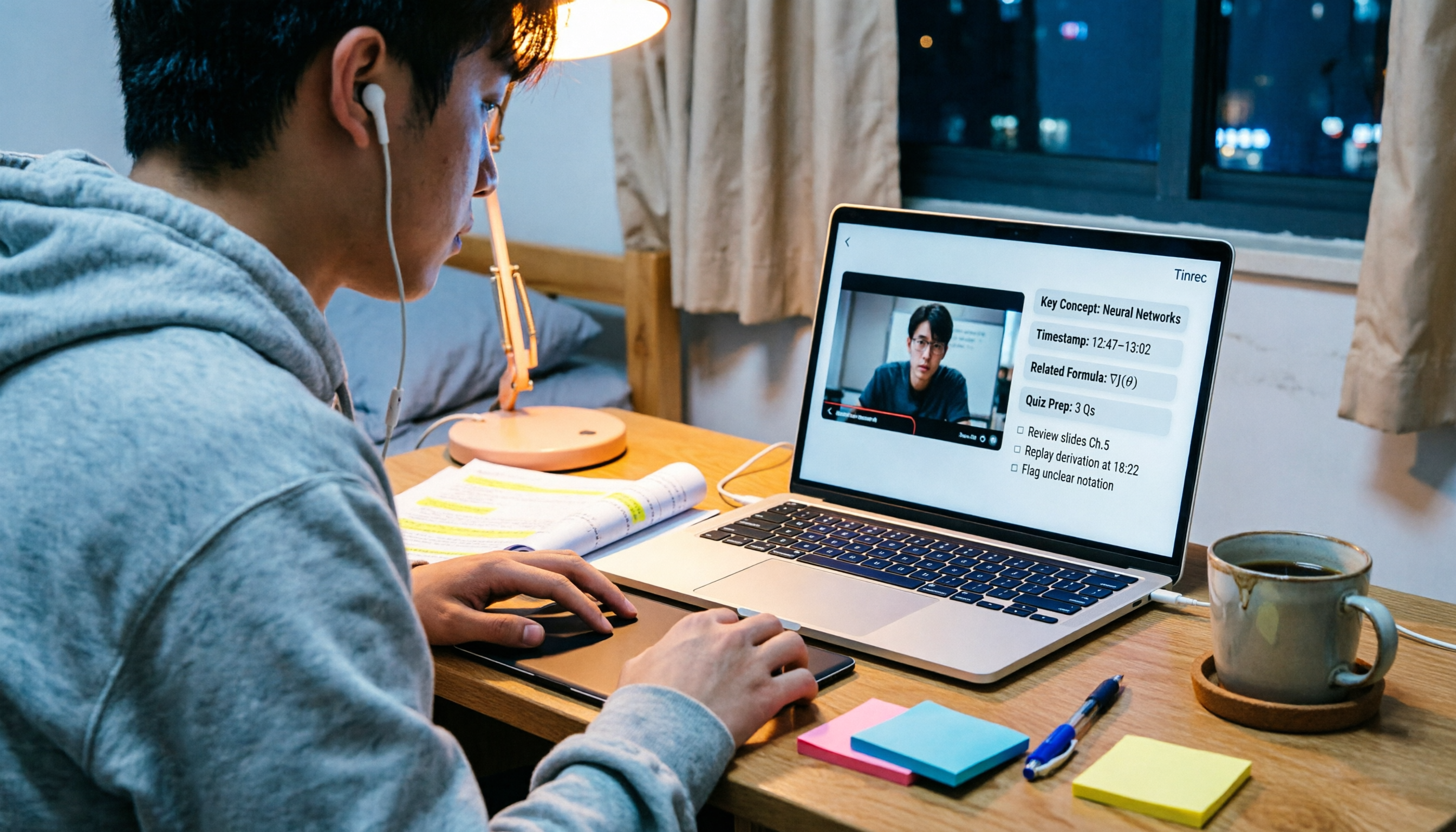
2026 Video Note-Taking Tools Compared: Which One Turns a 2-Hour Lecture into Exam-Ready Notes?
A week before finals, I opened a dozen lecture recordings and couldn't find the key points. This student-perspective comparison of 4 video note-taking tools covers whether they accept your video files, whether they produce summaries and action items, whether you can ask follow-up questions, and whether the free tier is enough. I also share my full-semester experience with Tinrec, including its workflow and limitations.
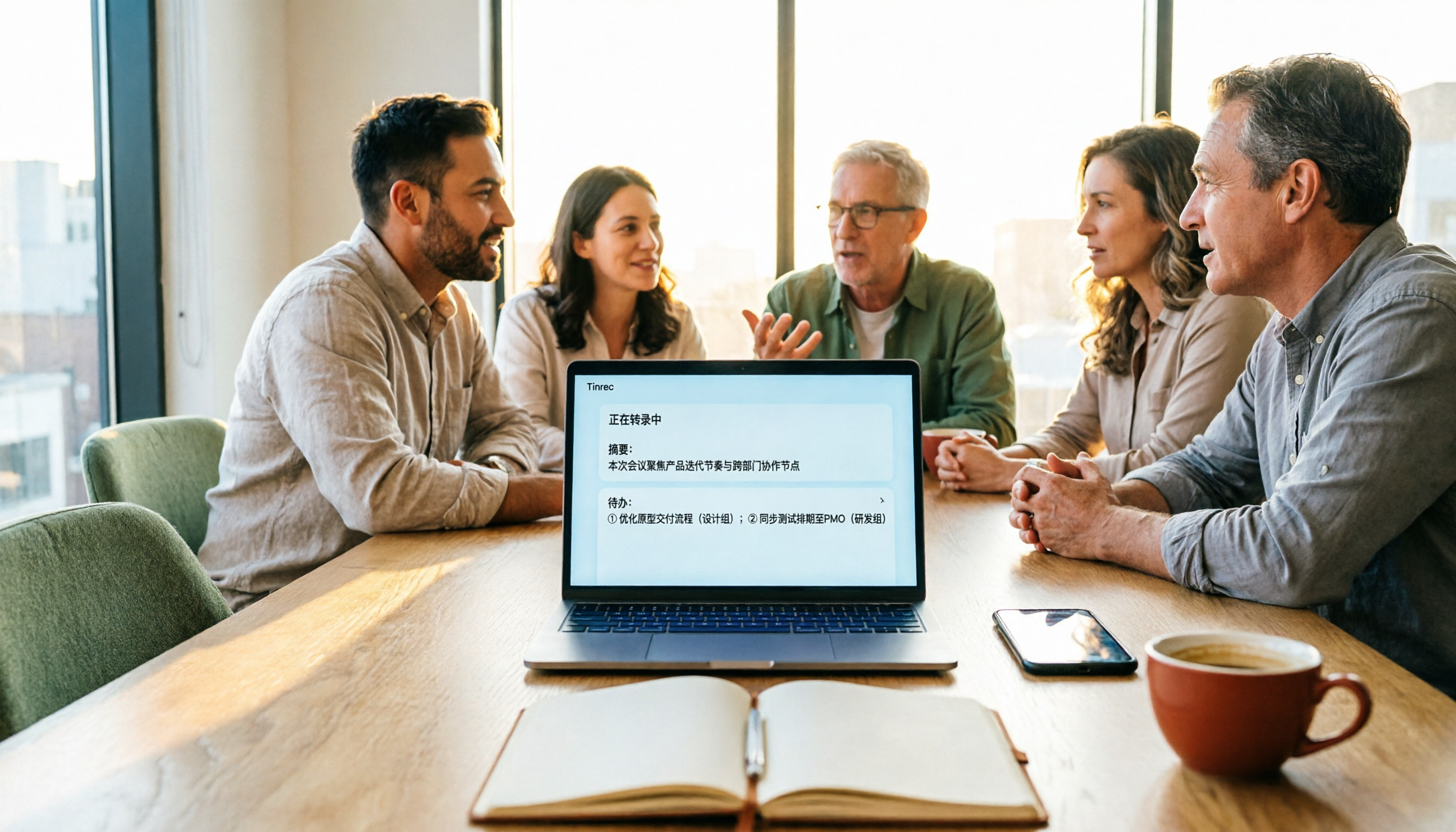
2026 Voice Recorder Guide: Turn Meeting Audio into Transcripts and AI Summaries with Action Items
Most people searching for a "voice recorder" actually need a tool that turns meeting audio into usable text. This guide covers common misconceptions, four key factors for choosing the right tool, and a hands-on review of Tinrec's bot-free meeting recording, AI Q&A, and team spaces, plus a brief look at Otter.ai, Notta, and Granola for different use cases and pitfalls to avoid.

4 Best EPUB to PDF Converters in 2026: Which Free Version Is Good Enough?
Bought an ebook but can't open it? This article shares hands-on testing of 4 online EPUB to PDF converters, comparing free limits, file size restrictions, layout preservation, and privacy handling, with step-by-step instructions and pitfalls to avoid.
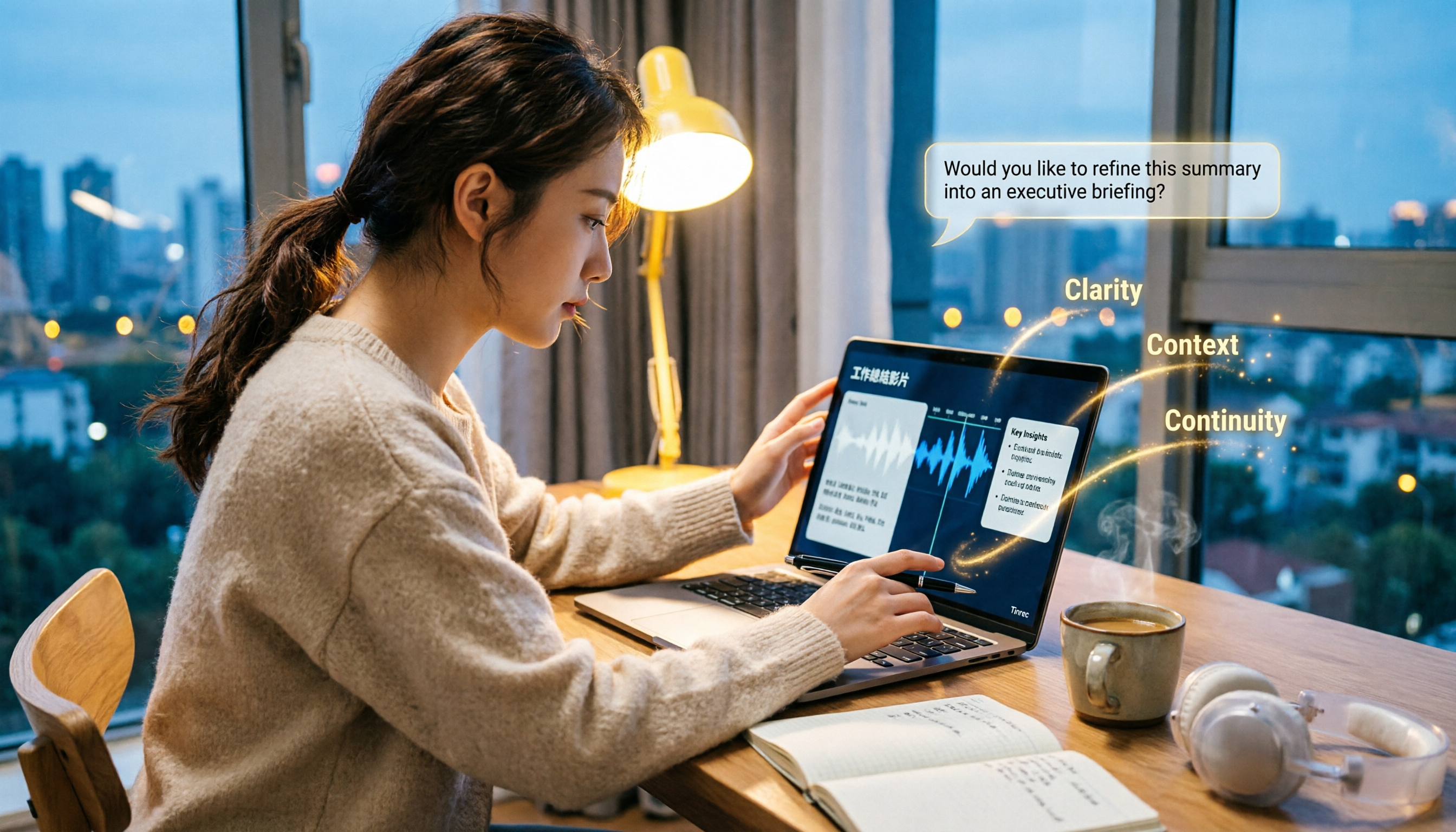
2026 Comparison of 4 Work Summary Video Tools: Which Saves More Time for Transcription and AI Summarization?
The bottleneck in organizing work summary videos is often not transcription accuracy, but what to do with the text afterward. This article starts with four key points for selection, tests how Tinrec handles existing video files, records online meetings without bots, and uses AI follow-up questions. It also briefly reviews Notta, TurboScribe, and Granola for their suitable scenarios, and concludes with a pitfalls guide and a 6-step starter.