

Turn recordings into transcripts and summaries in minutes
Upload audio or video for multilingual transcription, AI notes, and action items
You finish the meeting and realize the recording is just sitting there, and nobody wants to open it
The online meeting ends, your manager asks "what was that decision from last time," and you open the 58-minute recording on your phone. You drag the progress bar for ages and still can't find which minute that sentence was in.
Another case is interviews. You recorded the audio, but you have to type the transcript yourself while listening. A one-hour interview takes three hours to organize, and in the end you only use three quotes from it.
The problem usually isn't whether you recorded it—it's the cleanup work after recording that nobody wants to touch. This article will first walk through Notta's actual workflow, then compare several other tools side by side to show you which process saves the most time.
Before choosing a voice-to-text tool, understand these 4 key points
1. For free quotas, look at the "per-recording limit," not just total minutes
Many tools say "120 free minutes per month," which sounds like enough, but the real limits are hidden in the details. If a single recording can only be 3 minutes, then 120 minutes means something completely different. Before buying, confirm "how long can one recording be at most."
2. A transcript is only a half-finished product; the real value is the organization afterward
A transcript gives you the full text, but what you need is "decisions, action items, who is responsible for what." So check whether the tool offers summaries, chapters, action-item extraction, or even the ability to ask questions directly about the content. This is where the real gap shows.
3. How are online meetings captured?
There are two main approaches right now: one is sending a "meeting bot" into the meeting as a participant, and the other is capturing system audio directly from your computer. The former is automated, but the host may need to approve it, and other attendees will see an unfamiliar account in the list. The latter doesn't disturb anyone, but you need to start the tool yourself.
4. Who ultimately holds the data?
If it's for team use, you need to ask: does meeting data belong to individuals or the team? Is the data still there after a member leaves? This is also the biggest dividing line between personal and team plans.
Tinrec — no meeting bot, ask for key points right after recording
Tinrec is an AI meeting notes and collaboration tool for individuals and teams, available on web, desktop, and mobile. Its positioning isn't just "turn voice into text"—it's about turning a meeting into searchable, queryable data you can keep working with.
During the meeting, open the desktop app to capture system audio directly, handling meeting content played on Zoom, Google Meet, Microsoft Teams, and Webex without inviting a bot into the meeting room. No unfamiliar account appears in the attendee list, and the host doesn't need to approve anything on the spot. The transcript runs while recording, and mixed Chinese-English content can be handled together.
After the meeting is where it separates itself from pure transcription tools. The system automatically generates summaries, chapters, and action items, so you can scan at a glance who should do what and what was decided. Even better is the AI Q&A—you can directly ask "what was the conclusion about the budget in this meeting," and it will find the answer from the recording content instead of dumping a pile of keyword search results for you to dig through. This is especially noticeable for hour-long meetings, effectively saving you the time of repeatedly dragging the progress bar.
Post-meeting delivery is also covered. Transcripts and summaries can be exported to common file formats and brought into workflows like Notion, Google Docs, and OneNote, and can further generate reports, tables, and meeting minutes documents.
Our own test method was to run a mixed Chinese-English weekly meeting recording: Chinese segments were recognized stably, and product codes and internal jargon needed a little help from team hotwords—after adding them, accuracy clearly improved. Actual results will still be affected by recording quality, background noise, accents, and multiple people talking over each other, which is the same for any tool.
Strengths:
- Records online meetings without a bot, doesn't disturb attendees, and doesn't require host approval.
- After transcription, directly provides summaries, chapters, and action items, and you can continue asking AI follow-up questions.
- Supports real-time translation, with switches between original text, translation, or bilingual view—no need to find a separate interpreter for cross-language meetings.
Things to note:
- The free plan provides a basic quota, suitable for trying the workflow first; if you have a steady volume of meetings every week, you'll need to evaluate a paid plan.
- The team plan is mainly team-level sharing, managing governance and usage eligibility through roles and seats, not fine-grained file-level permissions.
Who it's for: People who need Chinese meeting notes, don't want a bot in the meeting room, and want to use AI to find key points right after recording. When used by teams, meeting data stays in the team space and can be handed over when members change, rather than disappearing when an individual leaves.
Stop organizing recordings by hand
Upload audio or video and automatically get a transcript, summary, and action items
How to use Notta: a hands-on walkthrough in 5 steps
Back to what you most want to ask: how do you use Notta. Its workflow isn't complicated—it works on web, iOS, Android, and Chrome extension. Here's a walkthrough using the most common meeting-notes scenario.
Step 1: Sign up and choose an entry point. Register with email or a third-party account. After logging in, you'll see options like live recording and file upload. If you only use it occasionally, the web version is fastest; if you often record on your phone, install the app.
Step 2: Decide between "live recording" and "file upload." For in-person meetings and interviews, choose live recording; if you already have audio files or course videos, upload the file for transcription. It can also handle meeting content from Zoom, Google Meet, and Teams.
Step 3: Set language and speakers. This is the step most people miss. Notta supports 58 languages, including Traditional Chinese—choose the right language first, and recognition results will differ a lot. When there are two or more speakers, remember to enable speaker separation.
Step 4: Run AI summary, and ask follow-up questions in the chat box if needed. After transcription, you can generate a structured summary with one click, condensing an hour-long meeting into a few key paragraphs, and it also lists action items. To find specific details, type "what was the decision in this meeting" in the chat box, and it will pull the answer from the recording content.
Step 5: Export or sync. Organized content can be exported as TXT, DOCX, PDF, SRT subtitles, or synced directly to Notion, Google Docs, and OneNote.
Know the free plan limits first. Notta's free plan gives 120 minutes per month, but a single recording can be at most 3 minutes—this is the most restrictive part in practice. I usually suggest readers: cut a 3-minute sample that includes jargon, two speakers, and some background noise to test, confirm recognition and summary performance first, then decide whether to pay.
For paid plans, the official page shows Pro annual billing at about USD 8.17/month with 1,800 minutes per month; Business annual billing at about USD 16.67/seat/month. There's also a 7-day Business trial that doesn't require a credit card. It has SOC 2 Type II, ISO 27001, GDPR, CCPA, and HIPAA certifications for privacy and security, which is a plus for companies that need internal security review.
One more note: some users on app stores have reported live transcription interruptions and that some features after paying didn't meet expectations. Such reviews may not apply to everyone, but they illustrate why you should first run your own recordings with the free quota rather than subscribing after just reading the ads.
Besides Notta and Tinrec, there are these two options
Otter.ai: A veteran choice for English meetings. The free plan's 300 minutes per month is generous, and Pro annual billing is about USD 8.49/user/month. Its English business meeting experience is mature, but Chinese isn't its main battlefield. If 90% of your meetings are in English, it's indeed cost-effective; but if you need bot-free recording of Chinese meetings and want to ask follow-up questions in Chinese afterward, it's not the smoothest choice right now.
TurboScribe: Positioned more as a cost-effective file transcription tool, strong at long files and batch processing—paid plans allow single files up to 10 hours and 50 files uploaded at once. The free plan allows 3 files per day, 30 minutes per file; Unlimited annual billing is USD 120. If you have a batch of recorded courses or archives to clear out at once, it's very suitable. But live meeting notes, post-meeting action items, and team collaboration aren't its focus—you'll need other tools for that.
Pitfall guide: the 3 most common mistakes when choosing these tools
Pitfall 1: Only looking at total minutes, not the per-recording limit. "120 minutes per month" and "120 minutes per month, but only 3 minutes per recording" are two completely different things. The former can record a full meeting; the latter can only record clips. Before buying, you must find the per-recording limit.
Pitfall 2: Treating "having a transcript" as "organized." Getting the full text is only the beginning of the work. If you still have to find decisions yourself from 30,000 words, you've only saved typing time. When choosing a tool, ask directly: will it generate summaries, extract action items, and let me ask questions about the content?
Pitfall 3: Not paying attention to how the meeting is captured. The meeting-bot approach often gets stuck at "should we approve this bot" during external client meetings. If you frequently meet with external parties, prioritize the approach that captures system audio from your computer—the process will be much smoother.
Conclusion: which one should you actually choose?
In one sentence: if what you want is "to really do less work after recording," Tinrec currently has the most complete workflow; if you only occasionally need to turn a recording into text, Notta's free plan is enough to test the waters.
Scenario breakdown:
- Mostly Chinese meetings, don't want a bot in the meeting room → Tinrec (desktop captures system audio directly, works with Zoom, Meet, Teams, Webex).
- Want to ask "what was the conclusion" right after recording → Tinrec (has AI Q&A, no need to manually scroll through the transcript).
- Cross-language meetings, need real-time translation and bilingual view → Tinrec (can switch between original, translation, and bilingual).
- Team needs to share meeting data and manage members and usage → Tinrec team plan (team space, roles, seats, usage analytics, audit logs, audio recycle bin).
- Zero budget, only recording English meetings → Otter.ai (300 free minutes, mature English scenarios).
- Have a batch of long recordings to clear out → TurboScribe (long files and batch upload are its home turf).
Practical advice: don't rush to pay. Use the free quota to run a real recording of your own—ideally one with jargon, multiple speakers, and background noise. Then check two things: is the recognition clean, and does the summary capture the key points. If both pass, consider upgrading; if not, switching tools is more cost-effective than upgrading.
References
- Notta | Learn AI
- 【Tutorial】2026 Notta: Voice-to-Text + AI Summary and Multilingual Support - Tinrec Blog
- Comparison of 5 AI meeting notes tools: Otter, Notta features and pricing
- What is Notta? Free plan limits, pricing, and Traditional Chinese transcription tutorial | Mason AI Lab
- Notta - Voice to Text, Voice Notes and Recording - Google Play App
Turn every recording into actionable outcomes
Get 60 free transcription minutes when you sign in. No credit card required.
Related Reading
You might also like

2026 AI Meeting Recorder Comparison: What Is Notta and Which Tool Should You Choose?
Many people search for "what is Notta" but the real question is whether the tool fits their needs. This article breaks down the company background, market focus, and free plan pitfalls, then compares four tools hands-on to help you decide between Notta, Otter.ai, Granola, and Tinrec.

Notta Pricing in 2026: Breaking Down 3 Plans, Which Is Worth It, and How to Choose Alternatives
How does Notta charge? This article breaks down the actual pricing logic of Notta's Free, Pro, and Business plans in 2026, including the 120 minutes per month and 3-minute per-segment limits, annual upfront billing, and per-seat pricing differences. It also covers 5 key points to check before buying, 4 common mistakes, and a comparison of alternatives from the perspective of 'ready to use right after the meeting.'

2026 AI Transcription Showdown: Vocol.ai vs. 4 Alternatives — Which Is Worth It?
Is Vocol.ai really better? This decision-focused review tests Vocol.ai, Yating Transcription, Good Tape, TurboScribe, and Tinrec, comparing generation speed, language support, post-meeting organization, and team collaboration, with selection advice and usage notes.

Vocol Latest Version vs Tinrec (2026): No-Bot Transcription + AI To-Do Summaries
Is the latest Vocol enough? This guide compares Vocol.ai and Tinrec across 5 dimensions: meeting capture, post-meeting output, multilingual transcription, team governance, and plan quotas. We also highlight 3 common pitfalls when choosing a meeting notes tool, so you can pick the right one within your budget.

Tinrec vs Vocol.ai in 2026: A 5-Dimension Comparison for Chinese Meeting Notes
Most people compare voice tools by looking only at free minutes and accuracy rates, but overlook how meetings are recorded and whether post-meeting data is usable. This article uses five dimensions—meeting capture, Chinese language processing, post-meeting outputs, export workflows, and team governance—to compare Tinrec and Vocol.ai, and summarizes common pitfalls and selection advice for choosing AI meeting tools.
2026 Vocologia Courses Compared: How to Choose Online Training and Organize Post-Course Recordings
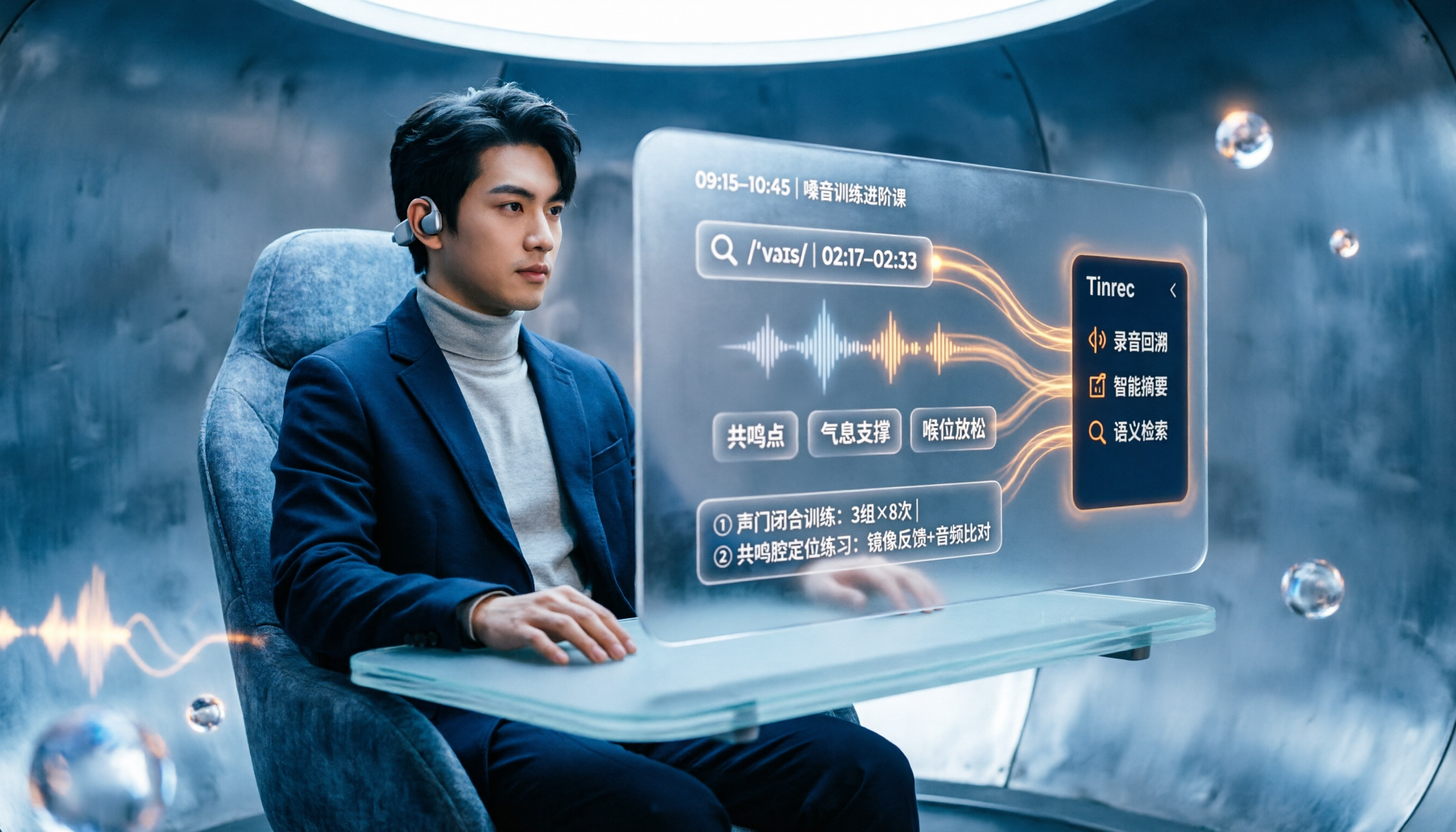
People searching "vocologia 2026" often look only at start dates and tuition, but the real pitfalls are course format, language requirements, certification, and whether post-course materials are retained. This article reviews three Vocologia courses worth considering in 2026 (Nuova Artec, Vocology Center, afonoaudiologicas) and the Argentine Society of Voice (SAV) events, then tests how Tinrec turns online courses into searchable, queryable review materials.
2026 Tinrec vs Vocol.ai: Bot-Free Recording & Chinese Meeting Notes Comparison
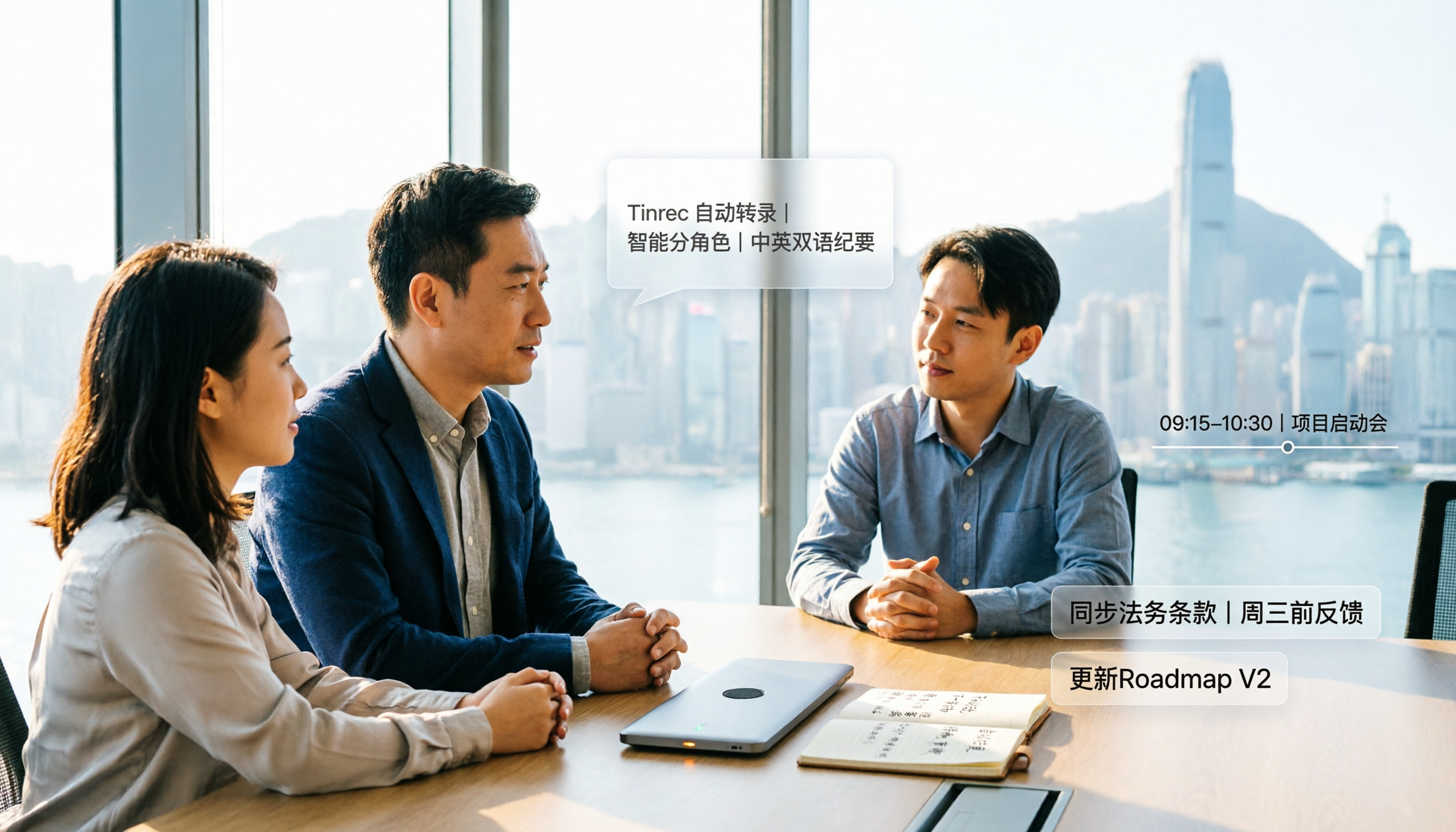
In 2026, how should you choose between Tinrec and Vocol.ai? This article compares them across four dimensions: meeting capture, post-meeting organization, team governance, and data handover. It includes a quick feature overview table and clear recommendations to help Hong Kong office workers and team leads make a fast decision.

2026 Free AI Meeting Notes Options: Vocol Comparison Table and 5 Buying Tips
Still can't pick a tool after reading several Vocol comparison tables? This article doesn't repeat feature lists; instead, it breaks down 5 dimensions that truly affect daily efficiency: recording method, language translation, post-meeting output, team permissions, and pricing logic. Using Tinrec as an example, it explains how bot-free recording, real-time translation, AI Q&A, and team spaces can actually save office workers time on post-meeting organization.

2026 AI Meeting Transcription Tools Compared: Is the Latest Vocol Worth It?
Tired of endless meeting notes? This hands-on guide covers 4 key factors for choosing an AI meeting recorder and compares Tinrec, the latest Vocol, Otter.ai, and Notta—plus pitfalls to avoid and pricing—so you can find the right fit for your workflow.