

Turn recordings into transcripts and summaries in minutes
Upload audio or video for multilingual transcription, AI notes, and action items
4 iPhone Recording Methods Compared for 2026: Will the Other Party Know, and Which One Is Right for You?
"I Just Want a Record" — But Before You Press Record, You Think of the Other Person First
A client verbally promises a delivery date and price over the phone, and you worry that after hanging up, it'll be your word against theirs. A family member relays medical instructions, or a landlord discusses repairs, and you're listening while searching for pen and paper—often missing the key sentence.
At times like these, many people open their iPhone to record, but their finger hovers over the button and then pulls back—"If I record this, will the other person know?"
This article clarifies that question and compares the four common recording methods on iPhone. Know what will happen first, then decide whether to press the button.
Direct Answer: With Built-in iPhone Call Recording, the Other Party Will Definitely Know
The answer is clear: yes.
iPhone only got built-in "Call Recording" with iOS 18.1, no additional app required. But Apple designed the notification as a mandatory process that you cannot turn off.
After you press the record button, two things happen: the screen counts down from 3 seconds; when the countdown ends, a voice prompt saying "This call will be recorded" plays through both parties' earpieces.
So unless the other person is in a very noisy environment or happens to be far from the phone, they will almost certainly hear it. Currently, there is no official way to disable this prompt on iPhone.
Three other often-overlooked details:
- Recording files are automatically saved in the "Call Recordings" folder of the "Notes" app, where you can replay them and view transcripts.
- If your device supports Apple Intelligence and it's enabled, you can also generate call summaries.
- Built-in call recording only supports regular phone calls and FaceTime; third-party calls like LINE, Messenger, and WhatsApp are not currently supported.
Before Choosing a Recording Method, Think Through These 4 Things
1. Can you accept that the other party is notified?
This is the first hurdle. If the call is meant to leave a formal record—such as a quote, delivery date, or acceptance agreement—letting the other person know is actually better, providing evidence later.
2. Are you recording a phone call, an online meeting, or a face-to-face conversation?
Phone calls go through telecom lines, online meetings use computer system audio, and face-to-face meetings use microphones. The tools available differ for each, so clarify first to avoid wasted effort.
3. What will you do with the recording afterward?
Just replaying it once versus turning it into a transcript, summary, or action items requires completely different tools. Honestly, most people buy recording tools but end up only using the "record" function—a waste.
4. Where is the file stored, and can you find it again?
Whether recordings are stored locally on the phone, in the cloud, or in a team space determines whether you can still find them three months later. This is especially critical in multi-person collaboration scenarios.
Tinrec: Turning "Recorded" into "Searchable and Usable"
Tinrec is an AI meeting notes and collaboration tool for individuals and teams, supporting iOS, Android, and web, with a desktop version for online meetings.
Let's be clear upfront: it's not a tool for secretly recording calls. Its value lies after recording—turning audio into data you can search, query, and continue working with.
Transcribe while recording—get a transcript when the meeting ends
Open Tinrec to record during a meeting, and text appears synchronously on screen. When the meeting ends, AI has already organized summaries, chapters, and key points, listing who is responsible for what and when it's due as action items. No need to spend an extra hour replaying.
Record online meetings without a meeting bot
This is the biggest difference from most AI meeting tools. Tinrec's desktop version directly captures computer system audio, so when handling meetings on Zoom, Google Meet, Microsoft Teams, Webex, etc., you don't need to invite an extra bot to join as a listener. The meeting screen stays clean, and you don't have to explain who that is to participants.
Ask it questions after recording
This is the most practical part in my opinion. Once historical meetings accumulate, you can directly ask: "Who was talking about the budget last time?" "What concerns did the client raise?" It answers based on content, rather than dumping a bunch of keywords for you to sift through.
Stop organizing recordings by hand
Upload audio or video and automatically get a transcript, summary, and action items
Additionally, it supports importing audio and video files, real-time translation during recording (switchable between original, translation, or bilingual), and exporting to Notion, Google Docs, OneNote, Dropbox, etc. for further editing, or using Agent post-processing to generate reports, tables, and meeting minutes.
Honest limitations
The free version has a basic quota, suitable for trying it out; regular and heavy usage requires upgrading. Also note that transcription quality is affected by recording quality, ambient noise, accents, and multiple people talking over each other. For important information, cross-check with the original recording—don't treat it as 100% accurate.
Team use scenarios
If your entire department holds meetings, the team version provides independent team spaces where meeting data belongs to the team, and you can manage members, roles, and seats. It's important to distinguish: roles determine who can manage the team, seats determine who can record, upload, edit, and export; members without seats can still view, play, and read team data. Usage analytics, audit logs, and audio recycle bin are also at this level.
Who it's for
Those who have several meetings every week, need post-meeting minutes and action items, or want to centralize meeting content scattered across personal phones and chat logs will notice a clear difference.
Besides Tinrec, What Other Options Are There?
iPhone built-in call recording
The easiest, zero-cost option, suitable for formal calls where "the other party knowing is fine," such as quote confirmations or acceptance discussions. The downside is the notification cannot be disabled at all, and it doesn't support third-party calls like LINE; also, it only gives you an audio file and transcript—no summary, action items, or querying—so you need to organize it yourself.
PLAUD recording hardware (NotePin / Note Pro)
Standalone recording devices focused on portable recording and phone call recording. U.S. official website prices are USD 159 for NotePin and USD 189 for Note Pro, with membership plans from a Starter plan with 300 minutes per month to an Unlimited plan at USD 239.99/year. Suitable for salespeople who are often out and about and can't easily use speakerphone. However, you need to carry an extra device, and it lacks cross-device file import and team data spaces.
Third-party recording apps and screen recording
The app ecosystem offers many choices, but many require paid subscriptions, and recording scope is limited by the system. Screen recording is often misused—in testing, starting screen recording during a call or FaceTime, even with the microphone on, captures no audio at all, leaving only a useless video file. In contrast, Tinrec directly processes the audio itself and can output transcripts and summaries, rather than giving you an unusable screen capture.
Pitfall Guide: The 4 Most Common Mistakes When Choosing an iPhone Recording Method
Pitfall 1: Thinking there's a way to turn off that prompt sound.
Currently there is no official method. Online tutorials teaching you to "bypass" it mostly aren't talking about built-in call recording—don't waste your time trying.
Pitfall 2: Using screen recording to capture calls.
As mentioned earlier, this only gets you a silent video. To keep a record, use the right tool directly.
Pitfall 3: Recording without organizing.
This is the most common waste. A 30-minute recording still takes 30 minutes to replay from the start. If you can directly get summaries and action items, the time saved is the real value.
Pitfall 4: Ignoring legality and prior notification.
Under Article 29 of the Communication Security and Surveillance Act, if you are a party to the conversation and the purpose is not unlawful, the common practical interpretation is that recording is generally allowed without prior notification; however, some argue that both parties' consent should be obtained. Conclusions vary by source and situation; for specific cases, consult a lawyer. In practice, the safest approach is to say upfront, "I'm recording this for later organization."
Conclusion: Which One Should You Actually Use?
To sum up the main point: iPhone built-in call recording will definitely notify the other party, no exceptions. Rather than finding ways to bypass it, focus on "how to use it after recording."
- Just want to keep a record of the call and it's fine if the other party knows → iPhone built-in call recording
- Need transcripts, summaries, and action items for online meetings → Tinrec (desktop version records without a bot, no need to add participants)
- Face-to-face interviews, classes, spontaneous ideas → Tinrec (mobile recording, transcribe while recording)
- Already have a pile of recording files to organize → Tinrec (import audio and video for unified processing)
- Frequently record calls on the go and can't easily use speakerphone → hardware like PLAUD is the right tool
If this is your first time, I recommend trying Tinrec's free version on a real meeting recording to see the results. If it's handy, understandable, and helps you find key points, then consider upgrading; if it doesn't suit you, don't force it.
Recording tools solve "documentation"; the real difference is how quickly you can turn records into action.
References
- [Phone Tips] 2026 iPhone Built-in "Call Recording" Feature Tutorial! iOS Enable Phone Recording/Key Points to Note | 傑昇通信~挑戰手機市場最低價
- How to Record Calls on iPhone? Can It Be Done Without Being Noticed? 5 Recording Tutorials at Once - 蘋果仁 - 果仁 iPhone/iOS/Good Product Recommendations Tech Media
- How to Use iPhone Call Recording? Is It Legal? Pair with Plaud Note to Generate Transcripts
- How to Record on iPhone Without Being Noticed? Use Shortcuts with Tap Trigger for Secret Recording - 瘋先生
- iPhone Call Recording Tutorial: Step-by-Step Guide to Phone Recording
Turn every recording into actionable outcomes
Get 60 free transcription minutes when you sign in. No credit card required.
Related Reading
You might also like

3 iPhone Recording Methods Compared: Built-in Voice Memos, One-Tap Shortcuts, and AI Transcription—Which Is Most Practical?
There are actually three ways to record on an iPhone: Voice Memos, Shortcuts with Back Tap, and the Action button—most people can't find them at first. This guide walks through the steps, recording quality, and iCloud settings for each method, then compares Voice Memos, PLAUD, Notta, and Tinrec on how well they let you use recordings right after you finish, so you can pick the approach that fits you.

4 iPhone Recording Solutions Compared in 2026: Where to Find Recording Features and Which Saves the Most Time on Transcription
Can't find the iPhone recording feature? This guide covers where to find Voice Memos, call recording, and one-tap recording via Shortcuts, plus compares post-meeting transcription, AI summaries, and team collaboration options to help you choose the right recording workflow.
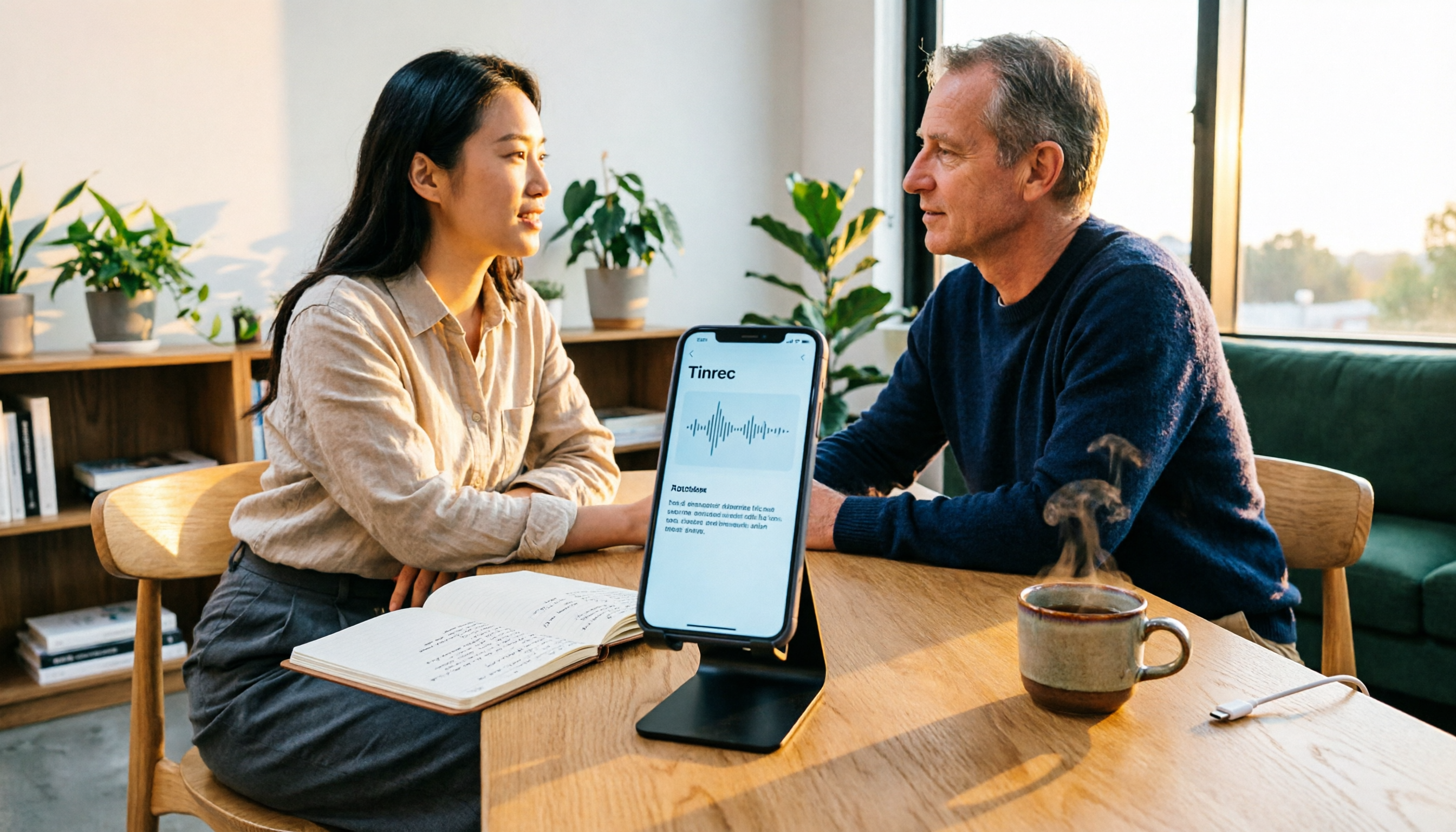
5 iPhone Recording Solutions Tested for 2026: Does Recording Drain Battery? How to Choose for Long Sessions
Does iPhone recording drain battery? Long recordings do use power and generate heat, and files can be corrupted if interrupted or the battery dies. This article compares 5 iPhone recording and post-meeting solutions—built-in Voice Memos, Tinrec, Otter.ai, Notta, and PLAUD—to help you choose the right tool for your situation.

3 iPhone Call Recording Methods Compared in 2026: Built-in, Hardware, or AI — Which Saves the Most Time?
A hands-on comparison of three iPhone call recording methods in 2026, breaking down the differences between iOS built-in call recording, Plaud recording hardware, and Tinrec AI organization, plus regional restrictions, notification sounds, legal consent, and key buying pitfalls.

3 iPhone Call Recording Methods Tested and Compared in 2026: What to Do With the Recordings?
Starting with iOS 18.1, iPhone finally has built-in call recording, but the other party hears a prompt when you start recording, and the recording is just an audio file. This article covers 3 practical methods, regional and version limitations, legal risks, and tests the complete workflow of turning call audio into transcripts, summaries, and action items to help you decide if the built-in feature is enough.

3 iPhone Call Recording Methods Tested for 2026: Recording Is Easy, Organizing Is the Hard Part
How do you record calls on iPhone? This article compares three common approaches: iOS 18.1 built-in call recording, local capture with Voice Memos, and using Tinrec to turn recordings into searchable, queryable transcripts and action items. It covers version and region restrictions, notification and legal risks, four common pitfalls, and selection advice.

4 Ways to Record Audio on iPhone with Headphones in 2026: AirPods, Wired Headsets, and External Mics Compared
Can you record audio while wearing headphones? This article addresses common misconceptions and breaks down the differences, compatibility pitfalls, and key considerations of four headphone recording methods on iPhone. It also explains how to use Tinrec to organize transcripts, summaries, and action items after recording.

6 iPhone Recording Alternatives Tested for 2026: What to Choose When Built-in Features Fail
When iPhone recording doesn't work, the problem is often not the phone itself. This guide first helps you distinguish three situations: call recording limited by region and model, dictation not working, and Voice Memos cutting off mid-recording. Then it tests and compares 6 alternatives—Tinrec, Notta, Otter.ai, Granola, TurboScribe, and PLAUD—listing costs, limitations, and best-use scenarios so you can pick the right tool in 10 minutes.
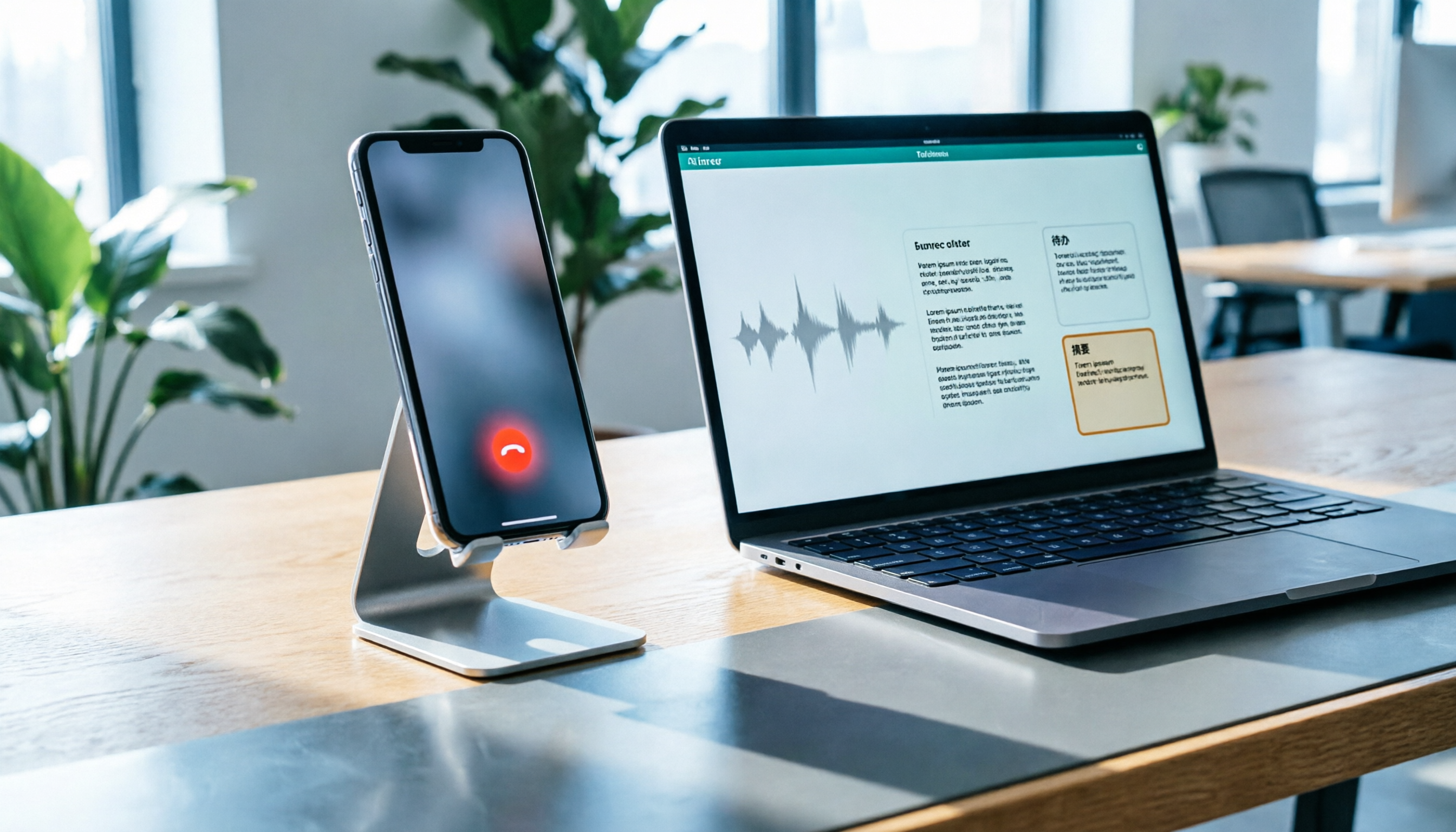
How to Record LINE Calls on iPhone in 2026: Built-in Steps + Auto Transcription
Can iPhone record LINE calls? LINE has no built-in recording button, but iPhone can capture calls as audio files via system-level recording. This guide walks through the steps, speakerphone requirements, and version differences, then shows how to use Tinrec to turn recordings into transcripts, summaries, and action items—so your recordings are actually useful.