

Turn recordings into transcripts and summaries in minutes
Upload audio or video for multilingual transcription, AI notes, and action items
Bottom line first: What trips most people up isn't "how to press the button" but these three things
Many people search "how to record calls on iPhone" thinking: press the button, record, done.
What actually gets in the way is three things—whether your phone version and region are supported, whether the other party gets notified, and who will organize that 40-minute audio file after the call.
I got stuck on the third one the first time I tried. The recording succeeded, but to find the moment the client nodded in agreement, I still had to listen from the beginning.
This article compares three common approaches: iOS built-in call recording, local capture with Voice Memos, and how to turn the audio file into searchable, queryable text after recording.
Before choosing a method, understand these 4 key points
1. Version and region support Built-in call recording requires iOS 18.1 or later. Also note that Apple officially lists some regions as currently unsupported (e.g., EU, Russia, Saudi Arabia, Turkey, etc.). Taiwan is not on the restricted list, but it's best to confirm your language and region settings before you start.
2. The other party will be notified During the call, the system displays a prompt saying "This call will be recorded," audible to both parties. This is a privacy design, and there is currently no official way to turn it off.
3. Where the recording is saved Most tutorials indicate that after the call ends, the recording is automatically saved to the Voice Memos app; the transcript is only visible in the Notes app, and only supported on certain models and languages.
4. What to do after recording This is the least discussed but most time-consuming part. A 30-minute call, re-listened and noted, easily takes another hour.
Method 1: iOS 18.1 built-in call recording, three steps
Step 1: Check system version Go to Settings > General > Software Update and confirm you're on iOS 18.1 or later.
Step 2: Use the built-in Phone app to dial or answer A "Call Recording" button appears in the top-left of the call interface (exact location varies by model and version).
Step 3: Tap it and wait for the countdown After tapping, a 3-second countdown starts and both parties are notified; recording begins after the countdown. When you hang up, the recording is saved automatically.
Some media tested built-in recording on iPhone 16 Pro and found the audio quality clearer than third-party apps or recording with another phone nearby. If you just need a record of the call, this is the easiest path.
Limitations to note: the other party must be notified, it's unavailable in some regions, transcripts require compatible models and languages, and it only gives you an audio file—it won't organize key points for you.
The real time sink is after recording: where Tinrec takes over
Honestly, recording itself is no longer the problem—the problem is "after recording."
Tinrec (秒聽錄音) is an AI meeting notes and collaboration tool for individuals and teams, available on iOS, Android, and web. To be clear: it is not a call recording tool; the recording step still relies on iPhone built-in features or a recording device. Its role is "after recording."
Import the audio file and the transcript appears After saving the call recording, import it into Tinrec to convert it into a searchable, reviewable transcript. Past meetings, interview recordings, and audio files left unfinished in folders can all be organized at once.
Summary, chapters, and action items in one go The hardest part of long calls is "where are the key points." Tinrec automatically generates summaries and chapters, and extracts action items from the discussion—who should send the quote, what day to call back—so you don't have to take notes while listening.
Stop organizing recordings by hand
Upload audio or video and automatically get a transcript, summary, and action items
Ask questions directly about the meeting content This is where it differs most from ordinary transcription tools. In our test, we imported a 20-plus-minute client call recording into Tinrec, and once the transcript was ready, we asked in the Q&A box: "What was the budget cap the client mentioned, and who said it?" It returned an answer with context, rather than a bunch of keyword search results.
Export to your existing workflow After organizing, you can export to Notion, Google Docs, OneNote, Dropbox, etc., or use Agent post-processing to generate meeting minutes, reports, and tables.
Version differences for team sharing If your department or project team shares meeting data, the Team version is a separate collaboration space where you can create multiple teams, invite members via link, set owners and admins, assign and revoke seats, and view usage trends and export audit logs. Note: roles control "who can manage the team," while seats control "who can record, upload, and edit." Members without a seat can still view and play team data but cannot perform uploads or edits.
Where we should be honest The free version has usage limits; heavy users need to pay. Transcription results are affected by audio quality, accents, overlapping speakers, and technical terms; for important content, we recommend checking against the transcript timestamps and recording. It won't "record" the call for you—that step is still up to you.
Who it's for If you have to submit meeting minutes after every call, dig out key client commitments from recordings, or want team conversations to be searchable and queryable, Tinrec fills exactly that gap.
Besides Tinrec, what other transcript options are there?
Notta A multi-platform transcription tool supporting meeting notes, file import, and translation, with decent Chinese performance. The free version offers 120 minutes per month, up to 3 minutes per item; long-term use requires payment. If your focus is recording online meetings without a bot and building a team space with role and seat management, that's where its standard plan is less developed.
Otter.ai A mature choice for English meetings. The free version offers a generous 300 minutes per month, with AI Q&A and meeting summaries. However, Chinese and mixed Chinese-English meetings are not its strength; if your calls are mainly in Chinese, organizing will be more laborious. If almost all your recordings are in English, it's still a good deal.
Pitfall guide: The 4 most common mistakes in iPhone call recording
Pitfall 1: Assuming upgrading the system is enough Call recording has region restrictions, and not all models can generate transcripts. Confirm support before you start, so you don't find the button missing when you need to record.
Pitfall 2: Wanting to record "quietly" There is currently no official way to disable the recording notification. Moreover, under Taiwan law, secretly recording others' non-public conversations without cause may violate Article 315-1 of the Criminal Code (offense of invading privacy); illegally surveilling others' communications may also violate Article 24 of the Communication Security and Surveillance Act. In practice, the safest approach is to inform the other party and obtain consent before recording.
Pitfall 3: Treating "recorded" as "done" Audio files sitting on your phone won't turn into records by themselves. If you don't transcribe and organize key points after recording, you'll still have to re-listen three months later.
Pitfall 4: Keeping only one copy on your phone Phone repairs, device changes, and accidental deletion are all risks. At least confirm you have a backup; for team data, we recommend a unified space so files don't disappear when members leave.
Conclusion: Which one should you use?
Just need a record of the call, no follow-up organization → iPhone built-in call recording, done in three steps.
Need to submit meeting minutes after recording, or find key points in the audio → Tinrec handles transcript, summary, action items, and Q&A in one go.
Frequently meet with overseas clients and need bilingual comparison → Tinrec's real-time translation lets you see original and translated text while recording.
Team needs to share meeting data and manage members and usage → Tinrec Team version, with separate space, roles, and seats.
Only need to record your own voice for notes → Voice Memos is enough; don't overthink it.
If unsure, start with the free version and evaluate upgrading after the quota runs out—no need to pay upfront.
References
Turn every recording into actionable outcomes
Get 60 free transcription minutes when you sign in. No credit card required.
Related Reading
You might also like

4 Ways to Record Audio on iPhone with Headphones in 2026: AirPods, Wired Headsets, and External Mics Compared
Can you record audio while wearing headphones? This article addresses common misconceptions and breaks down the differences, compatibility pitfalls, and key considerations of four headphone recording methods on iPhone. It also explains how to use Tinrec to organize transcripts, summaries, and action items after recording.

6 iPhone Recording Alternatives Tested for 2026: What to Choose When Built-in Features Fail
When iPhone recording doesn't work, the problem is often not the phone itself. This guide first helps you distinguish three situations: call recording limited by region and model, dictation not working, and Voice Memos cutting off mid-recording. Then it tests and compares 6 alternatives—Tinrec, Notta, Otter.ai, Granola, TurboScribe, and PLAUD—listing costs, limitations, and best-use scenarios so you can pick the right tool in 10 minutes.
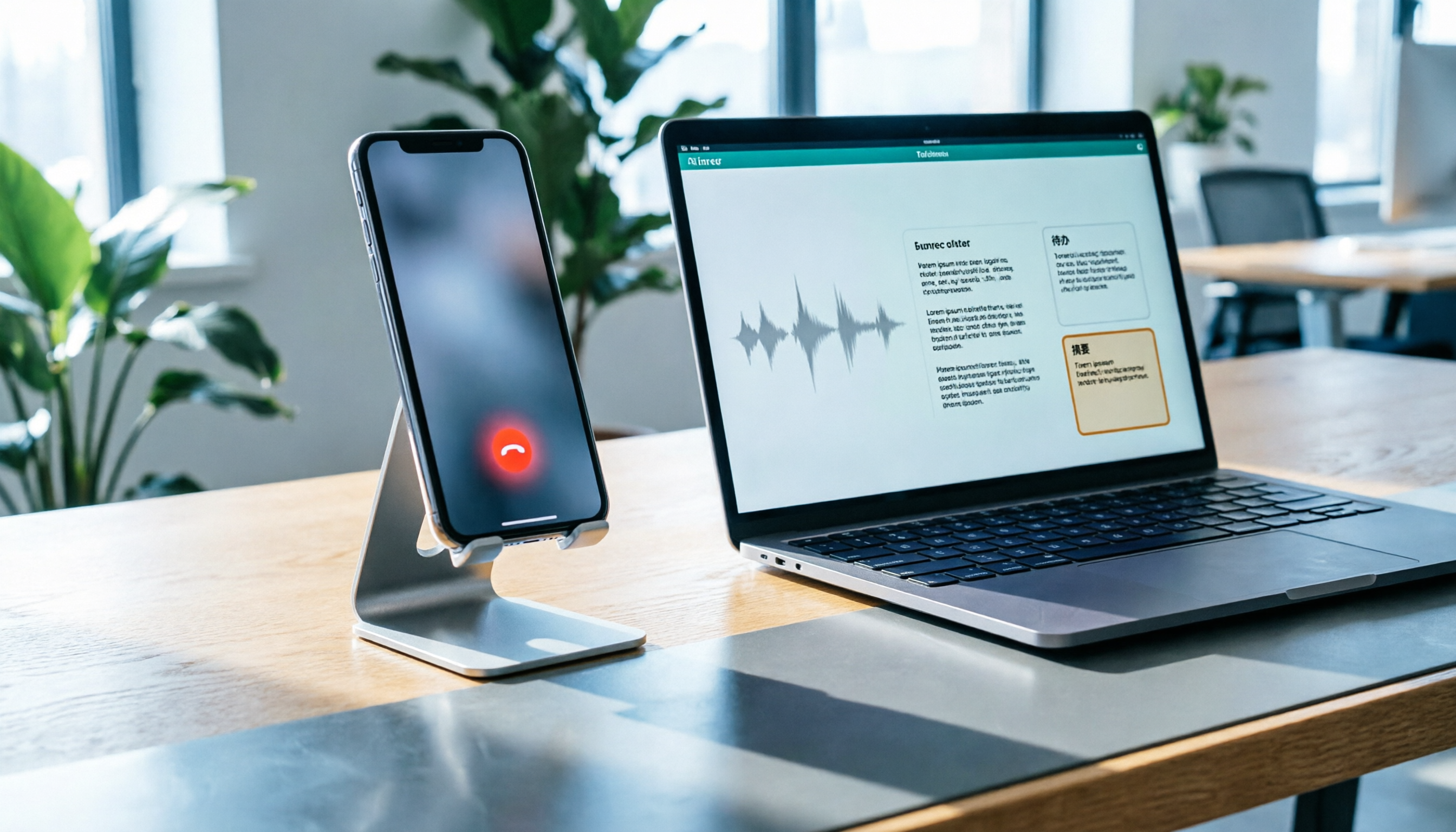
How to Record LINE Calls on iPhone in 2026: Built-in Steps + Auto Transcription
Can iPhone record LINE calls? LINE has no built-in recording button, but iPhone can capture calls as audio files via system-level recording. This guide walks through the steps, speakerphone requirements, and version differences, then shows how to use Tinrec to turn recordings into transcripts, summaries, and action items—so your recordings are actually useful.

3 iPhone Recording Workflows Compared in 2026: Auto-Transcription Saves the Most Time
Many people use iPhone recording only to capture audio, then spend extra time re-listening and organizing. This article compares 3 recording workflows from a decision-making perspective: instead of just finding the record button, choose a tool that turns recordings into transcripts, summaries, and action items. Using Tinrec as an example, it explains how to automatically organize, query, and share iPhone recordings with your team.

3 iPhone Recording Methods Compared in 2026: Built-in Voice Memos, Call Recording, and AI Transcription
You don't need to download extra apps to record on your iPhone. This article debunks three common misconceptions, explains how to set up quick recording with Voice Memos, the Lock Screen, and the Action button, covers the built-in call recording in iOS 18.1, and compares how to organize your recordings afterward. It also details Tinrec's practical uses and limitations for transcription, summaries, and team collaboration.

How to Record Calls on iPhone in 2026: Built-in Steps & Transcript Tips
iPhone has built-in call recording starting with iOS 18.1. This guide starts from the everyday scenario of realizing you missed key points after hanging up, covers activation steps, two-party notification, and regional restrictions, and compares built-in features with post-call solutions like Tinrec to help you choose the right approach.
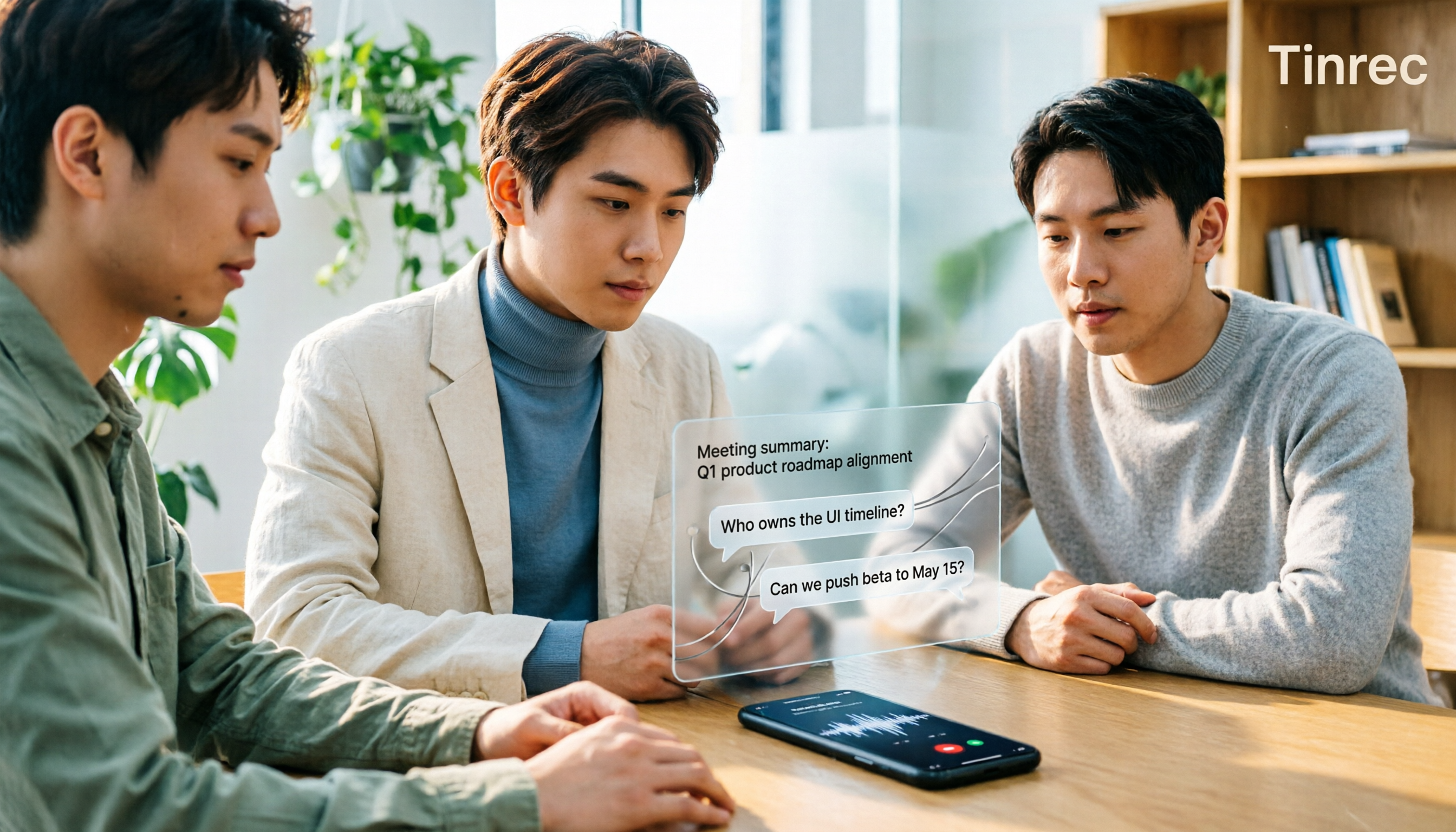
iPhone Audio to Text Guide 2026: 3 Methods Tested and Recommended
Your iPhone can turn recordings into transcripts, but device models, iOS versions, and language support all have requirements. This guide covers three built-in methods—Voice Memos, Notes app, and Dictation—and compares them with Tinrec for meeting notes, AI Q&A, and team collaboration. It includes selection criteria and 4 common mistakes to help you choose the right method for your situation.

How to Record Audio on iPhone with Headphones in 2026: 4 Connection Methods Tested + Auto Transcription
Recording on an iPhone with headphones seems simple, but plugging in headphones doesn't guarantee the headphone mic is used. This guide covers the real differences between four setups—AirPods, EarPods, USB-C headsets, and external microphones—how to check connector types, Bluetooth range risks, and how to use Tinrec to turn recordings into transcripts, summaries, and action items, saving you hours of re-listening.

4 iPhone Recording Methods Compared for 2026: Will the Other Party Know, and Which One Is Right for You?
When you press the built-in iPhone call recording button, will the other person know? The answer is yes, and there is no official way to turn it off. This article clearly explains the actual process of the 3-second countdown and voice prompt, then compares four approaches: built-in call recording, recording hardware, third-party apps, and Tinrec, to help you choose the right method based on what you're recording and what you'll do with it afterward.