

Turn recordings into transcripts and summaries in minutes
Upload audio or video for multilingual transcription, AI notes, and action items
Why You Often Don't Want to Listen to Your iPhone Headphone Recordings a Second Time
You record a two-hour class, go back to your dorm, put on headphones, and the first ten minutes are the sound of the student next to you flipping pages, the middle is the low hum of the air conditioner, and the teacher's voice is muddled in the background.
During a meeting, you place your phone on the table to record, and the whole segment is keyboard clicks and chairs sliding. You have to scrub back and forth on the timeline to find the important conclusions.
More often than not, the recording sits safely on your phone, but you never open it a second time. Because a two-hour file takes two hours to re-listen to.
This article isn't about advanced recording techniques. It's about clarifying the whole "recording on iPhone with headphones" process: which headphones actually capture audio, how to check connectors, when not to use a headphone mic, and how to turn your recording into searchable, queryable, exportable data afterward.
Understand These 4 Things First So Your iPhone Headphone Recording Isn't Wasted
1. Does Your Headphone Actually Have a Microphone?
This is where most people get confused.
As long as the headphone has a microphone—AirPods, EarPods, or any third-party headset—it can be used as an audio input source for recording. But if you're using headphones without a microphone (just speakers, no mic), the iPhone will automatically switch back to the built-in microphone, and you'll still be recording ambient sound.
In other words, you think you're "recording with headphones," but the phone is actually using the microphone at the bottom of the device to capture the whole room.
Before recording, confirm one thing: Can the other person hear you when you're on a call with these headphones? If yes, they have a microphone.
2. Check the Connector Type First: Lightning or USB-C
Older iPhones use Lightning, and iPhone 15 and later switched to USB-C.
This is practical. Before buying an external microphone or wired headset, check which connector your phone uses. Otherwise, you'll need an adapter, and every adapter adds another point of failure.
My usual advice: If you plan to record seriously for more than six months, buy the version that matches your phone's connector directly. Don't rely on adapters.
3. Bluetooth Is Convenient but Has Range Risks
AirPods are the most common wireless headphones for iPhone users. Recording with them is intuitive—just put them on and record.
Note that AirPods microphones are primarily designed for calls, with a voice-oriented recording profile. Background noise suppression is good, but musical or ambient details are reduced. If your goal is to capture speech content, AirPods are a convenient first choice.
Also, if you're too far from the iPhone while recording with AirPods, the Bluetooth signal may become unstable and occasionally drop out. For important content, keep the phone on your body or on the table, not too far away, and avoid walls or metal table legs in between.
4. Headphone Microphones Are for "Voice," Not "Environment"
This determines whether you should use headphone recording.
If you're recording a live environment, a group discussion, or a musical performance, the headphone mic's pickup range is too narrow and the results will be much worse. Consider an external microphone or the iPhone's built-in mic instead.
But for general voice memos, class recordings, and meeting notes, a headphone mic is perfectly adequate.
Conversely, if you're making a podcast, vlog, or music demo, headphone mic audio tends to sound muffled and lacks detail—an external microphone is better.
Simply put: Capturing content → headphone mic is enough; producing content → use an external microphone.
Tinrec — Recording Is Just the First Step; Organizing Saves Time
Now that we've covered how to record, here's what I think is more critical: what to do after recording.
Tinrec is an AI meeting notes and collaboration tool for individuals and teams, available on iOS, Android, and web. It doesn't just convert audio to text—it turns recordings into searchable, summarizable, queryable, and exportable data.
Three Practical Scenarios
Classes or lectures: After recording the entire session with headphones, import the audio file into Tinrec. It generates a transcript and automatically creates summaries and chapters. You don't need to re-listen from minute one—just look at the structure to see what each section covers.
Meeting notes: If you're hosting a Zoom, Google Meet, Microsoft Teams, or Webex meeting on your computer, the Tinrec desktop app captures system audio directly without inviting a meeting bot. When the meeting ends, the transcript, summary, and action items are already there—who's responsible for what and what to follow up on next time, all at a glance.
Stop organizing recordings by hand
Upload audio or video and automatically get a transcript, summary, and action items
Organizing old recordings: You have dozens of unorganized audio files sitting on your phone, and listening to them one by one is unrealistic. After importing, you can ask questions directly about the content, such as "Who mentioned the budget in the last meeting?" It answers based on semantics, not just keyword search results.
What It Does Beyond a Typical Recording App
Typical recording software handles "capturing it." Basic transcription tools handle "turning it into text." Tinrec goes a step further: automatically generating summaries, chapters, key points, and action items, supporting real-time translation and bilingual viewing, and exporting to Notion, Google Docs, OneNote, Dropbox, and other tools for further processing—or using Agent post-processing to generate reports, tables, and documents.
Honest Limitations
Tinrec's free plan offers a basic quota so you can try recording, importing, summarizing, and transcribing—fine for light use. If you have consistent weekly needs, consider a weekly pass or Pro.
Also, transcription quality is affected by recording quality, noise, accents, overlapping speakers, and technical terminology. Don't treat it as a "100% accurate" tool. For important content, cross-check with transcript timestamps and audio playback.
Who It's For
If you frequently need to turn Chinese or mixed Chinese-English meetings, courses, and interviews into usable text data, and want to use AI to find key points right after recording—Tinrec is one of the smoothest options available.
If an entire team needs to use it together, the team plan provides a separate team workspace where meeting data belongs to the team, with member, role, seat, usage analytics, and audit logs. Data stays even when members leave.
Besides Tinrec, What Other Options Are There After Recording?
Apple Voice Memos Built into iPhone, completely free, no installation required—that's its biggest advantage. It has basic editing like trim, replace, and restore, and you can adjust recording modes in settings. But it's essentially a "recording tool"; organizing, summarizing, and querying after recording are still up to you. If you just need quick memos, the built-in app is enough.
Otter.ai A veteran choice for English meetings. The Basic free plan offers 300 minutes per month, which is generous. But it doesn't support Chinese or Cantonese. If you mainly record English content, it's more cost-effective than Tinrec; conversely, if your meetings are in Chinese or mixed Chinese-English, Otter isn't the right tool.
Notta Good multilingual transcription capabilities. The Free plan offers 120 minutes per month with a maximum of 3 minutes per item; Pro annual billing is about USD 8.17/month. It overlaps significantly with Tinrec. The difference is that Tinrec emphasizes bot-free desktop recording of online meetings, AI Q&A, and team knowledge retention. If you just need simple document transcription, Notta is worth a look.
TurboScribe More of a cost-effective file transcription tool, focused on long documents and batch uploads. Free plan: 3 files per day, up to 30 minutes per file. If you have a bunch of long audio files to process at once, it has an advantage in batch processing; but real-time meeting notes, post-meeting Q&A, and team collaboration aren't its strong suits.
Pitfall Guide: The 4 Most Common iPhone Headphone Recording Mistakes
Pitfall 1: Assuming plugging in headphones means using the headphone mic. Headphones without a microphone will silently cause the iPhone to switch back to the built-in mic, and you'll still record the whole room. Test with a call before recording to be safe.
Pitfall 2: Buying a microphone with the wrong connector. Lightning and USB-C are two different worlds. Check your model before buying. Every adapter adds another point of failure.
Pitfall 3: Bluetooth headphones too far from the phone. AirPods are convenient for recording, but when distance increases and obstacles are in between, the signal becomes unstable and important content may have gaps. Keeping the phone on your body or on the table is the simplest safeguard.
Pitfall 4: Treating recording as just recording, without post-processing. This is the most common and most regrettable one. You record for two hours, save it to a folder, and never open it again. If you only use a transcription tool for "audio to text," you're using only a third of its capability—asking it "What were the conclusions of this meeting?" right after recording is much faster than manually scrubbing the timeline.
Conclusion: Which One Should You Use for Your Situation?
- Classes, lectures, one-on-one interviews → Wired headset (EarPods or third-party) is most stable; import into Tinrec for transcripts and summaries.
- Daily call-style notes, quick voice memos → AirPods are most convenient; just keep the phone not too far away.
- Online meetings (Zoom, Meet, Teams, Webex) → Use Tinrec desktop app to capture system audio; no meeting bot needed.
- Podcasts, music demos, live ambient sound → Don't use a headphone mic; go with an external microphone.
- English-only meetings, zero budget → Otter.ai free 300 minutes/month; the only scenario in this article where it's more suitable.
- Just quick recording, no organization needed → iPhone built-in Voice Memos is enough.
Overall, headphones just capture your voice. What truly makes a recording valuable is the organizing afterward. I suggest starting with Tinrec's free plan, recording a real meeting or class with your current headphones, and seeing if the transcription works for you. If it feels right, consider upgrading.
One final reminder: Before recording, be aware of local regulations and obtain consent when necessary. That's more important than any tool.
References
- 2026 iPhone Headphone Recording: 4 Methods Compared—From AirPods to External Microphones - Tinrec Blog
- Record in Voice Memos on iPhone - Apple Support (Taiwan)
- iPhone Call Recording - Best Deals - April 2026
- AirPods Wireless Earbuds Recording Function Detailed Tutorial with 13 AirPods Pro Hidden Tips | Practical Tutorial
- Use the Recorder in GarageBand for iPhone - Apple Support (Taiwan)
Turn every recording into actionable outcomes
Get 60 free transcription minutes when you sign in. No credit card required.
Related Reading
You might also like

3 iPhone Call Recording Methods Tested for 2026: Recording Is Easy, Organizing Is the Hard Part
How do you record calls on iPhone? This article compares three common approaches: iOS 18.1 built-in call recording, local capture with Voice Memos, and using Tinrec to turn recordings into searchable, queryable transcripts and action items. It covers version and region restrictions, notification and legal risks, four common pitfalls, and selection advice.
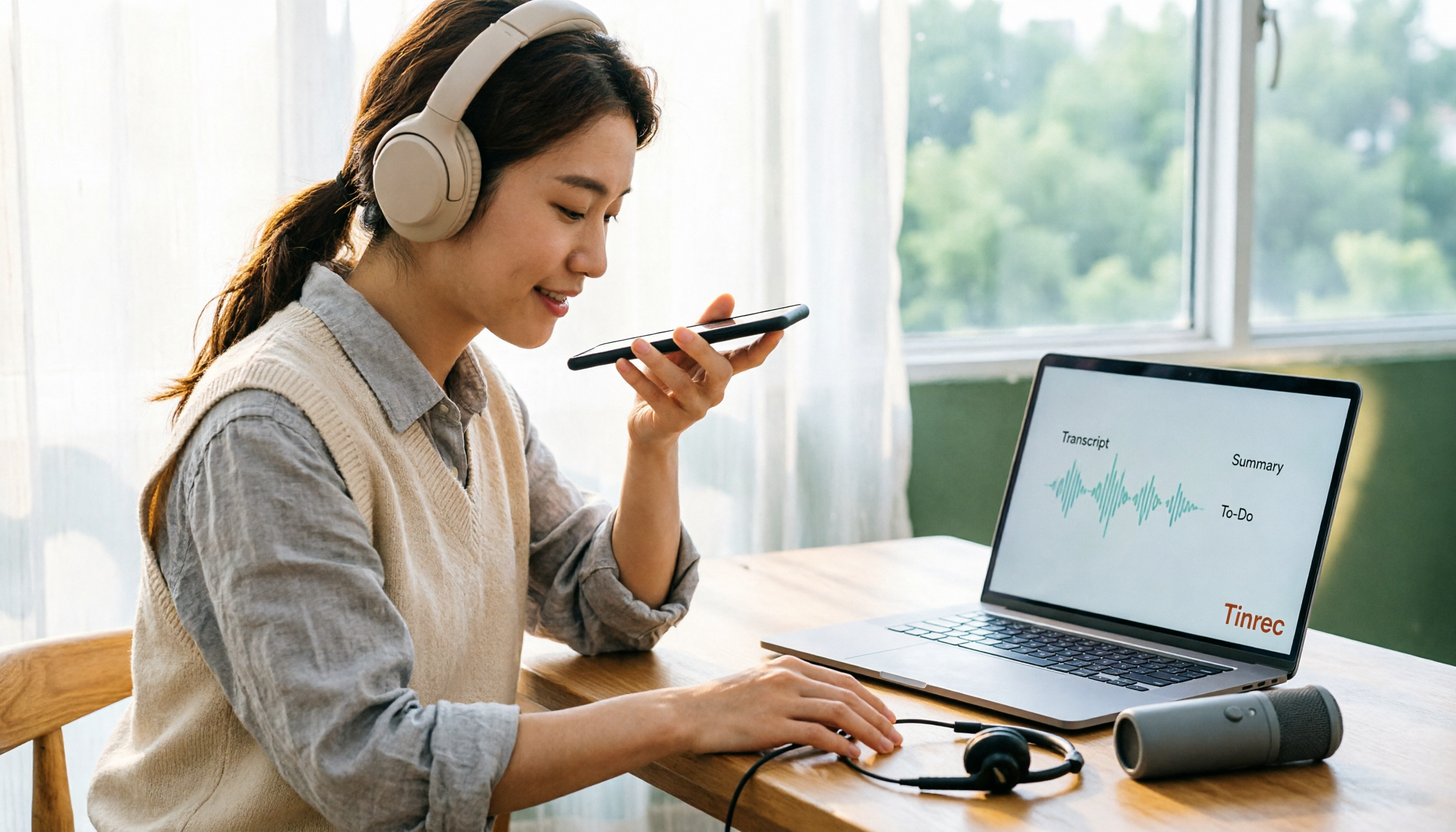
4 Ways to Record Audio on iPhone with Headphones in 2026: AirPods, Wired Headsets, and External Mics Compared
Can you record audio while wearing headphones? This article addresses common misconceptions and breaks down the differences, compatibility pitfalls, and key considerations of four headphone recording methods on iPhone. It also explains how to use Tinrec to organize transcripts, summaries, and action items after recording.

6 iPhone Recording Alternatives Tested for 2026: What to Choose When Built-in Features Fail
When iPhone recording doesn't work, the problem is often not the phone itself. This guide first helps you distinguish three situations: call recording limited by region and model, dictation not working, and Voice Memos cutting off mid-recording. Then it tests and compares 6 alternatives—Tinrec, Notta, Otter.ai, Granola, TurboScribe, and PLAUD—listing costs, limitations, and best-use scenarios so you can pick the right tool in 10 minutes.
How to Record LINE Calls on iPhone in 2026: Built-in Steps + Auto Transcription
Can iPhone record LINE calls? LINE has no built-in recording button, but iPhone can capture calls as audio files via system-level recording. This guide walks through the steps, speakerphone requirements, and version differences, then shows how to use Tinrec to turn recordings into transcripts, summaries, and action items—so your recordings are actually useful.

3 iPhone Recording Workflows Compared in 2026: Auto-Transcription Saves the Most Time
Many people use iPhone recording only to capture audio, then spend extra time re-listening and organizing. This article compares 3 recording workflows from a decision-making perspective: instead of just finding the record button, choose a tool that turns recordings into transcripts, summaries, and action items. Using Tinrec as an example, it explains how to automatically organize, query, and share iPhone recordings with your team.

3 iPhone Recording Methods Compared in 2026: Built-in Voice Memos, Call Recording, and AI Transcription
You don't need to download extra apps to record on your iPhone. This article debunks three common misconceptions, explains how to set up quick recording with Voice Memos, the Lock Screen, and the Action button, covers the built-in call recording in iOS 18.1, and compares how to organize your recordings afterward. It also details Tinrec's practical uses and limitations for transcription, summaries, and team collaboration.

How to Record Calls on iPhone in 2026: Built-in Steps & Transcript Tips
iPhone has built-in call recording starting with iOS 18.1. This guide starts from the everyday scenario of realizing you missed key points after hanging up, covers activation steps, two-party notification, and regional restrictions, and compares built-in features with post-call solutions like Tinrec to help you choose the right approach.
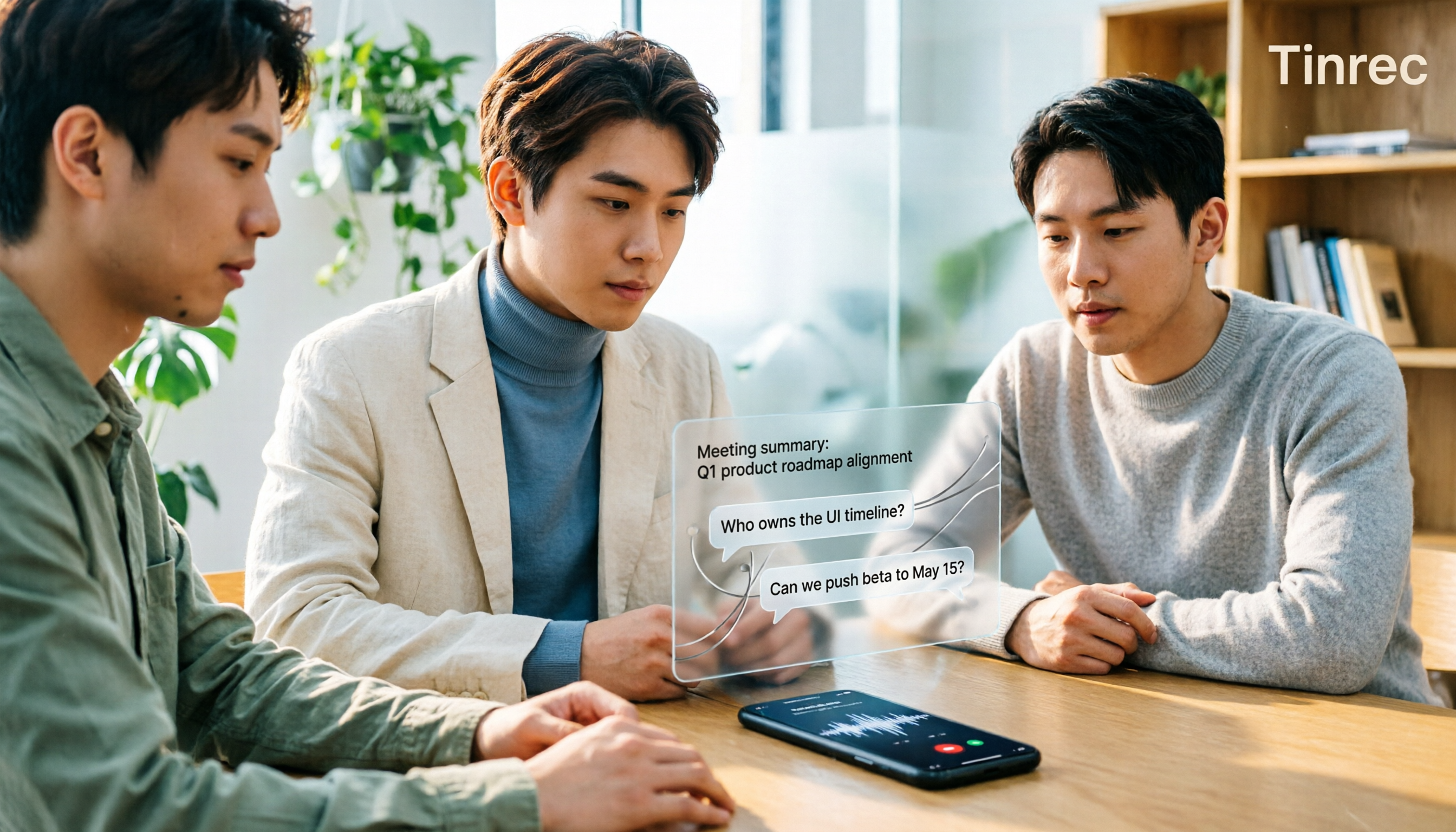
iPhone Audio to Text Guide 2026: 3 Methods Tested and Recommended
Your iPhone can turn recordings into transcripts, but device models, iOS versions, and language support all have requirements. This guide covers three built-in methods—Voice Memos, Notes app, and Dictation—and compares them with Tinrec for meeting notes, AI Q&A, and team collaboration. It includes selection criteria and 4 common mistakes to help you choose the right method for your situation.

4 iPhone Recording Methods Compared for 2026: Will the Other Party Know, and Which One Is Right for You?
When you press the built-in iPhone call recording button, will the other person know? The answer is yes, and there is no official way to turn it off. This article clearly explains the actual process of the 3-second countdown and voice prompt, then compares four approaches: built-in call recording, recording hardware, third-party apps, and Tinrec, to help you choose the right method based on what you're recording and what you'll do with it afterward.