

Turn recordings into transcripts and summaries in minutes
Upload audio or video for multilingual transcription, AI notes, and action items
Do you just want to "capture it," or do you want to "use it right after recording"? This is the key choice for iPhone recording. Most people searching for recording methods find how to press the record button; but the real difference comes after recording—some spend double the time re-listening, while others directly get transcripts, summaries, and action items. This article compares 3 common workflows and uses Tinrec as an example to show how to turn iPhone recordings from "files" into "actionable data."
What Can iPhone Recording Do for You? 3 Scenarios from Recording to Action
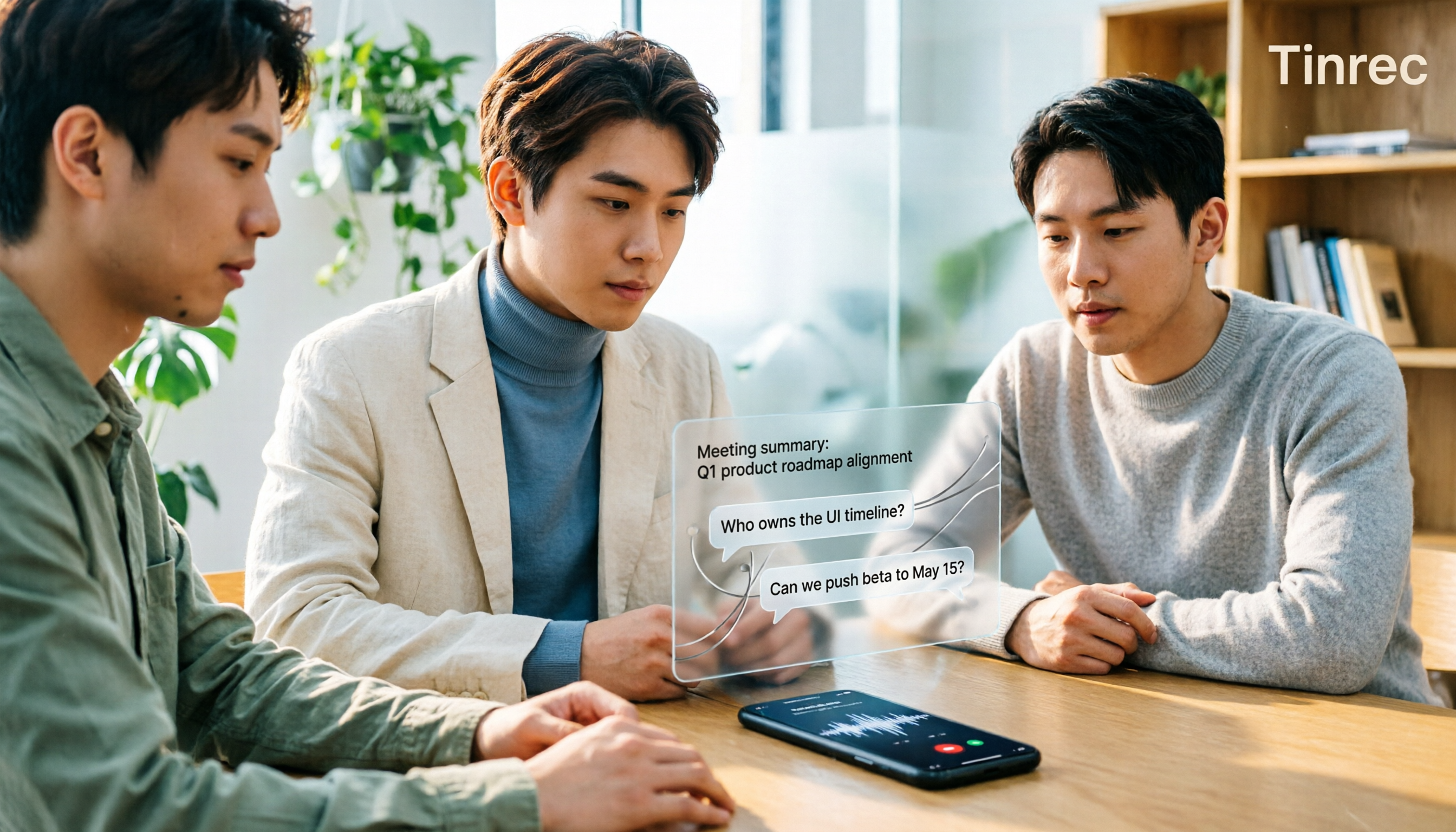
Scenario 1: Ad-hoc Interview, Need Transcript Right After Recording Previously, after recording an interview on iPhone, you'd likely spend another hour re-listening and typing. Now, with Tinrec as an example, you can record directly on mobile and transcribe while recording; after finishing, open the transcript, use AI summary to capture key points from the interviewee, and then use AI Q&A to ask follow-up questions like "What was the budget range they mentioned?"
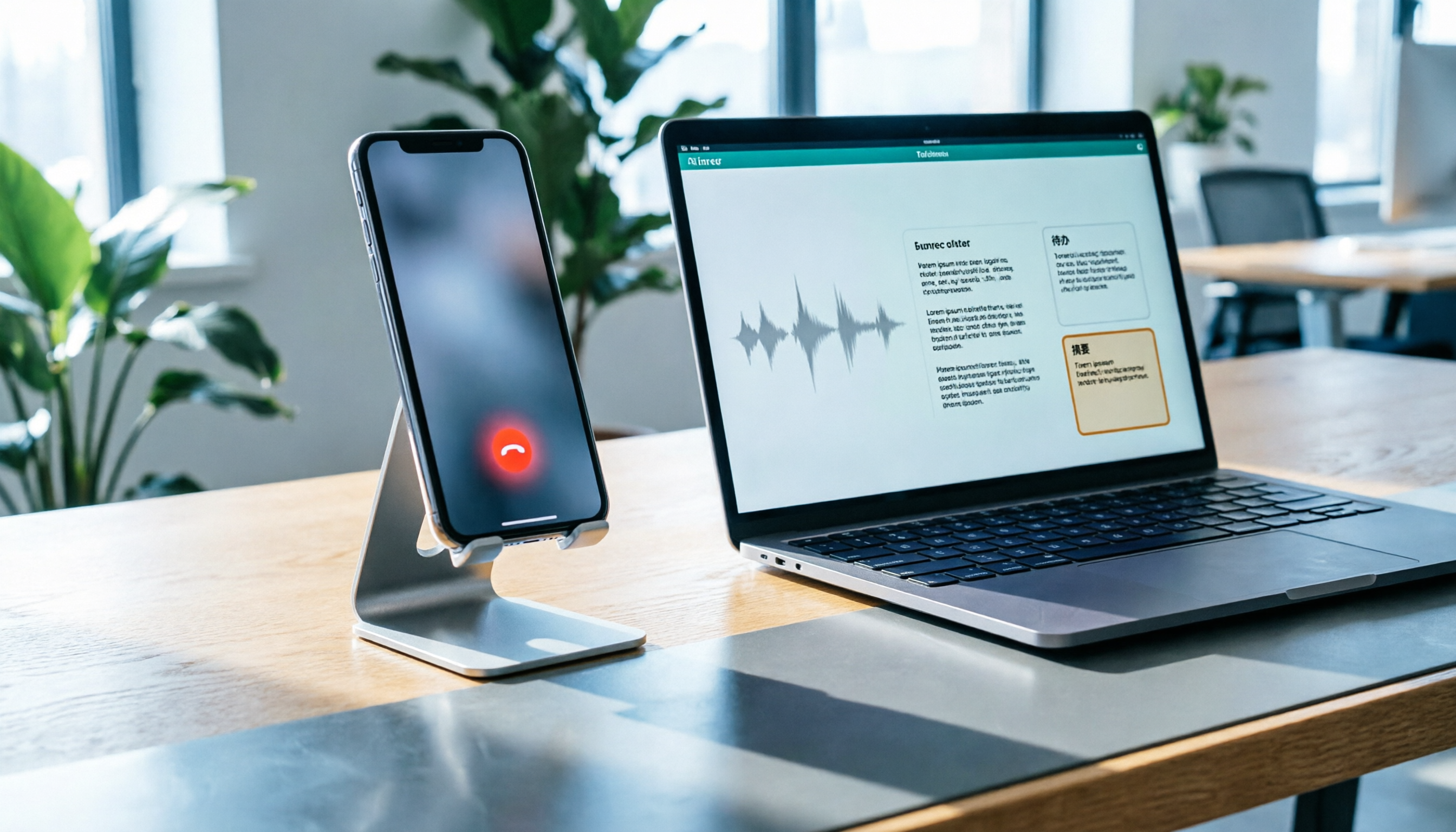
Scenario 2: Online Meeting, No Extra Bot Wanted If you record an offline meeting on iPhone, you can import the audio file into Tinrec back at your desk for unified organization. For online meetings on a computer, Tinrec's desktop version captures system audio directly without inviting a meeting bot, and after recording, it goes through the same transcript and summary process.
Scenario 3: Team Weekly Meeting, Data Needs to Be Retained The biggest problem with personal recording is that "after recording, it stays on the phone, only accessible to you." Tinrec's team version centralizes meeting recordings, transcripts, summaries, and action items in a team space, allowing new members to view historical data and managers to check usage and seats.
What Are the Core Capabilities of iPhone Recording? Tinrec as an Example
Real-time Transcription: Not transcribing after recording. Tinrec supports real-time recording-to-text; while you record on iPhone, text starts to accumulate, so you don't need to re-listen to the whole segment to confirm a sentence.
AI Summary and Chapters: Long meetings fear lack of structure. Tinrec automatically generates summaries, chapters, and key points, letting you grasp a 60-minute discussion in 30 seconds.
Action Item Extraction: When someone says "send the quote by next Wednesday," Tinrec organizes action items, reducing omissions from manual note-taking.
AI Q&A: After transcription, you can directly ask "What was the client's biggest objection?" "Who is responsible for the budget?" Tinrec answers based on meeting content, suitable for reviewing historical recordings.
Multi-format Export and Translation: Organized content can be exported to common formats and third-party tools; cross-language meetings can also use real-time translation to view in original, translated, or bilingual format.
Team Space: The team version provides independent space, member roles, seat management, usage analysis, and audit logs, making meeting data owned by the team and not lost when individuals leave.
Practical Application Scenarios
Sales Visits: Record customer needs on iPhone, then use Tinrec to generate transcripts and summaries back at the office, quickly organizing customer pain points, commitments, and next steps.
Stop organizing recordings by hand
Upload audio or video and automatically get a transcript, summary, and action items
Courses and Lectures: Record with iPhone while sitting in the audience; Tinrec breaks long lectures into chapters, allowing keyword search before exams without re-listening to three hours.
Content Creation Interviews: After interviewing, use AI Q&A to find quotable lines, export transcripts into the writing process, saving time from repeatedly playing recordings.
Team Decision Meetings: Use Tinrec's team version to capture conclusions, action items, and owners from each weekly meeting; next time, review previous action items first instead of re-arguing.
5 Things to Consider When Choosing an iPhone Recording Tool
- Can it organize after recording: Tools that only provide audio files leave the work to you. Tinrec's value is after transcription—summaries, chapters, action items, and Q&A all in one.
- Chinese and mixed Chinese-English: Meetings in Taiwan often mix English. Tinrec covers Chinese, Traditional Chinese, and multilingual scenarios, and supports team hotwords, making technical terms less likely to be misheard.
- Whether audio files are retained: Some tools only provide text without saving audio. Tinrec retains recordings, allowing you to listen back to important content at specific timestamps.
- Cross-device and online meetings: Confirm the tool works on your commonly used devices. Tinrec has mobile, web, and desktop versions; for online meetings, use the desktop version for bot-free recording.
- Team collaboration and permissions: For multi-user use, roles and seats must be distinguished. Tinrec's team version controls governance by roles and usage by seats; members without seats can view data but cannot upload or edit.
Frequently Asked Questions
Q1: How do I use the built-in iPhone recorder? Find the built-in recording feature on iPhone, press the record button to start, and press stop when finished. This method is suitable for simple recording; but if you need transcripts and summaries, instead of figuring it out after recording, use Tinrec's mobile recording to move the organization process earlier.
Q2: Can Tinrec be used on iPhone? Yes. Tinrec supports mobile and web versions; after opening on iPhone, you can record or import audio files, and later view transcripts, summaries, and action items on your phone or computer.
Q3: Is recording-to-text accurate? It's not recommended to look only at fixed accuracy rates. Audio quality, accents, background noise, and overlapping speakers all affect results. Tinrec provides high-quality transcription in clear audio and common scenarios; for important content, it's advisable to cross-check with recording playback.
Q4: What's the difference between the team version and personal version? Personal version data is managed by the individual account; the team version has an independent team space where meeting data is owned by the team, and adds member roles, seats, sharing benefits, usage analysis, audit logs, and audio recycle bin.
Q5: Is the free version enough? If you only record occasionally, the free version lets you experience the basic workflow; if you have regular weekly meetings or interviews, consider Pro; for multi-person collaboration, consider the team version.
Conclusion
iPhone recording is not difficult; the difficult part is after recording. Instead of comparing whose record button is bigger, choose a tool that helps you turn voice into transcripts, summaries, and action items. Using Tinrec as an example, it puts recording, transcription, summarization, Q&A, and team sharing in the same workflow. If you have weekly meetings or interviews, you can start with the free version to experience "no re-listening after recording," then decide whether to upgrade to Pro or the team version.
References
- How to Record Audio and Voice on iPhone in 3 Simple Ways
- iPhone Recording Shortcut Setup Tutorial, 3 Ways to Quickly Start Recording - Tech Girlz
- Record in Voice Memos on iPhone - Apple Support (Hong Kong)
- r/iphone on Reddit: How do you record something voice on your iPhone?
- Complete iPhone Recording Tutorial (Latest iOS 26) - Voice Memos - Plaud
Turn every recording into actionable outcomes
Get 60 free transcription minutes when you sign in. No credit card required.
Related Reading
You might also like

3 iPhone Call Recording Methods Tested for 2026: Recording Is Easy, Organizing Is the Hard Part
How do you record calls on iPhone? This article compares three common approaches: iOS 18.1 built-in call recording, local capture with Voice Memos, and using Tinrec to turn recordings into searchable, queryable transcripts and action items. It covers version and region restrictions, notification and legal risks, four common pitfalls, and selection advice.

4 Ways to Record Audio on iPhone with Headphones in 2026: AirPods, Wired Headsets, and External Mics Compared
Can you record audio while wearing headphones? This article addresses common misconceptions and breaks down the differences, compatibility pitfalls, and key considerations of four headphone recording methods on iPhone. It also explains how to use Tinrec to organize transcripts, summaries, and action items after recording.

6 iPhone Recording Alternatives Tested for 2026: What to Choose When Built-in Features Fail
When iPhone recording doesn't work, the problem is often not the phone itself. This guide first helps you distinguish three situations: call recording limited by region and model, dictation not working, and Voice Memos cutting off mid-recording. Then it tests and compares 6 alternatives—Tinrec, Notta, Otter.ai, Granola, TurboScribe, and PLAUD—listing costs, limitations, and best-use scenarios so you can pick the right tool in 10 minutes.
How to Record LINE Calls on iPhone in 2026: Built-in Steps + Auto Transcription
Can iPhone record LINE calls? LINE has no built-in recording button, but iPhone can capture calls as audio files via system-level recording. This guide walks through the steps, speakerphone requirements, and version differences, then shows how to use Tinrec to turn recordings into transcripts, summaries, and action items—so your recordings are actually useful.

3 iPhone Recording Methods Compared in 2026: Built-in Voice Memos, Call Recording, and AI Transcription
You don't need to download extra apps to record on your iPhone. This article debunks three common misconceptions, explains how to set up quick recording with Voice Memos, the Lock Screen, and the Action button, covers the built-in call recording in iOS 18.1, and compares how to organize your recordings afterward. It also details Tinrec's practical uses and limitations for transcription, summaries, and team collaboration.

How to Record Calls on iPhone in 2026: Built-in Steps & Transcript Tips
iPhone has built-in call recording starting with iOS 18.1. This guide starts from the everyday scenario of realizing you missed key points after hanging up, covers activation steps, two-party notification, and regional restrictions, and compares built-in features with post-call solutions like Tinrec to help you choose the right approach.
iPhone Audio to Text Guide 2026: 3 Methods Tested and Recommended
Your iPhone can turn recordings into transcripts, but device models, iOS versions, and language support all have requirements. This guide covers three built-in methods—Voice Memos, Notes app, and Dictation—and compares them with Tinrec for meeting notes, AI Q&A, and team collaboration. It includes selection criteria and 4 common mistakes to help you choose the right method for your situation.

How to Record Audio on iPhone with Headphones in 2026: 4 Connection Methods Tested + Auto Transcription
Recording on an iPhone with headphones seems simple, but plugging in headphones doesn't guarantee the headphone mic is used. This guide covers the real differences between four setups—AirPods, EarPods, USB-C headsets, and external microphones—how to check connector types, Bluetooth range risks, and how to use Tinrec to turn recordings into transcripts, summaries, and action items, saving you hours of re-listening.

4 iPhone Recording Methods Compared for 2026: Will the Other Party Know, and Which One Is Right for You?
When you press the built-in iPhone call recording button, will the other person know? The answer is yes, and there is no official way to turn it off. This article clearly explains the actual process of the 3-second countdown and voice prompt, then compares four approaches: built-in call recording, recording hardware, third-party apps, and Tinrec, to help you choose the right method based on what you're recording and what you'll do with it afterward.