

Turn recordings into transcripts and summaries in minutes
Upload audio or video for multilingual transcription, AI notes, and action items
Three common misconceptions that keep your iPhone's recording features idle
Misconception #1: You think iPhone can't record and you need to download something from the App Store. In fact, Voice Memos has always been built into the Utilities folder—it's just not visible on the Home Screen by default.
Misconception #2: You think call recording requires an add-on, a second phone, or a sketchy app. Starting with iOS 18.1, the built-in Phone app on iPhone has a call recording button.
Misconception #3, and the one I find most unfortunate: You think pressing the record button is the end of it. The real time sink is after recording—a half-hour meeting recording takes another half hour to replay, and eventually those files become a bunch of digital clutter on your phone you're afraid to open.
This article breaks down the three iPhone recording methods and honestly discusses how to organize your recordings afterward. If you always record and forget, the latter part should be useful.
Before choosing an iPhone recording method, understand these 3 key points
① Launch speed: Can you record directly from the Lock Screen?
When you really need to record, it's usually when you don't have time to unlock your phone. There are several ways to quick-record on iPhone: Shortcuts with Back Tap, adding Voice Memos to Control Center, replacing the Lock Screen bottom shortcut with Voice Memos in iOS 18 and later, and the Action button on iPhone 15 Pro models and later. The Action button can start recording even when the screen is locked—that's its biggest value.
② Where files go: Can you find them after recording?
Built-in recordings all go to Voice Memos, and call recordings are automatically saved there too—that's convenient. Watch out for naming—by default they're named "New Recording" or by location. If you record three meetings a day, you'll soon lose track of which file is which.
③ What to do after recording: This is where the real difference lies
This is what I usually check first. If you just want a voice backup, the built-in features are completely sufficient. But if you're recording meetings, interviews, or classes and need transcripts, key points, and action items, pure recording only gets you halfway there.
Tinrec—the part that truly saves time after recording
Tinrec is an AI meeting notes and collaboration tool for individuals and teams, available on web, desktop, and mobile. It doesn't solve "how to record audio"—it solves "what to do after recording."
Turn iPhone recordings directly into transcripts
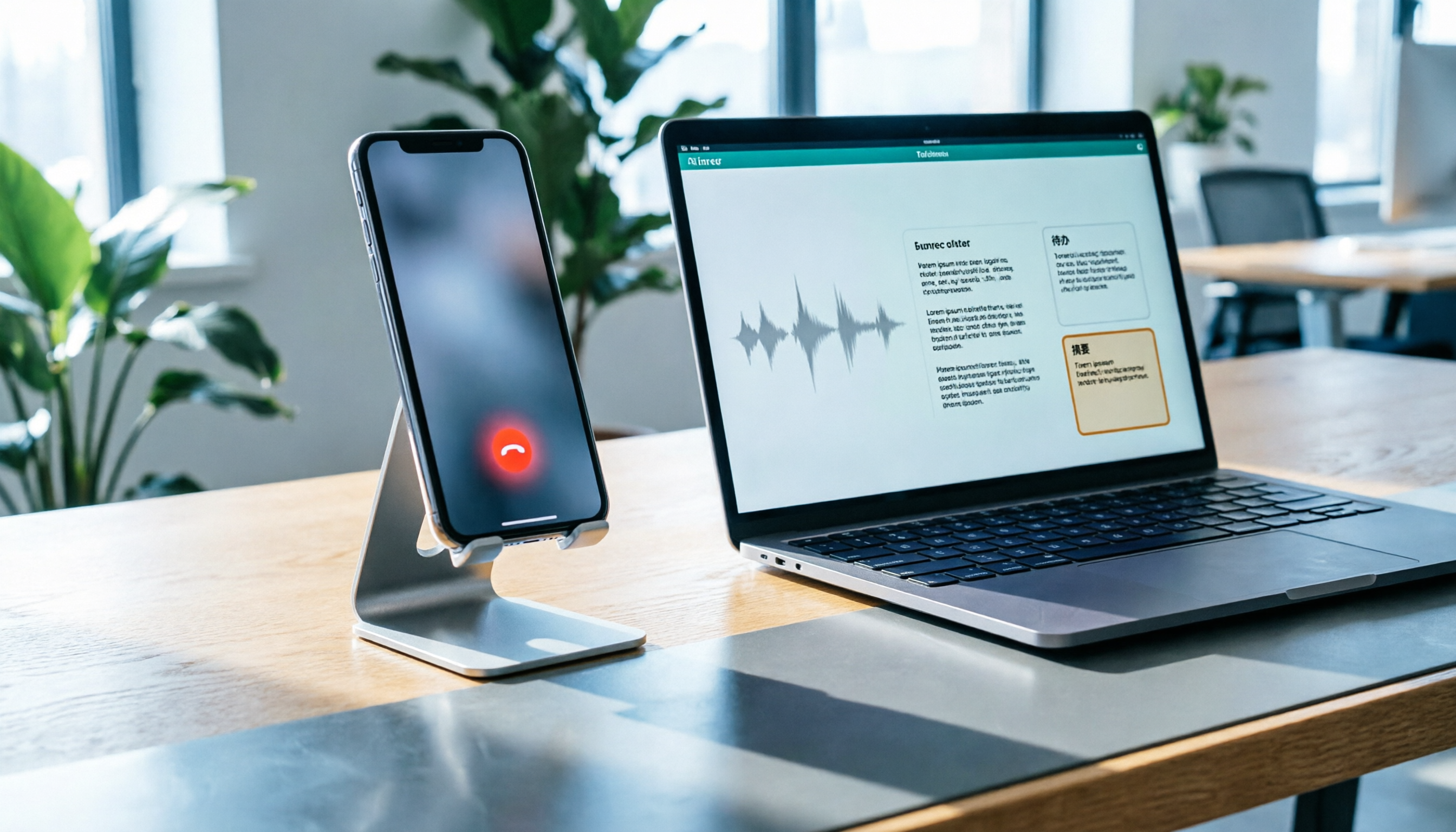
The simplest use case: record a meeting with Voice Memos, upload the audio file to Tinrec, and it converts it to a transcript. Then you don't have to listen from the beginning—just search for keywords to jump to that part of the conversation. It also handles video files and some public web links as supplementary uses.
Summaries, chapters, and action items turn long meetings into scannable structure
A half-hour meeting transcript can be tens of thousands of words. Tinrec automatically generates summaries and chapters, breaking long meetings into browsable sections, and extracts action items from the discussion—who needs to do what, without flipping back yourself.
AI Q&A: This is where it differs most from ordinary transcription tools
After recording, you can ask directly: "Who mentioned the budget in the last meeting?" "What were the client's concerns about pricing?" It gives you answers based on content understanding, not keyword search results. If your meeting data has accumulated over months, this feature makes a noticeable difference—before, finding a single quote meant digging through three transcripts; now it's just one question.
If you're recording online meetings
Tinrec's desktop version captures computer system audio directly, handling Zoom, Google Meet, Microsoft Teams, Webex, and other online meetings without needing a separate meeting bot to join. Note that this doesn't mean "automatically joins all meetings"—you still need to actively open Tinrec and start recording.
When you need team collaboration
The team version isn't multiple people sharing a personal account—it's a separate team workspace. Meeting data belongs to the team; members can view, play, and read even without a seat, but recording, uploading, editing, and exporting require a seat. Roles govern administration (who can manage members, view audits), while seats govern usage eligibility—these are two separate things.
Stop organizing recordings by hand
Upload audio or video and automatically get a transcript, summary, and action items
The current team plan offers a 7-day trial, 1 free seat, and 300 minutes of shared team import quota; monthly billing is USD 29.80 per paid seat per month, annual billing is USD 199 per paid seat per year (about USD 16.58 per month), with each paid seat providing 2,000 minutes of shared import quota per month. Under an active team plan, live recording currently doesn't deduct minutes; file and web imports use the shared team quota. Actual pricing and benefits are subject to the official purchase page.
Honestly, where are its limitations
The free version provides a basic quota—fine for occasional one or two recordings, but daily meeting attendees will hit the limit and need to upgrade. Also, transcription quality is affected by audio quality, ambient noise, accents, multiple people speaking at once, and technical terminology. For important content, verify against transcript timestamps and audio playback—don't treat it as a 100% error-free record. Also, the team version currently focuses on team-level sharing, not granular per-file permission control.
Who is it for
If your purpose for recording is "to produce something after the meeting"—meeting minutes, interview transcripts, action item lists—or you need data accumulated in a team rather than scattered across personal phones, then Tinrec's approach is far more practical than simple recording.
Beyond built-in features, what other recording and organization options are there?
Otter.ai
A mature choice for English meetings, with a free tier of 300 minutes per month—a generous quota. But its strength is English business scenarios; Chinese meetings aren't its focus. If your recordings are almost all in English, it's a great value; but if you need Chinese transcripts plus bot-free desktop recording, you'll need to evaluate further.
Notta
Multilingual transcription and translation are its strengths, and it supports file import and team plans. The free version offers 120 minutes per month with a 3-minute limit per item—fine for short videos, but long meetings will keep getting interrupted. It leans toward a transcription tool; post-meeting follow-up and data retention aren't its focus—this differs from Tinrec's AI Q&A and team workspace positioning.
PLAUD Note / NotePin
A hardware approach, with the device itself costing about USD 159–189. The advantage is portability—pick it up and record. Keep in mind you need to buy an extra device, and it doesn't handle online meetings on your computer. If your needs span both phone recording and Zoom meetings, a software solution is simpler.
Pitfall guide: The 4 most common mistakes when recording on iPhone
Pitfall 1: Not knowing that iOS 18.1 and later already have built-in call recording
Many people are still looking for third-party call recording apps. Actually, as long as you update to iOS 18.1 or later, when using the built-in Phone app, a record button appears in the top-left corner of the interface. Press it and recording starts after about a 3-second countdown; the file is automatically saved to Voice Memos when done. Checking your system version is faster than searching for an app.
Pitfall 2: Ignoring recording notifications and legal boundaries
iPhone's call recording notifies the other party that the call is being recorded—this is Apple's design to protect both parties' privacy, and there's currently no option to turn it off. Also note that recording someone's private conversation without consent may violate laws against secret recording. Recording is meant to protect your own rights, not for other purposes.
Pitfall 3: Doing nothing after recording
This is the biggest pitfall. Leaving recordings unorganized is the same as not recording. Make it a habit: the same day you record, convert the file to a transcript and extract three to five key points and action items. If you wait more than a week, you probably won't open it again.
Pitfall 4: Using the same approach for every situation
For quick memos, Voice Memos is fine; for formal meetings, use a tool that produces transcripts and summaries; for phone calls, use built-in call recording. Distinguish the scenarios so you don't use a sledgehammer to crack a nut—or discover at the critical moment that your tools aren't enough.
Conclusion: Which one should you actually use?
Simply put, these three methods aren't replacements for each other—they're a division of labor:
- Just want a voice backup → Voice Memos: built-in, free, easiest.
- Need to record without time to unlock → Set the Action button (iPhone 15 Pro and later) or Lock Screen shortcut to Voice Memos.
- Need to record phone calls → Update to iOS 18.1 or later and use built-in call recording; remember the other party will be notified.
- Need to produce minutes and action items after meetings → A tool like Tinrec turns recordings into searchable, queryable, exportable data.
- Team needs to share meeting notes → Choose a solution with team workspace, roles, and seat management so data doesn't leave with individuals.
If you already have a pile of unorganized recordings on your phone, try uploading one to test the transcription quality and see if transcripts and summaries can really save you replay time. Start with the free quota and upgrade only after confirming it fits your workflow—that's more practical than paying from the start.
References
- iPhone recording made easy! One-tap quick self-protection at critical moments
- iPhone recording shortcut setup guide: 3 ways to quickly start recording - Tech Girlz
- [Phone Tips] 2026 iPhone built-in call recording feature guide! iOS enable call recording / key points to note | Jyes Communication ~ Challenging the lowest phone prices
- Record in Voice Memos on iPhone - Apple Support (Taiwan)
- How to use iPhone call recording? Full analysis of built-in iOS call recording and transcription features - Mr. Mad
Turn every recording into actionable outcomes
Get 60 free transcription minutes when you sign in. No credit card required.
Related Reading
You might also like

3 iPhone Call Recording Methods Tested for 2026: Recording Is Easy, Organizing Is the Hard Part
How do you record calls on iPhone? This article compares three common approaches: iOS 18.1 built-in call recording, local capture with Voice Memos, and using Tinrec to turn recordings into searchable, queryable transcripts and action items. It covers version and region restrictions, notification and legal risks, four common pitfalls, and selection advice.

4 Ways to Record Audio on iPhone with Headphones in 2026: AirPods, Wired Headsets, and External Mics Compared
Can you record audio while wearing headphones? This article addresses common misconceptions and breaks down the differences, compatibility pitfalls, and key considerations of four headphone recording methods on iPhone. It also explains how to use Tinrec to organize transcripts, summaries, and action items after recording.

6 iPhone Recording Alternatives Tested for 2026: What to Choose When Built-in Features Fail
When iPhone recording doesn't work, the problem is often not the phone itself. This guide first helps you distinguish three situations: call recording limited by region and model, dictation not working, and Voice Memos cutting off mid-recording. Then it tests and compares 6 alternatives—Tinrec, Notta, Otter.ai, Granola, TurboScribe, and PLAUD—listing costs, limitations, and best-use scenarios so you can pick the right tool in 10 minutes.
How to Record LINE Calls on iPhone in 2026: Built-in Steps + Auto Transcription
Can iPhone record LINE calls? LINE has no built-in recording button, but iPhone can capture calls as audio files via system-level recording. This guide walks through the steps, speakerphone requirements, and version differences, then shows how to use Tinrec to turn recordings into transcripts, summaries, and action items—so your recordings are actually useful.

3 iPhone Recording Workflows Compared in 2026: Auto-Transcription Saves the Most Time
Many people use iPhone recording only to capture audio, then spend extra time re-listening and organizing. This article compares 3 recording workflows from a decision-making perspective: instead of just finding the record button, choose a tool that turns recordings into transcripts, summaries, and action items. Using Tinrec as an example, it explains how to automatically organize, query, and share iPhone recordings with your team.

How to Record Calls on iPhone in 2026: Built-in Steps & Transcript Tips
iPhone has built-in call recording starting with iOS 18.1. This guide starts from the everyday scenario of realizing you missed key points after hanging up, covers activation steps, two-party notification, and regional restrictions, and compares built-in features with post-call solutions like Tinrec to help you choose the right approach.

iPhone Audio to Text Guide 2026: 3 Methods Tested and Recommended
Your iPhone can turn recordings into transcripts, but device models, iOS versions, and language support all have requirements. This guide covers three built-in methods—Voice Memos, Notes app, and Dictation—and compares them with Tinrec for meeting notes, AI Q&A, and team collaboration. It includes selection criteria and 4 common mistakes to help you choose the right method for your situation.

How to Record Audio on iPhone with Headphones in 2026: 4 Connection Methods Tested + Auto Transcription
Recording on an iPhone with headphones seems simple, but plugging in headphones doesn't guarantee the headphone mic is used. This guide covers the real differences between four setups—AirPods, EarPods, USB-C headsets, and external microphones—how to check connector types, Bluetooth range risks, and how to use Tinrec to turn recordings into transcripts, summaries, and action items, saving you hours of re-listening.

4 iPhone Recording Methods Compared for 2026: Will the Other Party Know, and Which One Is Right for You?
When you press the built-in iPhone call recording button, will the other person know? The answer is yes, and there is no official way to turn it off. This article clearly explains the actual process of the 3-second countdown and voice prompt, then compares four approaches: built-in call recording, recording hardware, third-party apps, and Tinrec, to help you choose the right method based on what you're recording and what you'll do with it afterward.