
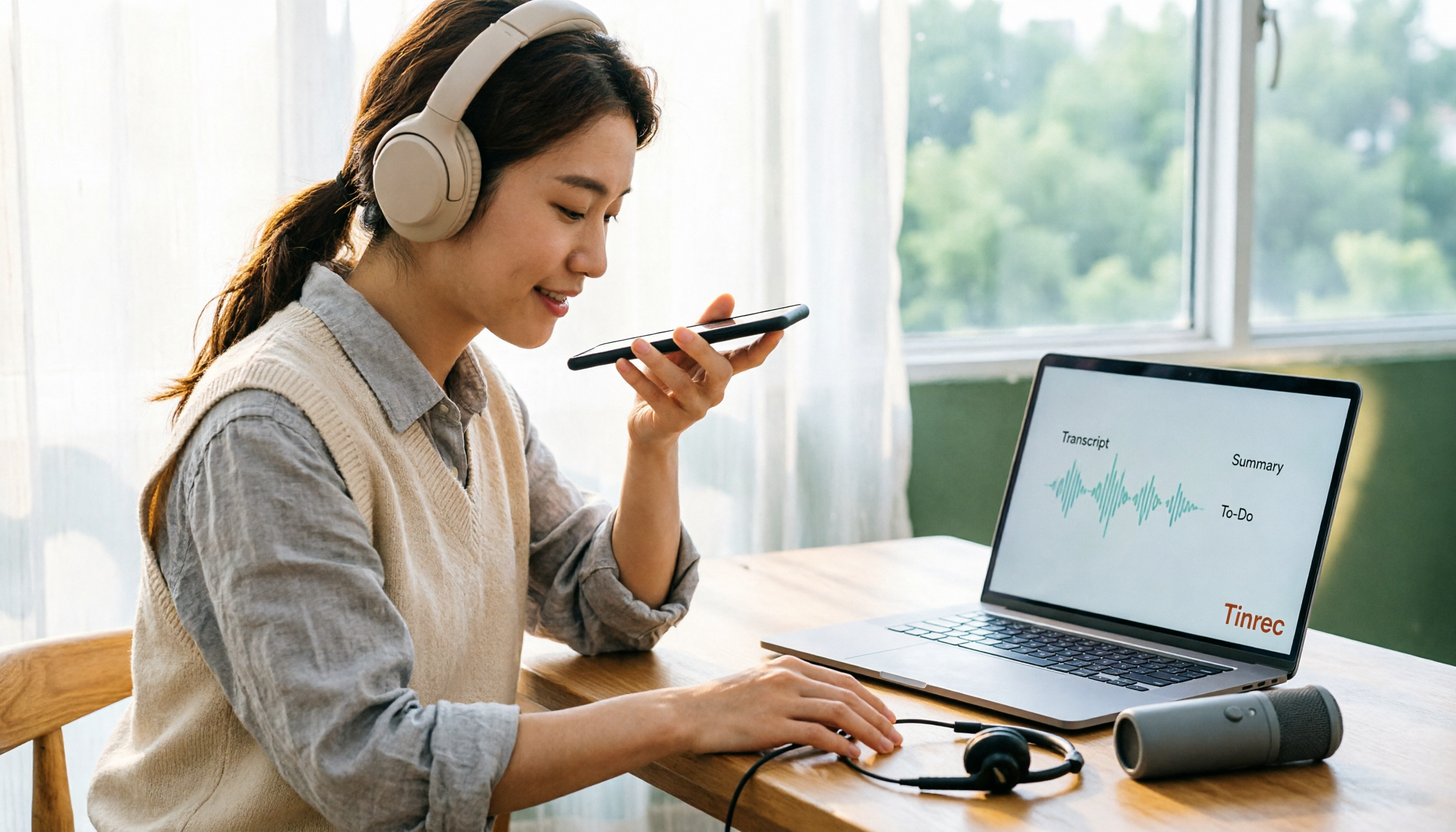
Turn recordings into transcripts and summaries in minutes
Upload audio or video for multilingual transcription, AI notes, and action items
Bottom line: iPhone can record with headphones, but most people get stuck here
"Can I record directly using the microphone on my headphones while wearing them?" This question pops up in headphone forums almost daily.
The answer is yes, provided your headphones have a microphone.
AirPods, EarPods, or any headphones labeled with a microphone will be recognized by iPhone as an audio input source when recording. But if you're wearing plain headphones without a microphone, iPhone will automatically switch to the built-in microphone and record ambient sound—what you think is "headphone recording" isn't actually happening.
There's an even more common scenario: you plug in a cheap third-party headset, only to find the recording is almost silent. That's not an iPhone defect—the headset was only recognized as headphones, and the microphone was never activated.
This article breaks down four common headphone recording methods on iPhone, then discusses the most overlooked part: what you plan to do with the audio file after recording.
4 key points to understand before recording
1. Does your headphone actually have a microphone?
This is the most basic—and most frequently skipped—question. Check your headphone specs for "built-in microphone" or "inline microphone."
If it doesn't have one, iPhone won't force audio through it and will use the phone's microphone instead. To confirm, record a 10-second test and playback to hear if ambient noise clearly overpowers your voice.
2. Wired vs. Bluetooth: stability and latency differences
Wired headsets work as soon as you plug them in—no battery worries, no latency.
Bluetooth headphones (like AirPods) are convenient, but connection quality depends on distance and obstacles. A wall or signal interference can cause recording interruptions. Best used up close, in the same room.
3. Check compatibility labels for third-party headsets
Apple officially recommends accessories with the "Made for iPhone" or "Works with iPhone" badge.
This isn't marketing fluff. The most common issue with cheap, uncertified headsets is "you can hear, but can't record." Before buying, confirm the specs explicitly state iPhone compatibility—it'll save you a lot of return hassle.
4. Post-recording workflow matters more than recording method
Honestly, the choice of headphone only affects audio quality. But how much time you spend organizing after recording differs by hours.
The pure recording approach: record, re-listen, manually type transcript, extract key points yourself, then type a separate to-do list. A 1-hour meeting often takes another hour to process this way.
If your recording is for meetings, interviews, or classes, the real priority should be: "Can this audio automatically become usable text and action items?"
Tinrec (Instant Recording) — the part that truly saves time after recording
Tinrec is an AI meeting notes and collaboration tool for individuals and teams, available on iOS, Android, and web. It doesn't handle "audio capture"—it handles the big chunk of work nobody wants to do after capture.
On iPhone, the usage is simple: open Tinrec, wear your existing headphones, and record directly. It generates a transcript in real time. By the time the meeting ends, you have searchable text instead of an audio file waiting to be processed.
Beyond transcripts: summaries, chapters, and action items. For a 40-minute discussion, AI organizes structure and key points, and extracts "who's responsible for what, and when it's due" into action items. This is especially useful for project meetings—you don't need to scrub through 40 minutes of audio to find that one commitment.
AI Q&A is what I find most practical. After recording, you can directly ask "Who mentioned the budget in the last meeting?" and it answers based on semantics, not a pile of keyword search results. This capability is rare among tools in the same price range.
No bot needed for online meetings. The desktop version captures system audio directly—works with Zoom, Google Meet, Microsoft Teams, and Webex, without an extra meeting bot joining as a participant. This is practical for client meetings—not every client wants an extra attendee in their meeting.
Output integrates into your existing workflow. Transcripts, summaries, and action items can be exported to Notion, Google Docs, OneNote, and Dropbox, and can further generate reports, tables, and meeting minutes documents.
For teams, the Team plan solves the "data ownership" problem. The Team plan is a separate collaboration space, not multiple people sharing a personal account: meeting data belongs to the team, members are managed by role, and seats determine who can record, upload, edit, and export. Admins can also see usage trends, member rankings, and export audit logs; accidentally deleted audio can be recovered from the trash. Team hotwords let you maintain internal terminology, reducing misrecognition of technical terms.
Stop organizing recordings by hand
Upload audio or video and automatically get a transcript, summary, and action items
Current Team plan pricing: USD 29.80 per paid seat per month; annual USD 199 per paid seat per year, equivalent to about USD 16.58 per month. Each paid seat provides 2,000 minutes of shared team import quota per month; real-time recording under an active plan is currently not deducted by minutes. First-time eligible teams get a 7-day trial, 1 free seat, and 300 minutes of shared import quota.
Honest limitations: The free version has a basic quota; heavy use requires an upgrade. Transcription accuracy is affected by recording quality, ambient noise, accents, and overlapping speakers—important content should be verified against playback. The Team plan currently offers team-level sharing, not file-level granular permissions.
Who it's for: People with regular weekly meetings who need transcripts and action items, want to ask key questions directly after recording, or want to turn meeting data into reusable team assets.
Besides Tinrec, what other recording options are there?
Apple Voice Memos
Built into iPhone, completely free, supports built-in microphone, compatible headsets, and external microphones. Newer models can use spatial audio for left/right channel recording, and recordings can be trimmed or replaced. It's suitable for scenarios where you just want to capture audio and listen back later. But it won't transcribe, extract action items, or let you query the content—you just get an audio file.
Notta
A multilingual transcription tool. Free version: 120 minutes per month, 3 minutes per session. Pro annual plan: about USD 8.17 per month (1,800 minutes). File transcription and translation perform well. However, it lacks Tinrec's desktop approach of capturing system audio without inviting a bot for online meetings, and doesn't have team hotwords for maintaining internal terminology. Prices subject to official page.
PLAUD Note / NotePin
AI recording hardware. NotePin: USD 159 on the US official site; Note Pro: USD 189. Pro membership: USD 99.99 per year (1,200 minutes per month). Suitable for on-the-go, long-duration recording. But the trade-off is buying an extra device and remembering to carry it. If your scenario is iPhone plus existing headphones, Tinrec requires no extra hardware and adds a team space to share meeting data with colleagues.
Pitfall guide: 4 most common mistakes when recording with iPhone headphones
Pitfall 1: Assuming plugging in headphones means using the headphone mic. Many budget headsets are only recognized as output devices. Do a 10-second test before recording—much cheaper than re-recording an hour.
Pitfall 2: Buying uncertified headsets to save a few bucks. Compatibility issues causing "sound but no mic" are hard to troubleshoot yourself. Choose models with MFi certification or explicit iPhone compatibility.
Pitfall 3: Poor mic placement, then blaming the tool. Phone too far away, speaker more than a meter from the mic—any transcription tool will struggle. Sit closer, avoid air conditioning vents, and results improve immediately.
Pitfall 4: Using the tool only as a recorder. If you still have to manually type transcripts after recording, you're only using a third of the tool's capability. With Tinrec's AI Q&A, you can directly ask "What were the conclusions of this meeting?"—much faster than manually scanning a 30-minute transcript.
Conclusion: Which method should you actually use?
Just jotting down a quick memo to listen to later → Voice Memos is fine. This is the only scenario in this article where skipping AI tools is recommended—free and no installation needed.
Meetings, interviews, classes needing transcripts and key points → Tinrec. Chinese and mixed Chinese-English content is its strong suit; summaries, chapters, and action items all in one.
Online meetings needing records without inviting a bot → Tinrec desktop. Captures system audio directly, no awkwardness with external clients.
Record on phone, organize on computer, cross-device workflow → Tinrec. iOS, Android, and web share the same data; export to Notion or Google Docs smoothly.
Team needs shared meeting data, member and usage management → Tinrec Team plan. Data belongs to the team, seats control usage rights, and members leaving don't take data with them.
Long-duration on-the-go recording, inconvenient to carry a phone → hardware like PLAUD. This is the inherent advantage of the hardware form factor.
Recommend starting with Tinrec's free version, recording a real meeting in your own environment, and evaluating transcript and summary quality before deciding to upgrade.
Quick answers to common questions
Q: Does recording with AirPods sound quieter?
Volume depends more on mic distance and environment than on the model. In a quiet space with close speaking distance, AirPods are sufficient for voice memos and meeting notes.
Q: Can I record while listening to music?
In most cases, no—the two compete for resources. Practically, stop the music before recording.
Q: What if my headphones have no microphone?
iPhone automatically switches to the built-in microphone. You'll still record audio, but it captures ambient sound rather than sound at the headphone position.
Q: Does audio-to-text always cost money?
Not necessarily. Tinrec's free version provides a basic quota, enough to experience recording, importing, summarizing, and transcription. For short-term intensive use, consider a weekly card; for regular long-term use, Pro or annual plans are suitable.
Q: Do I need to inform the other party about recording?
Yes. Recording and transcription involve local regulations and personal rights. For official or business settings, obtain consent before recording.
References
- 4 Ways to Record with iPhone Headphones in 2026: From AirPods to External Mics - Tinrec Blog
- Record in Voice Memos on iPhone - Apple Support (Taiwan)
- Use AirPods as a microphone! For classes, evidence recording, and more - Apple Almond
- r/ios on Reddit: How to record voice while listening to music with headphones?
- Apple quietly added "AirPods recording" in iOS 26
Turn every recording into actionable outcomes
Get 60 free transcription minutes when you sign in. No credit card required.
Related Reading
You might also like

3 iPhone Call Recording Methods Tested for 2026: Recording Is Easy, Organizing Is the Hard Part
How do you record calls on iPhone? This article compares three common approaches: iOS 18.1 built-in call recording, local capture with Voice Memos, and using Tinrec to turn recordings into searchable, queryable transcripts and action items. It covers version and region restrictions, notification and legal risks, four common pitfalls, and selection advice.

6 iPhone Recording Alternatives Tested for 2026: What to Choose When Built-in Features Fail
When iPhone recording doesn't work, the problem is often not the phone itself. This guide first helps you distinguish three situations: call recording limited by region and model, dictation not working, and Voice Memos cutting off mid-recording. Then it tests and compares 6 alternatives—Tinrec, Notta, Otter.ai, Granola, TurboScribe, and PLAUD—listing costs, limitations, and best-use scenarios so you can pick the right tool in 10 minutes.
How to Record LINE Calls on iPhone in 2026: Built-in Steps + Auto Transcription
Can iPhone record LINE calls? LINE has no built-in recording button, but iPhone can capture calls as audio files via system-level recording. This guide walks through the steps, speakerphone requirements, and version differences, then shows how to use Tinrec to turn recordings into transcripts, summaries, and action items—so your recordings are actually useful.

3 iPhone Recording Workflows Compared in 2026: Auto-Transcription Saves the Most Time
Many people use iPhone recording only to capture audio, then spend extra time re-listening and organizing. This article compares 3 recording workflows from a decision-making perspective: instead of just finding the record button, choose a tool that turns recordings into transcripts, summaries, and action items. Using Tinrec as an example, it explains how to automatically organize, query, and share iPhone recordings with your team.

3 iPhone Recording Methods Compared in 2026: Built-in Voice Memos, Call Recording, and AI Transcription
You don't need to download extra apps to record on your iPhone. This article debunks three common misconceptions, explains how to set up quick recording with Voice Memos, the Lock Screen, and the Action button, covers the built-in call recording in iOS 18.1, and compares how to organize your recordings afterward. It also details Tinrec's practical uses and limitations for transcription, summaries, and team collaboration.

How to Record Calls on iPhone in 2026: Built-in Steps & Transcript Tips
iPhone has built-in call recording starting with iOS 18.1. This guide starts from the everyday scenario of realizing you missed key points after hanging up, covers activation steps, two-party notification, and regional restrictions, and compares built-in features with post-call solutions like Tinrec to help you choose the right approach.
iPhone Audio to Text Guide 2026: 3 Methods Tested and Recommended
Your iPhone can turn recordings into transcripts, but device models, iOS versions, and language support all have requirements. This guide covers three built-in methods—Voice Memos, Notes app, and Dictation—and compares them with Tinrec for meeting notes, AI Q&A, and team collaboration. It includes selection criteria and 4 common mistakes to help you choose the right method for your situation.

How to Record Audio on iPhone with Headphones in 2026: 4 Connection Methods Tested + Auto Transcription
Recording on an iPhone with headphones seems simple, but plugging in headphones doesn't guarantee the headphone mic is used. This guide covers the real differences between four setups—AirPods, EarPods, USB-C headsets, and external microphones—how to check connector types, Bluetooth range risks, and how to use Tinrec to turn recordings into transcripts, summaries, and action items, saving you hours of re-listening.

4 iPhone Recording Methods Compared for 2026: Will the Other Party Know, and Which One Is Right for You?
When you press the built-in iPhone call recording button, will the other person know? The answer is yes, and there is no official way to turn it off. This article clearly explains the actual process of the 3-second countdown and voice prompt, then compares four approaches: built-in call recording, recording hardware, third-party apps, and Tinrec, to help you choose the right method based on what you're recording and what you'll do with it afterward.