
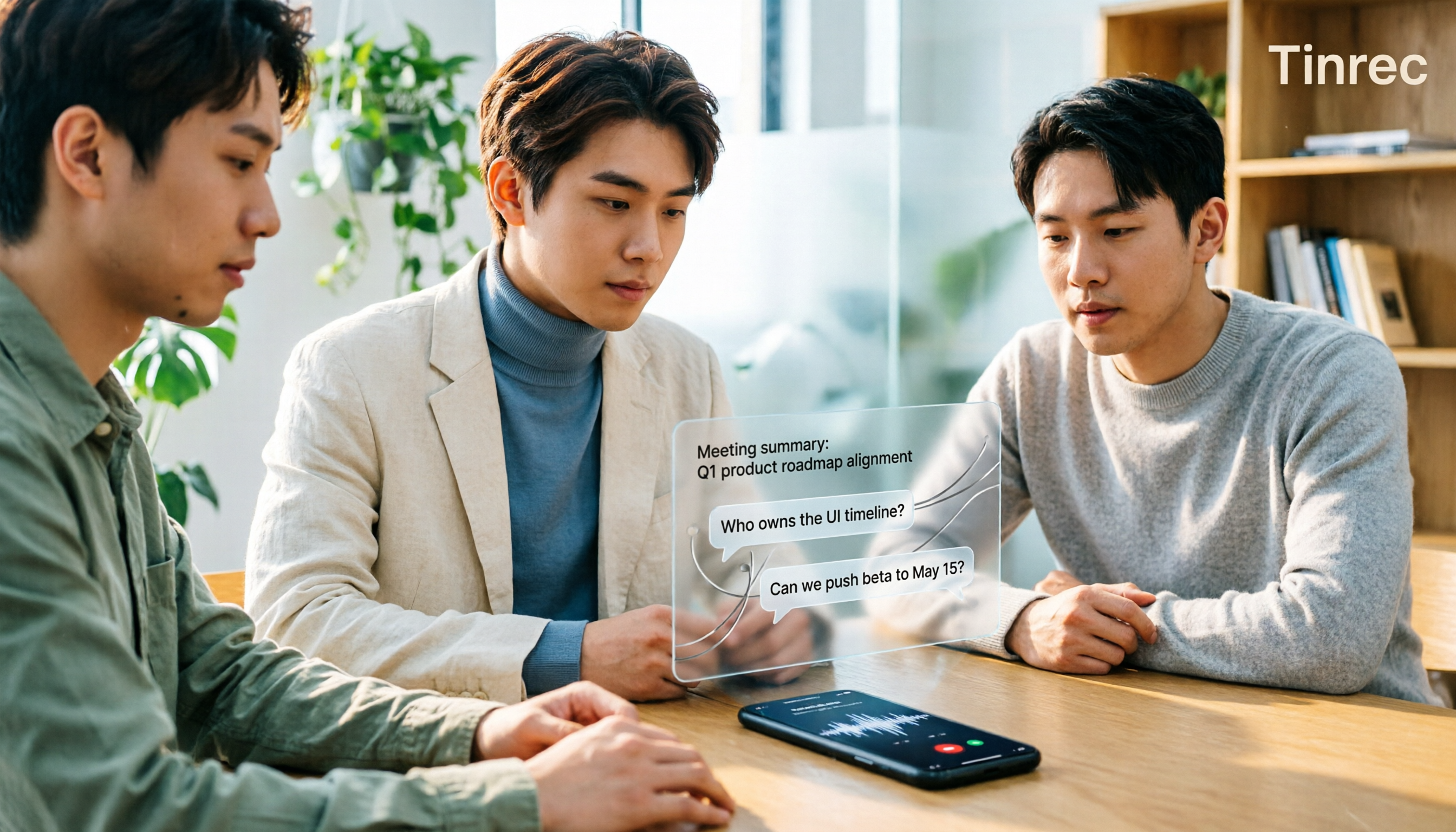
Turn recordings into transcripts and summaries in minutes
Upload audio or video for multilingual transcription, AI notes, and action items
You stopped recording after the meeting—now what?
It's 4 p.m., and a two-hour project meeting has finally ended. You stop the recording and look at the 1-hour-58-minute file in Voice Memos. You know exactly what's coming: another listen-through at your computer tonight.
For lectures or interviews, it's even trickier. The speaker talks fast, multiple people speak at once, and a few English technical terms slip in. Even a second listen doesn't guarantee you'll catch the key points.
Your iPhone has actually had audio-to-text built in for a while—most people just stop at the "record" step.
This article rounds up the methods I personally use: built-in Voice Memos transcripts, Notes app recording-to-text, Dictation, and Tinrec, which I use daily for meeting recordings. At the end, I'll give recommendations based on different scenarios, so you can jump straight to the section that fits your situation.
Before choosing a method, understand these 4 key points
First, do you need "real-time" or "after-the-fact"?
Real-time transcription suits interviews and classes where you want to follow along. After-the-fact transcription suits long meetings you've already recorded. These two needs call for completely different approaches, so figure out which one you need first.
Second, how far does language support go?
iPhone's built-in audio transcripts currently support English, Spanish, Portuguese, Italian, French, German, Japanese, Korean, and both Simplified and Traditional Chinese. If you often record meetings with mixed Chinese and English, pay attention to how well a tool handles mixed languages.
Third, how well does it handle long recordings?
A two-hour recording transcribed on your phone while recording can make the device hot and drain the battery noticeably faster—plus you have to think about storage space. Short recordings are fine, but long meetings are a different story.
Fourth, can you actually use the text afterward?
This is the most overlooked point. There's a big gap between getting a transcript and getting meeting minutes you can send straight to your boss. Whether a tool can automatically generate summaries, extract action items, and let you ask follow-up questions determines how much time you actually save.
Tinrec—my go-to for daily meeting recordings
Tinrec is an AI meeting notes and collaboration tool for individuals and teams. It supports iOS, Android, and web, while the desktop version handles recording for online meetings.
I started using it because I didn't want to add another meeting bot to Zoom or Google Meet. Tinrec's desktop version captures your computer's system audio directly—no extra bot joins the meeting. It works with Zoom, Google Meet, Microsoft Teams, and Webex. This is especially useful for external meetings: clients don't need to know you're recording, so no one asks "Who's this?"
Here's how it works in practice: before a meeting starts, open Tinrec and start recording. The transcript grows as people speak. For cross-language meetings, you can switch between original text, translation, or bilingual view, so mixed Chinese-English sections don't look too messy.
After the meeting is where it really stands out. The system automatically generates summaries and chapters, breaking long meetings into easy-to-browse sections and pulling out action items from the discussion. After recording, you can ask it questions directly—"Who mentioned the budget in the last meeting?" "What were the client's concerns about the timeline?" It gives answers based on understanding the content, not a pile of keyword search results you have to dig through. Most transcription tools at this price point don't yet offer this kind of conversational query.
You can export the organized content to Notion, Google Docs, OneNote, or Dropbox for further editing, or use Agent post-processing to directly generate reports, tables, or meeting minutes documents.
I use the mobile app for in-person interviews and quick ideas, then organize on my computer—it's the same data, no need to transfer files back and forth.
One thing to note: Tinrec's free version offers a basic quota, good for trying out the recording, import, summary, and transcription workflow. If you have several meetings every week, you'll want to consider a paid plan. The personal plan includes a free version, weekly card, Pro monthly, and Pro annual—just pick based on your usage frequency. Actual prices and quotas are subject to the official website.
Also, transcription accuracy is affected by recording quality, background noise, accents, overlapping speakers, and technical jargon—same for any tool. For important content, I still replay the recording alongside the transcript timestamps to verify.
If you frequently record Chinese meetings, don't want a bot joining your online meetings, and want to keep asking questions about the content after recording, Tinrec is currently the smoothest option I've found.
Stop organizing recordings by hand
Upload audio or video and automatically get a transcript, summary, and action items
Besides Tinrec, what other methods are there on iPhone?
Voice Memos transcripts (built into Apple)
This is the most straightforward method for iPhone users. On iPhone 12 or later with iOS 18 or later, you can view transcripts while recording or after, with the current word highlighted during playback, and you can select and copy segments. Note that this feature isn't available in some countries or regions. Its limitation is that it only works for audio recorded on the iPhone, and it only gives you a transcript—no summary, no action items, no way to ask questions about the content. That's exactly where Tinrec differs most.
Notes app recording-to-text (built into Apple)
Open Notes, select "Record Audio" from the toolbar, and after recording, tap the text/transcribe button at the bottom left of the recording screen. It will analyze and generate a transcript, and you can choose "Add Transcript to Note" to paste it directly into your note for editing. Great for quick short recordings when inspiration strikes. But it's also standalone—no AI Q&A, no team sharing, and recordings pile up scattered across different notes.
Dictation and iMessage voice-to-text (built into Apple)
Bring up the keyboard and tap the microphone at the bottom right to start dictation—your speech becomes text directly. Since iOS 17, iMessage voice messages can also be converted to text. These are good for "one-sentence length" tasks, like quickly noting an address or to-do. Note that dictation produces text only—it doesn't keep the audio file, so you can't go back and verify against the original recording. That's the fundamental difference from recording transcription.
Notta (cross-platform transcription tool)
Notta covers multi-platform transcription, meeting notes, document import, and translation, with decent multilingual capabilities. The free version offers 120 minutes per month, up to 3 minutes per item—good for testing the waters. If you mainly upload existing audio files for subtitles or translation, it's a reasonable option. However, for bot-free online meeting recording, post-meeting AI Q&A, and team knowledge retention, Tinrec's focus is clearer.
Pitfall guide: 4 most common mistakes with iPhone audio-to-text
Pitfall 1: Thinking a transcript means you're done organizing.
A transcript is raw material, not a finished product. A 40-minute meeting transcript is roughly ten thousand words. Before handing it to someone else, you still have to read through it, pick out key points, and write conclusions. What really saves time is the "summary + action items" layer—factor that into your tool selection.
Pitfall 2: Using real-time transcription for meetings over an hour.
Real-time transcription on your phone means heat, battery drain, and storage issues are real problems. If recording stops, all your effort is wasted. For long recordings, use a computer instead, or at least make sure you have enough battery and storage.
Pitfall 3: Ignoring device and OS version requirements.
iPhone's built-in audio transcripts require iPhone 12 or later and iOS 18 or later, and aren't available in some regions. Buying a new tool only to find your old phone can't run it is a common situation—check the specs beforehand.
Pitfall 4: Keeping important recordings only on your phone.
Losing your phone, clearing storage, or accidental deletion can wipe out a whole year of meeting records. For content you need to keep long-term, sync to the cloud or a team space. Tinrec's team version offers an audio recycle bin—accidentally deleted files can be recovered before permanent deletion. This is quite useful for teams that treat meetings as assets.
Conclusion: Which one should you use?
Quickly noting a 3-5 minute idea → Just use Voice Memos or keyboard dictation—fastest.
Want a transcript from a class or lecture → iPhone Voice Memos' built-in transcript is enough. Remember to copy it out after recording.
Need to record online meetings without a bot joining → Tinrec desktop version—captures system audio, no extra participants.
Want to ask follow-up questions and extract action items after recording → Tinrec—summaries, chapters, action items, and AI Q&A all in one place.
Team needs to share meeting data, manage members and usage → Tinrec team version. It provides an independent team space where meeting data belongs to the team, with role, seat, sharing permission, usage analytics, and audit log management. Eligible teams get a 7-day trial, 1 free seat, and 300 minutes of shared team import quota on first use; afterward, monthly billing is USD 29.80 per paid seat per month, annual billing is USD 199 per paid seat per year (about USD 16.58 per month). Each paid seat provides 2,000 minutes of shared team import quota per month; real-time recording under active seats is currently not deducted by minute.
Zero budget, only recording English content → English-focused tools like Notta or Otter.ai also offer generous free quotas.
I recommend starting with a free version. Run one of your real meeting recordings through it and see what the transcript looks like and whether the summary captures the key points—that's more accurate than any spec sheet. Upgrade only if it works for you; there's no need to pay upfront.
One final reminder: recording and transcription involve others' privacy. Depending on local regulations, you may need to obtain participants' consent beforehand—pay special attention to this in meetings and interviews.
References
- iPhone voice-to-text setup tips: 5 methods to transcribe recordings - Mr. Mad
- View Voice Memos transcripts on iPhone - Apple Support (Taiwan)
- How to transcribe iPhone recordings? Learn three iPhone audio-to-text methods easily!
- iPhone Notes and Voice Memos apps also have transcript features! Turn class, meeting, and speech content into text in seconds: simple 4-step tutorial | BusinessNext
- iPhone Voice Memos to text tutorial: built-in transcript without third-party apps - Mr. Mad
Turn every recording into actionable outcomes
Get 60 free transcription minutes when you sign in. No credit card required.
Related Reading
You might also like

3 iPhone Call Recording Methods Tested for 2026: Recording Is Easy, Organizing Is the Hard Part
How do you record calls on iPhone? This article compares three common approaches: iOS 18.1 built-in call recording, local capture with Voice Memos, and using Tinrec to turn recordings into searchable, queryable transcripts and action items. It covers version and region restrictions, notification and legal risks, four common pitfalls, and selection advice.

4 Ways to Record Audio on iPhone with Headphones in 2026: AirPods, Wired Headsets, and External Mics Compared
Can you record audio while wearing headphones? This article addresses common misconceptions and breaks down the differences, compatibility pitfalls, and key considerations of four headphone recording methods on iPhone. It also explains how to use Tinrec to organize transcripts, summaries, and action items after recording.

6 iPhone Recording Alternatives Tested for 2026: What to Choose When Built-in Features Fail
When iPhone recording doesn't work, the problem is often not the phone itself. This guide first helps you distinguish three situations: call recording limited by region and model, dictation not working, and Voice Memos cutting off mid-recording. Then it tests and compares 6 alternatives—Tinrec, Notta, Otter.ai, Granola, TurboScribe, and PLAUD—listing costs, limitations, and best-use scenarios so you can pick the right tool in 10 minutes.
How to Record LINE Calls on iPhone in 2026: Built-in Steps + Auto Transcription
Can iPhone record LINE calls? LINE has no built-in recording button, but iPhone can capture calls as audio files via system-level recording. This guide walks through the steps, speakerphone requirements, and version differences, then shows how to use Tinrec to turn recordings into transcripts, summaries, and action items—so your recordings are actually useful.

3 iPhone Recording Workflows Compared in 2026: Auto-Transcription Saves the Most Time
Many people use iPhone recording only to capture audio, then spend extra time re-listening and organizing. This article compares 3 recording workflows from a decision-making perspective: instead of just finding the record button, choose a tool that turns recordings into transcripts, summaries, and action items. Using Tinrec as an example, it explains how to automatically organize, query, and share iPhone recordings with your team.

3 iPhone Recording Methods Compared in 2026: Built-in Voice Memos, Call Recording, and AI Transcription
You don't need to download extra apps to record on your iPhone. This article debunks three common misconceptions, explains how to set up quick recording with Voice Memos, the Lock Screen, and the Action button, covers the built-in call recording in iOS 18.1, and compares how to organize your recordings afterward. It also details Tinrec's practical uses and limitations for transcription, summaries, and team collaboration.

How to Record Calls on iPhone in 2026: Built-in Steps & Transcript Tips
iPhone has built-in call recording starting with iOS 18.1. This guide starts from the everyday scenario of realizing you missed key points after hanging up, covers activation steps, two-party notification, and regional restrictions, and compares built-in features with post-call solutions like Tinrec to help you choose the right approach.

How to Record Audio on iPhone with Headphones in 2026: 4 Connection Methods Tested + Auto Transcription
Recording on an iPhone with headphones seems simple, but plugging in headphones doesn't guarantee the headphone mic is used. This guide covers the real differences between four setups—AirPods, EarPods, USB-C headsets, and external microphones—how to check connector types, Bluetooth range risks, and how to use Tinrec to turn recordings into transcripts, summaries, and action items, saving you hours of re-listening.

4 iPhone Recording Methods Compared for 2026: Will the Other Party Know, and Which One Is Right for You?
When you press the built-in iPhone call recording button, will the other person know? The answer is yes, and there is no official way to turn it off. This article clearly explains the actual process of the 3-second countdown and voice prompt, then compares four approaches: built-in call recording, recording hardware, third-party apps, and Tinrec, to help you choose the right method based on what you're recording and what you'll do with it afterward.