

Turn recordings into transcripts and summaries in minutes
Upload audio or video for multilingual transcription, AI notes, and action items
6 iPhone Recording Alternatives Tested for 2026: What to Choose When Built-in Features Fail
The first decision you need to make right now isn't "which app should I switch to"—it's "where exactly is your iPhone recording getting stuck?" Can't find call recording, dictation not responding, Voice Memos cutting off mid-recording—these three problems have completely different solutions. Pick the wrong direction and no amount of tool-switching will fix it. Below, spend 30 seconds to identify your situation, then move on to the list of 6 options.
Why Do You Need an iPhone Recording Alternative?
Situation 1: Call recording is nowhere to be found. According to Apple Support documentation, call recording is currently unavailable in some regions, including the EU, Russia, Turkey, Saudi Arabia, South Africa, Egypt, and Pakistan; the feature also requires models that support Apple Intelligence. This isn't a settings issue—it's a built-in limitation based on region and device model. You can't fix it; you can only find an alternative workflow.
Situation 2: Dictation (speech-to-text) isn't responding. This is usually fixable: first go to Settings > General > Keyboard and confirm "Enable Dictation" is turned on, then check microphone permissions, internet connection, and whether your system is up to date. Restart if necessary.
Situation 3: Voice Memos cuts off mid-recording or files disappear. Common causes include insufficient storage space, switching apps or locking the screen during long recordings, and interference from incoming calls and notifications. You can try using Airplane Mode + Focus Mode to reduce interference and clear up storage space. But if you're recording meetings or interviews longer than 40 minutes every time, the built-in tool simply wasn't designed for that.
To quickly start recording, iPhone 15 Pro and later models can assign the Action Button to Voice Memos; other models can use Shortcuts with Back Tap to set up one-tap recording. These tricks can help in a pinch, but they won't turn the built-in tool into a meeting notes tool. Here are 6 options that truly fill the gap.
Option 1 | Tinrec — The Most Complete AI Recording Assistant
One-line positioning: An AI meeting notes and collaboration tool that turns meeting recordings into searchable, queryable, actionable data.
Tinrec is more than just "recording to text." After recording an interview, you don't just get a transcript—you get organized summaries, chapters, key points, and action items. When you need to follow up on details, you can ask questions directly about the meeting content without having to re-listen to the timeline from the beginning.
Key Highlights
- Transcribe while recording—no need to re-listen after the meeting: Real-time recording on your phone simultaneously generates text, ideal for in-person meetings, client visits, and classes. The desktop version captures computer system audio directly, handling online meetings on Zoom, Google Meet, Microsoft Teams, Webex, and more—no need to pull in an extra meeting bot.
- The real value comes after the transcript: Automatically generates AI summaries, chapters, and action items, and supports AI Q&A around a single meeting or across meetings—turning "what exactly did we decide in the last meeting" into something you can look up in one sentence.
- Connects back to your existing workflow: Export to Notion, Google Docs, OneNote, Dropbox, and other tools, or use Agent post-processing to generate reports, tables, and meeting minutes—no manual double-handling needed.
- Cross-language meetings: During recording, you can switch between original text, translation, or bilingual view, and mixed Chinese-English discussions can also be organized.
Plans and Pricing: The personal plan offers a free version, weekly pass, Pro monthly, and Pro annual—choose based on your usage frequency. The team plan is USD 29.80 per paid seat per month, or USD 199 per paid seat per year (about USD 16.58/month), with each paid seat providing 2,000 minutes of team shared import quota per month. Eligible teams can try 7 days free with 1 free seat and 300 minutes of shared import quota. Under an active team plan and seat, real-time recording currently does not deduct minutes. Actual prices are subject to the official purchase page.
Who it's for: People who have meetings, interviews, or classes to organize every week and want to turn recordings into reusable team data; teams that need Chinese meeting notes and post-meeting follow-up questions.
Option 2 | Notta — Multilingual Transcription and Meeting Notes
One-line positioning: The multilingual transcription tool with the most overlap with Tinrec, strong in file transcription and translation.
Notta covers multi-platform transcription, meeting notes, file import, and team plans. The free version offers 120 minutes per month with a 3-minute limit per item; Pro annual billing works out to about USD 8.17/month with 1,800 minutes per month; Business annual billing works out to about USD 16.67 per seat per month, offering unlimited transcription, role permissions, and usage reports.
The difference from Tinrec: Tinrec emphasizes bot-free online meeting recording, post-meeting AI Q&A, and Agent post-processing, while Notta leans toward "transcription and translation" itself. Who it's for: People who already have a fixed workflow and just need reliable audio-to-text conversion.
Stop organizing recordings by hand
Upload audio or video and automatically get a transcript, summary, and action items
Option 3 | Otter.ai — A Mature Assistant for English Meetings
One-line positioning: A mature AI meeting assistant for English business meetings—less advantageous for Chinese needs.
Otter covers meeting notes for Zoom, Microsoft Teams, and Google Meet, real-time transcription, speaker identification, AI Chat, and team management. Basic is free with 300 minutes per month; Pro annual billing works out to about USD 8.49 per user per month, including 1,200 minutes of in-app recording and 10 file imports per month; Business offers unlimited meetings and in-app recording plus more management capabilities.
Its strength is the maturity and integration ecosystem for English meetings, but if your meetings are primarily in Chinese, the experience gap will be obvious. Who it's for: Teams that mainly hold English meetings and are already using the Otter ecosystem.
Option 4 | Granola — Bot-Free AI Meeting Notes
One-line positioning: A meeting notes tool centered on "your handwritten notes + AI enhancement."
Granola also takes a bot-free approach, using desktop system audio and microphone for real-time transcription, combined with notes you type yourself to generate content that better fits your needs. Basic is free, Business is USD 14 per user per month, Enterprise is USD 35 per user per month.
Limitations to be clear about: It supports viewing, copying, and searching real-time transcripts, but does not support uploading pre-recorded audio files and does not save meeting audio. In other words, people who want to go back and verify the original audio will be stuck. Who it's for: People who are used to typing during meetings and value note quality over audio retention.
Option 5 | TurboScribe — Cost-Effective Long-File Transcription
One-line positioning: A high-value choice for converting long audio files and batch files to text.
TurboScribe focuses on long files, batch uploads, subtitles, and translation. The free version offers 3 files per day with a 30-minute limit per file; Unlimited annual billing is USD 120, working out to about USD 10/month, with paid versions supporting up to 10 hours or 5 GB per file and up to 50 files per upload.
It doesn't handle real-time meeting workflows, but if you have a pile of recorded interview audio files to clean up, this price is hard to beat. Who it's for: Researchers, podcast producers, and anyone who needs to process large amounts of audio files at once.
Option 6 | PLAUD Note / NotePin — Portable AI Recording Hardware
One-line positioning: A dedicated device that solves the "it's inconvenient to pull out your phone to record" scenario.
PLAUD is a representative of AI recording hardware, selling the device, portable recording, and phone call recording experience. The U.S. official website shows NotePin at USD 159 and Note Pro at USD 189; membership plans are Starter at 300 minutes per month, Pro at USD 99.99/year (1,200 minutes per month), and Unlimited at USD 239.99/year.
The biggest difference from software options is that you need to carry an extra device and spend extra on hardware—in exchange for the intuitiveness of pick-up-and-record. Who it's for: People who are frequently on the go and need a physical recording button and long battery life.
With So Many Options, How Should You Choose?
- Want the most complete end-to-end workflow (transcription + AI Q&A + auto summaries + action items + export): Choose Tinrec—few options currently cover all these steps.
- Don't want bots disturbing online meetings: Tinrec desktop or Granola are both bot-free approaches, but only Tinrec retains audio files and supports file import.
- Primarily Chinese, occasionally mixed Chinese-English: Tinrec first, Notta second.
- Need to switch between phone, computer, and web: Tinrec offers multi-platform use; PLAUD is tied to hardware.
- Team needs to manage members, seats, and usage: Tinrec team plan has roles, seats, usage analytics, audit logs, and audio recycle bin.
- Zero budget, only occasional transcription: Get by with the free tiers of Otter Basic, TurboScribe Free, or Granola Basic.
- Only have a large number of existing audio files to clean up: TurboScribe's 10-hour-per-file spec is the best value.
4 Things to Know Before Using iPhone Recording Alternatives
- First confirm legality and consent: Recording and transcription involve local regulations. You should inform and obtain consent from participants before meetings—this is a risk tools can't take on for you.
- Free quotas are calculated in "minutes": Long meetings can easily consume an entire month's quota in one go. When choosing a plan, look at "what happens after you exceed the limit," not just the free numbers. For example, with Tinrec's team plan, paid seats provide 2,000 minutes of team shared import quota per month, and real-time recording under an active team plan currently does not deduct minutes—this design of "recording and import calculated separately" is friendlier for long meetings.
- Transcripts are not 100% accurate: Recording quality, ambient noise, accents, overlapping speakers, and technical terminology all affect results. For important decisions, cross-check against the original text and audio playback—treat AI summaries as an accelerator, not the final version.
- Confirm background execution capability for long meetings: If the app doesn't support background recording when you switch apps or lock the screen, recording may be interrupted. Besides turning off interference, you can also evaluate third-party recording apps that support background recording (such as Just Press Record, Voice Record Pro, Noted), or directly use a service like Tinrec that handles both recording and organization.
Conclusion
iPhone recording "not working" is half hard limitations based on region and model, and half the fact that built-in tools simply weren't designed for long meetings. Rather than repeatedly researching dictation settings, first confirm which situation you're in, then choose a tool that can handle post-meeting organization.
If your needs are Chinese meetings, bot-free online meeting recording, post-meeting summaries and action items, and the ability to turn everything into team data, Tinrec is currently the most complete option. If you just need to clean up audio files or handle English meetings, Notta, Otter.ai, and TurboScribe each have clear areas of strength. Run a real meeting with the free tier first, then decide whether to pay—that's more accurate than reading ten reviews.
References
- Record and transcribe calls on iPhone - Apple Support (Taiwan)
- 2026 Apple phone speech-to-text not working / iPhone dictation failure? 7 fixes and 3 alternative tools (including Tinrec) - Tinrec Blog
- [Apple speech-to-text not working] 8 fix tutorials and 3 alternative tool comparisons: how to choose meeting notes - Tinrec Blog
- iPhone recording interrupted or incomplete? 5 quick fixes
- iPhone recording made easy! One-tap quick self-protection at critical moments
Turn every recording into actionable outcomes
Get 60 free transcription minutes when you sign in. No credit card required.
Related Reading
You might also like

3 iPhone Call Recording Methods Tested for 2026: Recording Is Easy, Organizing Is the Hard Part
How do you record calls on iPhone? This article compares three common approaches: iOS 18.1 built-in call recording, local capture with Voice Memos, and using Tinrec to turn recordings into searchable, queryable transcripts and action items. It covers version and region restrictions, notification and legal risks, four common pitfalls, and selection advice.
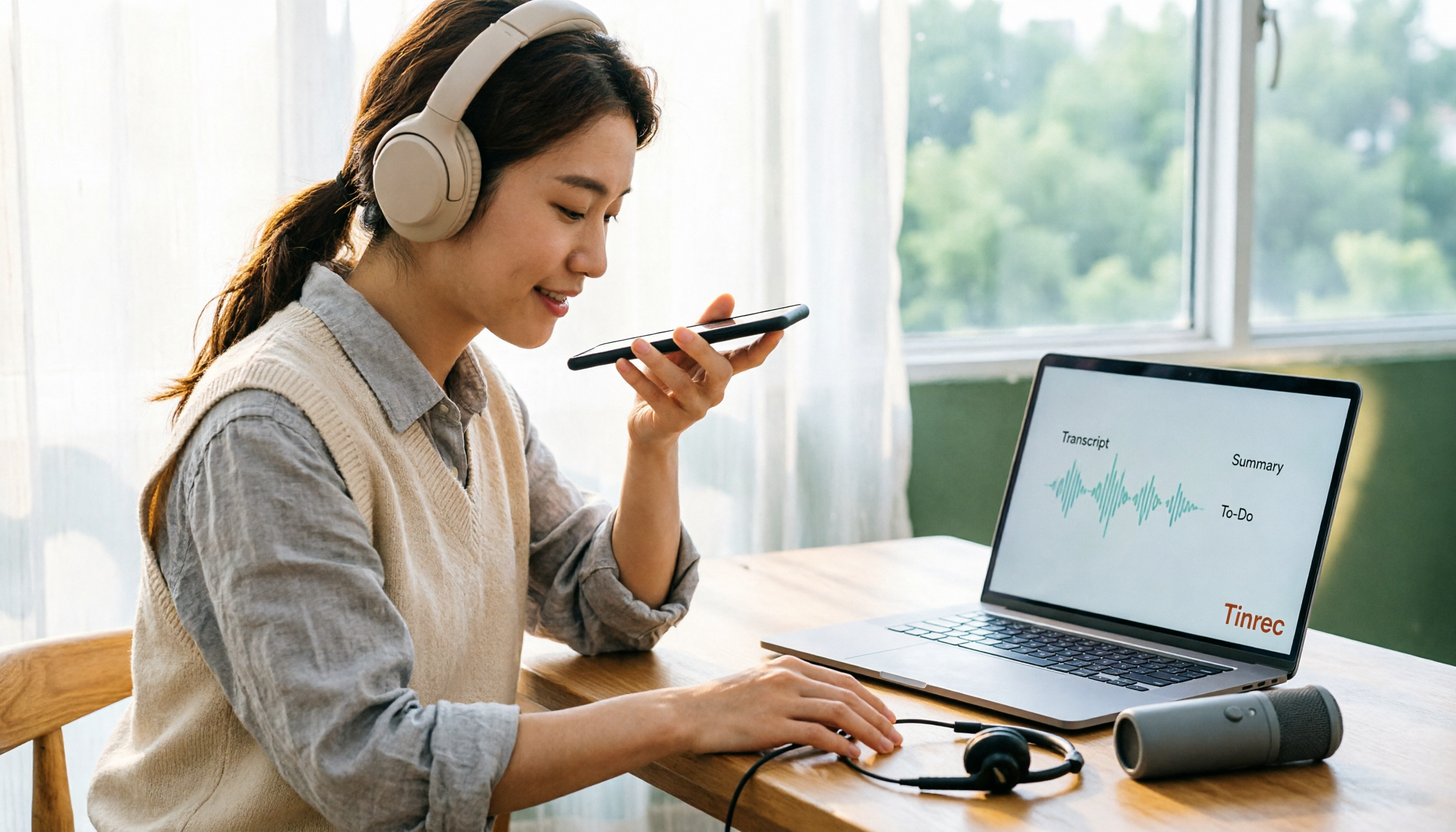
4 Ways to Record Audio on iPhone with Headphones in 2026: AirPods, Wired Headsets, and External Mics Compared
Can you record audio while wearing headphones? This article addresses common misconceptions and breaks down the differences, compatibility pitfalls, and key considerations of four headphone recording methods on iPhone. It also explains how to use Tinrec to organize transcripts, summaries, and action items after recording.
How to Record LINE Calls on iPhone in 2026: Built-in Steps + Auto Transcription
Can iPhone record LINE calls? LINE has no built-in recording button, but iPhone can capture calls as audio files via system-level recording. This guide walks through the steps, speakerphone requirements, and version differences, then shows how to use Tinrec to turn recordings into transcripts, summaries, and action items—so your recordings are actually useful.

3 iPhone Recording Workflows Compared in 2026: Auto-Transcription Saves the Most Time
Many people use iPhone recording only to capture audio, then spend extra time re-listening and organizing. This article compares 3 recording workflows from a decision-making perspective: instead of just finding the record button, choose a tool that turns recordings into transcripts, summaries, and action items. Using Tinrec as an example, it explains how to automatically organize, query, and share iPhone recordings with your team.

3 iPhone Recording Methods Compared in 2026: Built-in Voice Memos, Call Recording, and AI Transcription
You don't need to download extra apps to record on your iPhone. This article debunks three common misconceptions, explains how to set up quick recording with Voice Memos, the Lock Screen, and the Action button, covers the built-in call recording in iOS 18.1, and compares how to organize your recordings afterward. It also details Tinrec's practical uses and limitations for transcription, summaries, and team collaboration.

How to Record Calls on iPhone in 2026: Built-in Steps & Transcript Tips
iPhone has built-in call recording starting with iOS 18.1. This guide starts from the everyday scenario of realizing you missed key points after hanging up, covers activation steps, two-party notification, and regional restrictions, and compares built-in features with post-call solutions like Tinrec to help you choose the right approach.
iPhone Audio to Text Guide 2026: 3 Methods Tested and Recommended
Your iPhone can turn recordings into transcripts, but device models, iOS versions, and language support all have requirements. This guide covers three built-in methods—Voice Memos, Notes app, and Dictation—and compares them with Tinrec for meeting notes, AI Q&A, and team collaboration. It includes selection criteria and 4 common mistakes to help you choose the right method for your situation.

How to Record Audio on iPhone with Headphones in 2026: 4 Connection Methods Tested + Auto Transcription
Recording on an iPhone with headphones seems simple, but plugging in headphones doesn't guarantee the headphone mic is used. This guide covers the real differences between four setups—AirPods, EarPods, USB-C headsets, and external microphones—how to check connector types, Bluetooth range risks, and how to use Tinrec to turn recordings into transcripts, summaries, and action items, saving you hours of re-listening.

4 iPhone Recording Methods Compared for 2026: Will the Other Party Know, and Which One Is Right for You?
When you press the built-in iPhone call recording button, will the other person know? The answer is yes, and there is no official way to turn it off. This article clearly explains the actual process of the 3-second countdown and voice prompt, then compares four approaches: built-in call recording, recording hardware, third-party apps, and Tinrec, to help you choose the right method based on what you're recording and what you'll do with it afterward.