
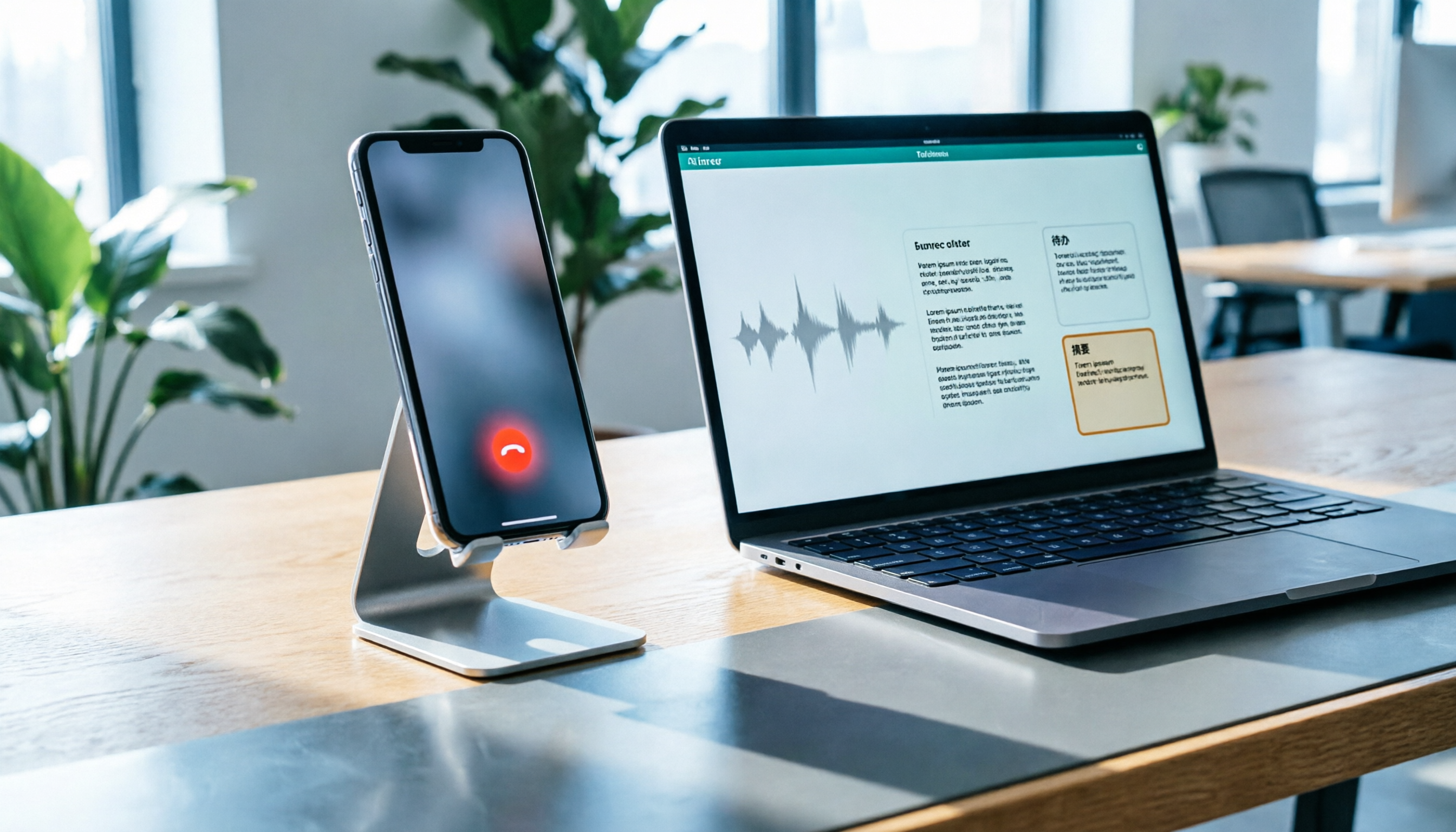
Turn recordings into transcripts and summaries in minutes
Upload audio or video for multilingual transcription, AI notes, and action items
How to Record LINE Calls on iPhone in 2026: Built-in Steps + Auto Transcription
The moment you hang up, you realize you didn't write down the important stuff
A client tells you three numbers on a LINE call: discount, delivery date, bank account. You nod along, hang up, open Notes, and all you remember is "sometime before the end of the month."
Another common scenario: a 40-minute project discussion. You're listening and taking notes, the other person interrupts, and everything blends together. Later you want to confirm "who said they'd change the specs," but all you have are a few keywords you can't even decipher.
The core issue isn't a bad memory—it's that you didn't keep a raw record you can go back to during the call. Recording is the answer, but most people get stuck at step one: how exactly do you record a LINE call on iPhone? And once you've recorded it, how do you turn that long audio file into usable data? Here's the full breakdown.
Can iPhone record LINE calls? 3 things to understand first
1. LINE has no built-in recording button
This is the most common misunderstanding. LINE's call interface never has a "record" button, and the official app doesn't offer call recording. All the tutorials you see online are essentially "using iPhone system features or other tools to capture audio," not LINE recording it for you.
2. iPhone recording methods vary by iOS version and model
Recent iOS versions have added system-level recording capabilities, but the names and locations differ. You might see "Local Capture," "Screen Recording," or a recording icon during a call. That means someone else's tutorial screenshot may look different from your phone.
Practical advice: test it on your own phone first—don't wait until an important call to try it for the first time. Also note that some recording methods may play a prompt tone or show a status indicator when starting. Whether the other party can notice varies by version, so confirm this yourself as well.
3. Capturing sound doesn't mean capturing "useful sound"
Even if you successfully start recording, there's a key point: iPhone won't automatically capture the other person's voice. If you don't turn on speakerphone, the microphone mostly picks up only your side, and you'll discover the other half is blank when you play it back. This is the most commonly overlooked step in all tutorials.
Step-by-step: Record a LINE call using iPhone's built-in method
The following applies to models that support system recording. Actual names may vary—check what's shown on your phone.
- Check your iOS version: Go to Settings → General → Software Update and make sure you're on a supported version.
- Add the recording control to Control Center: In Settings → Control Center, add Screen Recording or the system recording option.
- Make or answer a LINE call, then tap "Speaker" on the call screen so the other person's voice comes through the speaker.
- Start recording from Control Center and confirm the recording indicator appears in the status bar.
- Stop recording after the call ends. The audio file is usually saved in the Files app's Downloads or in Voice Memos.
- Rename and archive immediately: Include the date and person, e.g., "20260312_ClientA_SpecConfirmation," so you can find it later.
Note: If your model or version doesn't have system recording, you can use Screen Recording instead. Long-press the record button to check if microphone audio is enabled. This method also requires speakerphone, and the file will be a video format, taking up more space.
The hard part starts after recording: How Tinrec turns audio into usable meeting notes
Saving the recording only solves half the problem. How many times do you need to replay a 40-minute call to extract the conclusions? That's why most people record and then never touch the file again.
Tinrec is an AI meeting notes and collaboration tool for individuals and teams, available on iOS, Android, and web. It's not designed to record for you—it turns what you've already recorded into searchable, queryable, shareable material.
Upload audio, get transcript and summary together
Import your iPhone call recording into Tinrec, and it generates a transcript, automatically creating summaries and chapters. A 40-minute conversation gets divided into sections like "Requirements Confirmation," "Pricing Discussion," and "Next Steps." You don't have to listen from minute one. For sales or project managers, this is the most direct time saver.
Action items extracted automatically, no more relying on memory
The easiest thing to miss in a call is "who needs to do what by when." Tinrec pulls out action items from the discussion—just review and assign. This is especially useful for people who have three or four meetings a week. Previously you'd stay after to write notes; now the notes are waiting for you when the meeting ends.
Stop organizing recordings by hand
Upload audio or video and automatically get a transcript, summary, and action items
AI Q&A: Just ask "What discount did the client mention?"
This is where it stands out most from other transcription tools. A transcript only lets you Ctrl+F for keywords, but you might not remember the exact words used. Tinrec supports AI Q&A about the meeting content—you can ask directly: "What payment terms did the client mention?" It answers based on the content instead of dumping search results for you to sift through. For those accumulating dozens of meetings, this "look back" capability is more valuable than transcription itself.
Chinese-English mixing and translation help with cross-border communication
Calls in Taiwan's workplace are rarely pure Chinese—often half Chinese, half English, with product model numbers mixed in. Tinrec covers Chinese, Traditional Chinese, and multilingual meeting scenarios, and supports real-time translation and bilingual viewing. Actual recognition accuracy is affected by recording quality, accents, multiple people speaking at once, and proper nouns. Noisy environments still require manual review.
Online meetings without a bot
If your LINE call is on a computer, Tinrec's desktop version captures system audio directly—no need to invite a meeting bot. The same concept applies to Zoom, Google Meet, Microsoft Teams, Webex, and other platforms. Note that this captures "audio played by the computer." Whether it successfully picks up LINE desktop audio depends on your device and audio settings—test with a short call first.
Team data stays with the team
Tinrec's team plan provides a separate team workspace where meeting recordings, transcripts, and action items belong to the team. If a member leaves or resigns, resources can be transferred to others; admins can manage roles and seats, view usage, and check audit logs. Note that members without a seat can only view and play data—they cannot upload or edit. This is the distinction between "roles" and "seats."
Limitations and who it's for
The free plan offers a basic quota, suitable for trying one or two meetings. Consider upgrading if you use it regularly every week. Heavy users who need to batch-upload many files may find the quota tight.
Tinrec is a better fit than plain recording if: you need to turn calls into organized notes afterward, you frequently need to look back at "what was actually said," or multiple team members need to share the same meeting data.
What are the alternatives to Tinrec?
iOS built-in recording (Screen Recording / System Recording): Completely free, no installation needed—the most direct starting point. Downsides: you only get audio or video files, no transcript, no summary, and it's limited by iOS version or model. Suitable for people who record once or twice a month and only need to "keep" the file.
Notta: A multi-device transcription tool with decent Chinese support. Free plan: 120 minutes per month but 3 minutes per file; Pro annual billing works out to about USD 8.17/month with 1,800 minutes per month. Suitable for users focused on file transcription and subtitles. However, it lacks Tinrec's AI Q&A about meeting content and the desktop system-audio capture without a bot.
Otter.ai: A mature choice for English meetings. Free plan offers 300 minutes per month—quite generous. Pro annual billing is about USD 8.49/user/month with 1,200 minutes per month. If 90% of your calls are in English, it's a good deal. But Chinese and mixed Chinese-English handling isn't its strength, and its team data retention and Chinese transcript needs differ from Tinrec's positioning.
Pitfall guide: 4 most common mistakes when recording LINE calls
Pitfall 1: Forgetting to turn on speakerphone. This is the number one reason recordings fail. You play it back and hear only yourself—the other person is completely blank, and you usually don't notice until later. Make it a habit: confirm the speaker is on before you hit record.
Pitfall 2: Assuming every iPhone is the same. iOS version, model, and even carrier settings affect where the recording option is and how it behaves. If you follow an online tutorial and can't find the button, it's not you—it's the version.
Pitfall 3: Not informing the other party first. Recording involves local laws and mutual trust. Taiwan and some regions require consent under certain circumstances. Recording secretly to save trouble can backfire in a dispute later. In practice, opening with "I'm recording this to help organize notes—is that okay?" works with most people.
Pitfall 4: Recording without organizing. An audio file sitting on your phone won't turn into productivity on its own. The real cost is the replaying and typing afterward. Putting the file into a transcription tool to generate a transcript and action items is the key step to turning recordings into assets. Treating it as "recorded, so I'm covered" uses only 30% of the value.
Conclusion: Which method should you use?
One-sentence answer to "Can iPhone record LINE calls?": LINE can't, iPhone can—but you need system recording plus speakerphone, and you still have to organize afterward.
By scenario:
- Record once or twice a month, just need to keep it → iOS built-in recording or Screen Recording is enough.
- Call content needs to become a transcript and meeting notes → Tinrec, mainly for its Chinese and mixed Chinese-English handling.
- Want to ask "What did the client agree to?" right after recording → Tinrec's AI Q&A—few competitors at this price point offer it.
- Team needs to share meeting data, with seat and audit management → Tinrec team plan.
- Calls are almost entirely in English, budget is zero → Otter.ai free plan is a reasonable exception.
Recommended approach: try before deciding. Use the free quota to record a real meeting, see if the transcript accuracy and summary fit your workflow, and then consider upgrading. Recording is just the starting point—whether you can save those two hours after the meeting is what really matters.
Finally, always confirm local regulations before recording and obtain consent when required.
References
- [Phone Tips] LINE can now record calls! iPhone built-in call recording secret, no notification to the other party! | 傑昇通信~挑戰手機市場最低價
- LINE can finally record calls! No plugins or external devices—just use iPhone's built-in system features
- LINE call recording iPhone tutorial: Use iOS 26 local capture to easily record calls - 瘋先生
- LINE call recording tutorial: 4 methods to record LINE calls, tested and working! [2025]
- 2026 Workplace Must-Learn: Can LINE calls be recorded? 4 workarounds and Tinrec transcript guide - 秒聽錄音Blog
Turn every recording into actionable outcomes
Get 60 free transcription minutes when you sign in. No credit card required.
Related Reading
You might also like

3 iPhone Call Recording Methods Tested for 2026: Recording Is Easy, Organizing Is the Hard Part
How do you record calls on iPhone? This article compares three common approaches: iOS 18.1 built-in call recording, local capture with Voice Memos, and using Tinrec to turn recordings into searchable, queryable transcripts and action items. It covers version and region restrictions, notification and legal risks, four common pitfalls, and selection advice.

4 Ways to Record Audio on iPhone with Headphones in 2026: AirPods, Wired Headsets, and External Mics Compared
Can you record audio while wearing headphones? This article addresses common misconceptions and breaks down the differences, compatibility pitfalls, and key considerations of four headphone recording methods on iPhone. It also explains how to use Tinrec to organize transcripts, summaries, and action items after recording.

6 iPhone Recording Alternatives Tested for 2026: What to Choose When Built-in Features Fail
When iPhone recording doesn't work, the problem is often not the phone itself. This guide first helps you distinguish three situations: call recording limited by region and model, dictation not working, and Voice Memos cutting off mid-recording. Then it tests and compares 6 alternatives—Tinrec, Notta, Otter.ai, Granola, TurboScribe, and PLAUD—listing costs, limitations, and best-use scenarios so you can pick the right tool in 10 minutes.

3 iPhone Recording Workflows Compared in 2026: Auto-Transcription Saves the Most Time
Many people use iPhone recording only to capture audio, then spend extra time re-listening and organizing. This article compares 3 recording workflows from a decision-making perspective: instead of just finding the record button, choose a tool that turns recordings into transcripts, summaries, and action items. Using Tinrec as an example, it explains how to automatically organize, query, and share iPhone recordings with your team.

3 iPhone Recording Methods Compared in 2026: Built-in Voice Memos, Call Recording, and AI Transcription
You don't need to download extra apps to record on your iPhone. This article debunks three common misconceptions, explains how to set up quick recording with Voice Memos, the Lock Screen, and the Action button, covers the built-in call recording in iOS 18.1, and compares how to organize your recordings afterward. It also details Tinrec's practical uses and limitations for transcription, summaries, and team collaboration.

How to Record Calls on iPhone in 2026: Built-in Steps & Transcript Tips
iPhone has built-in call recording starting with iOS 18.1. This guide starts from the everyday scenario of realizing you missed key points after hanging up, covers activation steps, two-party notification, and regional restrictions, and compares built-in features with post-call solutions like Tinrec to help you choose the right approach.

iPhone Audio to Text Guide 2026: 3 Methods Tested and Recommended
Your iPhone can turn recordings into transcripts, but device models, iOS versions, and language support all have requirements. This guide covers three built-in methods—Voice Memos, Notes app, and Dictation—and compares them with Tinrec for meeting notes, AI Q&A, and team collaboration. It includes selection criteria and 4 common mistakes to help you choose the right method for your situation.

How to Record Audio on iPhone with Headphones in 2026: 4 Connection Methods Tested + Auto Transcription
Recording on an iPhone with headphones seems simple, but plugging in headphones doesn't guarantee the headphone mic is used. This guide covers the real differences between four setups—AirPods, EarPods, USB-C headsets, and external microphones—how to check connector types, Bluetooth range risks, and how to use Tinrec to turn recordings into transcripts, summaries, and action items, saving you hours of re-listening.

4 iPhone Recording Methods Compared for 2026: Will the Other Party Know, and Which One Is Right for You?
When you press the built-in iPhone call recording button, will the other person know? The answer is yes, and there is no official way to turn it off. This article clearly explains the actual process of the 3-second countdown and voice prompt, then compares four approaches: built-in call recording, recording hardware, third-party apps, and Tinrec, to help you choose the right method based on what you're recording and what you'll do with it afterward.