

Turn recordings into transcripts and summaries in minutes
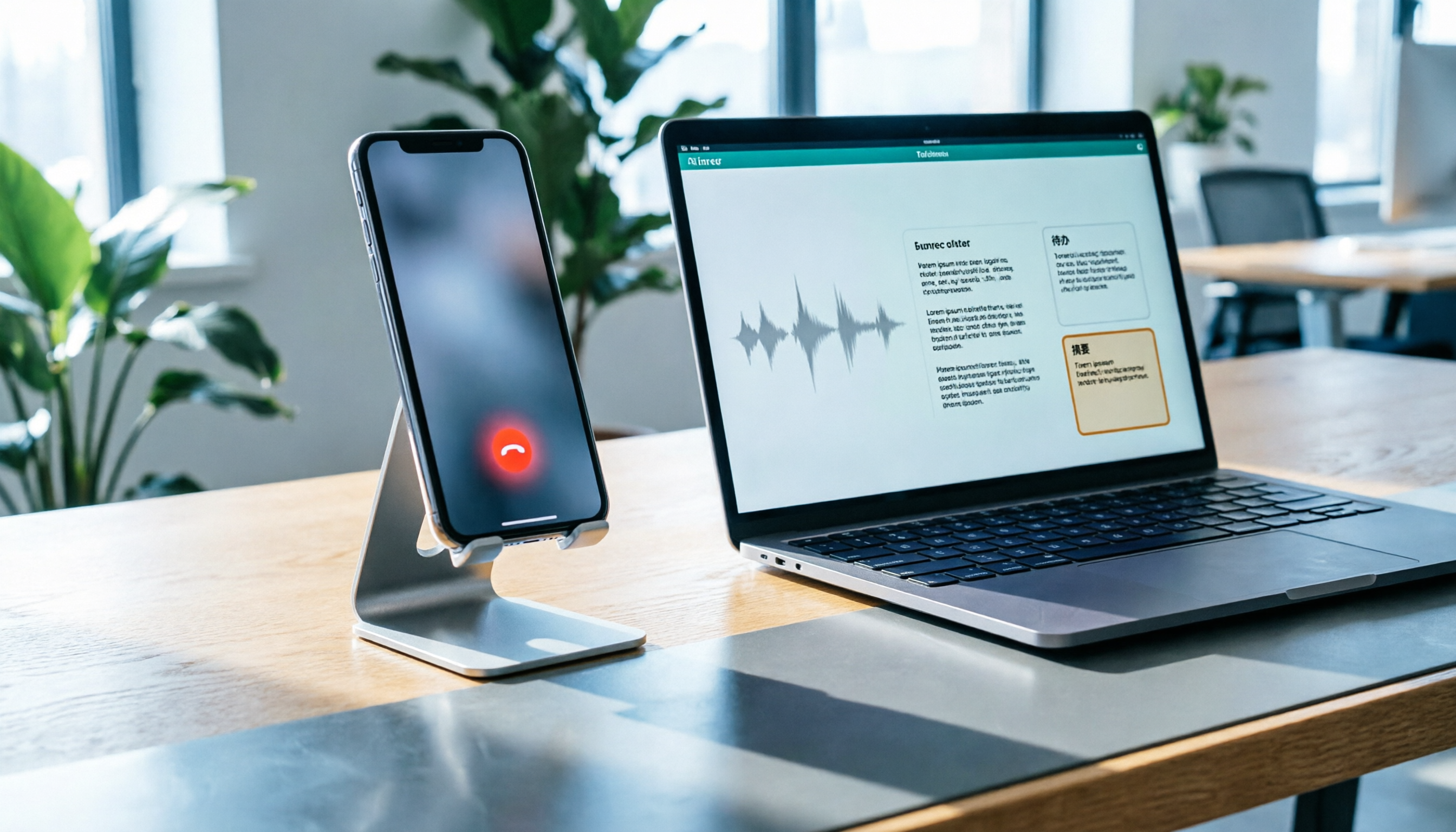
Upload audio or video for multilingual transcription, AI notes, and action items
The moment you hang up, you realize you missed the key points
On the other end of the line, a vendor is verbally promising a delivery date. You're holding your phone in one hand and fumbling for a pen and paper with the other. You manage to jot down two numbers, but after hanging up, you remember: they also mentioned a caveat, and you didn't write any of it down.
Another situation is a customer complaint. The person talks for five minutes about emotions and details. You only remember the conclusion, and you can't recall a single key phrase from the middle.
At times like these, everyone thinks the same thing: Can the iPhone record phone calls?
The answer is yes, but you need to understand three things first—whether your phone can use it, what happens when you press the button, and how to turn those audio files into actually usable data after recording.
Understand these 4 things before you press record
1. Not every country or region supports it
Apple's official support document clearly states: call recording is only available in "select countries and regions." Before you start, check Apple's "iOS and iPadOS Feature Availability" website to confirm whether your country or region is supported.
2. Only the recording party needs to update
Your iPhone needs to be updated to iOS 18.1 or later for the record button to appear in the call interface. As for the person on the other end, even if they're using an Android or haven't updated their system, you can still record the call.
3. The other party will be notified, and it can't be turned off
After you press record, the system notifies both parties, and recording starts after a 3-second countdown. This is Apple's privacy design, and there is currently no option to disable the notification.
In other words, iPhone's built-in recording was never intended for "secret recording." In Taiwan, recording without the other party's consent may violate laws related to privacy and communications protection. It's safer for both sides to inform and obtain consent before recording.
4. Recording doesn't mean you get a transcript
Recording is a basic feature; transcription is a separate matter. Transcripts are only available in certain regions and languages, and your iPhone must meet minimum model requirements. If Apple Intelligence is enabled, you can also read call summaries in the Notes app.
If you don't see a transcript, it's usually because one of the following doesn't match: region, language, or device model.
How to use iPhone's built-in call recording: 5 steps
Step 1: Update your system first
Go to Settings → General → Software Update and confirm you've upgraded to iOS 18.1 or later.
Step 2: Use the built-in Phone app to make or receive a call
Note that this is the system's built-in phone feature, not voice calls in other messaging apps.
Step 3: Tap "Call Recording" in the top-left corner
Once the call starts, a record button appears in the top-left of the interface. Tap it.
Step 4: Recording starts after a 3-second countdown
This countdown alerts both parties simultaneously. During recording, a control panel appears on screen. You can stop at any time by pressing the red button, or simply hang up to end the recording.
Step 5: Find the call in Notes
After the call ends, the recording is saved automatically. You can then find the call in the Notes app, where the transcript and summary are also located. Display locations may vary slightly by version and region, so it's best to check after recording.
One more thing: call recording is enabled by default. If you don't want this button to always appear, you can turn it off in Settings.
The built-in feature is sufficient, but here's where its limits are
Honestly, for people who just want a record, this is more than enough. But if you want to use it to get things done after every recording, you'll run into a few practical issues.
First, not everyone gets a transcript. Three conditions—region, language, and device model—must all be met, and you may have to wait for system processing. It won't appear immediately.
Second, the transcript is plain text. It turns speech into words, but it won't highlight "who promised what" or "who to contact next." For a 30-minute call, you still have to read through it yourself.
Third, it only handles "phone calls." In-person interviews, discussions in a meeting room, online meetings on your computer, or that audio file a client sent you—none of these are within its scope.
And these are exactly the areas where most office workers actually spend their time.
Tinrec: Turning "recorded audio" into data you can keep using
If what you want isn't just "an audio file" but "something you can send out right after a call or meeting ends," then Tinrec is the one I'd recommend trying in this article.
Tinrec is an AI meeting notes and collaboration tool for individuals and teams. It supports iOS, Android, and web, and the desktop version can also handle online meetings. Its positioning isn't a voice recorder—it's about turning audio into searchable, queryable, deliverable data.
Here's how it works in practice:
Transcribe while recording. For in-person interviews or impromptu discussions, open the app and get a live transcript without waiting until the end.
Stop organizing recordings by hand
Upload audio or video and automatically get a transcript, summary, and action items
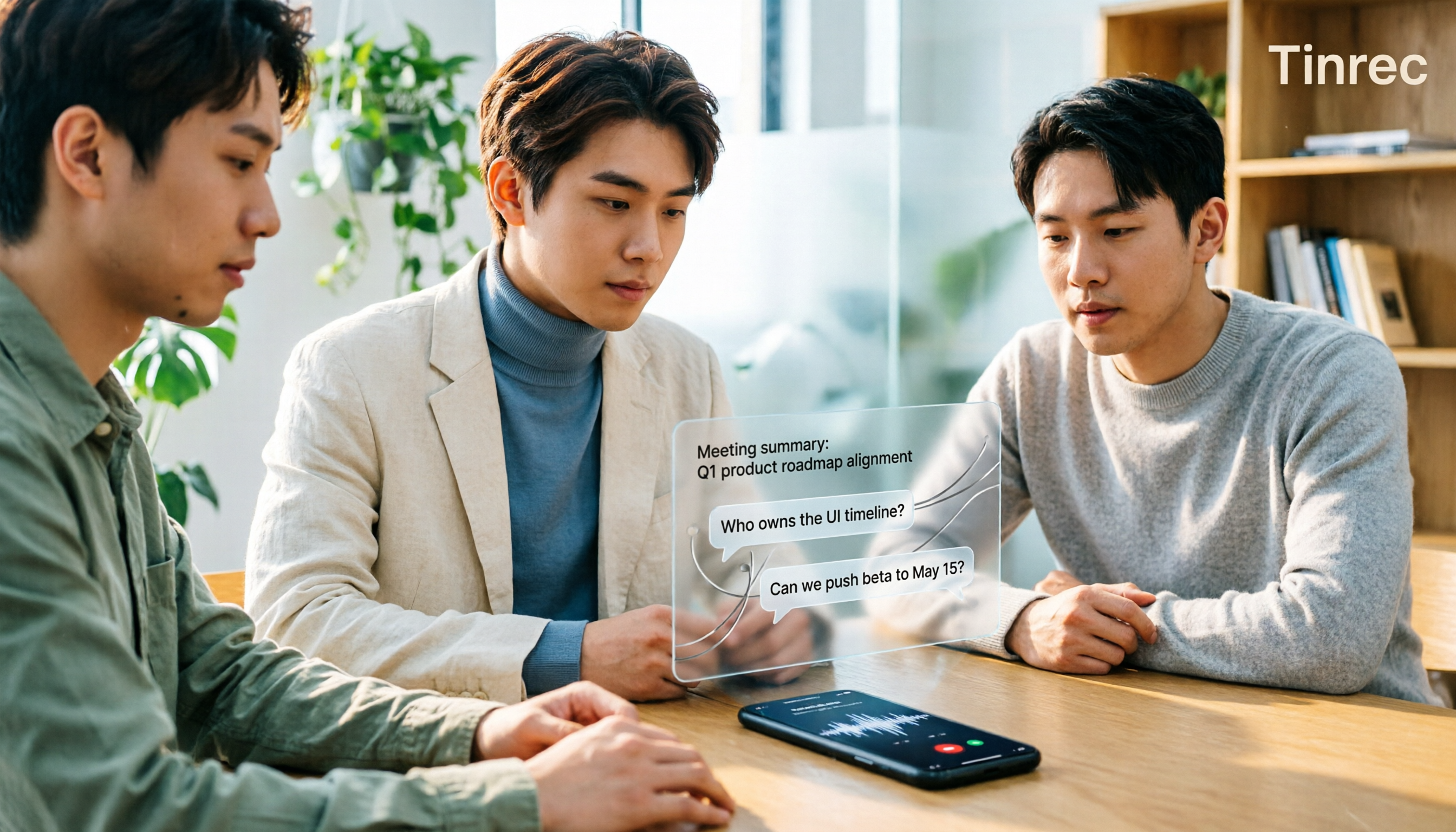
Get summaries and action items right after recording. For a 30-minute conversation, it organizes chapters, key points, and action items—who's responsible and when it's due, all at a glance. This makes a big difference for people who have regular weekly meetings, because what you save isn't typing time—it's the time spent "re-listening to the recording."
The most important part is AI Q&A. After recording, you can directly ask it "What was the budget cap the client mentioned?" or "What was the conclusion of the last meeting?" It answers based on the content, rather than throwing keywords at you to search yourself. This feature gets better as your data accumulates.
How it handles online meetings is also worth mentioning: the Tinrec desktop version directly captures your computer's system audio, so you don't need to invite a meeting bot to join Zoom, Google Meet, Microsoft Teams, or Webex. Having one less bot on the participant list is much more presentable for client meetings.
Here are three advantages:
- After transcription, you also get summaries, chapters, action items, mind maps, and multi-format export—no need to reorganize everything yourself.
- Chinese and mixed Chinese-English content is its main focus, and it also supports real-time translation and bilingual viewing.
- The team version has independent team spaces where meeting data belongs to the team, with management of members, roles, seats, usage analytics, and activity logs. When members change, data doesn't leave with them.
Limitations should also be clear:
Tinrec is not a tool to bypass iPhone call recording restrictions. It processes the recordings and meeting content you already have, not record phone calls for you. Also, the free version provides a basic quota. If you handle long meetings every day, you'll need to evaluate a paid plan. The team version is currently USD 29.80 per paid seat per month, or USD 199 per paid seat per year (about USD 16.58 per month), with each paid seat including 2,000 minutes of shared team import quota per month. Actual prices and benefits are subject to the official purchase page.
Who is it for? People who frequently need to turn conversations into written records—office workers who write meeting minutes, salespeople who need to organize client requirements, researchers or content creators who conduct interviews, and departments that want to move meeting data from individual phones into a team space.
Besides the built-in feature and Tinrec, there are other options
PLAUD Note / NotePin
A representative of AI recording hardware. The advantage is a standalone device you can carry and record with. On the US official website, NotePin is about USD 159 and Note Pro about USD 189, with membership billed separately. If you're often on the go and it's inconvenient to take out your phone, hardware has its value. On the other hand, Tinrec doesn't require buying an extra device—it works on phone, computer, and web—and offers AI Q&A and team data spaces.
Otter.ai
A mature choice for English meetings. The free version offers 300 minutes per month, and it's already stable in many people's workflows. Its focus is English business scenarios, so if almost all your recordings are in English, it's a good deal. However, Chinese meetings are not its strong suit, while Tinrec is better suited to Taiwan usage scenarios for Chinese and mixed Chinese-English content, as well as post-transcription action item extraction and team knowledge retention.
Notta
A multi-platform transcription tool. The free version offers 120 minutes per month with a 3-minute limit per recording, and paid plans go up to 1,800 minutes per month. Its features are comprehensive and it also has team plans. Tinrec's differences lie in bot-free desktop recording for online meetings, Agent post-processing to generate reports and tables, and team-level seat management and activity logs.
Pitfall guide: 3 most common mistakes when recording on iPhone
Pitfall 1: Assuming a transcript comes after updating.
Many people update to iOS 18.1 and find only audio files, no text, and think the feature is broken. In fact, transcripts also depend on whether your region, language, and device model are supported. Confirm before recording—it's better than being disappointed afterward.
Pitfall 2: Trying to turn off the notification.
Some people online ask how to disable the recording prompt. The current design is that both parties are notified. Rather than looking for a workaround, it's better to tell the other person at the start of the call, "I'm recording this on my end for easier follow-up," which most people accept and helps avoid later disputes.
Pitfall 3: Leaving recordings only on your phone.
You record ten calls, and they all sit in Notes and no one looks at them again—this is a common situation. The value of recording lies in being used afterward: turned into transcripts, action items, searchable records. If you just need evidence, the built-in feature is enough; if you want to use it to get things done, you need a tool that organizes it for you.
Conclusion: Which one should you use in your situation?
To answer the original question in one sentence: iPhone can record calls, built-in since iOS 18.1, but transcripts depend on region and device model.
Next, see which category you fall into:
- Just need an occasional record, and you're in a supported region → iPhone's built-in call recording is enough. Remember to inform the other party first.
- Need transcripts and summaries, often use mixed Chinese-English conversations → Confirm device model and language support, then consider pairing with a tool like Tinrec for organization.
- Need records for in-person interviews and impromptu discussions → Tinrec's mobile real-time transcription is more reliable than taking notes afterward.
- Don't want a bot joining online meetings → Tinrec's desktop version captures system audio, so no extra participant is needed.
- Often on the go and need standalone hardware → Recording devices like PLAUD have their place.
- Recordings need to become team-shared assets → Choose a solution with team spaces, seat and usage management, such as Tinrec's team version.
I suggest starting with the free version and throwing in a real recording of your own—within ten minutes, you'll know whether what it produces is the kind of thing you'd hand to your boss or client.
References
- Record calls and transcribe them on iPhone - Apple Support (Taiwan)
- [Phone Tips] 2026 iPhone Built-in Call Recording Feature Tutorial! iOS Enable Phone Recording / Key Notes | 傑昇通信~挑戰手機市場最低價
- How to use iPhone call recording? Full analysis of built-in iOS call recording and transcription - 瘋先生
- How to record calls on iPhone? 5 iPhone call recording methods revealed!
- iOS 18 update brings "iPhone call recording feature" - detailed steps, finally you can record while on the phone! - Article - Dream & Hunter - 獎金獵人
Turn every recording into actionable outcomes
Get 60 free transcription minutes when you sign in. No credit card required.
Related Reading
You might also like

3 iPhone Call Recording Methods Tested for 2026: Recording Is Easy, Organizing Is the Hard Part
How do you record calls on iPhone? This article compares three common approaches: iOS 18.1 built-in call recording, local capture with Voice Memos, and using Tinrec to turn recordings into searchable, queryable transcripts and action items. It covers version and region restrictions, notification and legal risks, four common pitfalls, and selection advice.

4 Ways to Record Audio on iPhone with Headphones in 2026: AirPods, Wired Headsets, and External Mics Compared
Can you record audio while wearing headphones? This article addresses common misconceptions and breaks down the differences, compatibility pitfalls, and key considerations of four headphone recording methods on iPhone. It also explains how to use Tinrec to organize transcripts, summaries, and action items after recording.

6 iPhone Recording Alternatives Tested for 2026: What to Choose When Built-in Features Fail
When iPhone recording doesn't work, the problem is often not the phone itself. This guide first helps you distinguish three situations: call recording limited by region and model, dictation not working, and Voice Memos cutting off mid-recording. Then it tests and compares 6 alternatives—Tinrec, Notta, Otter.ai, Granola, TurboScribe, and PLAUD—listing costs, limitations, and best-use scenarios so you can pick the right tool in 10 minutes.
How to Record LINE Calls on iPhone in 2026: Built-in Steps + Auto Transcription
Can iPhone record LINE calls? LINE has no built-in recording button, but iPhone can capture calls as audio files via system-level recording. This guide walks through the steps, speakerphone requirements, and version differences, then shows how to use Tinrec to turn recordings into transcripts, summaries, and action items—so your recordings are actually useful.

3 iPhone Recording Workflows Compared in 2026: Auto-Transcription Saves the Most Time
Many people use iPhone recording only to capture audio, then spend extra time re-listening and organizing. This article compares 3 recording workflows from a decision-making perspective: instead of just finding the record button, choose a tool that turns recordings into transcripts, summaries, and action items. Using Tinrec as an example, it explains how to automatically organize, query, and share iPhone recordings with your team.

3 iPhone Recording Methods Compared in 2026: Built-in Voice Memos, Call Recording, and AI Transcription
You don't need to download extra apps to record on your iPhone. This article debunks three common misconceptions, explains how to set up quick recording with Voice Memos, the Lock Screen, and the Action button, covers the built-in call recording in iOS 18.1, and compares how to organize your recordings afterward. It also details Tinrec's practical uses and limitations for transcription, summaries, and team collaboration.
iPhone Audio to Text Guide 2026: 3 Methods Tested and Recommended
Your iPhone can turn recordings into transcripts, but device models, iOS versions, and language support all have requirements. This guide covers three built-in methods—Voice Memos, Notes app, and Dictation—and compares them with Tinrec for meeting notes, AI Q&A, and team collaboration. It includes selection criteria and 4 common mistakes to help you choose the right method for your situation.

How to Record Audio on iPhone with Headphones in 2026: 4 Connection Methods Tested + Auto Transcription
Recording on an iPhone with headphones seems simple, but plugging in headphones doesn't guarantee the headphone mic is used. This guide covers the real differences between four setups—AirPods, EarPods, USB-C headsets, and external microphones—how to check connector types, Bluetooth range risks, and how to use Tinrec to turn recordings into transcripts, summaries, and action items, saving you hours of re-listening.

4 iPhone Recording Methods Compared for 2026: Will the Other Party Know, and Which One Is Right for You?
When you press the built-in iPhone call recording button, will the other person know? The answer is yes, and there is no official way to turn it off. This article clearly explains the actual process of the 3-second countdown and voice prompt, then compares four approaches: built-in call recording, recording hardware, third-party apps, and Tinrec, to help you choose the right method based on what you're recording and what you'll do with it afterward.