

Turn recordings into transcripts and summaries in minutes
Upload audio or video for multilingual transcription, AI notes, and action items
3 iPhone Call Recording Methods Tested and Compared in 2026: What to Do With the Recordings?
Why do most people still can't find that sentence after recording?
"iPhone doesn't have call recording" is probably one of the most repeated phrases in recent years. Many people still use speakerphone plus another phone to record, or install recording apps from unknown sources, resulting in poor audio quality, scattered files, and privacy concerns.
But the real problem isn't "can you record or not."
It's that after you record, the file sits in your Photos or Voice Memos. Two weeks later, when you need to check what a client said, you have to listen to the entire 40-minute audio from the beginning.
Recording and organizing are actually two different things. Understand the difference first, then choose your tools.
Understand these 3 things before you start recording
1. Does your iPhone have built-in call recording?
Yes, but it requires iOS 18.1 or later. This is a feature Apple added with iOS 18 in 2024. Previously, iPhone indeed lacked built-in recording, and Apple never opened it up, mainly due to privacy and legal issues.
2. The other party will definitely know
This is the first pitfall many people encounter.
After you tap record, a countdown of about 3 seconds appears, then both parties hear a prompt saying "This call will be recorded." In other words, silent recording without the other party knowing is not possible with the built-in feature.
Apple designed it this way for privacy reasons, and it's unlikely they'll add an option to turn it off in the short term.
3. There are regional restrictions, but Taiwan is fine
Apple's support page lists unavailable regions including Azerbaijan, Bahrain, Egypt, EU, Iran, Iraq, Jordan, Kuwait, Morocco, Nigeria, Oman, Pakistan, Qatar, Russia, Saudi Arabia, South Africa, Turkey, UAE, and Yemen. Taiwan is not on the list.
Also, transcription depends on whether your region and language are supported, and since it's machine transcription, you still need to verify accuracy yourself.
How to use the built-in feature? Actual workflow
Start recording during a call: Tap "Call Recording" on the call screen (or in the "More" menu), and recording starts after a 3-second countdown.
Where recordings are saved: After the call ends, the audio file is automatically saved in "Voice Memos" under the "Call Recordings" folder.
Transcript: In supported regions and languages, you can view the transcript of call recordings in the "Notes" app. Note that the transcript may not appear immediately, and deleting the recording will also delete the transcript.
Another method: Swipe down from the top right to open Control Center and tap "Local Capture" to record, but this only captures your own voice, better suited for voice notes, not actual call recording.
The real focus is after recording: Tinrec
Tinrec is an AI meeting notes and collaboration tool for individuals and teams, available on web, desktop, and mobile.
Let's be clear: it's not a call recording app and doesn't record your calls. It handles the part after recording.
I ran a client call recording through it myself, and the process is roughly: upload audio → automatic transcription → generate summary, chapters, and action items → ask AI directly if you have questions.
Scenario 1: Turn iPhone recordings into transcripts
Files saved from built-in recording can be uploaded directly and converted into timestamped transcripts. It can handle mixed Chinese-English content, which is quite important for business calls in Taiwan—many people speak Chinese with product names and English abbreviations mixed in.
Scenario 2: Record online client meetings without a meeting bot
For online meetings like Zoom, Google Meet, Microsoft Teams, Webex, Tinrec desktop captures system audio directly, so you don't need to invite a bot into the meeting room.
This is practical for client meetings—you don't want a "recording bot has joined" notification appearing in front of your client.
Scenario 3: Ask directly after recording, no need to re-listen
This is where I find it saves the most time. Previously, to find "the budget range the client mentioned," I had to slowly search keywords in the transcript. Now I can directly ask "What budget and decision timeline did the client mention in this call?" and it gives an answer based on the content, rather than dumping a bunch of keyword matches.
Stop organizing recordings by hand
Upload audio or video and automatically get a transcript, summary, and action items
After recording, you can also generate reports, tables, meeting minutes, or export to Notion, Google Docs, OneNote, Dropbox for further processing.
Pros
- Complete post-transcription workflow: summaries, chapters, action items, mind maps, reports, tables—no need to stitch together other tools.
- Chinese and mixed Chinese-English are its strengths, plus you can customize professional terminology with team hotwords, improving recognition of industry vocabulary.
- Multiple export options, meeting results can go directly into your existing workflow.
Limitations (to be clear)
- The free version has a basic quota; heavy users need to pay. It's enough for those who have meetings two or three times a week, but not for those who make several calls daily.
- It doesn't record calls for you. You need to record yourself first, or use it when having meetings on your computer.
- Accuracy is affected by recording quality. Muffled sound, background noise, and multiple people talking over each other will definitely reduce effectiveness; for important numbers, it's recommended to listen to the original audio to verify.
Who is it for
If you need to turn client calls, interviews, and meeting content into searchable data, especially for Chinese-language communication, Tinrec is the most hassle-free part of this workflow.
Teams of five or more can consider the team version: meeting data is centralized in one space, members, roles, and seats are managed separately, and data won't disappear when someone leaves. Currently, team monthly is USD 29.80 per paid seat per month, annual is USD 199 per paid seat per year (about USD 16.58 per month); actual amounts are subject to the official purchase page.
Other options: if you need a different part of the process
Granola: Also a bot-free desktop meeting notes tool, Basic is free, Business is USD 14 per user per month. Note that it doesn't save meeting audio files and doesn't support uploading pre-recorded audio—you can't throw in iPhone call recordings. If you need to keep original recordings and import existing audio, this is a hard limitation.
Notta: Multilingual transcription tool, free version has 120 minutes per month with a 3-minute limit per session, Pro annual is about USD 8.17 per month. Pure transcription and translation perform well. But if you want meeting data shared within a team and the ability to ask follow-up questions continuously, Tinrec's team space (roles, seats, usage, audit) is more complete.
PLAUD Note/NotePin: AI recording hardware, NotePin priced at USD 159, Note Pro at USD 189. If you really need a hardware form factor for recording calls on the go, it's the most direct. The trade-off is carrying an extra device and an extra hardware cost, and post-meeting organization for online meetings still requires software. Tinrec requires no extra hardware and works on web, desktop, and mobile.
Pitfall guide: these 4 mistakes are most common
Pitfall 1: Thinking you can record secretly. The built-in feature always plays a prompt tone that both parties can hear. Looking back at Taiwan's regulations, secretly recording others' non-public conversations without cause may violate Article 315-1 of the Criminal Code (offense of infringing secrecy). In practice, the safest approach is to ask, "Is it okay if I record this for easier organization?"
Pitfall 2: Only looking at whether there's a recording feature, not how to use the recording. The audio file itself won't help you recall or organize. What really affects efficiency is the transcript, summary, and whether you can search and ask questions directly.
Pitfall 3: Ignoring system version and region. No built-in feature below iOS 18.1, and some regions are not supported. Check before traveling abroad, so you don't find out you can't record when you're there.
Pitfall 4: Installing recording apps from unknown sources. Call content contains a lot of personal and business information; apps from unknown sources are the riskiest approach. Use built-in if possible.
Conclusion: How should you choose?
In one sentence: iPhone now has call recording, but it only solves "recording," not "using."
- Just want a record of the call → iOS 18.1 built-in is enough, remember to inform the other party first.
- Want to turn recordings into transcripts, summaries, action items → use Tinrec to upload the audio.
- Need to record online client meetings without a bot joining → Tinrec desktop captures system audio.
- Need team sharing of meeting data, manage members and usage → Tinrec team version.
- Need portable hardware to record calls → PLAUD and similar recording devices.
I suggest first running a call recording you have through Tinrec's free version to see if the transcript is directly usable. If the workflow feels smooth, then consider upgrading—no need to pay upfront.
References
- iPhone Call Recording Tutorial: Step-by-Step Guide to Phone Recording
- How to Record Calls on iPhone? 5 iPhone Call Recording Methods Revealed!
- Record and transcribe calls on iPhone - Apple Support (Taiwan)
- [Phone Tips] 2026 iPhone Built-in Call Recording Feature Tutorial! iOS Enable Call Recording/Key Points to Note
- How to Use iPhone Call Recording? Full Analysis of Built-in iOS Call Recording and Transcription - Mr. Mad
Turn every recording into actionable outcomes
Get 60 free transcription minutes when you sign in. No credit card required.
Related Reading
You might also like

3 iPhone Recording Methods Compared: Built-in Voice Memos, One-Tap Shortcuts, and AI Transcription—Which Is Most Practical?
There are actually three ways to record on an iPhone: Voice Memos, Shortcuts with Back Tap, and the Action button—most people can't find them at first. This guide walks through the steps, recording quality, and iCloud settings for each method, then compares Voice Memos, PLAUD, Notta, and Tinrec on how well they let you use recordings right after you finish, so you can pick the approach that fits you.

4 iPhone Recording Solutions Compared in 2026: Where to Find Recording Features and Which Saves the Most Time on Transcription
Can't find the iPhone recording feature? This guide covers where to find Voice Memos, call recording, and one-tap recording via Shortcuts, plus compares post-meeting transcription, AI summaries, and team collaboration options to help you choose the right recording workflow.
5 iPhone Recording Solutions Tested for 2026: Does Recording Drain Battery? How to Choose for Long Sessions
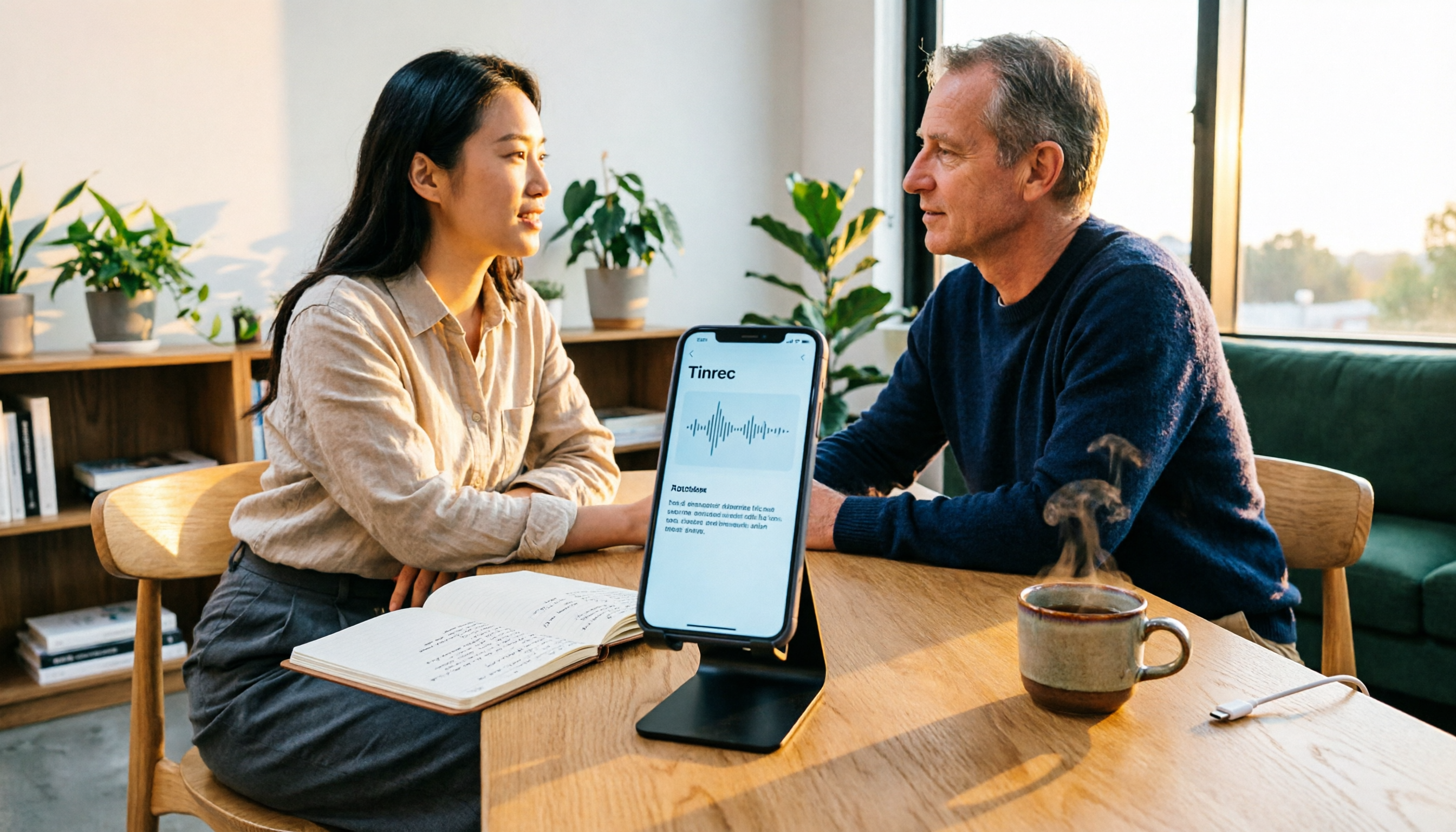
Does iPhone recording drain battery? Long recordings do use power and generate heat, and files can be corrupted if interrupted or the battery dies. This article compares 5 iPhone recording and post-meeting solutions—built-in Voice Memos, Tinrec, Otter.ai, Notta, and PLAUD—to help you choose the right tool for your situation.

3 iPhone Call Recording Methods Compared in 2026: Built-in, Hardware, or AI — Which Saves the Most Time?
A hands-on comparison of three iPhone call recording methods in 2026, breaking down the differences between iOS built-in call recording, Plaud recording hardware, and Tinrec AI organization, plus regional restrictions, notification sounds, legal consent, and key buying pitfalls.

3 iPhone Call Recording Methods Tested for 2026: Recording Is Easy, Organizing Is the Hard Part
How do you record calls on iPhone? This article compares three common approaches: iOS 18.1 built-in call recording, local capture with Voice Memos, and using Tinrec to turn recordings into searchable, queryable transcripts and action items. It covers version and region restrictions, notification and legal risks, four common pitfalls, and selection advice.

4 Ways to Record Audio on iPhone with Headphones in 2026: AirPods, Wired Headsets, and External Mics Compared
Can you record audio while wearing headphones? This article addresses common misconceptions and breaks down the differences, compatibility pitfalls, and key considerations of four headphone recording methods on iPhone. It also explains how to use Tinrec to organize transcripts, summaries, and action items after recording.

6 iPhone Recording Alternatives Tested for 2026: What to Choose When Built-in Features Fail
When iPhone recording doesn't work, the problem is often not the phone itself. This guide first helps you distinguish three situations: call recording limited by region and model, dictation not working, and Voice Memos cutting off mid-recording. Then it tests and compares 6 alternatives—Tinrec, Notta, Otter.ai, Granola, TurboScribe, and PLAUD—listing costs, limitations, and best-use scenarios so you can pick the right tool in 10 minutes.
How to Record LINE Calls on iPhone in 2026: Built-in Steps + Auto Transcription
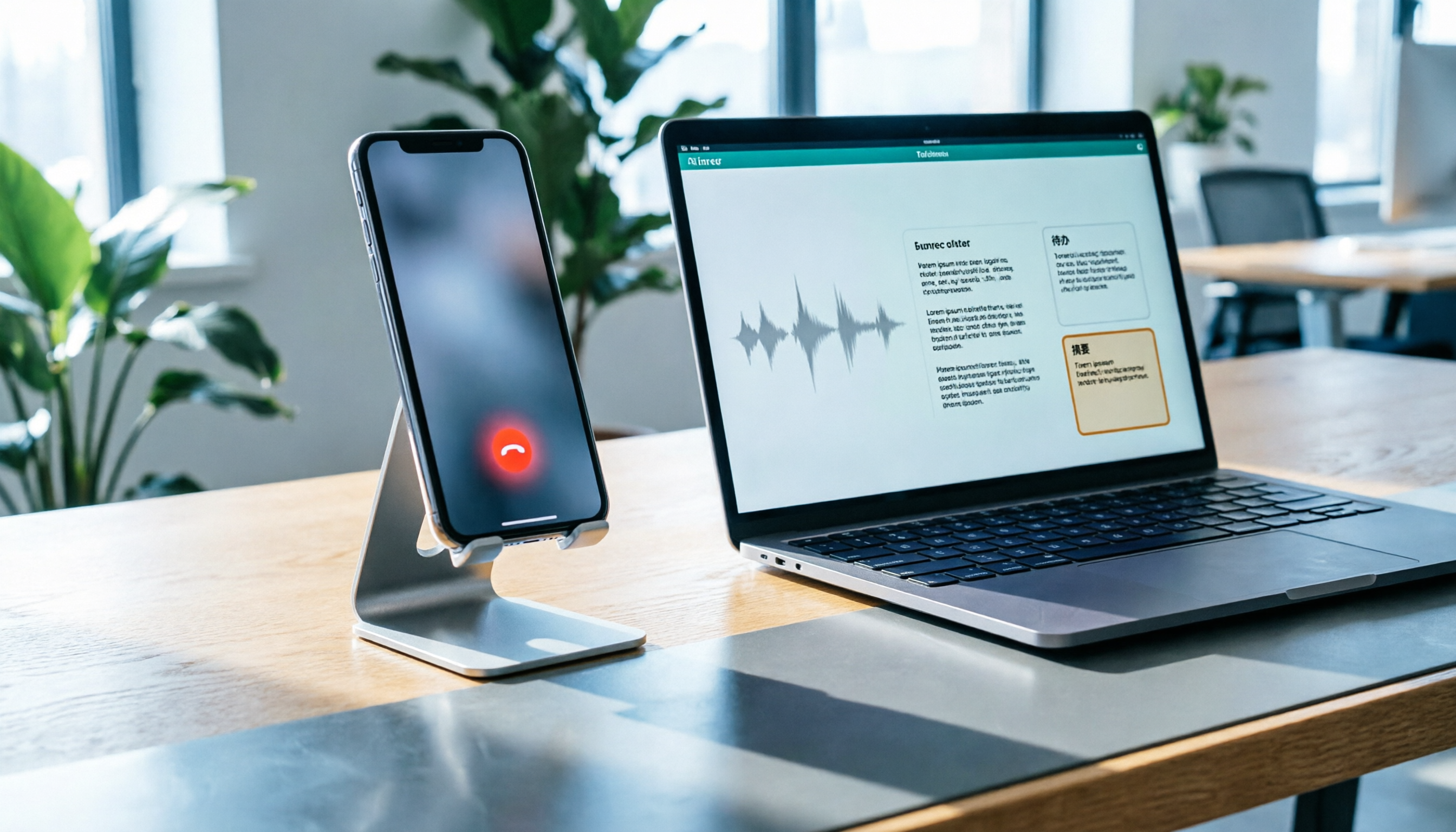
Can iPhone record LINE calls? LINE has no built-in recording button, but iPhone can capture calls as audio files via system-level recording. This guide walks through the steps, speakerphone requirements, and version differences, then shows how to use Tinrec to turn recordings into transcripts, summaries, and action items—so your recordings are actually useful.

3 iPhone Recording Workflows Compared in 2026: Auto-Transcription Saves the Most Time
Many people use iPhone recording only to capture audio, then spend extra time re-listening and organizing. This article compares 3 recording workflows from a decision-making perspective: instead of just finding the record button, choose a tool that turns recordings into transcripts, summaries, and action items. Using Tinrec as an example, it explains how to automatically organize, query, and share iPhone recordings with your team.