

Turn recordings into transcripts and summaries in minutes
Upload audio or video for multilingual transcription, AI notes, and action items
4 iPhone Recording Solutions Compared in 2026: Where to Find Recording Features and Which Saves the Most Time on Transcription
Need to record a conversation on the spot but can't find the "recorder" on your home screen? Many people get stuck on "where is it hidden" the first time they try to record on an iPhone. Actually, there's more than one way to start recording on iPhone: Voice Memos, call recording, and one-tap recording via Shortcuts each serve different situations.
This article first directly answers where the iPhone recording feature is, then compares ways to organize recordings afterward. If you just want to save audio files, the built-in features are enough; if you need transcripts, summaries, to-dos, and AI Q&A, rather than typing it out yourself, hand the recording to a post-meeting organization tool like Tinrec.
The following focuses on everyday workflows, emphasizing where to find features and post-meeting organization; transcription accuracy is affected by recording quality, noise, and accents, and no fixed numbers are promised.
Don't Rush to Find an App: iPhone Recording Needs Fall into Three Types
The first is quick notes. When you suddenly need to record an idea, ambient sound, or verbal commitment, you need a recording entry point that starts immediately.
The second is keeping phone communications. For sales calls, customer service disputes, or important contacts, the recording should be replayable later, and you should pay attention to mutual consent and regulations.
The third is meetings, interviews, and classes. The hardest part of these recordings is usually not the recording itself, but the transcript, summary, to-dos, and search afterward.
Rather than asking "where is the recording app," it's more worthwhile to ask: what will you do after recording? If it's just for archiving, the built-in Voice Memos is sufficient; if you want searchable, queryable data, look at the post-processing capabilities.
Where Is the iPhone Recording Feature? Three Entry Points at a Glance
1. Voice Memos: The Most Commonly Used Built-in Recording App
iPhone's "Voice Memos" is usually located in the "Utilities" folder. Open the app and tap the record button to turn your iPhone into a portable recording device.
On supported models, you can see an ongoing recording in the Dynamic Island at the top of the home screen while recording; tap it to return to Voice Memos.
If you select "Stereo" or "Spatial Audio" in settings, Voice Memos will use multiple microphones on the iPhone to record left and right channels. Older iPhone models record in mono unless "Stereo Recording" is enabled in settings.
Recordings are stored in Voice Memos. Tap the "..." button next to a recording, select "Share," and you can export via AirDrop, email, or save to the Files app.
2. Call Recording: Top-Left of the Call Screen
Since iOS 18.1, iPhone has added built-in call recording. When making or receiving a call, tap "Call Recording" in the top-left corner of the call screen.
After enabling, a 3-second countdown prompt appears, and then both parties hear a notification sound. If neither party hangs up, the call recording begins.
After the call ends, the recording is automatically saved to the Voice Memos app. There you can play, rename, share, or delete it.
Note that before recording, confirm local regulations and inform the other party and obtain consent. This is not just polite; it also avoids future disputes.
3. Shortcuts + Back Tap: Tap the Back of Your Phone to Start Recording
If you often need one-tap recording, you can use "Shortcuts" with "Back Tap." First open Shortcuts, tap "+" in the top-right corner, type "Voice Memos" in the search bar, select "Create Recording," and tap "Done."
Then go to Settings > Accessibility > Touch > Back Tap, choose "Double Tap" or "Triple Tap," scroll down to "Shortcuts," find the newly added "Create Recording," and confirm.
From then on, just double-tap or triple-tap the back of your phone to start recording, but you need to unlock the screen first.
Before Choosing an iPhone Recording Solution, Understand These 4 Key Points
1. Does the entry point fit the situation? For quick recording, Voice Memos is fastest; for phone archiving, call recording is most direct; for one-tap start, Shortcuts plus Back Tap is convenient.
2. Can you organize after recording? What really takes time for most people is not recording but re-listening and typing. If you often handle meetings, interviews, or classes, check whether the tool can produce transcripts, summaries, chapters, and to-dos.
3. Cross-device and team collaboration. Record on iPhone today, organize on computer tomorrow, and share with colleagues the day after—this involves cross-platform and team spaces. Personal accounts and team databases are best managed separately.
4. Quotas, costs, and compliance. Free plans usually have quota limits, and call recording involves mutual consent. First confirm your usage frequency and legal requirements, then decide whether to pay.
Stop organizing recordings by hand
Upload audio or video and automatically get a transcript, summary, and action items
Tinrec — When You Need to Organize After Recording, I'd Try This First
Tinrec is an AI meeting notes and collaboration tool for individuals and teams. It not only converts audio to text but also organizes meeting recordings into searchable, summarizable, queryable, and exportable data. For iPhone users, the built-in Voice Memos handles "recording it," while Tinrec fills in "how to use it after recording."
During meetings, you can use Tinrec for real-time recording and transcription, capturing content as you record. Don't want an extra bot in online meetings? Tinrec's desktop version captures computer system audio to handle Zoom, Google Meet, Microsoft Teams, Webex, and other meetings without a meeting bot joining.
After recording, Tinrec generates summaries, chapters, key points, and to-dos, and you can ask AI questions about the meeting content. Rather than manually scanning a 30-minute transcript to find "who mentioned the budget," just ask it for meeting conclusions and action items.
If you have mixed Chinese-English or cross-language meetings, Tinrec supports real-time translation, viewable in original, translated, or bilingual format. For export, you can continue processing in Notion, Google Docs, OneNote, Dropbox, etc., and generate reports, tables, and meeting minutes.
For team use, Tinrec's team edition is not multiple people sharing one personal account but an independent team space. Team data belongs to the team; roles determine who can manage the team, members, audit, and settings, while seats determine whether members can record, upload, edit, import, and export. Active members without a seat can still view, play, and read team data but cannot perform resource usage operations.
Pricing: Tinrec's personal edition has a free version, weekly card, Pro monthly, and annual. The free version offers basic quota; actual plans and quotas are subject to the official website. The team edition offers a 7-day trial for first-time eligible users, 1 free seat, and 300 minutes of shared team import quota; team monthly is USD 29.80 per paid seat per month, annual is USD 199 per paid seat per year, and paid seats provide 2,000 minutes of shared team import quota per month. Real-time recording under an active team plan and active seat is currently not deducted by minutes.
Note that Tinrec is not a bot that automatically joins all meetings, nor is it meant to replace iPhone's built-in call recording. It is initiated by the user for recording or importing files. Also, Tinrec does not promise a fixed 98% or 99% accuracy; actual results are affected by recording quality, noise, accents, overlapping speakers, and technical terms. For important content, it's recommended to cross-check with transcript timestamps and recording playback.
Overall, if you need Chinese meeting transcription, bot-free online meeting recording, post-meeting summaries, to-dos, AI Q&A, and team data archiving, Tinrec is a solution well worth trying first.
Besides Tinrec, What Other Recording Entry Points Are on iPhone?
Voice Memos. Built-in, free, located in the Utilities folder, suitable for those who just want to record audio. If you need summaries, to-dos, AI Q&A, and team sharing, you'll need a post-meeting organization tool like Tinrec to complete the workflow.
iOS Call Recording. Can be started from the top-left of the call screen, and recordings are automatically saved to Voice Memos, suitable for phone communication archiving. But call recording only saves audio; if you want to turn meeting content into searchable summaries, Tinrec is another path.
Shortcuts + Back Tap. Tap the back of your phone to start recording, suitable for quick starts. However, Shortcuts only handles starting; after recording, summaries and to-dos still rely on tools like Tinrec.
Pitfall Guide: The 4 Most Common Mistakes When Choosing an iPhone Recording Solution
Pitfall 1: Thinking iPhone has only one "recorder" app. Actually, Voice Memos is in the Utilities folder, call recording is on the call screen, and Shortcuts can create a Back Tap entry. Understand the situations first, and you won't get lost.
Pitfall 2: Ignoring the notification sound and laws for call recording. iPhone call recording plays a notification sound that both parties hear. Confirm regulations and consent before recording; don't assume pressing the button is enough.
Pitfall 3: Recording without organizing. Recording a one-hour meeting but spending two hours re-listening means you've only used half the recording function. If you often need to find key points, rather than manually typing, use Tinrec to produce transcripts, summaries, and to-dos.
Pitfall 4: Sharing one personal account for the team. If team data is tied to a personal account, it's troublesome when members leave or change. Tinrec's team edition uses independent team spaces, roles, and seat management; data belongs to the team and can be handed over when members change.
Conclusion: Which One Should You Choose?
If you just need to record audio temporarily and listen back yourself, use iPhone's built-in Voice Memos. For phone communication archiving, use iOS call recording, but remember to pay attention to mutual consent and regulations.
If you need transcripts, summaries, to-dos, and AI Q&A after recording, rather than typing it out yourself, I'd recommend Tinrec first. It turns recordings into searchable, queryable meeting data and can export to common workflows.
If you don't want an extra bot in online meetings, you can use Tinrec's desktop version to capture system audio for recording and transcription. For teams that need centralized meeting storage, seat and usage management, look at Tinrec's team edition.
It's recommended to first try Tinrec's free version with your own meeting recording to confirm that Chinese recognition, summary format, and export methods meet your needs, then decide whether to upgrade. For most people who need post-meeting organization, this is more practical than buying an app that only records.
References
- Record in Voice Memos on iPhone - Apple Support (Taiwan)
- iPhone recording is not troublesome! One-tap quick self-protection at critical moments
- Where is the iPhone recording feature? 2026 iOS recording-to-text tool review and selection guide - Tinrec Blog
- [Phone Tips] 2026 iPhone built-in call recording feature tutorial! iOS enable phone recording/key points guide | Jyes Communication ~ Challenge the lowest phone market price
- How to record calls on iPhone? 5 iPhone call recording methods revealed!
Turn every recording into actionable outcomes
Get 60 free transcription minutes when you sign in. No credit card required.
Related Reading
You might also like

3 iPhone Recording Methods Compared: Built-in Voice Memos, One-Tap Shortcuts, and AI Transcription—Which Is Most Practical?
There are actually three ways to record on an iPhone: Voice Memos, Shortcuts with Back Tap, and the Action button—most people can't find them at first. This guide walks through the steps, recording quality, and iCloud settings for each method, then compares Voice Memos, PLAUD, Notta, and Tinrec on how well they let you use recordings right after you finish, so you can pick the approach that fits you.
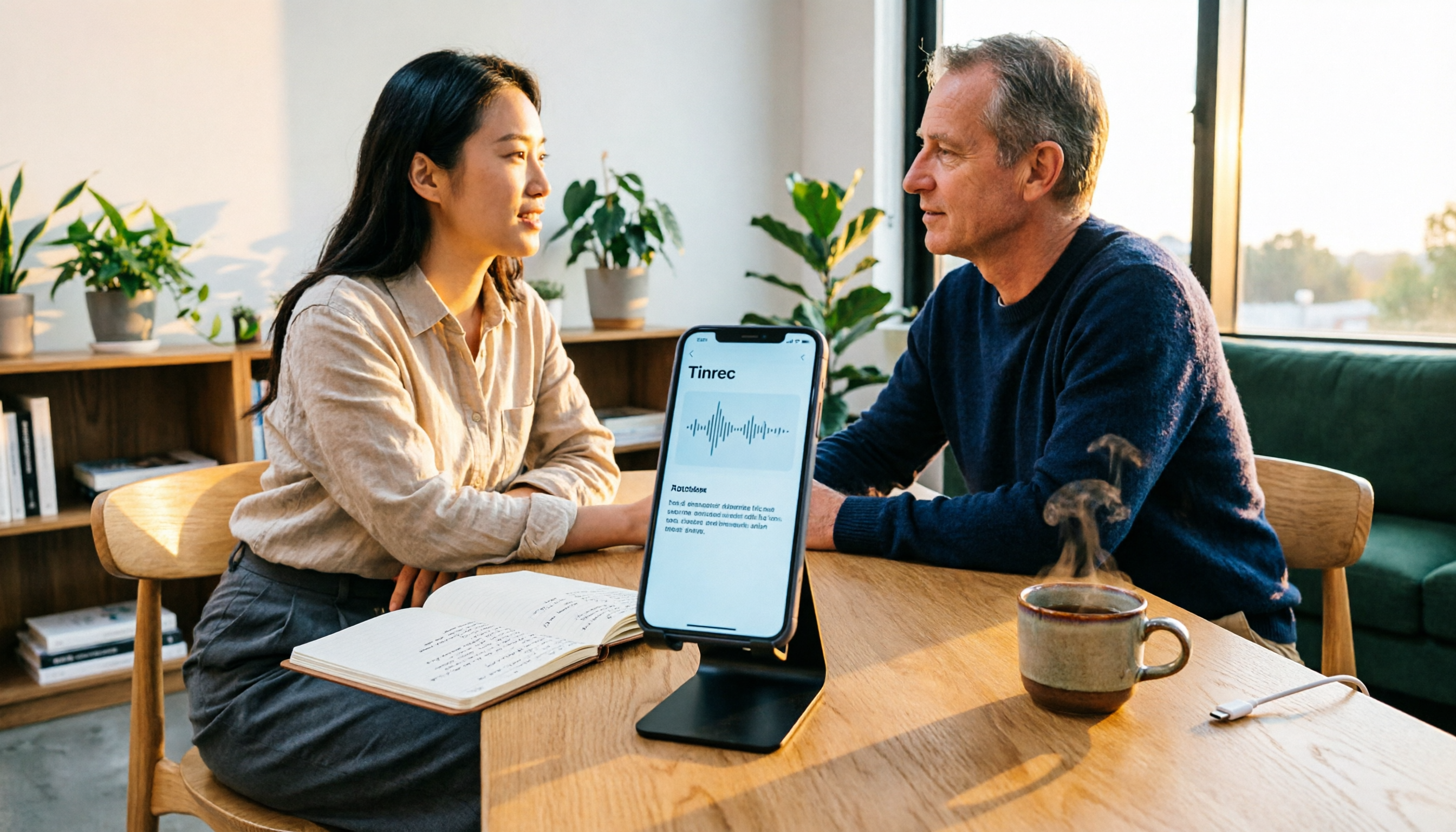
5 iPhone Recording Solutions Tested for 2026: Does Recording Drain Battery? How to Choose for Long Sessions
Does iPhone recording drain battery? Long recordings do use power and generate heat, and files can be corrupted if interrupted or the battery dies. This article compares 5 iPhone recording and post-meeting solutions—built-in Voice Memos, Tinrec, Otter.ai, Notta, and PLAUD—to help you choose the right tool for your situation.

3 iPhone Call Recording Methods Compared in 2026: Built-in, Hardware, or AI — Which Saves the Most Time?
A hands-on comparison of three iPhone call recording methods in 2026, breaking down the differences between iOS built-in call recording, Plaud recording hardware, and Tinrec AI organization, plus regional restrictions, notification sounds, legal consent, and key buying pitfalls.

3 iPhone Call Recording Methods Tested and Compared in 2026: What to Do With the Recordings?
Starting with iOS 18.1, iPhone finally has built-in call recording, but the other party hears a prompt when you start recording, and the recording is just an audio file. This article covers 3 practical methods, regional and version limitations, legal risks, and tests the complete workflow of turning call audio into transcripts, summaries, and action items to help you decide if the built-in feature is enough.

3 iPhone Call Recording Methods Tested for 2026: Recording Is Easy, Organizing Is the Hard Part
How do you record calls on iPhone? This article compares three common approaches: iOS 18.1 built-in call recording, local capture with Voice Memos, and using Tinrec to turn recordings into searchable, queryable transcripts and action items. It covers version and region restrictions, notification and legal risks, four common pitfalls, and selection advice.

4 Ways to Record Audio on iPhone with Headphones in 2026: AirPods, Wired Headsets, and External Mics Compared
Can you record audio while wearing headphones? This article addresses common misconceptions and breaks down the differences, compatibility pitfalls, and key considerations of four headphone recording methods on iPhone. It also explains how to use Tinrec to organize transcripts, summaries, and action items after recording.

6 iPhone Recording Alternatives Tested for 2026: What to Choose When Built-in Features Fail
When iPhone recording doesn't work, the problem is often not the phone itself. This guide first helps you distinguish three situations: call recording limited by region and model, dictation not working, and Voice Memos cutting off mid-recording. Then it tests and compares 6 alternatives—Tinrec, Notta, Otter.ai, Granola, TurboScribe, and PLAUD—listing costs, limitations, and best-use scenarios so you can pick the right tool in 10 minutes.
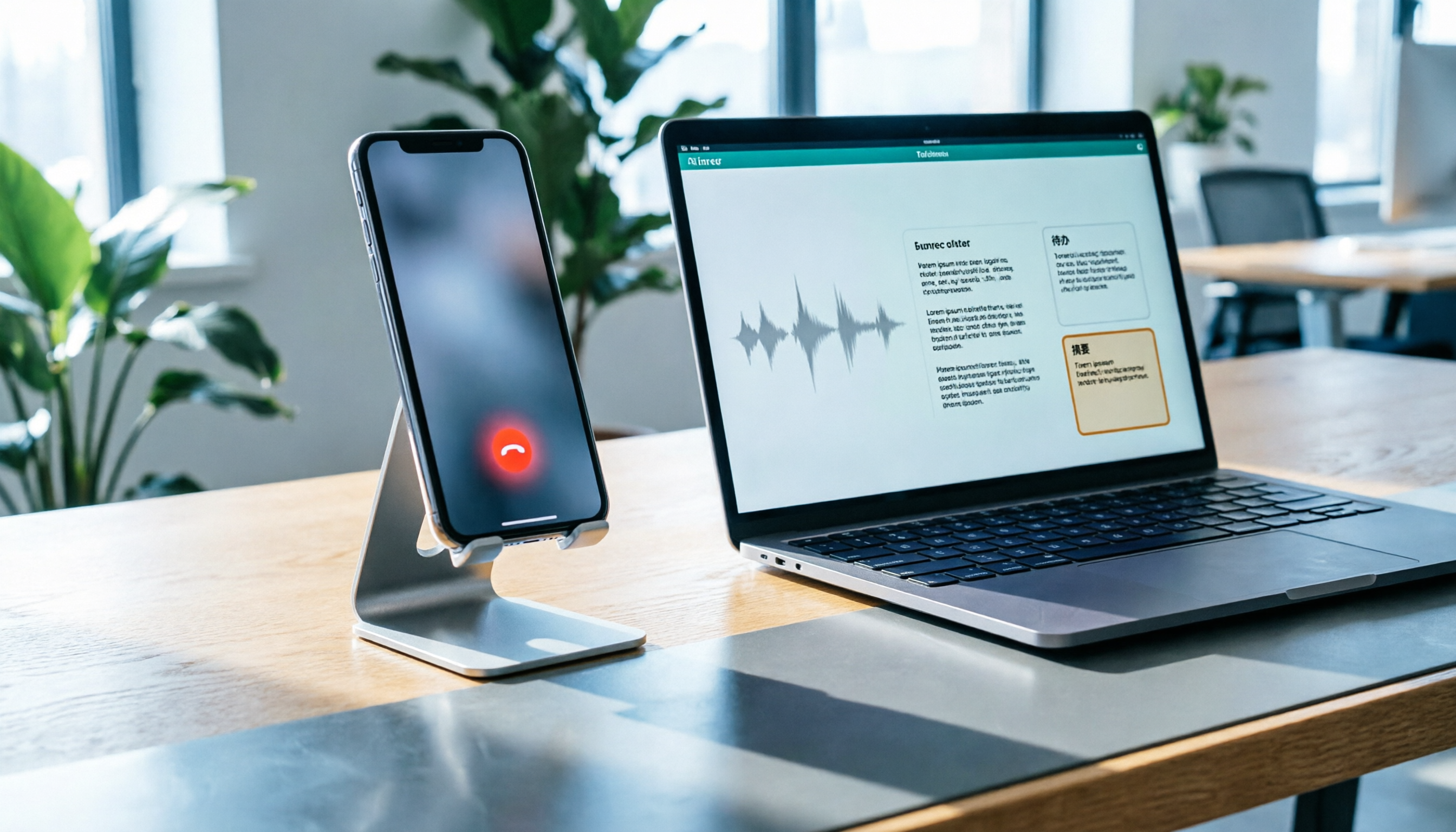
How to Record LINE Calls on iPhone in 2026: Built-in Steps + Auto Transcription
Can iPhone record LINE calls? LINE has no built-in recording button, but iPhone can capture calls as audio files via system-level recording. This guide walks through the steps, speakerphone requirements, and version differences, then shows how to use Tinrec to turn recordings into transcripts, summaries, and action items—so your recordings are actually useful.

3 iPhone Recording Workflows Compared in 2026: Auto-Transcription Saves the Most Time
Many people use iPhone recording only to capture audio, then spend extra time re-listening and organizing. This article compares 3 recording workflows from a decision-making perspective: instead of just finding the record button, choose a tool that turns recordings into transcripts, summaries, and action items. Using Tinrec as an example, it explains how to automatically organize, query, and share iPhone recordings with your team.