

Turn recordings into transcripts and summaries in minutes
Upload audio or video for multilingual transcription, AI notes, and action items
Just realized you missed that key sentence after the meeting ended? iPhone recording is easier than you think
The discussion in the meeting room moves fast. You type furiously, but when you open your notes afterward, all you have are a few words: "budget," "next week," "follow up."
Same with lectures, interviews, and phone calls. The speaker is brilliant, your hand cramps from writing, and when you want to find a specific sentence later, you have no idea which part it was in.
Even more common are spontaneous situations: someone reads out a long address over the phone, you need to document something on the spot, or you get a great idea at midnight.
Your iPhone can handle all three scenarios. The real problem usually isn't whether you can record—it's that you can't find the app the first time, and after you record, that file never gets opened again.
This article will explain the three entry points for iPhone recording, the settings you should adjust before recording, and how to organize your recordings afterward.
How to record on iPhone: remember these three entry points
Entry point 1: Voice Memos, hidden in the Utilities folder
This is where most people get stuck. Voice Memos isn't on your home screen—it's inside the Utilities folder.
Tap Utilities → Voice Memos → the red record button at the bottom to start recording.
During recording, you can pause and resume, effectively recording the same meeting in segments. When you're done, tap Done, and the system automatically names the file based on time and location.
Entry point 2: Shortcuts plus Back Tap—record even when the screen is locked
First, open the Shortcuts app, tap the + in the top right, search for "Voice Memos," select "Create Recording," and tap Done.
Then go to Settings → Accessibility → Touch → Back Tap, choose Double Tap or Triple Tap, and find the "Create Recording" shortcut you just made.
After that, double-tap the back of your phone to start recording immediately—no unlocking, no searching for an app. This is the fastest way to record on iPhone, and it doesn't require any extra equipment.
Entry point 3: Action button, iPhone 15 Pro and later only
If you have an iPhone 15 Pro or Pro Max or later, go to Settings → Action Button and assign it to Voice Memos.
Once set up, even with the screen locked, a long press of the Action button starts recording immediately.
Take 30 seconds to adjust settings before recording—it makes a big difference
Recording quality: In Settings, you can choose Compressed or Lossless. For everyday memos, Compressed is fine—smaller files, faster sharing. For important interviews or musical performances, choose Lossless.
Stereo and Spatial Audio: When enabled, Voice Memos uses multiple iPhone microphones to record left and right channels. With headphones, you'll hear sound from different microphones, but the waveform looks the same.
Background sounds: You can choose to include or exclude background sounds in the recording.
iCloud sync: After turning on Voice Memos in iCloud settings, recordings will appear and update automatically on iPhones, iPads, and Macs signed in with the same Apple Account. Remember to check this switch before switching phones.
Format: The default is m4a, which plays directly on iPhone and Mac. Before sending to Windows users, confirm they can play it, or ask them to open it with VLC.
After recording: editing and sharing
Long-press a recording and select Share to send it to LINE, Mail, or save to Files. In-app tools like Trim, Replace, and Revert let you fine-tune the content, and "Save As" lets you save a copy without touching the original.
On iPhone 16 Pro models, you can also add sound layers to existing performance recordings—handy for capturing melodies on the fly.
Before choosing an iPhone recording method, understand these 4 key points
1. How fast is the entry point? In an emergency, even three extra taps feel too slow. Whether you can start recording with one tap from the lock screen often determines whether you capture that sentence.
2. Audio quality vs. file size Lossless isn't always better. Large files make it harder to share with colleagues or upload for processing. Choosing quality based on purpose is more practical than always using the highest setting.
3. Can you use it right after recording? Getting just an audio file versus getting a transcript, summary, and action items are two completely different workloads. This is usually where the most time is spent afterward.
4. Do you need cross-device or cross-team access? If you only listen on your phone, the built-in app is enough. But if you'll use a computer for meetings or need to share notes with colleagues, consider tools that support multiple platforms and team spaces.
Tinrec—how I organize meetings after recording on iPhone
Tinrec is an AI meeting notes and collaboration tool for individuals and teams. It doesn't just convert audio to text—it turns recordings into searchable, summarizable, queryable, and exportable data.
My own workflow: I open Tinrec on my iPhone to record in-person interviews or impromptu discussions, and the transcript appears as I record. When I get back to my computer, the same meeting is already there—no need to re-listen to an hour of audio.
The second scenario is online meetings. Tinrec's desktop version captures your computer's system audio directly, so for Zoom, Google Meet, Microsoft Teams, and Webex meetings, you don't need to invite a meeting bot as a participant. This is practical for external meetings—the other side won't see an unfamiliar account.
Stop organizing recordings by hand
Upload audio or video and automatically get a transcript, summary, and action items
The third is post-meeting. After recording, it generates summaries, chapters, and action items. You can also ask questions directly about the meeting content, such as "What is the client's bottom line on the delivery date?" and let it find the answer instead of dumping a bunch of keywords on you. Organized content can be exported to Notion, Google Docs, OneNote, or Dropbox for further processing, or you can ask it to generate reports, tables, and documents.
Limitations should be clear too. Tinrec does not promise a fixed accuracy rate; actual performance is affected by recording quality, ambient noise, accents, multiple people speaking at once, and proper nouns. For important amounts, dates, and commitments, it's recommended to cross-check against the transcript timestamps and original recording. Also, file imports and web link imports consume shared quota—they're not unlimited.
For versions, the Personal plan includes a free tier, weekly pass, Pro monthly, and Pro annual. For occasional recording organization, the free version is enough; for short-term intensive meetings or interviews, consider the weekly pass. The Team plan is a separate team space: USD 29.80 per paid seat per month, or USD 199 per paid seat per year (about USD 16.58 per month); eligible teams get a 7-day trial, 1 free seat, and 300 minutes of shared import quota on first signup. Paid seats include 2,000 minutes of shared import quota per month. Live recording currently does not deduct minutes under an active team plan and active seat. Prices and benefits are subject to the official purchase page.
If you're the type who records and then actually uses the recording, and you work across phone and computer, Tinrec is a suitable choice right now. The Team plan also adds members, roles, seats, usage analytics, and audit logs. Meeting data belongs to the team, and when a member leaves or loses their seat, it can be handed over to someone else—it doesn't disappear with the individual account.
Besides Tinrec, what other options are there?
Voice Memos (built into iPhone) Free, offline, no registration required. With iCloud enabled, recordings sync to iPad and Mac. If you just want to keep an audio record, it's actually enough. Note that it won't organize anything for you: no AI summaries, no action item extraction, no querying the content. And it only lives on your iPhone—it can't help with Zoom or Teams meetings on your computer.
PLAUD Note / NotePin A representative of AI recording hardware, with the selling points of a standalone device, portability, and long recording time. On the US official site, NotePin is currently USD 159 and Note Pro is USD 189; the Starter membership includes 300 minutes per month, and Pro is USD 99.99 per year. If you often record in situations without a computer and where it's inconvenient to pull out your phone, hardware has its value. But you need to carry an extra device and pay extra. Tinrec handles online meetings directly on your phone and computer, and can also put data into a shared team space.
Notta A tool with multilingual transcription and team plans. The free version includes 120 minutes per month, with a maximum of 3 minutes per item; Pro annual billing works out to about USD 8.17 per month with 1,800 minutes per month. It performs well for subtitles, translation, and cross-language content. Tinrec's differences are that the desktop version records online meetings without a bot, plus post-meeting AI Q&A, Agent post-processing, audit logs, and an audio recycle bin.
Pitfall guide: the 4 most common mistakes when recording on iPhone
Pitfall 1: Toss your phone in your bag right after pressing record. The microphone gets covered by fabric, and all you hear later is rustling. Placing the phone on the table with the microphone facing the speaker makes a very noticeable difference.
Pitfall 2: Using lossless for everything. Large files, slow sharing, and transcription won't be any more accurate because of it. Use compressed for everyday memos; save lossless for precious performances or important interviews.
Pitfall 3: Thinking you're done once you've recorded. Recordings don't turn into notes by themselves. Without a consistent organizing routine, a month later you'll open the folder and see a bunch of unnamed files.
Pitfall 4: Ignoring consent and regulations. Recording involves personal data and privacy. Before sharing externally or publishing publicly, check local regulations and obtain consent when necessary. The purpose of recording is to protect yourself, not to harm others.
Also note that Apple's transcription and new features vary by device model and OS version—not every iPhone has the same experience.
Conclusion: which one should you choose?
Ask yourself one question: are you recording to "keep an audio record" or to "use it later"?
Just for quick memos and capturing ideas → the built-in Voice Memos on iPhone is enough—free and no registration.
Often need to start recording on the fly → set up Shortcuts with Back Tap, or use the Action button on iPhone 15 Pro and later—record even from the lock screen.
Need transcripts, summaries, and action items after recording, and also join online meetings on your computer → Tinrec: record on your phone, record meetings on the desktop version, and keep everything in one place.
Team needs to share meeting notes, manage members and usage → Tinrec Team plan, with team space, seats, usage analytics, and audit logs.
Often outdoors and inconvenient to take out your phone → hardware devices like PLAUD.
I recommend trying the free version through a complete workflow first: record a 10-minute meeting and see whether the summary and action items capture the key points. If it works for you, then consider paying—no need to buy upfront.
Quick answers to a few common questions
Q: Where are iPhone recordings stored? In the Voice Memos app. If iCloud sync is enabled, they're visible on iPhones, iPads, and Macs signed in with the same Apple Account.
Q: Can iPhone record phone calls? Call recording features vary by iOS version and region; some versions require manual enabling in Settings. For app calls like LINE or Zoom, it depends on whether the app itself offers recording. Remember to consider regulations and the other party's consent before recording.
Q: Can recordings be automatically transcribed? Apple's transcription feature varies by device model and OS version—not every iPhone has it. If you need reliable transcripts, summaries, and action items, a dedicated meeting notes tool will save you a lot of hassle.
References
- Record in Voice Memos on iPhone - Apple Support (Taiwan)
- iPhone recording made easy! One-tap quick self-protection at critical moments
- Complete Guide to iPhone Recording: More Than Voice Memos—This Tool Can Also Record LINE and Zoom Calls!
- Voice Memos App - App Store
- Complete iPhone Recording Tutorial (Latest iOS 26) - Voice Memos - Plaud
Turn every recording into actionable outcomes
Get 60 free transcription minutes when you sign in. No credit card required.
Related Reading
You might also like
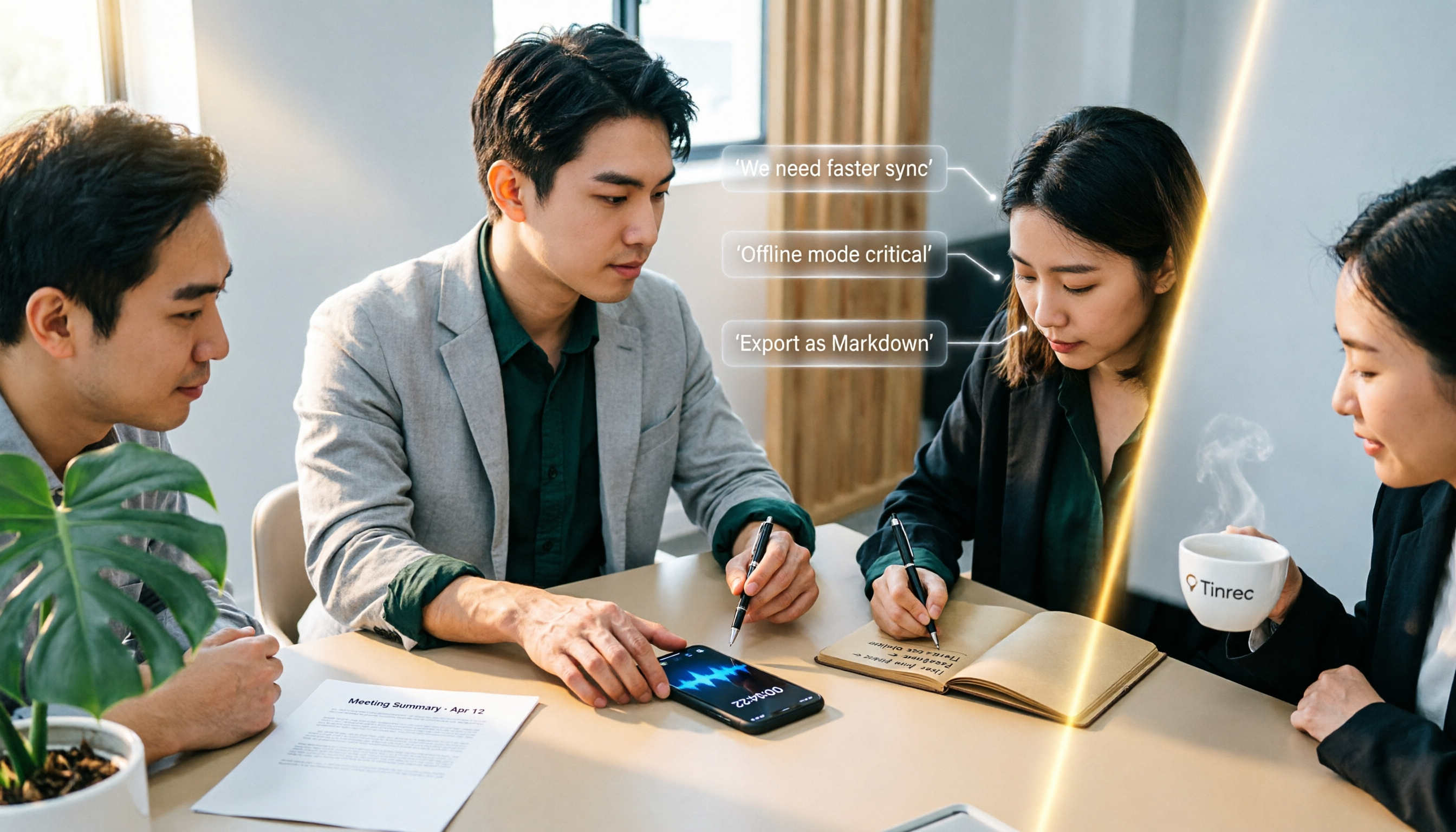
4 iPhone Recording Solutions Compared in 2026: Where to Find Recording Features and Which Saves the Most Time on Transcription
Can't find the iPhone recording feature? This guide covers where to find Voice Memos, call recording, and one-tap recording via Shortcuts, plus compares post-meeting transcription, AI summaries, and team collaboration options to help you choose the right recording workflow.
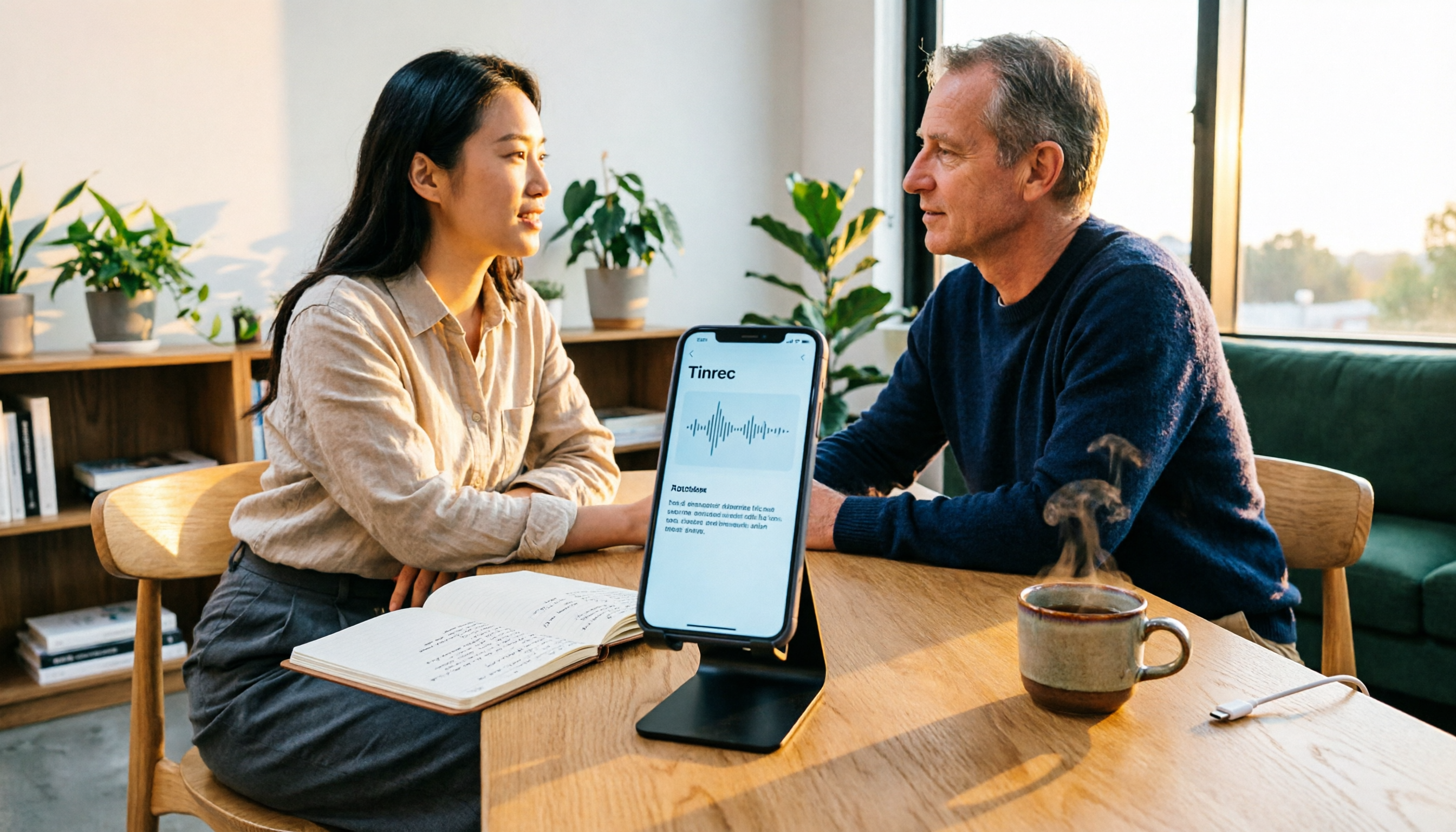
5 iPhone Recording Solutions Tested for 2026: Does Recording Drain Battery? How to Choose for Long Sessions
Does iPhone recording drain battery? Long recordings do use power and generate heat, and files can be corrupted if interrupted or the battery dies. This article compares 5 iPhone recording and post-meeting solutions—built-in Voice Memos, Tinrec, Otter.ai, Notta, and PLAUD—to help you choose the right tool for your situation.

3 iPhone Call Recording Methods Compared in 2026: Built-in, Hardware, or AI — Which Saves the Most Time?
A hands-on comparison of three iPhone call recording methods in 2026, breaking down the differences between iOS built-in call recording, Plaud recording hardware, and Tinrec AI organization, plus regional restrictions, notification sounds, legal consent, and key buying pitfalls.

3 iPhone Call Recording Methods Tested and Compared in 2026: What to Do With the Recordings?
Starting with iOS 18.1, iPhone finally has built-in call recording, but the other party hears a prompt when you start recording, and the recording is just an audio file. This article covers 3 practical methods, regional and version limitations, legal risks, and tests the complete workflow of turning call audio into transcripts, summaries, and action items to help you decide if the built-in feature is enough.

3 iPhone Call Recording Methods Tested for 2026: Recording Is Easy, Organizing Is the Hard Part
How do you record calls on iPhone? This article compares three common approaches: iOS 18.1 built-in call recording, local capture with Voice Memos, and using Tinrec to turn recordings into searchable, queryable transcripts and action items. It covers version and region restrictions, notification and legal risks, four common pitfalls, and selection advice.
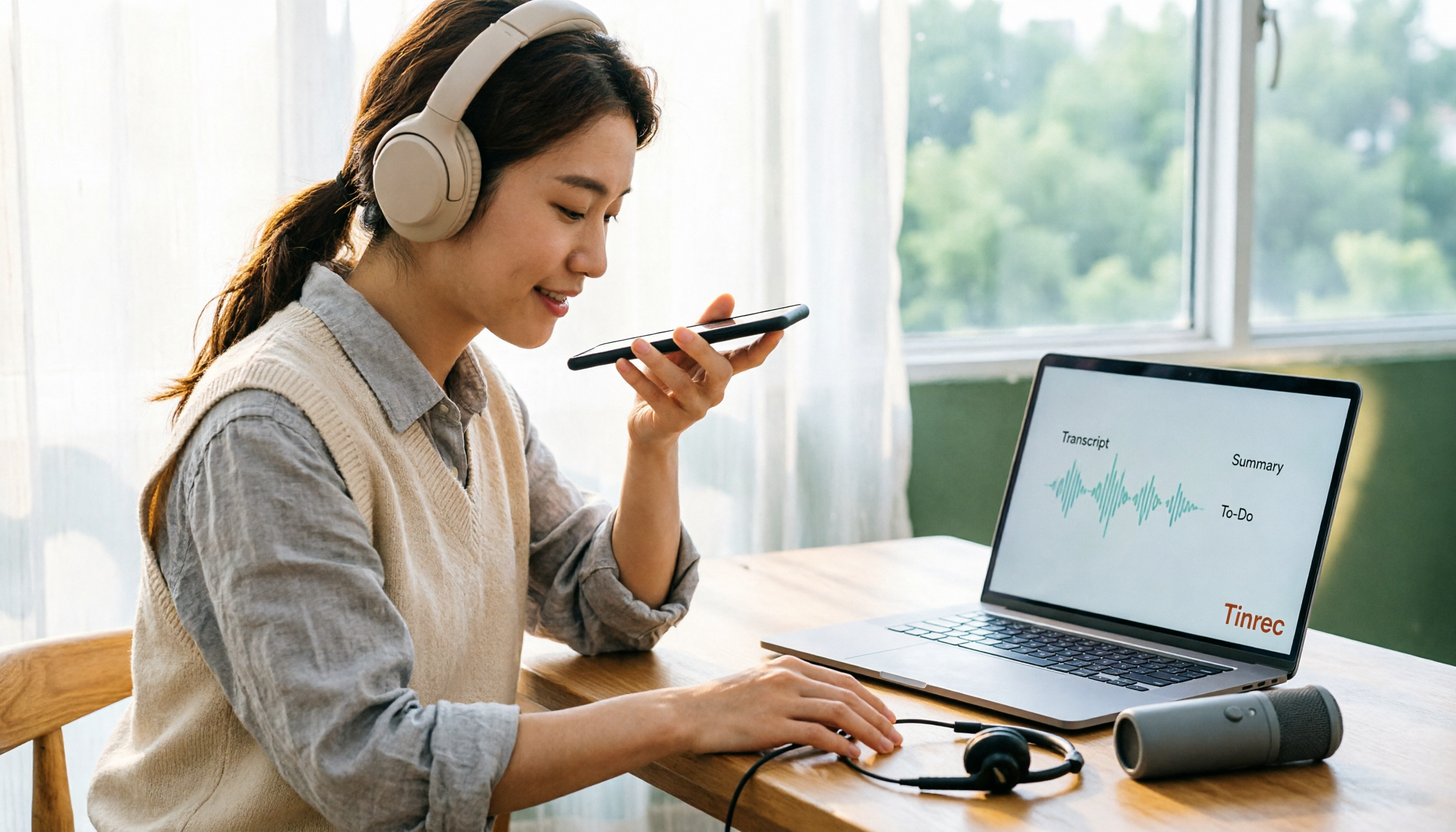
4 Ways to Record Audio on iPhone with Headphones in 2026: AirPods, Wired Headsets, and External Mics Compared
Can you record audio while wearing headphones? This article addresses common misconceptions and breaks down the differences, compatibility pitfalls, and key considerations of four headphone recording methods on iPhone. It also explains how to use Tinrec to organize transcripts, summaries, and action items after recording.

6 iPhone Recording Alternatives Tested for 2026: What to Choose When Built-in Features Fail
When iPhone recording doesn't work, the problem is often not the phone itself. This guide first helps you distinguish three situations: call recording limited by region and model, dictation not working, and Voice Memos cutting off mid-recording. Then it tests and compares 6 alternatives—Tinrec, Notta, Otter.ai, Granola, TurboScribe, and PLAUD—listing costs, limitations, and best-use scenarios so you can pick the right tool in 10 minutes.
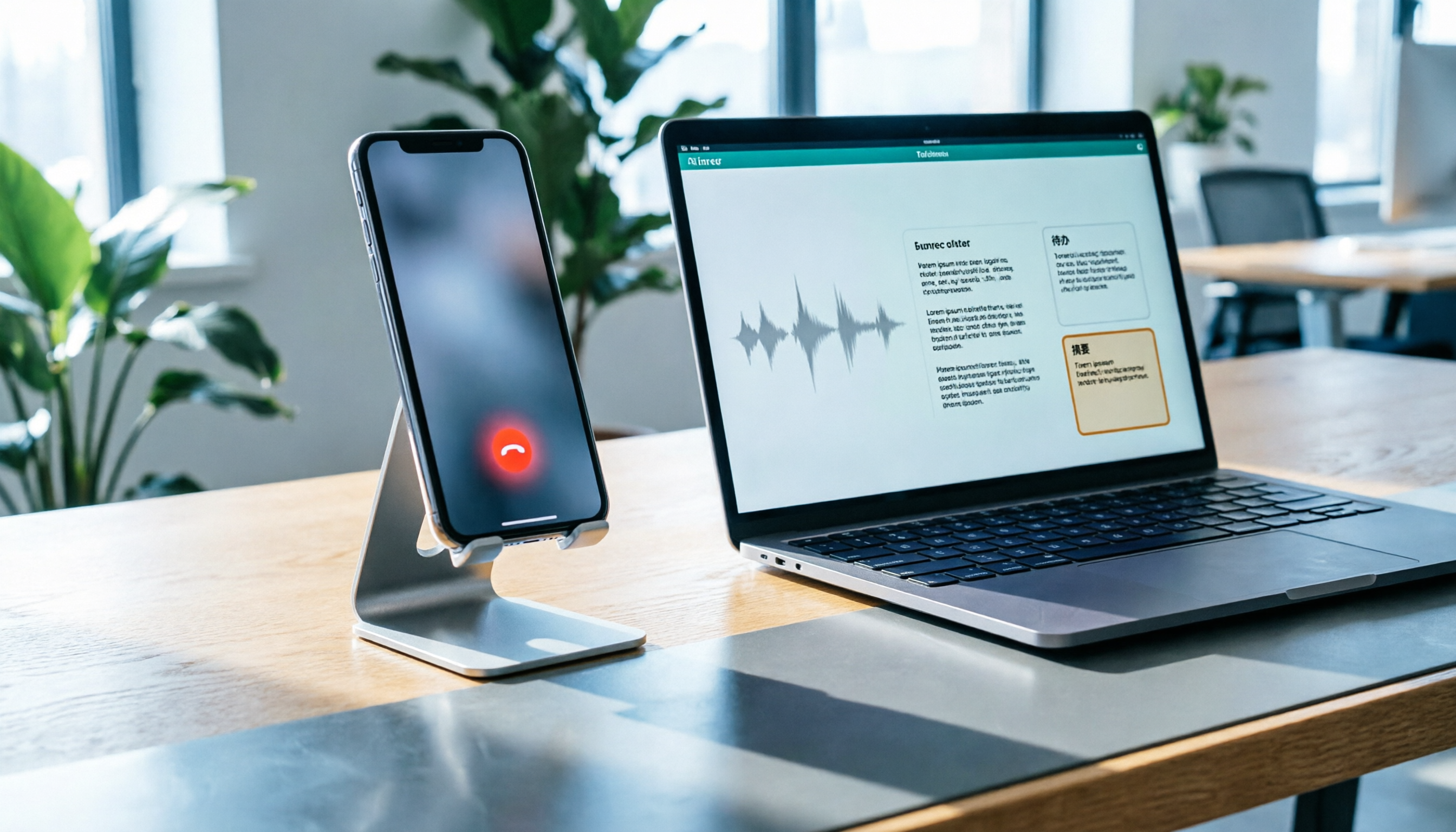
How to Record LINE Calls on iPhone in 2026: Built-in Steps + Auto Transcription
Can iPhone record LINE calls? LINE has no built-in recording button, but iPhone can capture calls as audio files via system-level recording. This guide walks through the steps, speakerphone requirements, and version differences, then shows how to use Tinrec to turn recordings into transcripts, summaries, and action items—so your recordings are actually useful.

3 iPhone Recording Workflows Compared in 2026: Auto-Transcription Saves the Most Time
Many people use iPhone recording only to capture audio, then spend extra time re-listening and organizing. This article compares 3 recording workflows from a decision-making perspective: instead of just finding the record button, choose a tool that turns recordings into transcripts, summaries, and action items. Using Tinrec as an example, it explains how to automatically organize, query, and share iPhone recordings with your team.