

Turn recordings into transcripts and summaries in minutes
Upload audio or video for multilingual transcription, AI notes, and action items
How to Buy Google Meet Premium in 2026: 3 Upgrade Paths & Post-Meeting Workflow
Google Meet Paid Features vs. Tinrec | Quick Overview
Not long ago, I wanted to record a cross-department meeting. I opened Google Meet and searched for a while before realizing that the record button wasn't something you could unlock just by paying—I couldn't even find a "Google Meet Premium" product to check out.
Later I figured it out: Google doesn't sell that product.
When you search for "purchase google meet premium," most tutorial videos take you straight to the Google One checkout page—that's why. Google Meet's advanced features are bundled into subscription plans, not sold separately.
Google's official documentation is clear: your Google Workspace edition or Google One subscription determines which Google Meet features you can use. And only the Google One Premium 2TB plan qualifies to unlock some Google Meet advanced features.
So instead of asking "How do I buy Google Meet Premium?" the more precise question is: "Which plan includes the feature I need?"
This article breaks it down into two parts: first, three practical upgrade paths; second, how to turn meeting content into usable data after you've made the purchase.
| Google Meet Paid Features | Tinrec | |
|---|---|---|
| Positioning | Built-in meeting and transcription features within the platform | AI meeting notes and team collaboration tool |
| How to get it | Bundled with Google Workspace or Google One subscription | Standalone subscription, available in personal and team editions |
| Cost | Varies by plan, region, currency, and current promotions | Listed on the official purchase page by plan and seat |
| Strengths | Native integration with Google ecosystem | Post-meeting summaries, Q&A, action items, exports, and team knowledge base |
Below I'll examine five dimensions: purchase path, recording and transcription, post-meeting organization, Chinese and multilingual support, and team knowledge retention.
Dimension 1 | Purchase Path: What You're Buying Isn't Actually Meet
This is where I got stuck.
I thought there would be a "Google Meet Upgrade" button—click, pay, done. In reality, every click led to a Google One or Google Workspace plan page.
Google's plan logic works like this:
Path 1: Google One Premium 2TB (Individual)
Google's official documentation explicitly states that only the Google One Premium 2TB plan qualifies to unlock some Google Meet advanced features. If you're an individual user without your own domain and don't want to deal with an admin console, this is the shortest route.
The process is simple: go to the Google One page, select the Premium 2TB plan, complete payment, then refresh or reopen Google Meet to confirm the features are unlocked.
Path 2: Google Workspace Paid Edition (Team)
If you need team features like meeting recording, attendance tracking, breakout rooms, and polls, go with Workspace.
But one caveat: some features vary by edition tier, so before buying, confirm that your chosen edition includes the specific feature you need.
Path 3: Google One AI Premium
Features like speech translation and Studio sound / Studio look / Studio light require a qualifying Google Workspace or Google One AI Premium subscription, according to official documentation, and also require specific hardware or browser settings.
My own approach: first list the 2–3 features you actually need, then match them against plans—rather than looking at price first.
Because prices vary by country, currency, and current promotions, I won't hardcode numbers here—always refer to the official Google One or Google Workspace pages for actual pricing.
→ Conclusion for this dimension: Google's paths are clear, but before purchasing you must confirm "which plan includes the feature I need." Google's official documentation is the only authority here; third-party tutorial videos are for reference only.
Dimension 2 | Meeting Recording and Transcription
Let's clear up a common misconception first: the free version of Google Meet isn't unusable—it just has limits.
Recording is where the difference is most obvious. When I pressed record on the free version, I got an upgrade prompt; only after upgrading to a plan that supports recording did the button actually start working.
Google Meet's transcription and recording are tied to plan tiers. For people whose meetings are almost all on Meet and who are deeply embedded in the Google ecosystem, this is the most hassle-free choice—no extra software to install, and everything is there when the meeting ends.
Tinrec takes a different approach. Its desktop version directly captures system audio from your computer, handling Zoom, Google Meet, Microsoft Teams, and Webex meetings played on your computer—no need to invite a meeting bot to join.
This makes a difference in cross-platform scenarios. Half of my meetings are on Meet, half on Teams, and some clients just call in. If my recording method is tied to one platform, I'd need three separate workflows.
→ Conclusion for this dimension: If all your meetings are on Google Meet, Google's native solution is the most hassle-free; if your meetings are scattered across multiple platforms, using one tool for all of them is much easier.
Dimension 3 | Post-Meeting Organization: Summaries, Chapters, and Action Items
This is the dimension I care about most, and where I think most people buy in the wrong direction.
Recording and transcription solve the "did we capture it" problem. But the real time sink is what happens after—who's doing what, where that decision from last week was mentioned, and how to turn this transcript into something presentable to your boss.
Google Meet's strength is during the meeting and platform integration. After the meeting, turning content into reports, tables, or action item lists still requires copying and pasting into other tools for processing.
Stop organizing recordings by hand
Upload audio or video and automatically get a transcript, summary, and action items
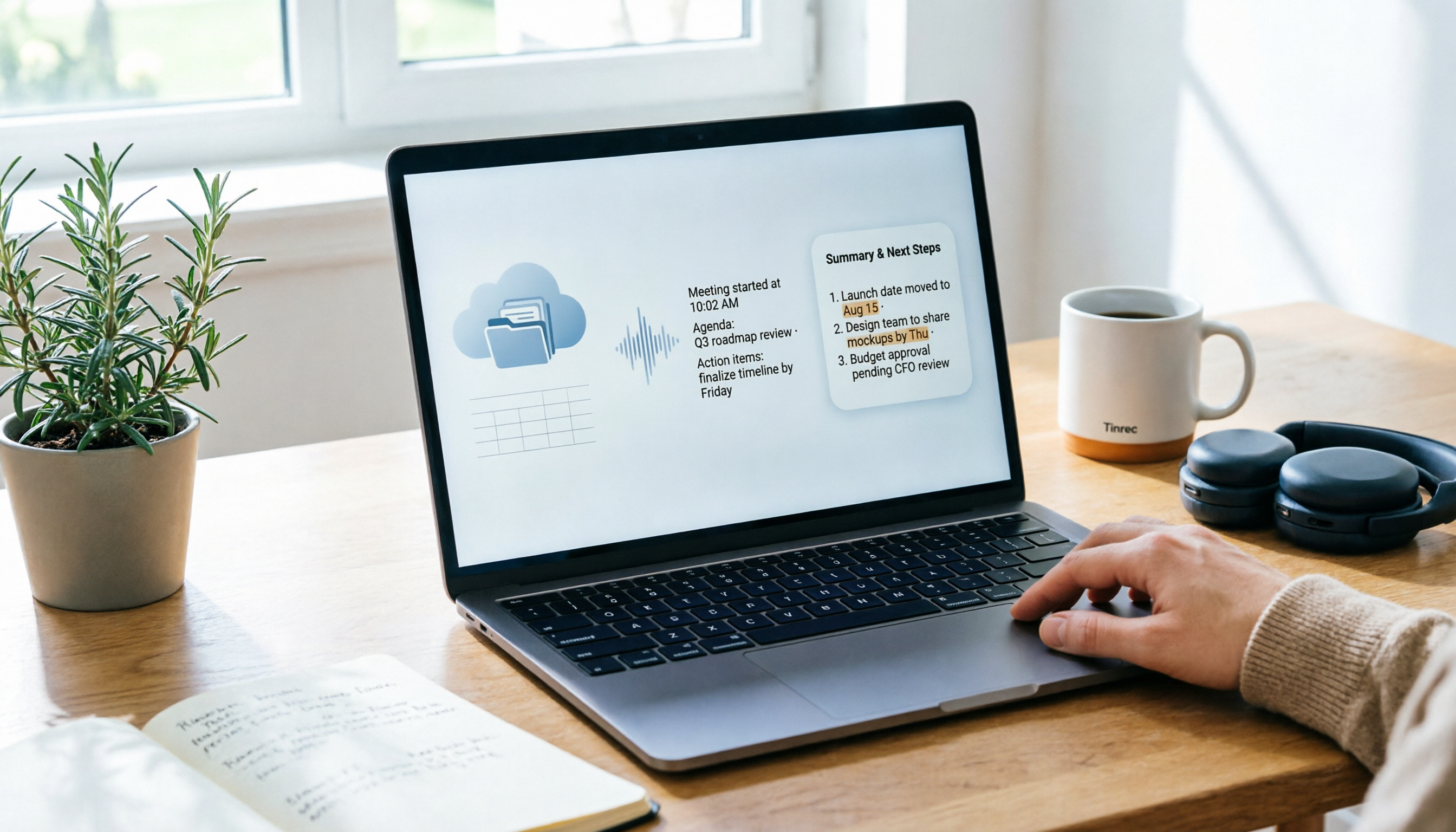
Tinrec turns this into a workflow: after transcription, it automatically generates summaries, chapters, key points, and action items. You can continue asking AI questions about the meeting, export directly to Notion, Google Docs, OneNote, Dropbox, and other tools, or further generate reports, tables, and meeting minutes.
My own routine: after a meeting, I first check the summary to confirm my recollection is correct; then pull out items to delegate from the action items section; finally, export only the paragraphs that need to be kept on file into existing work documents.
→ Conclusion for this dimension: If what you want is "usable data right after the meeting ends," this is where Google Meet's paid plans are weaker and Tinrec clearly fills the gap.
Dimension 4 | Chinese and Multilingual Meetings
Meetings in Taiwan are rarely pure Chinese or pure English—they're usually a mix, plus a few product codes.
Google Meet's speech translation feature lets people speaking different languages understand each other in meetings—a platform-level advantage, especially in international meetings.
With Tinrec, what I've actually experienced is transcription and organization for Chinese, Traditional Chinese, and multilingual meetings. It handles mixed Chinese-English content, and there's a team glossary to maintain commonly used technical terms, reducing product codes being misheard. During recording, you can switch between original text, translation, or bilingual view.
Honestly, I can't give you a fixed number for transcription accuracy. Audio quality, background noise, accents, multiple people speaking at once, proper nouns—each one affects the result. Anyone who tells you "98% accuracy" should be taken with a grain of salt.
My approach: for important meetings, always cross-check the transcript timestamps against the recording, especially for numbers, amounts, and dates.
→ Conclusion for this dimension: For real-time speech translation in international meetings, Google Meet has a platform advantage; for transcription plus organization of Chinese meetings, Tinrec excels.
Dimension 5 | Team Knowledge Retention and Member Management
If you're buying for a team, this dimension matters more than the previous four.
Google Workspace's management capabilities are mature—accounts, permissions, and edition tiers are all in one admin console. But its design starting point is "office collaboration," and meeting data is just one part of that.
Tinrec's team edition is designed with meeting data itself as the starting point. Teams have independent spaces, and meeting data belongs to the team, not to the individual who uploaded it. When a member leaves, is removed, or loses their seat, their resources can be transferred to other active members.
Here's a concept that's easily misunderstood, and I want to clarify it: roles and seats are two different things.
Roles determine who can manage the team, members, audit logs, and team settings; seats determine whether a person can record, upload, edit, import, and export. Active members without a seat can still view, play, and read team data—they just can't perform resource-consuming actions.
Also, the team edition currently focuses on team-level sharing, not a granular file-level permission system. Think about this before purchasing—don't assume it can set different visibility scopes for each file.
On the management side, the team edition lets you view usage trends, member rankings, and usage details; query and export audit logs; and recover accidentally deleted audio from the recycle bin (currently retained for 30 days). Team shared import quota is 2,000 minutes per paid seat per month; live recording currently does not deduct minutes under an active team plan and active seat. Current team pricing is USD 29.80 per paid seat per month, or USD 199 per paid seat per year—actual amounts are subject to the official purchase page.
→ Conclusion for this dimension: If you're managing "office accounts in the Google ecosystem," Workspace is more complete; if you're managing "how meeting data is retained and handed over," Tinrec's team edition is designed closer to that need.
What Are the Unique Advantages of Each?
Unique advantages of Google Meet paid plans
- Native integration: meetings, calendar, cloud storage, and documents all in one ecosystem—no extra import/export needed.
- Platform-level features: watermarking, speech translation, and similar features are tied to plan tiers—things only the platform itself can do.
Unique advantages of Tinrec
- Bot-free recording: the desktop version captures system audio without pulling an extra bot into the meeting, and isn't tied to a single meeting platform.
- Post-meeting workflow: summaries, chapters, action items, AI Q&A, mind maps, and exports form a continuous path, not a scattered feature list.
- Team retention: team spaces, role/seat separation, usage analytics, audit logs, and audio recycle bin—handling "meeting assets" rather than "meeting notes."
- Multi-source input: live recording, online meetings, audio and video files, and mobile recordings can all go into the same database.
Conclusion: Which Should You Choose?
Back to your original question—purchase google meet premium—the answer depends on which part you're trying to solve.
• If all your meetings are on Google Meet and you just need longer meeting times, recording, and basic transcription → Google's paid plans (Google One Premium 2TB for individuals, Google Workspace for teams) are the most direct route.
• If you need platform-level features like watermarking and speech translation → you'll need Google Workspace or Google One AI Premium—these are unique to Google.
• If your meetings are scattered across Meet, Teams, Zoom, and in-person meetings → Tinrec's desktop version handles them all with one workflow, so you don't need a different method for each platform.
• If you want summaries, action items, and presentable reports right after the meeting → this is where Google Meet's paid plans are weaker and Tinrec clearly fills the gap.
• If you need to manage team data, seats, and handovers → Tinrec's team edition handles the ownership and governance of meeting assets.
My current approach is a combination: meetings stay on Google Meet as usual, and post-meeting organization goes to Tinrec. The two don't conflict—they just solve different problems.
Quick Start Checklist
- First, list the 2–3 features you actually need: recording? speech translation? transcription? or post-meeting summaries?
- Use that list to compare Google Workspace editions and Google One plan pages, and confirm which tier includes the features you need.
- Individual use, no domain requirements → start with the Google One Premium 2TB path.
- Team use, need recording and attendance tracking → go with Google Workspace, and confirm the edition tier before purchasing.
- After payment, refresh or reopen Google Meet, and actually start a meeting to test whether recording and transcription are unlocked.
- For post-meeting organization, first run your own meeting recording through Tinrec's free version to see if the summaries and action items are useful to you.
- If rolling out to a team, first create a team space, invite members, assign seats, and then discuss who handles handovers.
When it comes to buying tools, I increasingly feel the point isn't "which plan to buy," but "did anyone think clearly about what problem to solve before buying."
First, figure out how much time you spend each week organizing meetings, then look back at the plans. Test step by step, and you'll gradually master this approach.
References
- How to Buy Google Meet Premium in 2026: 3 Plans Compared—Which One Is Worth Your Money? - Official Tinrec Blog
- How To Purchase Google Meet Premium 2026 (FULL GUIDE) - YouTube
- How to Buy Google Meet Subscription in 2026: A Complete Guide to Google One Premium and Google Workspace Plans - Official Tinrec Blog
- Premium Meet features for Google Workspace - Google Meet Help
- How to Buy Google Meet Premium in 2026? 3 Upgrade Paths Compared: Which Is the Best Deal? - Official Tinrec Blog
Turn every recording into actionable outcomes
Get 60 free transcription minutes when you sign in. No credit card required.
Related Reading
You might also like

Where to Find Google Meet on Android in 2026: 5-Step Guide
Can't find Google Meet on your Android phone? This guide walks you through 5 steps to locate Google Meet, join meetings quickly from Gmail and Calendar, and after the meeting use Tinrec to turn speech into transcripts, summaries, and action items.

Google Meet Chat Location in 2026: 3 Steps to Find It on Desktop and Mobile
Can't find the Google Meet chat during a meeting? This practical guide walks you through the chat locations on desktop, mobile, and after the meeting, plus fixes for when the icon disappears and how to keep the discussion for later.

Google Meet Link Guide 2026: Find Your Link and Auto-Organize Meeting Notes
Can't find a Google Meet link? It's usually not missing—you're just looking in the wrong place. This guide shows you how to quickly locate meeting links from three entry points: Calendar, Gmail, and meet.google.com. It also explains how, once you've found the link, you can use Tinrec to automatically turn meeting content into transcripts, summaries, and action items.

Google Meet Recording Guide 2026: Where to Find Recordings, Why They're Missing, and How to Organize Meeting Notes
Can't find your Google Meet recording after a meeting? This guide explains where recordings are saved by default and why you might not find them, then shows how Tinrec can turn meeting audio into transcripts, summaries, and action items—no more digging through Drive.
Where Are Google Meet Recordings Stored in 2026? 5-Step Guide
Can't find your Google Meet recording after the meeting? The problem usually isn't whether you recorded it—it's that you're looking in the wrong place. This 5-step guide explains whose cloud the recording is saved to, how to quickly retrieve it from Drive and Calendar, how to download a backup, and finally how to turn the recording into a searchable transcript and meeting notes.

What Is Google Meet in 2026: Core Features Explained + How to Organize Meeting Notes
Google Meet is Google's video conferencing service, formerly Hangouts Meet, merged with Duo in 2022. This article explains from a mid-level manager's practical perspective what Google Meet is, who uses it, free vs. paid differences, privacy rules, and demonstrates how to use Tinrec to turn Meet meeting content into transcripts, summaries, and action items, so you don't have to rely on memory after the meeting.

Google Meet vs Tinrec in 2026: 5-Dimension Comparison — Which Is More Cost-Effective for Meetings?
Google Meet pricing actually has three answers: free at $0, Workspace paid plans starting around US$6.30 to US$7, and the hidden cost of upgrading to Standard for recording and AI notes. This article walks you through 5 steps to convert monthly fees into annual per-person expenses, using the Tinrec team plan as a second reference point to help you clearly explain why you chose a particular plan in meetings.

3 Google Meet Note-Taking Tools Tested for 2026: How to Record Online Classes and Group Discussions Most Efficiently
What is Google Meet used for? Starting from real student scenarios, this article first clarifies Google Meet's purpose and what it doesn't solve, then tests and compares 3 note-taking tools, summarizing key buying factors, pitfalls to avoid, and budget-friendly recommendations for students.

Google Meet vs Tinrec: 2 Meeting Note Methods Compared (2026)
Google Meet is Google's video conferencing service launched in 2017. You can hold meetings in a browser, and free accounts generally support 100 participants for 60 minutes. This article first explains what Google Meet is, then compares its built-in transcription with Tinrec across five dimensions: recording method, post-meeting output, input sources, team data management, and cost, to help you decide which meeting note method suits you better.