
Turn recordings into transcripts and summaries in minutes
Upload audio or video for multilingual transcription, AI notes, and action items
4 Google Meet Webcams Tested for 2026: From Entry-Level to Conference Room, How to Balance Video Quality and Post-Meeting Notes
Discovering Your Camera Isn't Enough Five Minutes Before a Meeting—It's Actually Two Problems
The first problem is "how others see you." Laptop cameras are usually fixed above the screen, with a low angle and poor lighting, so often only your chin and the ceiling are in frame; the first impression clients or managers get is this slightly tired-looking perspective.
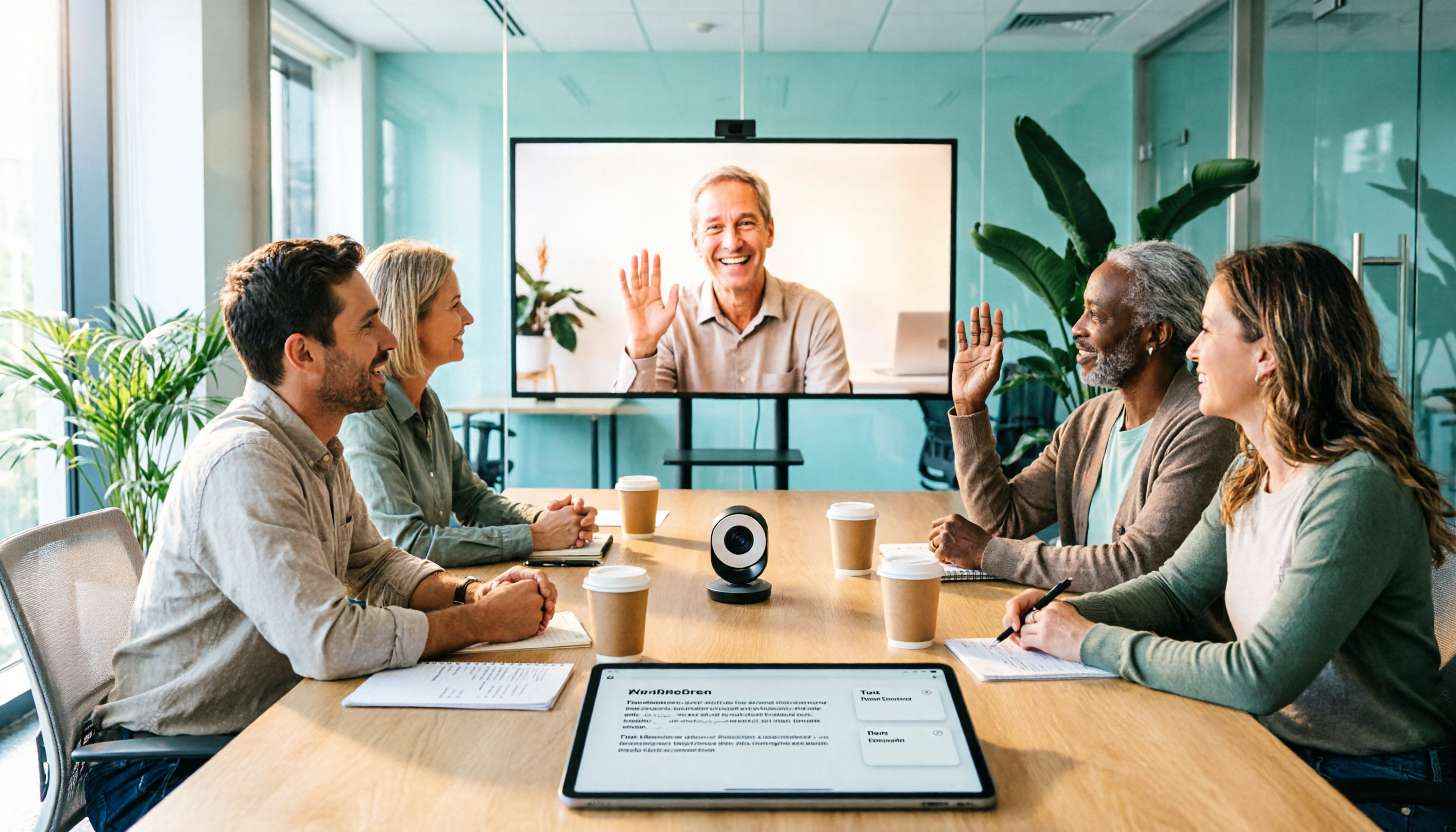
The second problem is more common: three or four people in a meeting room squeezed in front of one laptop, people on the sides get cut off, and whoever is speaking has to lean forward.
There's also this scenario: the video is finally clear, but after a two-hour discussion, who agreed to do what and what the budget cap was are all scattered throughout the conversation. No one wants to re-listen to an hour of recording afterward, so the next meeting starts with "where did we leave off last time?"
The camera solves the first problem, and post-meeting organization solves the second. This article first teaches you how to choose a camera, then discusses how to retain meeting content.
4 Key Points to Understand Before Buying a Google Meet Webcam
1. Look at resolution and frame rate together. 1080p is the current baseline; the value of 4K is having extra room for cropping and digital zoom. But don't just look at the numbers: Google Meet runs in the browser and compresses video based on your upload bandwidth, so a 4K camera will also drop to a blurry image when your internet speed isn't sufficient. For stable 1080p60, remember to plug into a USB 3.0 port, turn off virtual backgrounds, close resource-hungry background apps, and update your browser and camera software.
2. Low-light performance determines whether you look professional or tired. Most people have meetings at their desk in the evening or in a small meeting room with yellowish lighting. If the sensor and noise reduction aren't up to par, the image will show noticeable grain. This part is usually not written in spec sheets; you can only rely on actual reviews or user feedback.
3. Don't skimp on the microphone. No matter how good the video is, muffled audio will distract participants. Prioritize built-in microphones with noise reduction; if the meeting room has more than four people, an external microphone is usually more impactful than upgrading the camera.
4. Field of view and mounting method. A normal field of view is enough for a single person's desk; for meeting rooms, you need a wide-angle or PTZ model with pan and zoom capabilities, so you don't have to move your chair to the center every time. Also, Google Meet requires no additional drivers—most USB cameras work as soon as you plug them in, which is the most practical bonus when choosing.
4 Google Meet Webcams in 2026: The Real Differences from USD 30 to USD 900
The following is compiled from public specifications and feedback from international users. Prices are for reference at the time of writing; actual prices depend on each retailer.
| Model | Reference Price | Positioning | Who It's For |
|---|---|---|---|
| Logitech C920S HD Pro | Price varies by retailer | 1080p classic | Single desk, those who don't want to research specs |
| EMEET C960 | Approx. USD 30 | Entry-level workhorse | Students, part-timers, dual-monitor workers |
| EMEET C60E 4K | Approx. USD 60 | Budget 4K upgrade | Budget-conscious users wanting a noticeable quality boost |
| Nearity V415 4K PTZ | USD 899 (original USD 999) | Conference room grade | Meeting rooms for 6+, training, remote teaching |
Logitech C920S HD Pro: The safe bet most people have tried. In Reddit's office and video conferencing discussions, this is a veteran that gets mentioned repeatedly—not because its specs are amazing, but because "it just works when you plug it in." 1080p video quality, no installation required, compatible with Skype, Teams, Google Meet, Zoom, and other platforms. The downside is its older design generation; low-light performance and field of view aren't outstanding, and it's not suitable for multi-person meeting rooms.
EMEET C960: The entry-level choice at around USD 30. International users' reviews are consistent—cheap, works as soon as you plug it in, no driver issues with Google Meet. Suitable for students or part-time workers who want to spend wisely. But it's entry-level positioning; don't expect too much in low-light environments.
EMEET C60E 4K: Around USD 60, noticeably better image quality. In the same discussion thread, users commented it's "much more cost-effective than 1080p options." For those who have two or three video meetings daily and don't want to buy conference-room grade, this is the most hassle-free compromise between budget and image quality. The prerequisite is that your network and USB port can handle 4K.
Nearity V415 4K PTZ: The right answer for meeting rooms. 4K PTZ, 15x hybrid zoom, 350° horizontal and 60° vertical rotation, AI noise reduction, HDMI and RJ45 NDI output, includes remote control, supports Zoom, Teams, Google Meet. For meeting rooms with multiple people sitting around, training sessions, or remote teaching, the wide angle and zoom can capture everyone in frame. The downside is also clear: high price, and installation and cabling require some prep work.
The Camera Solves "How Others See You," Tinrec Solves "What's Left After the Meeting"
Tinrec is an AI meeting notes and collaboration tool for individuals and teams, supporting iOS, Android, and web; online meetings are handled by the desktop version. It's not in your video frame, but it determines what you have left after the meeting ends.
Stop organizing recordings by hand
Upload audio or video and automatically get a transcript, summary, and action items
Record Google Meet without a meeting bot. Tinrec's desktop version directly captures your computer's system audio, handling meeting content played on Zoom, Google Meet, Microsoft Teams, and Webex. No need to invite a bot as a participant, and no awkward "stranger in the meeting." The actual process is: open the desktop version before the meeting and press record. Note that this doesn't automatically join all calendar meetings; you still need to initiate it manually.
Transcript, summary, chapters, and action items—all in one place. It transcribes while recording, so by the time the meeting ends, you already have a searchable transcript. AI summaries and chapters break long meetings into readable sections, and action items are organized into a list—who's responsible for what, and by when—no need to re-listen to the recording. This is the biggest difference from pure recording software: recording software only handles "capturing it," while Tinrec handles "turning it into workable data."
AI Q&A is its most practical differentiator. After recording, you can directly ask: "Who mentioned the budget cap in the last meeting?" It answers based on semantics, rather than throwing a string of keywords at you to search through yourself. Not many tools in the same price range can do this.
Cross-language and export. During recording, you can switch between original text, translation, or bilingual view—suitable for mixed Chinese-English meetings. Results can be exported to existing workflows like Notion, Google Docs, OneNote, Dropbox, or use the Agent to generate reports, tables, and meeting documents.
The team version keeps data in the company, not personal accounts. The team version is a separate team space where you can create multiple teams, invite members via join links, set owners/admins/regular members, and assign or revoke seats. Team data belongs to the team; when members leave, resources can be handed over and won't disappear with personal accounts. It also includes usage analytics, audit logs, team hotwords, and an audio recycle bin (retained for 30 days, can be restored or permanently deleted). Pricing: eligible teams get a 7-day first trial, 1 free seat, and 300 minutes of shared import quota; monthly billing is USD 29.80 per paid seat per month, annual billing is USD 199 per paid seat per year (equivalent to about USD 16.58 per month), each paid seat provides 2,000 minutes of team shared import quota per month; real-time recording under active seats is currently not deducted by minutes. Note that "roles" and "seats" are two different things: roles determine governance permissions, seats determine whether you can record, upload, and edit; members without seats can still view and play team data. The team version currently offers team-level sharing, not file-level permissions.
Limitations we should be honest about. The free version has limited quota; heavy meeting users need to pay. Transcription quality is affected by audio quality, accents, overlapping speakers, and technical terminology; for important content, we recommend cross-checking with transcript timestamps and recording playback. Also, before recording and transcribing, please confirm compliance with local regulations and obtain participant consent when necessary.
Who is it for? If your meetings are primarily in Chinese, you don't want a bot joining the meeting, you want to use Q&A to find key points directly after the meeting, or you need to turn meetings into a shared team database, Tinrec will have a more direct impact on your work efficiency than simply upgrading your camera.
Besides Tinrec, What Other Post-Meeting Organization Options Are There?
Otter.ai: The veteran choice for English meetings. Basic is free with 300 minutes per month; Pro annual billing is equivalent to USD 8.49 per user per month, including 1,200 minutes per month and 10 file imports. Its desktop app can also capture audio directly, not just via meeting bots. If 90% of your meetings are in English, it's very capable; but for Chinese meetings, bilingual transcripts, and team hotword accumulation, Tinrec is closer to the usage scenarios of Taiwanese teams.
Notta: Started with multilingual transcription. Free version has 120 minutes per month, 3 minutes per session; Pro annual billing is equivalent to USD 8.17 per month including 1,800 minutes; Business annual billing is equivalent to USD 16.67 per seat per month. Suitable for those focused on file transcription and subtitles. Tinrec's differences are bot-free desktop recording of online meetings, Agent post-processing to generate reports, and team space seat and audit management.
PLAUD Note/NotePin: You're buying hardware. NotePin is USD 159 on the US official site, Note Pro is USD 189; Starter plan is 300 minutes per month, Pro is USD 99.99 per year including 1,200 minutes. Suitable for recording in-person interviews and phone calls on the go. Tinrec requires no additional equipment, directly handles Google Meet meetings played on your computer, and fully retains recordings, transcripts, and team data.
Pitfall Guide: The 4 Most Common Mistakes When Choosing a Google Meet Camera
Pitfall 1: Only looking at resolution numbers. The 4K on the spec sheet doesn't equal the 4K you see in a meeting—there's network bandwidth and Google Meet compression in between. We recommend actually hosting a meeting using a free or returnable channel first, rather than just looking at spec sheets.
Pitfall 2: Skimping on the microphone budget. Clear video but muffled audio will cause participants' focus to drop faster than poor video quality. As the number of people in a meeting room increases, the benefit of an external microphone is usually higher than upgrading the camera another tier.
Pitfall 3: Blaming the camera for stuttering video. Unstable frame rates are mostly network or system resource issues. First confirm upload speed, turn off virtual backgrounds and resource-hungry background apps, plug the camera into a USB 3.0 port, and update your browser and camera software before considering new equipment.
Pitfall 4: Only upgrading the camera, not the recording method. This is the most common and most expensive pitfall. Spending money to look more professional but still relying on handwritten notes and memory to organize meetings—that's only optimizing the first half of the meeting. Letting tools handle transcripts, summaries, and action items is where you truly save time.
Conclusion: Choose Directly Based on Your Scenario
- Single desk, budget first → EMEET C960 (approx. USD 30, works as soon as you plug it in)
- Want a noticeable quality upgrade without spending much → EMEET C60E 4K (approx. USD 60)
- Don't want to research specs, need stable plug-and-play → Logitech C920S HD Pro
- Meeting room for 6+, need wide angle and zoom → Nearity V415 4K PTZ
- Need to retain meeting content and follow up later → Tinrec (desktop bot-free recording + transcript + AI summary and Q&A)
- Team needs to share meeting data, manage seats and usage → Tinrec Team Version
A camera is a one-time expense, but post-meeting organization is work that happens every week. If your budget only allows one change first, solve the "nothing left after the meeting" problem first—the return is usually higher than changing the camera. We recommend starting with Tinrec's free version, using one or two real meetings to confirm that transcription and summaries meet your needs, and then deciding whether to upgrade—that's more solid than paying from the start.
References
- The 7 Best Cameras for Google Meet in 2026
- Best Google Meet Hardware for Seamless Meetings
- r/TheFrame on Reddit: Camera for Google meet?
- r/homeoffice on Reddit: Webcam recommendations for video conferencing
- 5 Best Google Meet Cameras Tested in 2026: Which Models Offer the Clearest Video with Zero Setup? - Official Tinrec Blog
Turn every recording into actionable outcomes
Get 60 free transcription minutes when you sign in. No credit card required.
Related Reading
You might also like

Google Meet Pro in 2026: 7 Upgrade Options Compared (No Standalone Plan Exists)
Searching for 'buy Google Meet Pro' returns no product page because Google doesn't sell a standalone Meet Pro plan. Drawing from my own experience, this guide covers 7 ways to enhance Google Meet: official Workspace and Google One subscriptions, third-party AI meeting tools, and free transcription options, with real prices and use cases.

6 Google Meet Extensions Compared for 2026: From Timers and Noise Cancellation to Tinrec Post-Meeting Organization
Google Meet extensions can smooth out the meeting itself, but post-meeting transcripts, summaries, action items, and team archiving are often the real time sinks. This article compares six common extensions—timers, noise cancellation, auto-admit, and AI note-takers—from a mid-level manager's hands-on perspective, and explains how Tinrec's desktop bot-free recording fills the post-meeting workflow gap, including features, team plan seats, and pricing.

2026 Google Meet Hardware Buying Guide: Licensing, Budget, and Post-Meeting Organization
Evaluating Google Meet hardware? This guide breaks down the licensing, display, and peripheral compatibility issues you must confirm before purchasing, explains why the real cost for most teams lies in post-meeting organization, and shows how Tinrec uses bot-free recording, AI summaries, action item extraction, and team spaces to retain meeting content.

2026 Google Meet Account Buying Guide: 7 Plans Tested and Recommended
Buying a Google Meet account isn't actually buying an account—it's choosing among three different purchase targets: a free Google account, a Google Workspace subscription, and Google One AI Premium. This article breaks down the use cases, costs, and limitations of 7 plans from a mid-level manager's practical perspective, and provides a procurement decision checklist you can report directly to your boss.
Best Google Meet Backgrounds for Interviews: 6 Tested in 2026, Subtle Study Wins
Starting from the most common video interview problems—clutter, backlighting, and background glitches—this guide compiles the suitable scenarios and ratings for 6 Google Meet interview backgrounds, and explains key points for selection and setup. It also demonstrates how to use Tinrec desktop to record a mock interview, review the transcript and summary, so your background and answers are both on point.

4 Best Google Meet AI Note Takers in 2026: Bot-Free Recording and Post-Meeting Q&A Explained
Finished a Google Meet but still can't find the decisions in the transcript? Based on the real pain points of a mid-level manager with 15 meetings a week, this article breaks down 4 key factors for choosing a Google Meet AI note-taking tool, recommends Tinrec for its bot-free recording, AI Q&A, and team workspace, compares Otter.ai, Granola, and Notta for different use cases, and includes a pitfalls guide and selection advice.
Best Google Meet Headset in 2026: 3 Top Picks Compared — Why the Microphone Matters More Than Noise Cancellation
How to choose a Google Meet headset: from microphone noise cancellation and connectivity to all-day comfort, here are 3 real-world options and 4 pitfalls to avoid. Plus, a Tinrec workflow for post-meeting transcripts, summaries, and action items — solving both call quality and meeting notes in one go.

5 Best Google Meet Backgrounds to Use in 2026: From Free Stock Libraries to Animated Videos
A practical guide to the 5 best Google Meet background sources worth considering in 2026, with selection criteria based on real-world scenarios. We also compare Tinrec, Otter.ai, Granola, and Notta for meeting notes, so you can decide how to handle both your visuals and your content in one go.

How to Use Google Meet Breakout Rooms in 2025: A 5-Step Hosting Guide
In 2025, Google Meet breakout rooms are a standard feature in most paid Workspace editions, but the real challenge isn't finding the button—it's ensuring discussions produce results and leave a record. This guide breaks down the process into 5 steps: pre-meeting grouping, setting timers and help mechanisms during the meeting, and post-meeting reporting and data organization. It also covers how to capture and turn discussions into searchable team knowledge when official recording isn't supported.