

Turn recordings into transcripts and summaries in minutes
Upload audio or video for multilingual transcription, AI notes, and action items
You Finished Recording on Your Phone—Now What? The Pain of "Organizing It Again"
It's 4 p.m. on a Friday. You just wrapped up a 90-minute client interview. There's a recording sitting on your phone, and the meeting notes are due tomorrow.
You open Voice Memos and start listening from the beginning. By minute 30 you're zoning out, replaying the same section three times. Two hours later, you're only halfway through the transcript.
It's not that you're not trying hard enough—it's that your phone's built-in recording feature is designed to "capture" audio, not "convert it to text."
That's exactly what this article solves: the most efficient way to turn recordings into text on your phone. I'll break down the actual testing process into 5 steps, and I'll be honest about where things get stuck, which free options are good enough, and which paid options are worth it.
3 Key Things to Understand Before Transcribing Phone Recordings
1. What format is your recording in?
iPhone Voice Memos default to m4a. Android varies by brand—mp3 and m4a are common.
Most transcription tools support these formats directly, so no conversion needed. One thing to watch: if you're working with call recordings or files exported from other apps, the format might be less common. Check the tool's supported formats list before uploading.
2. Do you need a "verbatim transcript" or a "summary"?
These are very different needs.
A verbatim transcript types out every word—good for interviews, legal contexts, or situations where you need to quote people directly. A summary gives you key points plus action items—good for meeting notes.
Some tools only give you the transcript, and you still have to read through it and organize everything manually. Some tools generate summaries, chapters, and action items right after transcription—if that's what you're after, factor in "post-meeting processing" capabilities when choosing a tool.
3. How do free tiers work?
Free plans for mobile transcription apps usually have two types of limits: monthly minutes, or maximum length per file.
For example, some tools offer 120 minutes per month with a 3-minute cap per recording; others give you 3 files per day with a 30-minute limit per file. Think about your usage frequency: someone who has two meetings a week needs a different plan than someone who transcribes one class recording a month.
Step 1: Check If Your Phone Can Transcribe Directly
If you have an iPhone 12 or later running iOS 18, Voice Memos already has built-in transcription.
Open Voice Memos, select a recording, tap the transcription icon in the bottom right, and the system converts speech to text. No app needed.
This is the fastest method, but the limitations are clear: it only works on iOS 18 and later, and the output is primarily a transcript—it won't summarize or extract action items for you.
Android doesn't have a unified built-in solution—it varies by brand. Most people either use Google voice typing or go straight to a third-party app.
Step 2: Pick a Transcription Tool That Works for You
If the built-in feature isn't enough, the next step is choosing a tool. Mobile transcription tools generally fall into three categories:
App-based: Installed on your phone, you can record directly or import files for transcription. Good for people who are often on the go and need real-time processing.
Web-based: Upload files through a browser—no installation required. Good for occasional use when you don't want to take up phone storage.
Cross-platform: Record on your phone, then continue organizing on your computer. Good for office workers who need to turn phone recordings into formal reports or meeting notes.
Which one should you pick? Honestly, if you just occasionally turn a recording into text, web-based is enough. But if you want to get summaries and action items right after every recording, a cross-platform tool will save you a lot of manual cleanup time.
Step 3: Import Your Recording or Start Recording Directly
Most tools work the same way: open the app or website, then choose "Import File" or "Start Recording."
For importing, select the audio file from your phone's Files app or Voice Memos. Some tools can read directly from Voice Memos without exporting first.
Stop organizing recordings by hand
Upload audio or video and automatically get a transcript, summary, and action items
For direct recording, pay attention to your recording environment. Phone microphones perform well in quiet indoor spaces, but in coffee shops, open offices, or multi-person conference rooms, background noise will noticeably affect transcription results. Get as close to the sound source as possible—during interviews, placing your phone in the center of the table is much better than leaving it in your pocket.
Step 4: Wait for Transcription, Then Check These Two Things
Transcription time depends on recording length and tool efficiency—anywhere from a few seconds to a few minutes.
Once you have the transcript, check two things first:
Names and technical terms. This is where transcription most often goes wrong, especially in meetings with mixed Chinese and English. Some tools support custom vocabulary—add your team's commonly used terms in advance to reduce manual corrections later.
Whether speakers are separated. In multi-person meetings, if the tool can automatically label speakers, reading and organizing becomes much easier. If not, you'll have to listen and label them yourself.
Step 5: Turn the Transcript Into Something You Can Actually Use
This is where most people spend the most time—and it's the most easily overlooked step.
If you just need a text file, you can export it right after transcription. But if you need meeting notes, the transcript is just raw material.
In my own workflow, I first check whether the tool auto-generates summaries and chapters. If it does, I read the summary to get the big picture, then go back to the transcript to confirm details. If action items are also auto-extracted, I copy them straight into my task list—no manual organizing needed.
If you need to share with colleagues or put things into shared documents, make sure the tool supports exporting in your preferred format. Common options include plain text, Word, and PDF; some can also export subtitle files or sync directly to Notion or Google Docs.
Hands-On Test: How Tinrec Performs on Mobile
Now that we've covered the steps, let's look at the main tool I tested.
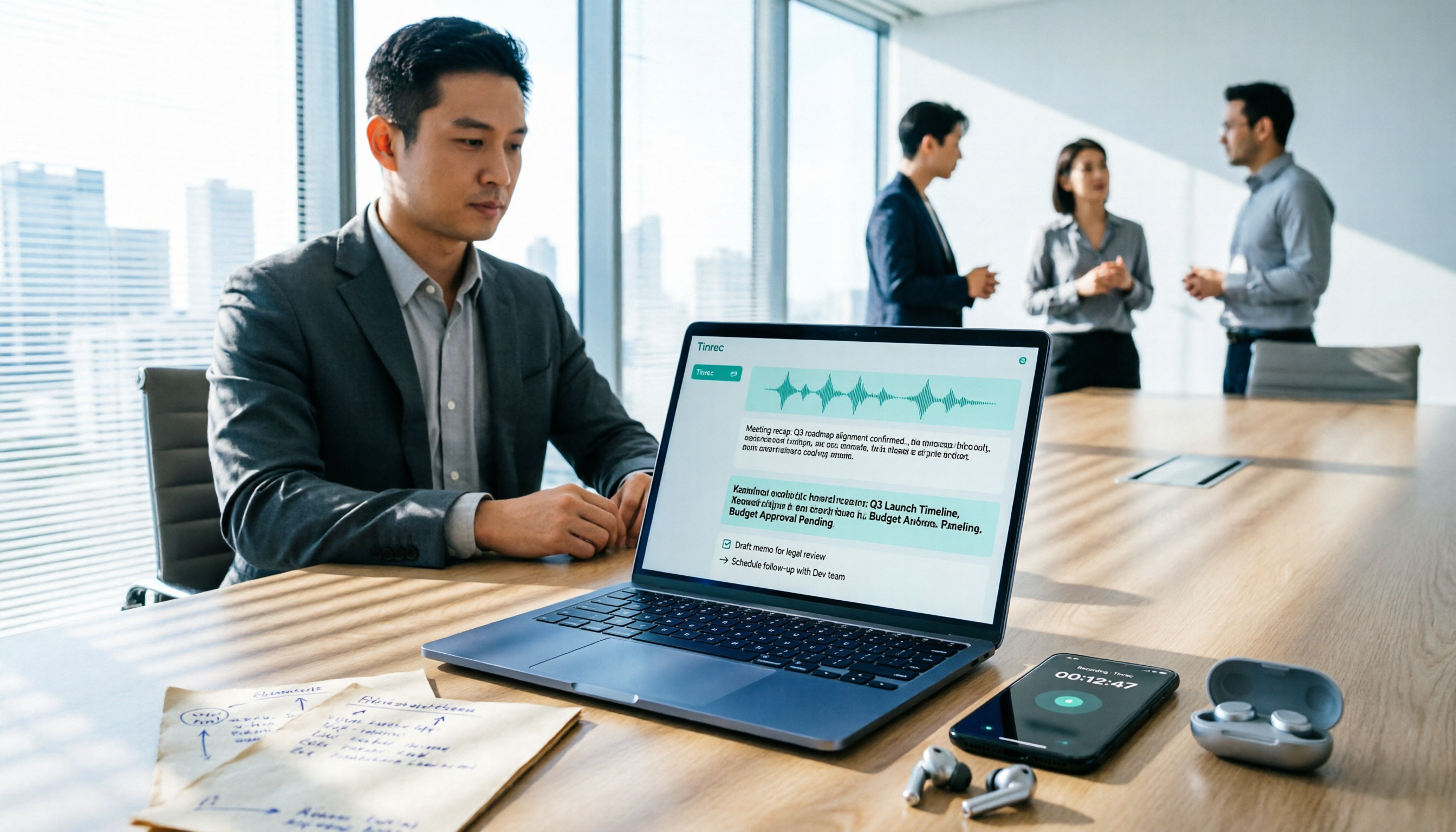
Tinrec is an AI meeting notes and collaboration tool available on iOS, Android, and web. It's positioned not just as "audio-to-text" but as a way to turn recordings into searchable, queryable, reusable data.
I tested it with a roughly 12-minute Chinese meeting recording containing two speakers, some product terminology, and mixed Chinese-English sentences.
After transcription, the transcript is segmented by time, so it doesn't read as one giant block of text. Summaries and chapters are generated alongside it, making it quick to grasp which topics were discussed.
What's more interesting is its AI Q&A. After transcription, you can directly ask "What were the conclusions of this meeting?" or "Who mentioned the budget?" and it answers based on the meeting content—not just keyword search results.
Export formats include plain text, Word, PDF, and other common options, so fitting it into existing workflows isn't a hassle.
One thing to note: Tinrec's free version has a monthly quota limit, suitable for light use. If you have meetings to organize every week, you'll need to evaluate upgrading. For team use, there's a separate team version that centralizes meeting data in a team workspace and manages members, seats, and usage.
Overall, it's good for people who "don't just want a transcript after recording—they want summaries and action items too." If you only need to turn audio into text and handle everything else yourself, a simple transcription tool is enough.
FAQ
Q: Does phone transcription require internet?
Most apps and web tools require an internet connection for transcription because processing happens in the cloud. A few tools support offline conversion, but features are usually basic. Make sure your connection is stable before transcribing to avoid interruptions.
Q: Is the free tier enough?
It depends on how often you record. If you only transcribe one or two class recordings or interviews a month, most tools' free tiers are sufficient. But if you have weekly meetings that each run over an hour, you'll likely use up the free quota after one or two sessions and need to consider a paid plan.
Q: How accurate are the transcripts?
In quiet environments with a single speaker who speaks clearly, most tools perform well. But when there's conference room echo, multiple people talking over each other, mixed Chinese-English, or lots of technical terms, error rates go up. For important content, it's best to cross-check against the recording.
Q: What's the difference between iPhone's built-in feature and third-party apps?
iPhone's built-in transcription is free and requires no app installation, but it only works on iOS 18 and later, and it only gives you a transcript—no summaries or action items. Third-party apps differ mainly in post-meeting processing capabilities and whether they support cross-platform use.
Q: How should teams manage shared recordings?
If meeting data needs to be viewed and used by multiple people, consider a tool with team workspaces. Tinrec's team version provides a dedicated team workspace where members can share meeting data, and admins can assign seats, view usage, and check activity logs. Note that the team version focuses on team-level sharing, not granular file-level permission settings.
Q: What legal issues should I be aware of with recording transcription?
Check local regulations before recording, and obtain participant consent when necessary. Especially in meetings, interviews, or client communication scenarios, it's advisable to inform the other party in advance about the purpose of recording.
References
Turn every recording into actionable outcomes
Get 60 free transcription minutes when you sign in. No credit card required.
Related Reading
You might also like

Free Audio-to-Text in 2026: Tinrec Free Tier + AI Summary Hands-On
Searching for "free audio-to-text" turns up plenty of tools, but free isn't always free. This article breaks down three free models, what free quotas can handle, and uses Tinrec as an example to test free-version transcripts, AI summaries, action-item extraction, and export workflows. It ends with 5 buying criteria and upgrade timing.

5 Best Speech-to-Text Apps in 2026: Top Picks from Dcard and Free Tiers Compared
We've rounded up 5 speech-to-text apps that are popular on Dcard and PTT, comparing free tiers, Chinese recognition, post-meeting summaries, and team collaboration. We also highlight the three most common pitfalls when choosing an app, so you can find the tool that truly fits your use case.

2026 Audio-to-Text AI Showdown: Tinrec vs Notta — 5 Key Dimensions Compared, Which Saves More Time?
How do you choose an audio-to-text AI tool? This article uses a mid-level manager's real workflow to compare Tinrec and Notta across online meeting recording, file import, post-meeting outputs, Chinese terminology, team governance, and quota costs. It honestly discusses each tool's limitations and best-fit scenarios.

Tinrec Review 2026: Cantonese Transcription & Notta Alternative Guide
How to choose a recording-to-text tool? This guide focuses on Tinrec, comparing it with Notta across three key criteria: online meeting capture, post-transcription workflow, and team data ownership. It breaks down real use cases and buying considerations to help you pick the right transcription tool in 2026.
Best Free Audio-to-Text Tools in 2026: 5 Tested, This One Has the Most Generous Free Tier
Meeting recording still sitting there and a transcript due tomorrow? This article covers the 5 key factors for choosing a free audio-to-text tool in 2026—from free tier limits and Chinese recognition to post-meeting organization and team collaboration—and demonstrates the complete workflow from recording, transcription, summarization, and action items to AI Q&A using Tinrec.

Free Speech-to-Text Options in 2026: 2 Popular Tools from Dcard Compared
Dcard users keep asking about free speech-to-text tools, but is the free tier enough? This article compares Tinrec and Otter.ai on free quotas, Chinese recognition, online meeting recording, post-meeting organization, and team collaboration so you know which one won't waste your time before signing up.

4 Best Audio-to-Text Apps in 2026: Free Tiers, AI Q&A, and Team Knowledge Compared
How do you choose an audio-to-text app? This guide compares Tinrec, Otter.ai, Notta, and TurboScribe across free tiers, post-meeting organization, online meeting recording methods, and team data ownership. It also covers 4 common buying pitfalls so you know what you need before paying.

5 Best Speech-to-Text Apps in 2026: Which PTT-Favorite Tool Is Best for Chinese Meetings?
Most people on PTT compare speech-to-text apps by accuracy, but what really matters is whether the app can handle existing audio files and produce meeting minutes and action items afterward. This article compares 5 common solutions across 5 buying criteria, with Tinrec as the main hands-on example, covering real-time transcription, bot-free meeting recording, team spaces, and seat management.

4 Google Meet Whiteboard & Post-Meeting Tools Tested in 2026: You Drew on the Whiteboard—Who Captures the Conclusions?
How to choose a Google Meet whiteboard? This article uses a mid-level manager's meeting scenarios to compare Google Meet's built-in whiteboard, Whiteboard for Google Meet, Collaborative Whiteboard, and the post-meeting organization tool Tinrec. It first clarifies the difference between whiteboards and meeting notes, then provides selection criteria, pitfalls to avoid, and scenario-based recommendations.