

Turn recordings into transcripts and summaries in minutes
Upload audio or video for multilingual transcription, AI notes, and action items
Let's be clear: it's usually not the tool that's holding you back—it's the order
"I recorded it on my iPhone, so where's my transcript?"
I've heard this way too many times. The problem usually isn't that the iPhone can't do it—it's three very common order-of-operations mistakes.
Mistake #1: Assuming that after you open Voice Memos and record, the text will just appear on its own.
Mistake #2: Assuming that upgrading to iOS 18 gives you Chinese transcription.
Mistake #3: Assuming that exporting the text is the end of the story.
First, let's clarify the version requirements—this is where many people get it wrong.
The transcription feature in iPhone's Voice Memos and Notes apps requires iOS 18.4 or later for Traditional Chinese support, and the device must be iPhone 12 or later.
So even if you update an iPhone 11 to the latest version, you won't get this feature.
If your version isn't right, you can tap until your fingers cramp and no transcript will appear.
Once you understand the requirements, choosing a tool becomes much clearer.
4 things to understand before you choose
1. First, confirm whether your hardware and system can handle it
iPhone 12 or later and iOS 18.4 or later are the entry ticket for Chinese transcription. Check this first, or the rest of the discussion is moot.
2. Do you want "to see the text" or "usable data"?
These are very different. If you just need to understand a recording, the built-in feature is enough. But if you need to submit meeting minutes or follow up on action items, you'll need summaries, chapters, and Q&A.
3. Chinese scenarios are harder to recognize than English
Mixed Chinese-English, names, product codes, and multiple people talking over each other all lower accuracy. This applies to any tool, including the built-in iPhone feature. That's why I never believe claims like "98% accuracy"—those are usually tested in a quiet recording studio.
4. Will your data stay accessible and work across devices?
You record on your phone, but you'll ultimately organize on your computer. If a tool only lives on your phone, you'll have to move files every time.
How to use the built-in iPhone transcription: 3 steps
**Step 1:** Update to iOS 18.4 or later and confirm your device is iPhone 12 or later.
**Step 2:** Open Voice Memos and record. Or go to the Notes app, tap the paperclip button at the bottom, and select "Record Audio."
**Step 3:** Tap into the recording and press "View Transcript" in the bottom left corner.
A few practical details you'll actually use:
- In the recordings list, files that support transcription will show a speech bubble icon on the right.
- During playback, the text highlights in sync; tap a section of text to jump to the corresponding audio.
- There's a "Copy Transcript" button in the top right corner—you can paste it wherever you want.
- You can also select "Add Transcript to Note" under "More" to keep it with your notes.
A hands-on test by 500 Times mentioned that a 50-minute recording transcribed almost instantly—just press and it's done—and accuracy is much better than when iOS 18.0 first launched.
I agree. The current version's usability is on a completely different level from the initial release.
But one caveat: this workflow only solves "getting the text," not "what to do with the text afterward."
Tinrec—where it shines is after the text is generated
If you only occasionally need a transcript, honestly, the built-in feature is enough—no need to pay.
But if you have three or four meetings a week, need to organize minutes, and assign action items, the built-in feature will leave you stuck at the next step: you get a big block of text and still have to read through it and pick out the key points yourself.
Tinrec is an AI meeting notes and collaboration tool for individuals and teams, available on iOS, Android, desktop, and web. Its positioning isn't "voice-to-text" but turning meetings into searchable, queryable, actionable data.
Scenario 1: Transcribe while recording—get a summary as soon as the meeting ends.
Open Tinrec and record; the transcript is generated in real time, no waiting for the meeting to end to queue up for conversion. Afterward, it automatically generates a summary, chapters, and key points, and extracts action items into to-dos. Who needs to do what and by when—no need to dig back through.
Scenario 2: Ask it questions right after recording.
Stop organizing recordings by hand
Upload audio or video and automatically get a transcript, summary, and action items
This is the most practical difference in my opinion. You don't need to Ctrl+F through a 30-minute transcript to find keywords—just ask "What number did we mention for the budget in the last meeting?" or "What were the three concerns the client raised?" It answers based on meaning, not a list of search results. Few tools at this price point have this capability.
Scenario 3: No bot needed for online meetings.
Tinrec's desktop version captures your computer's system audio directly, so you can handle Zoom, Google Meet, Teams, and Webex without pulling an extra bot account into the meeting room. This matters for client meetings—you don't want an unknown account showing up on the other person's screen.
Other features I use often: audio and video files can be uploaded directly for transcription without going through your phone first; real-time translation with original/translated/bilingual view; results can be exported to Notion, Google Docs, or OneNote for further processing, and you can use Agent to generate reports or tables directly.
Pricing: The personal plan has a free quota to get started; a weekly card for short-term intensive use; and a Pro monthly or annual card for long-term weekly use.
The team plan is a different matter: independent team space, separate role and seat management, usage analytics, audit logs, and an audio recycle bin. According to the official statement, first-time eligible teams get a 7-day trial, 1 free seat, and 300 minutes of shared import quota; team monthly billing is USD 29.80 per paid seat, annual billing is USD 199 (about USD 16.58 per month), and paid seats include 2,000 minutes of team shared import quota per month. Actual prices and benefits are subject to the official purchase page.
Limitations to note: It's not a hardware recorder—you can't wear it around to record anytime; it's not a batch file factory either—if you need to process 50 long files at once, tools like TurboScribe are more cost-effective. Its strength is the meeting itself.
Besides built-in and Tinrec, what other options are there?
Yating Transcription: A veteran Taiwanese tool with a good reputation for Chinese recognition. But the free version has no quota—so either pay or don't use it. Also, it lacks AI conversational query; after transcription, you can only scroll through to find sections—this is the biggest difference from Tinrec.
Otter.ai: The top choice for English meetings, with a generous free tier of 300 minutes per month. But Chinese meetings aren't its strong suit, and it lacks Tinrec's real-time bilingual translation and team data retention. If 90% of your meetings are in English, it's indeed a good choice.
PLAUD NotePin / Note Pro: AI recording hardware, official prices USD 159 for NotePin and USD 189 for Note Pro. Suitable for people who need to record on the go or record phone calls. But you need to carry an extra device, and membership minutes are billed separately; Tinrec requires no hardware purchase—phone, computer, and web can all handle online meetings.
Pitfall guide: 4 most common mistakes in iPhone voice-to-text
Pitfall 1: Asking "why is there no transcript?" for old recordings.
Files recorded on earlier system versions may not automatically generate transcripts. The fastest practical approach is to tap into the file and press "View Transcript"—you'll know immediately if it works, no guessing.
Pitfall 2: Assuming the transcript is ready to submit as-is.
Filler words, overlapping speech, proper nouns, and mixed Chinese-English all lower accuracy. For important content, you still need to cross-check against the audio timestamps. That's why I don't recommend anyone trust claims like "99% accuracy."
Pitfall 3: Doing everything only on your phone.
Many people's real pain point isn't transcription failure—it's that after transcription, files are scattered in Voice Memos and can't be found. Exporting directly to your work documents or database after recording is more important than anything.
Pitfall 4: Treating the transcript as the end goal.
Treating the transcript merely as "audio turned into text" means you're only using a third of what these tools can do. After recording, just ask "What were the conclusions of this meeting?"—it's much faster than manually flipping through a 30-minute transcript.
Conclusion: Which one should you use?
- Only one or two recordings, don't want to spend money → iPhone built-in (iOS 18.4 or later, iPhone 12 or later)
- Weekly meetings, need summaries and action items → Tinrec
- Online meetings without bots → Tinrec desktop version
- Team needs shared meeting data, seat and usage management → Tinrec team plan
- 90% English meetings → Otter.ai
- Need a physical recorder for on-the-go recording → PLAUD
My advice is simple: first run a recording of your own through the built-in feature to get a feel for the accuracy; if you find the real pain point is "what to do after transcription," then try Tinrec's free quota. Don't pay upfront, and don't pay for a feature you'll only use twice a month.
One last reminder: before recording, inform and obtain consent from participants—regulations vary by location, so don't cross that line.
References
- iPhone Voice Memos to Text Tutorial: Built-in Transcription Without Third-Party Apps - Mr. Mad
- iPhone Notes and Voice Memos Apps Also Have Transcription: Turn Lectures, Meetings, and Speeches into Text in 4 Simple Steps | BusinessNext
- Free iPhone Voice-to-Text Transcription! iOS 18 Supports 10 Languages | Quality Living | 500 Times
- iPhone Voice Memos to Text: Complete Guide to 3 Methods! Built-in iOS, Apps, Recorders—Which Is Best?
- No Third-Party Apps Needed! Complete Guide to iPhone Voice Memos and Notes App Recording-to-Text | Venus's Fantasy World
Turn every recording into actionable outcomes
Get 60 free transcription minutes when you sign in. No credit card required.
Related Reading
You might also like

2026 Complete Guide to Apple Audio Transcription: From iPhone Transcripts to Tinrec Meeting Organization
iPhone's built-in Voice Memos can now generate transcripts, but it only does 'turning speech into text.' This guide starts from real-world use cases, explains the functional boundaries, device and version limitations of Apple's audio transcription, and how Tinrec picks up where it leaves off to turn a recording into summaries, to-dos, queryable, and exportable work data. It also covers 5 key points for choosing an audio transcription tool and answers common questions.

4 Best AI Transcription Tools Worth Trying in 2026: Never Take Meeting Notes by Hand Again
Starting from the real pain points of a mid-level manager juggling 15 meetings a week, this hands-on review covers four AI transcription tools, explaining key selection criteria, each tool's limitations, and ideal use cases to help you find the one that truly saves time on post-meeting cleanup.
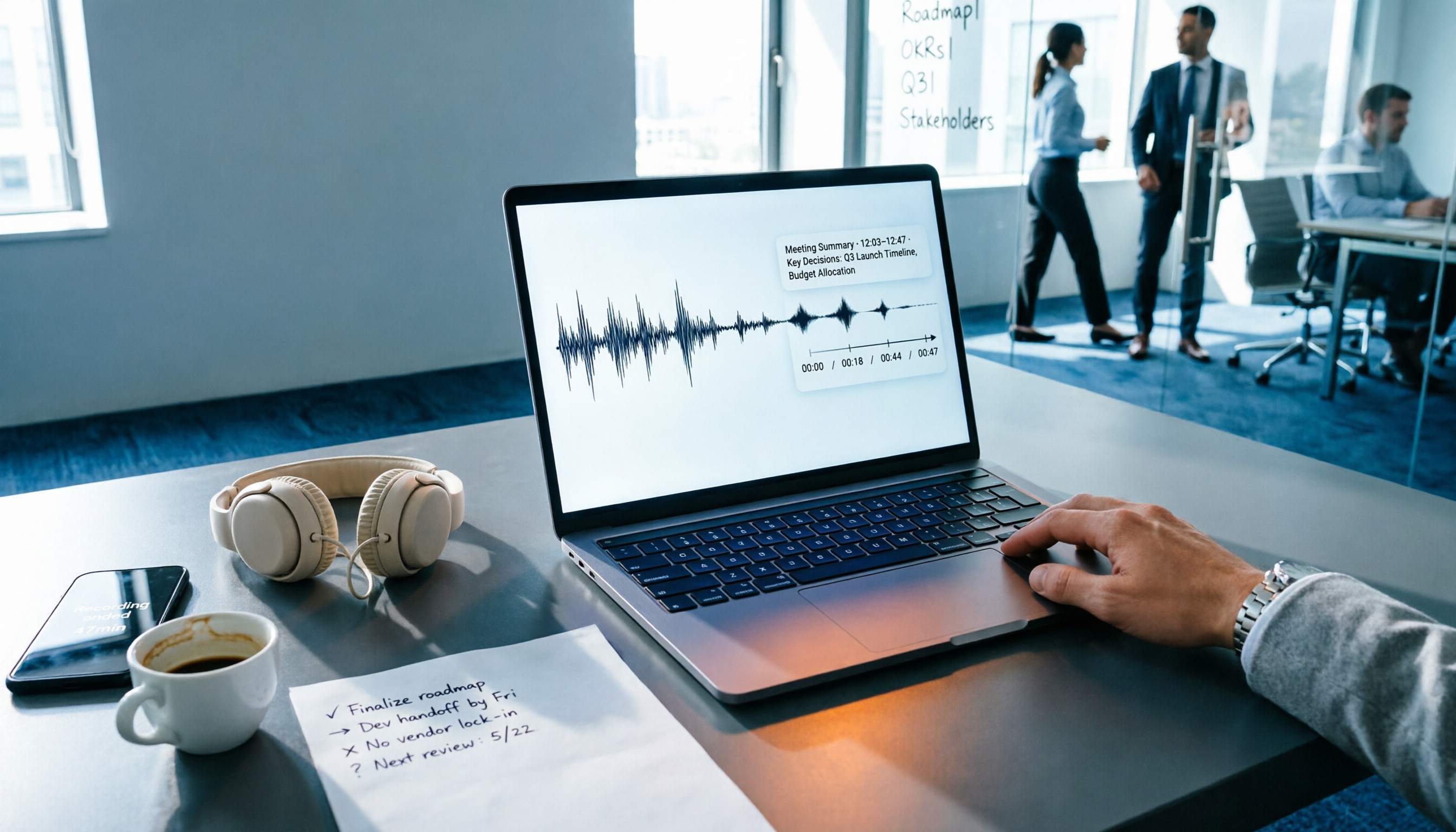
4 Audio-to-Text Tools Tested: Which One Actually Saves Time After Meetings?
There are countless audio-to-text tools, but the real differentiator isn't transcription speed—it's how much time you still spend wrapping up after the meeting ends. This article breaks down 4 key buying criteria from a procurement perspective, tests the post-meeting output of 4 tools, and outlines the 3 most common pitfalls to help you choose right the first time.

Best iPhone Transcription Apps in 2026: 6 Tested, This One Excels for Chinese Meetings
When looking for an iPhone transcription app, most people struggle not with whether tools exist, but with which one fits their use case. This guide covers 6 practical options—from iOS built-in free features and file transcription tools to AI recording hardware and team-collaborative AI meeting note platforms—and honestly lists free quotas and paid pricing to help you decide which one to choose.

3 iPhone Transcription Methods Tested for 2026: Which One Actually Saves You Time?
iPhone's built-in Voice Memos can already transcribe audio, but meetings, interviews, and team collaboration require summaries, action items, and searchable records. This article compares three approaches and demonstrates how Tinrec enables a complete workflow from recording to searchable meeting data.

5 Best iPhone Transcription Solutions in 2026: Built-in vs. Apps vs. Team Collaboration
Starting with the device and version limitations of iPhone's built-in transcription, we compare Tinrec, Notta, Otter.ai, and Granola on Chinese meeting support, post-meeting organization, AI follow-up questions, and team knowledge retention to help you choose the right transcription solution.

4 iPhone Audio-to-Text Methods Tested in 2026: Shortcuts Have a High Barrier, AI Tools Win on Post-Meeting Organization
How do iPhone's built-in Voice Memos transcript, Notes live transcription, and the Shortcuts 'Create Dictation Note' actually differ? Starting from real-world usage scenarios, this article tests 4 iPhone audio-to-text methods, comparing setup barriers, Chinese recognition, post-meeting organization, and team collaboration to help you decide which is the least hassle.

2026 Free Audio-to-Text Tools Comparison: Tinrec vs Otter.ai — Free Limits, Chinese Accuracy, and Post-Meeting Organization
How to choose a free audio-to-text tool? This article compares the free versions of Tinrec and Otter.ai across five dimensions: free quota, Chinese recognition, meeting recording methods, post-meeting organization, and team data ownership. It also includes a 3-step tutorial for the free version and FAQs to help you decide which one truly meets your needs.
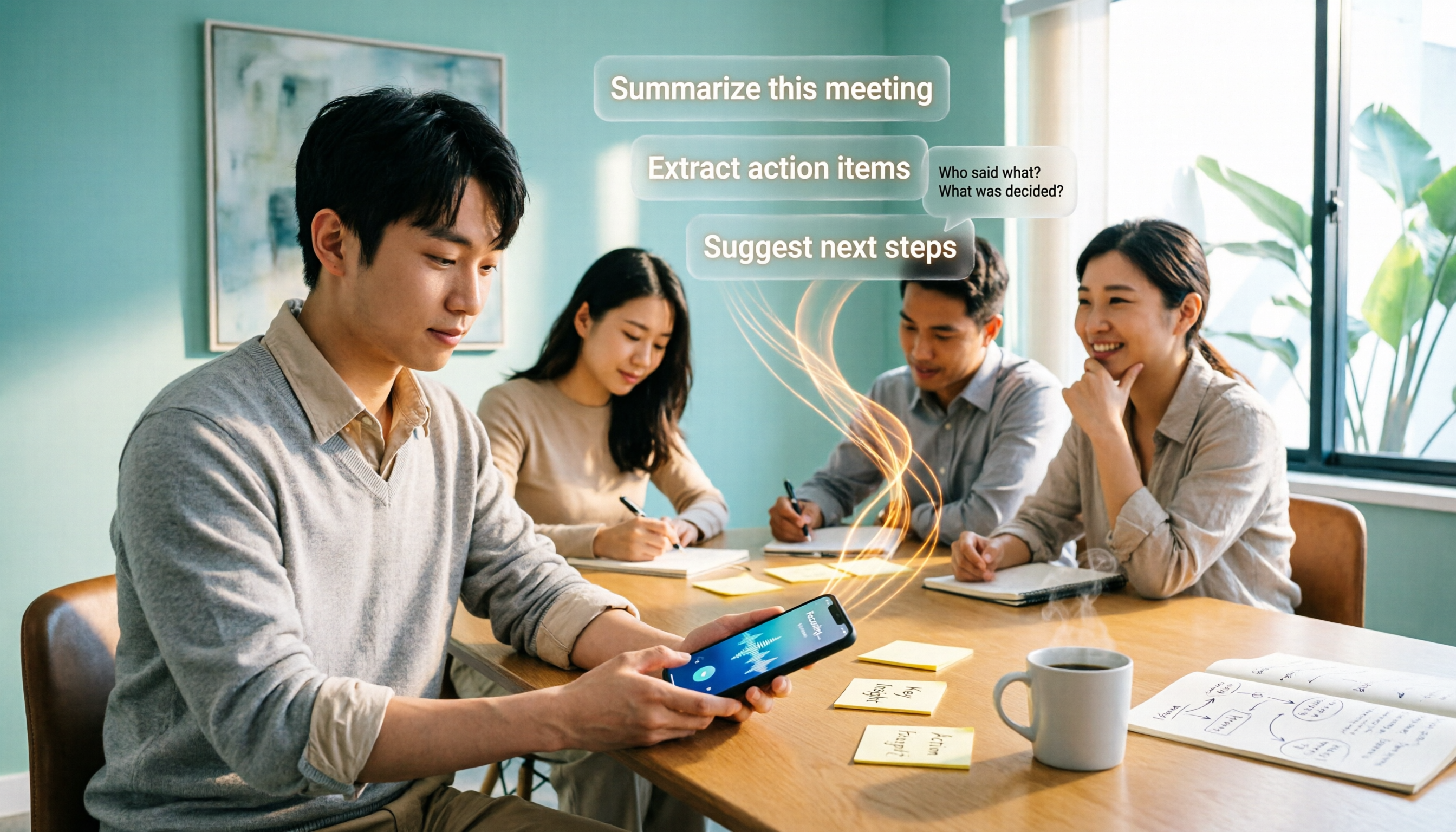
2026 Comparison of 4 Free AI Audio-to-Text Tools: Which Free Tier Is Enough and Which Lets You Ask AI Directly After Transcription?
2026 comparison of 4 free AI audio-to-text tools: from how free quotas are calculated and meeting recording methods to whether you can ask questions and organize content directly after transcription. We break down who Tinrec, Otter.ai, Notta, and TurboScribe are best for, plus 4 common pitfalls when choosing a free tool.