

Turn recordings into transcripts and summaries in minutes
Upload audio or video for multilingual transcription, AI notes, and action items
After the meeting recording ends, the real hassle is what comes next
A 40-minute meeting ends, and the audio file sits quietly in Voice Memos. You tell yourself you'll organize it later, but three days later when you open it, you only remember "I think we talked about the budget," and all the details are gone.
The same goes for classes or interviews. When you want to find a specific sentence, you can only drag the progress bar back and forth, and after listening three times you still can't pinpoint that moment.
So you search online for "iPhone audio to text shortcut," follow the tutorial, and get stuck at the "Create Note" step—the folder isn't created, the variables aren't connected properly, the shortcut won't run, and you give up.
This article isn't about turning you into a Shortcuts expert; it lays out 4 feasible approaches on iPhone for comparison so you can pick one you can actually finish.
Before Choosing an iPhone Audio-to-Text Solution, Understand These 4 Key Points
1. Do you need "live dictation" or "transcribing existing audio files"?
These two are often confused. Dictation is "you speak, it converts to text in sync"; audio file transcription is "processing an existing audio file." Most people actually need the latter, but the tutorials they find are all about the former. First confirm whether you're about to "start speaking" or "have already recorded."
2. Shortcuts is a workflow tool, not a recognition engine
iPhone's "Shortcuts" itself doesn't recognize speech; it just strings together the two actions "dictate text" and "create note." In other words, you're building an automation workflow, not buying a more powerful transcription machine—the recognition quality is the same as the system's dictation.
3. Chinese and mixed Chinese-English is the real test for Taiwanese users
Product names, technical terms, and suddenly inserting an English sentence—these are all too common in meetings. When comparing, don't just look at "supports Chinese"; see whether it falls apart when encountering mixed Chinese-English.
4. After the transcript is produced, does anyone help you organize it?
A 40-minute transcript, if you can only read it from beginning to end, is actually of limited help. What really saves time is: automatic summaries, extracting action items, being able to ask questions about the content, and exporting to the tools you use. This point determines the gap between "having text" and "being usable."
Tinrec — The Least Hassle Path After Testing
Tinrec is an AI meeting notes and collaboration tool for individuals and teams, supporting iOS, Android, and web, with the desktop version handling online meeting scenarios. It doesn't just convert sound to text; it organizes meetings into searchable, summarizable, queryable, and exportable data.
Open it during the meeting, and the transcript appears as you record. When the meeting ends, the summary, chapters, and action items are already automatically organized—who's responsible for what and what's next, no need to go back and dig. For people who "can't be bothered to organize after recording," this makes a big difference.
No bot invitations needed for online meetings. The desktop version directly captures the computer's system audio, handling meeting audio played on platforms like Zoom, Google Meet, Microsoft Teams, and Webex, without an extra bot sitting in the meeting room visible to everyone. Note that this is not the same as "automatically joining all meetings on your calendar"—you still need to open it yourself to start recording.
You can ask it questions directly after recording. This is where it most clearly differs from most tools: you can follow up on meeting content with questions like "Who mentioned the budget in the last meeting?" or "What were the client's concerns about the price?" It answers based on the content rather than throwing a list of keyword search results at you to find yourself. The same recording can also be translated in real time, viewed in original, translation, or bilingual mode—very useful for cross-language meetings.
Deliverables after the meeting can also be generated. Beyond transcripts, summaries, chapters, action items, and mind maps, it can further produce reports, tables, and documents, and export to Notion, Google Docs, OneNote, Dropbox, and other tools for further processing.
Regarding recognition accuracy, I deliberately don't give a fixed number. The reason is simple: the same tool produces very different results in a quiet office versus a meeting room with air conditioning noise, keyboard sounds, and multiple people talking over each other. During testing, I used a meeting recording with mixed Chinese and English; the segments switching between Chinese and English weren't broken up, and technical terms could be adjusted through team hotwords. But for important numbers and commitments, I still click back to the transcript's timestamp to verify against the recording—this is a usage habit any AI tool should have.
Three advantages I find most impactful:
- From "recording" to "something you can present" is one continuous path, no need to move files between three apps.
- Meeting audio files are retained, so you can later listen back to a segment alongside the transcript—this is more solid than text-only approaches.
- The team version stores data in the team space, not on someone's phone, so data doesn't disappear when members leave.
Stop organizing recordings by hand
Upload audio or video and automatically get a transcript, summary, and action items
Two limitations I must honestly mention:
- The free version provides a basic quota, suitable for trying out the workflow first; if you have a steady volume of meetings every week, you'll need to evaluate a paid plan.
- It's not suitable for "batch processing dozens of long audio files at once"—that kind of high-volume document transcription has more suitable tools.
Pricing (subject to the official purchase page): The personal version has a free version, weekly card, Pro monthly card, and Pro annual card—choose based on usage frequency. The team version is USD 29.80 per paid seat per month, or USD 199 per paid seat per year, equivalent to about USD 16.58 per month. Eligible teams can try 7 days free with 1 free seat and 300 minutes of team shared import quota; paid seats provide 2,000 minutes of team shared import quota per month, and real-time recording under an active team plan is currently not deducted by minutes.
Another commonly misunderstood aspect of the team version: roles and seats are two different things. Roles determine who can manage the team, members, and auditing; seats determine whether members can record, upload, edit, and export. Members without seats can still view, play, and read team data, but cannot perform resource usage operations. Additionally, the team version currently focuses on team-level sharing, not file-level granular permissions.
Who it's for: People who frequently hold online meetings, need Chinese and mixed Chinese-English transcripts, want to use AI to find key points directly after recording, or want meeting data to stay with the team rather than on personal devices.
Besides Tinrec, There Are 3 Other Approaches on iPhone
Voice Memos built-in transcript (iOS 18)
This is currently the most painless trick: after recording, you can view the transcript in Voice Memos, it supports Chinese, and you can copy the entire thing to paste elsewhere. Free, no need to install anything—very convenient when you need a piece of text on the fly. But it only gives you text, no summary, no action items, and you can't ask questions about the content.
Notes app live audio transcription
Open Notes and record directly, generating text as you speak—great when inspiration strikes, suitable for quick notes. The limitation is that it leans toward "live dictation" scenarios; existing old audio files won't become transcripts this way, and cross-device organization is less convenient.
Shortcuts "Create Dictation Note"
The setup process is roughly: first create a "Dictation Notes" folder in Notes, then go to the Shortcuts app to create a new shortcut, add the "Dictate Text" and Notes' "Create Note" actions in sequence, specify the folder, and save. Once done, you can put it in Control Center; iOS 18 also lets you add it to the Lock Screen widget, and iPhone 15 Pro and later models can bind it to the Action button—one click to start recording.
Its greatest value is "speed," but the barrier is real: you have to assemble the actions yourself, if the folder name doesn't match it won't save, and long recordings plus conversion consume battery and storage. Most importantly, it still produces plain text with no summary, Q&A, or team sharing. After watching a round of tutorial videos online, most people get stuck at these steps.
Pitfall Guide: The 4 Most Common Mistakes When Using iPhone Audio-to-Text
Pitfall 1: Treating "dictation" as "audio file to text." Dictation converts your speech to text in real time; existing old files won't grow a transcript on their own. To process existing recordings, find a solution that supports audio file upload.
Pitfall 2: Finishing the shortcut but forgetting to create the folder. This is the most common failure point. The folder name specified in the script must exactly match an actual folder in Notes, otherwise it will show success but the content goes who-knows-where.
Pitfall 3: Saving the transcript and calling it done. A transcript without summary, without action items, and not searchable means you've only used one-third of the tool's capability. Spending three minutes after recording to capture conclusions and action items is where you truly save time.
Pitfall 4: Throwing a one-hour recording onto your phone to transcribe. Long transcriptions drain battery, take up space, and may be interrupted by calls or background apps. For long content, use the desktop or web version; leave the phone for "quick recording."
Conclusion: Which One Should You Choose?
In one sentence: if your need is just "turn what was just said into text," iPhone's built-in is enough; if what you want is "something you can use directly after the meeting," choose the one with post-meeting organization capabilities.
- Want zero cost, occasional use → Voice Memos built-in transcript, free and no installation.
- Pursuing one-click quick notes, used to doing things yourself → Shortcuts "Create Dictation Note," smooth once set up.
- Many online meetings, need Chinese transcripts plus post-meeting organization → Tinrec, bot-free recording plus summaries, action items, and AI Q&A—the most complete workflow among these approaches.
- Want to use AI to find key points directly after recording → Tinrec, asking questions about meeting content is much faster than manually flipping through a 40-minute transcript.
- Record on phone, organize on computer, team needs to share → Tinrec, iOS, Android, web, and desktop data all in one place.
A few questions readers often ask, answered together:
Q: Is the free version enough? To first experience the "recording → transcript → summary" workflow, the free version's basic quota is enough to try; consider upgrading once you use it steadily—no need to pay from the start.
Q: Do I have to use Shortcuts? No. Shortcuts just wraps system dictation into a faster entry point; if you're dealing with existing audio files, Shortcuts won't help.
Q: Will mixed Chinese-English get messed up? Performance varies by vendor; it's best to test with a real meeting recording of your own—much more accurate than reading official descriptions.
Q: Will team data leave with members? For the team version, resources belong to the team; when a member leaves or loses their seat, the resources they're responsible for need to be handed over to other active members.
I suggest starting with the free version, running it once with a real meeting recording you have on hand, and discussing upgrades only after the workflow feels smooth.
References
- iPhone Voice-to-Text Setup Tips: 5 Methods to Achieve Audio-to-Text - Mr. Mad
- [Latest] How to Convert iPhone Audio Files to Text in iOS 18 Tutorial
- iPhone Voice Memos to Text Method Tutorial: Transcripts Without Third-Party Apps - Mr. Mad
- How to Convert iPhone Audio to Text? Learn 3 iPhone Audio File to Text Methods Easily!
- iPhone Notes Voice-to-Text Shortcut Tutorial: Convenient and Fast Spoken Notes - Apple Almond
Turn every recording into actionable outcomes
Get 60 free transcription minutes when you sign in. No credit card required.
Related Reading
You might also like

2026 Complete Guide to Apple Audio Transcription: From iPhone Transcripts to Tinrec Meeting Organization
iPhone's built-in Voice Memos can now generate transcripts, but it only does 'turning speech into text.' This guide starts from real-world use cases, explains the functional boundaries, device and version limitations of Apple's audio transcription, and how Tinrec picks up where it leaves off to turn a recording into summaries, to-dos, queryable, and exportable work data. It also covers 5 key points for choosing an audio transcription tool and answers common questions.

4 Best AI Transcription Tools Worth Trying in 2026: Never Take Meeting Notes by Hand Again
Starting from the real pain points of a mid-level manager juggling 15 meetings a week, this hands-on review covers four AI transcription tools, explaining key selection criteria, each tool's limitations, and ideal use cases to help you find the one that truly saves time on post-meeting cleanup.
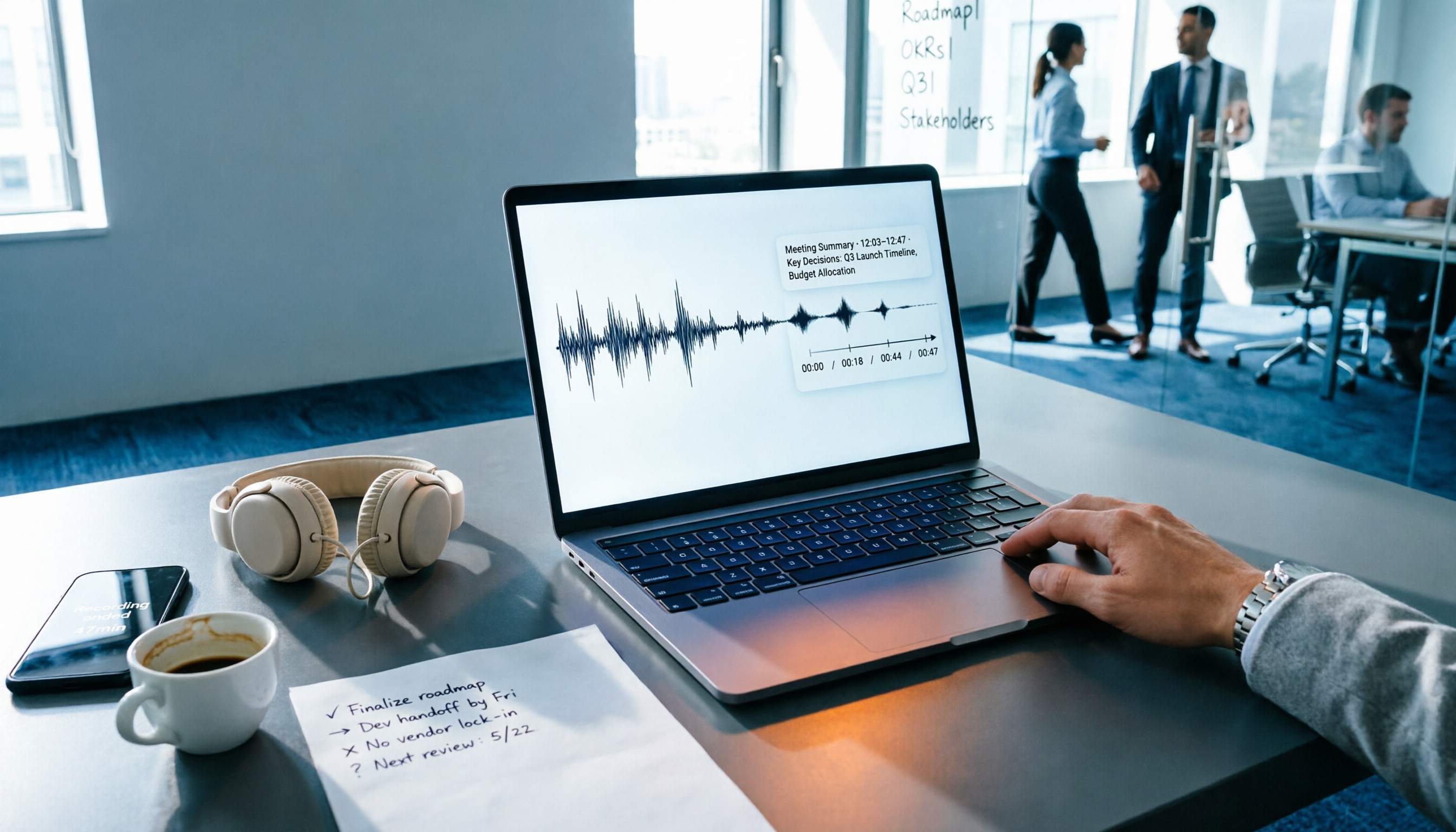
4 Audio-to-Text Tools Tested: Which One Actually Saves Time After Meetings?
There are countless audio-to-text tools, but the real differentiator isn't transcription speed—it's how much time you still spend wrapping up after the meeting ends. This article breaks down 4 key buying criteria from a procurement perspective, tests the post-meeting output of 4 tools, and outlines the 3 most common pitfalls to help you choose right the first time.

Best iPhone Transcription Apps in 2026: 6 Tested, This One Excels for Chinese Meetings
When looking for an iPhone transcription app, most people struggle not with whether tools exist, but with which one fits their use case. This guide covers 6 practical options—from iOS built-in free features and file transcription tools to AI recording hardware and team-collaborative AI meeting note platforms—and honestly lists free quotas and paid pricing to help you decide which one to choose.

3 iPhone Transcription Methods Tested for 2026: Which One Actually Saves You Time?
iPhone's built-in Voice Memos can already transcribe audio, but meetings, interviews, and team collaboration require summaries, action items, and searchable records. This article compares three approaches and demonstrates how Tinrec enables a complete workflow from recording to searchable meeting data.

5 Best iPhone Transcription Solutions in 2026: Built-in vs. Apps vs. Team Collaboration
Starting with the device and version limitations of iPhone's built-in transcription, we compare Tinrec, Notta, Otter.ai, and Granola on Chinese meeting support, post-meeting organization, AI follow-up questions, and team knowledge retention to help you choose the right transcription solution.

How to Transcribe iPhone Voice Memos to Text in 2026: Built-in 3-Step Guide + Turn Meetings into Queryable Data
iPhone voice-to-text transcription has version requirements: iOS 18.4 or later and iPhone 12 or later are needed for Traditional Chinese transcripts. This guide starts with the three most common order-of-operations mistakes, walks you through the 3 steps using the built-in Voice Memos app, and then compares Tinrec, Yating Transcription, Otter.ai, and PLAUD to help you decide which tool fits which scenario.

2026 Free Audio-to-Text Tools Comparison: Tinrec vs Otter.ai — Free Limits, Chinese Accuracy, and Post-Meeting Organization
How to choose a free audio-to-text tool? This article compares the free versions of Tinrec and Otter.ai across five dimensions: free quota, Chinese recognition, meeting recording methods, post-meeting organization, and team data ownership. It also includes a 3-step tutorial for the free version and FAQs to help you decide which one truly meets your needs.
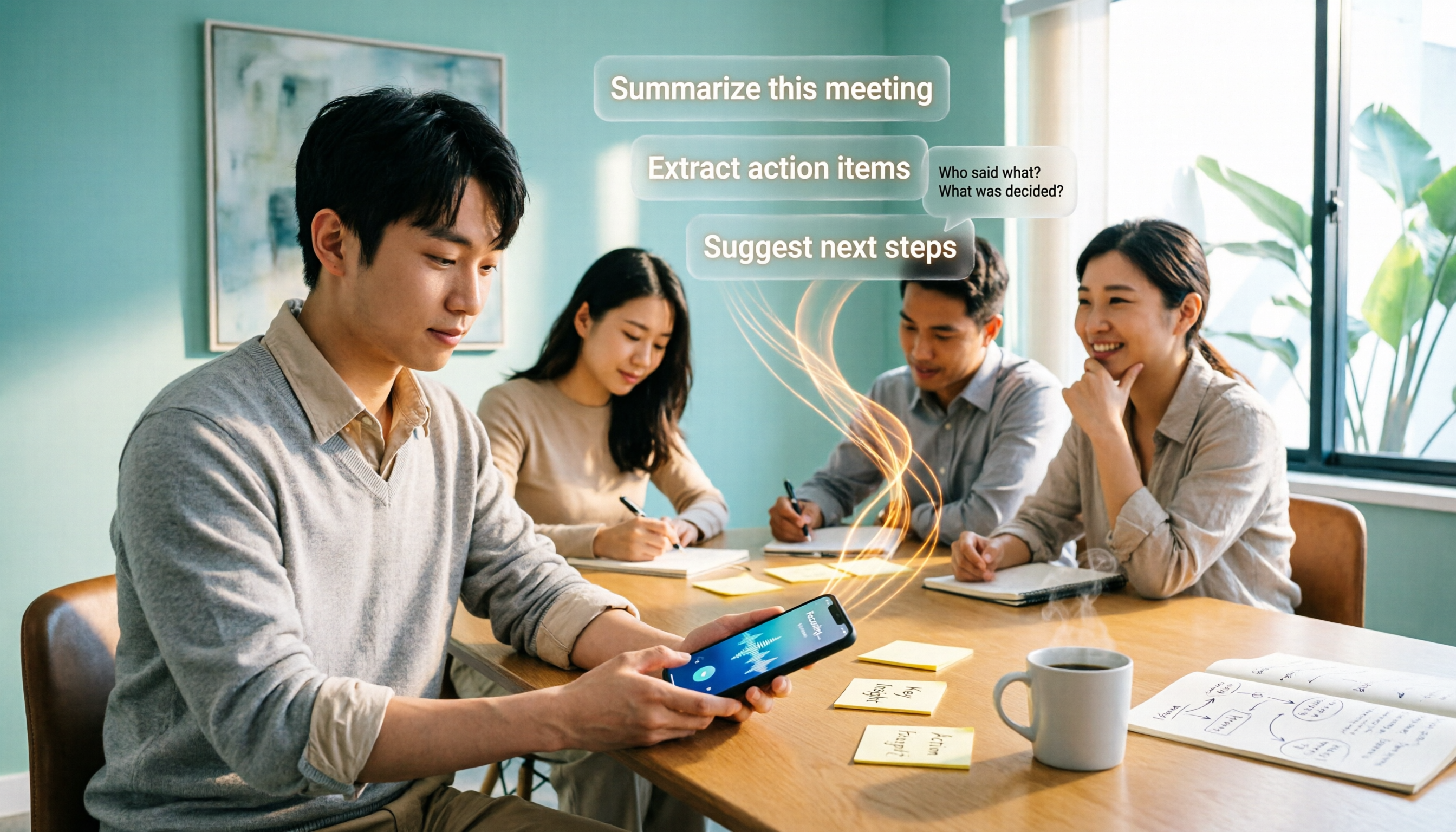
2026 Comparison of 4 Free AI Audio-to-Text Tools: Which Free Tier Is Enough and Which Lets You Ask AI Directly After Transcription?
2026 comparison of 4 free AI audio-to-text tools: from how free quotas are calculated and meeting recording methods to whether you can ask questions and organize content directly after transcription. We break down who Tinrec, Otter.ai, Notta, and TurboScribe are best for, plus 4 common pitfalls when choosing a free tool.