

Turn recordings into transcripts and summaries in minutes
Upload audio or video for multilingual transcription, AI notes, and action items
5 AI Tools Compared in 2026: Is Gemini's Free Version Enough, and When Should You Pay?
Is Gemini free? Yes, there is a free version, and for most people, it's enough to start with.
But what you really need to determine is not 'whether to spend money,' but 'when will I hit the ceiling of the free version?'
This article doesn't list specs. From the perspective of an average office worker, I'll explain clearly the Gemini free version, the three paid plans, and how to choose for demanding scenarios like meeting notes.
First Ask Yourself: Which Type of 'Not Enough' Are You Hitting?
The first type is running out of chat quota. You're in the middle of writing and a prompt pops up—that's frustrating.
The second type is features being cut in half. You've seen others use it impressively, but you can't find that button in your account.
The third and most common: you don't actually want a chatbot; you want something that 'helps me extract conclusions and action items after a meeting'—and general-purpose AI assistants aren't great at that.
If you've experienced all three, the problem isn't free vs. paid—it's whether you've chosen the right type of tool.
Before Deciding If Gemini Charges, Understand These 4 Key Points
1. Plan names are not model versions
Gemini's model names, subscription names, and product features are three different things. A model release doesn't mean your free account can select it; subscribing to a plan doesn't mean all advanced features of Google products are unlimited.
This is where beginners most easily misunderstand.
2. The free version is 'limited free,' not 'a different product with fewer features'
According to Google Cloud's documentation, the general Gemini series apps offer a free version but with usage limits. In other words, you're using the same entry point; the difference is in quota and available features.
3. Quotas can change
Be prepared for this. Some sources note that in 2026, free users' image generation quota was adjusted from 100 images per day to 20.
So the answer to 'is the free version enough?' changes over time. What's enough today may not be in six months.
4. Do you want 'conversation' or 'workflow'?
For pure conversation, copywriting, translation, and research, Gemini's free version is already quite capable.
But if you need meeting audio transcribed, automatic summaries, action item extraction, and export to Notion or Google Docs, that's a workflow tool with completely different evaluation criteria.
What Does Gemini's Free Version Actually Give You? And Where Are the Limits?
First, what works.
The free version supports general conversation, writing assistance, image generation and editing, and also lists features like Deep Research, Live, Canvas, and Gems as they roll out. The interface supports Traditional Chinese, so users in Taiwan can use it directly.
For someone who uses it a few times a week to ask questions and edit text, this is plenty.
However, a few things to note.
First, each feature has applicable conditions and usage limits—not unlimited.
Second, the model capabilities available in the free version are 'partial features,' not the full version. To unlock more complete Pro model capabilities, you need a paid subscription.
Third, model generations change quickly. The same source mentions that the Gemini 1.5 series has been phased out and 2.5 is mainstream, but another source mentions Gemini 3 is already available for testing in Google AI Studio.
That's why I suggest: Don't treat 'which plan I subscribed to' as the answer to 'which model can I use'—check the current official documentation for actual availability.
There's also an often-overlooked entry point: Google AI Studio. Developers, students, and researchers can get a certain amount of free Gemini API usage here, suitable for quick testing and prototyping. If you want to 'try out whether this model works,' this is more cost-effective than subscribing directly.
What's the Difference Between AI Plus, AI Pro, and AI Ultra, and Who Really Needs Them?
Based on the Taiwan subscription page data compiled in the source article (March 2026), the personal paid plans are roughly:
- Google AI Plus: about NT$260/month
- Google AI Pro: about NT$650/month
- Google AI Ultra: about NT$8,150/month
Prices may change; refer to the official subscription page for actual amounts.
So how do you decide if you need one? My advice is to look at 'whether you hit the wall daily,' not at the plan table.
- Use it less than three times a week, just asking questions and editing text → free version is fine; no rush to pay.
- Use it daily for writing, research, image generation, and often hit quota prompts → AI Plus or AI Pro starts to make sense.
- Enterprises needing the latest models, stricter security controls, and integration with Google Docs and Sheets → that's another level; the Google Cloud page mentions Google AI Ultra for Business, with a promotional price of $124.99/month for the first 3 months for new customers.
One often overlooked point: NotebookLM has a free plan but with usage limits. If you just need to organize a few documents and make audio summaries, it's great; but to use it as a team knowledge base, check the quota first.
Tinrec — When Your Need Is Actually 'Meeting Notes'
At this point, I want to break down the scenario.
Many people's 'is Gemini enough' question is really 'how do I turn meeting content into usable data.' General AI assistants aren't designed for that.
Stop organizing recordings by hand
Upload audio or video and automatically get a transcript, summary, and action items
Tinrec is an AI meeting notes and collaboration tool for individuals and teams, available on web, desktop, and mobile. Its positioning is not 'another chatbot,' but to organize meetings from recording all the way to actionable data.
Here's how it works in practice:
During the meeting, the desktop version directly captures computer system audio, handling online meetings on Zoom, Google Meet, Microsoft Teams, Webex, etc., without sending a meeting bot to join as a participant. For offline meetings or interviews, use your phone or web for real-time recording, transcribing as it records.
After the meeting, AI automatically generates summaries, chapters, key points, and action items. Long meetings are broken into easy-to-browse sections, so you don't have to scroll through the transcript yourself.
When you need to follow up, this is where it differs most from pure transcription tools—you can directly ask 'who mentioned the budget in the last meeting' or 'what were the client's concerns about pricing,' and it will answer based on the meeting content, rather than dumping keywords for you to search yourself.
When delivering, you can export to Notion, Google Docs, OneNote, Dropbox, etc., and further generate reports, tables, and meeting minutes. For cross-language meetings, it supports real-time translation, viewable in original, translated, or bilingual format.
For plans, the personal version has a free version, weekly card, Pro monthly card, and Pro annual card. The logic is by task, not by price: for occasional recording organization, use the free version; for short-term intensive meetings or interviews, the weekly card is more suitable; for steady weekly needs, choose Pro; for long-term accumulation of recording data, the annual card has a lower monthly equivalent.
For team use, the difference is even more obvious. Tinrec's team version is an independent collaboration space, not multiple people sharing a personal account—meeting data belongs to the team, members can view, play, and read historical data, and admins can manage roles, seats, usage, and audits. When a member leaves or loses a seat, data is transferred to other active members and does not disappear with the personal account.
Currently, the team version plans are: eligible teams can first try 7 days, 1 free seat, 300 minutes of team shared import quota; monthly payment is $29.80 per paid seat per month, annual payment is $199 per paid seat per year (equivalent to about $16.58 per month), with each paid seat providing 2,000 minutes of team shared import quota per month.
To be honest about a limitation: Tinrec does not focus on single large batch file transcription, nor is it recommended as a tool to 'automatically join all meetings'—you need to actively start recording. Also, transcription accuracy is affected by recording quality, noise, accents, multiple people talking over each other, and technical terms; important content should still be checked against the transcript and recording.
Who is it for? If you frequently handle Chinese or mixed Chinese-English meetings, don't want a meeting bot appearing in the participant list, and want to use AI to find key points directly after the meeting instead of manually Ctrl+F—this approach is much smoother than general AI assistants.
Besides Tinrec, What Other Meeting Notes Options Are There?
Notta: A representative for multi-platform transcription and translation, with decent Chinese support. Free version: 120 minutes per month, max 3 minutes per session; Pro annual payment equivalent to about $8.17 per month, 1,800 minutes per month. Suitable for those focused on file transcription and subtitles. But if you need bot-free desktop system audio recording, team hotwords, and audio recycle bin, these are currently not covered.
Otter.ai: A mature choice for English business meetings; free version offers 300 minutes per month, quite generous; Pro annual payment equivalent to about $8.49 per user per month. If your meetings are almost entirely in English, it's very reasonable. But it's not designed for Chinese meeting experiences; real-time bilingual translation and Traditional Chinese scenarios are not its strengths.
Granola: Also takes the bot-free route, using desktop system audio plus your own handwritten notes to generate more targeted meeting content; Business is $14 per user per month. Note that it does not support uploading pre-recorded audio files, nor does it save meeting audio. If you need to keep recordings, import historical files, and do real-time Chinese translation, this is a clear gap.
Pitfall Guide: The 4 Most Common Mistakes When Judging Whether AI Tools Are Free
Pitfall 1: Treating 'free now' as 'free forever with unchanged quota'
Free quotas for AI products are floating; image generation going from 100 to 20 per day is an example. A more reliable approach: run the free version for a month, see your actual usage, then decide whether to pay.
Pitfall 2: Assuming subscription gives you everything
Subscription unlocks capabilities 'within the plan scope,' not unlimited advanced features of all Google products. Before buying, confirm the status of the one or two features you really need in the plan.
Pitfall 3: Using a chat tool as a meeting notes tool
This is the most common mistake. You can paste meeting content into Gemini and ask it to summarize, but you need to have the recording and transcript first. That manual process in between is what really eats up time.
Pitfall 4: Solving team problems with personal subscriptions
Personal plan data belongs to the individual. Teams need shared spaces, seat management, usage visibility, and handover mechanisms—these cannot be replaced by giving colleagues your account password.
Conclusion: Should You Pay or Not?
To answer the original question in one sentence: Gemini has a free version, and most light users don't need to pay.
But decide by 'scenario,' not by 'plan table':
- Just asking questions, editing text, occasional translation → Gemini free version, no need to spend money yet
- Daily high-frequency use, needing more complete Pro model capabilities and image generation → consider AI Plus or AI Pro
- Want to test model capabilities first, do prototyping → start with Google AI Studio's free quota
- Meeting notes, interview organization, post-meeting action items → workflow tools like Tinrec are the right fit
- Team needs to share meeting data, manage seats and handover → Tinrec team version, try the 7-day trial first
My suggestion: first use Gemini's free version for your text work, and simultaneously use the meeting tool's free quota for two or three real meetings. After a week or two, you'll clearly know—which 'not enough' really bothers you, and that's when the money is worth spending.
References
- 10+ Free AI Tools in 2026 | Google Cloud
- What is Gemini? 2026 Free Usage, Taiwan Pricing, and Registration Guide
- Gemini '@App' Tutorial | One Command to Complete Workflows Across Docs, Sheets, Gmail | BusinessNext
- Should You Choose Gemini Free or Paid? 5 Scenarios to Master Gemini for Marketing, Customer Service, HR, and More! | Future Commerce
- Gemini Pricing and Subscription Plans 2026: Free, Plus, Pro, Ultra Comparison
Turn every recording into actionable outcomes
Get 60 free transcription minutes when you sign in. No credit card required.
Related Reading
You might also like

4 iPhone Text-to-Speech Methods Tested: Which Is Best for Commuting and Meeting Review?
iPhone has built-in text-to-speech capabilities, from Speak Selection and Speak Screen to Live Speech and the Shortcuts app's "Make Audio from Text." Each works differently and suits different situations. This article compares four methods and shows how to use Tinrec to generate meeting transcripts and summaries, then have iPhone read them aloud—creating a review workflow you can use during your commute.

2026 AI Transcription Tools Comparison: Free Tiers, Chinese Recognition, and Post-Meeting Workflows
How to choose among 4 AI transcription tools in 2026? This article compares Tinrec, Yating Transcription, Notta, and Granola based on free tiers, Chinese recognition, bot-free recording, and post-meeting organization to help you find a tool that generates transcripts and saves cleanup time.

2026 Vocal AI Complete Guide: Distinguish AI Voice Generation from Meeting Transcription and Choose the Right Tool
From a student's hands-on perspective, this guide answers 'Is vocal AI useful?' by first separating AI voice generation from real speech transcription—two completely different paths. It then offers 5 key buying criteria, a semester-long Tinrec review, a trial order for Whisper/Notta/Otter.ai, and 5 pitfalls to avoid, with tool recommendations for class recordings, project interviews, and group collaboration.

How to Transcribe Audio Files to Text in 2026: 5-Step Guide and ChatGPT Limitations
Can ChatGPT really transcribe audio files into text? This article breaks down the actual limitations of the free version, ChatGPT Record, and the Whisper API, then compares Tinrec and ChatGPT across 6 dimensions for audio transcription, post-meeting organization, and team collaboration, with a 5-step implementation guide.

Can Word Record Video in 2026? 3 Free Audio-to-Text Alternatives and Quota Comparison
Word does not have screen recording. Its built-in features are only dictation and transcription. This article first clarifies what Word can actually do, the eligibility and monthly quota limits of the transcription feature, and then compares Tinrec, Otter.ai, and Notta from three angles: free quota, Chinese recognition, and post-meeting organization, to help you decide whether to stay with Word or switch tools.

ChatGPT Record Mode vs. Tinrec in 2026: 3 Advantages for Chinese-Language Meetings
Can ChatGPT record audio? Yes, but its Record Mode is currently limited to the macOS desktop app, requires a paid subscription, and auto-join only works with Google Meet links. This article starts from real-world pain points and compares ChatGPT's Record Mode with Tinrec on platform coverage, Chinese meeting handling, post-meeting outputs, and team knowledge retention—so you can decide which is better for your daily meetings.
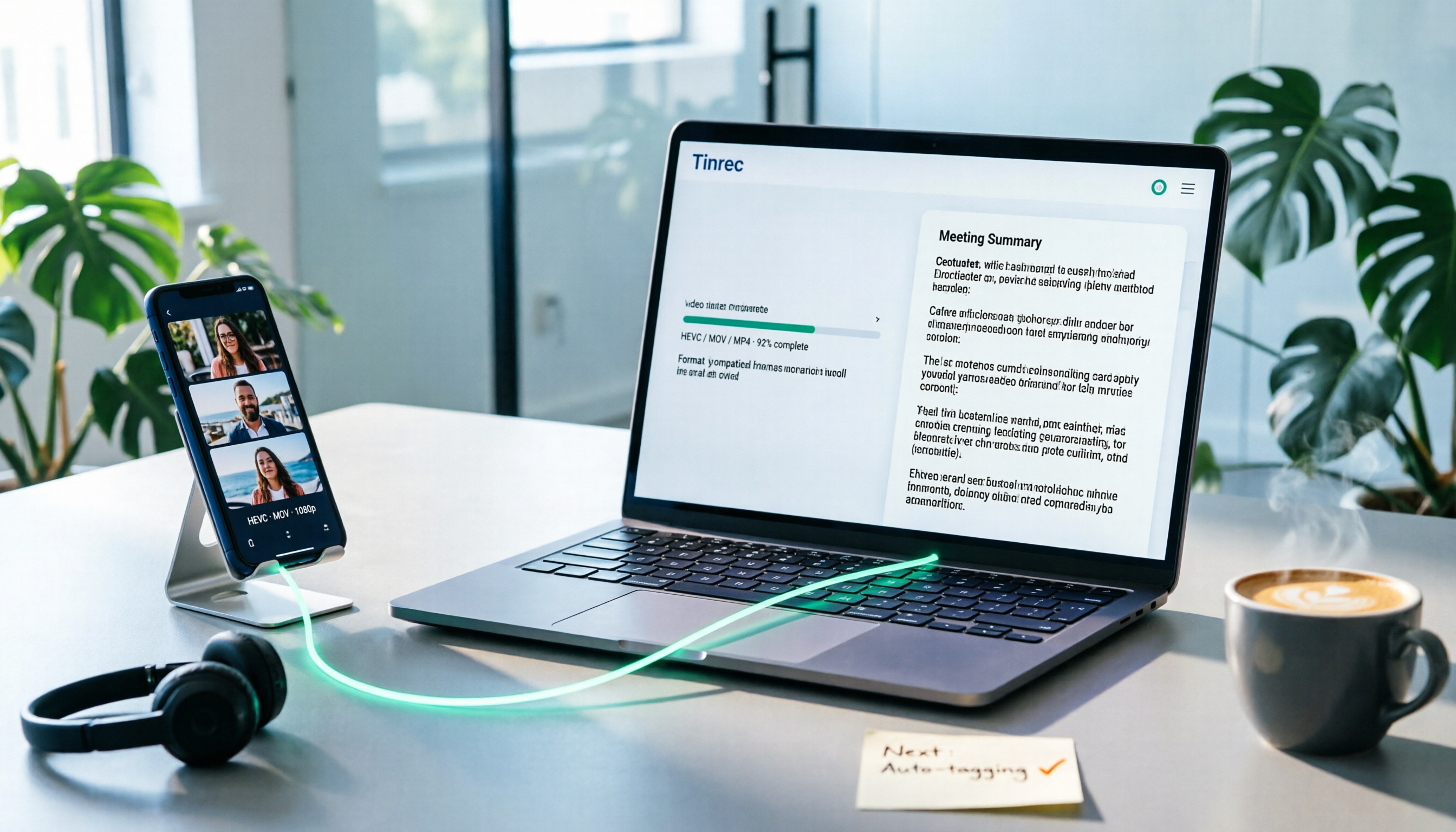
How to Convert iPhone Videos to MP4 in 2026: 5 Methods Compared + No-Install Workflow
iPhone records video in HEVC/MOV by default, which often causes black screens, audio-only playback, or unsupported format errors when transferred to Windows PCs or uploaded to platforms. This article compares 5 conversion methods: changing camera settings, USB auto-conversion, iOS Shortcuts, online converters, and desktop software, explaining the limitations and use cases for each, plus a workflow for turning video content into text after conversion.

Who Made Yating Transcription in 2026? 2 AI Transcription Tools Compared
Yating Transcription is a speech-to-text service developed by Taiwan AI Labs. This article directly answers who the development team is and uses Tinrec as an example to compare AI transcription tools in meeting notes, summaries, action items, and team collaboration, helping you choose the right tool.

5 iPhone Speech-to-Text Methods Tested for 2026: Which Saves the Most Time?
How do you convert speech to text on iPhone? This guide covers 5 practical methods: keyboard dictation, Voice Memos transcripts, one-tap dictation via Shortcuts, third-party transcription apps, and AI meeting tools like Tinrec. From real-time text to post-meeting summaries, action items, and AI follow-up questions, we explain each method's best use cases, limitations, and common pitfalls to help you choose the one that truly saves time.