

Turn recordings into transcripts and summaries in minutes
Upload audio or video for multilingual transcription, AI notes, and action items
On the subway, you open yesterday's meeting transcript and want to finish reading it during your 20-minute commute. The train sways, your eyes get tired, and after three lines you swipe away.
This is where many people start when they search for "how to make iPhone read text aloud." Not for fun, but to replace reading with listening.
Let's clarify the direction first—it will save you a lot of detours later:
- Text-to-speech (TTS): Reading existing text aloud. This is something iPhone can do built-in.
- Speech-to-text (STT): Turning meeting, interview, or lecture recordings into transcripts. This is where most office workers actually get stuck.
This article covers both sides. The first half covers four built-in iPhone text-to-speech methods; the second half shares the combination I actually use at work: using Tinrec to turn speech into readable text, then having iPhone read it aloud so I can review by listening during my commute.
What Can iPhone Text-to-Speech Do for You?
Scenario 1: "Reading" meeting notes during your commute Yesterday's weekly meeting transcript is 8,000 words—sitting down to read it takes 30 minutes. Turn on Speak Screen, and your phone reads it from start to finish while you just listen.
Scenario 2: Turning long articles and emails into podcasts A client sends a dozen-page contract explanation, or you find a long article online. Instead of staring at the screen, let iPhone read it to you—you can absorb it while walking or cooking.
Scenario 3: Communication aid when you can't speak In a noisy environment, or when your voice is hoarse and you can't talk, type text and let iPhone speak for you.
Scenario 4: Creating voiceover audio for videos You need a voiceover but don't want to record it yourself. Use Shortcuts to turn text into an audio file and drop it straight into your editing software.
What Are the Built-in iPhone Text-to-Speech Methods?
Method 1: Speak Selection
After enabling the speak feature in Settings under Accessibility, you can select any text and have iPhone read it aloud.
This is the most intuitive approach. Read whatever you see—great for notes, emails, and web articles. Note that it only reads the selected range at a time, so long texts need to be done section by section.
Method 2: Speak Screen
The opposite of the previous method. Speak Screen reads the entire screen content from top to bottom—no selection needed, just turn it on and let it run.
Honestly, this feature is best for transcripts and long articles. Open the document, start Speak Screen, and your phone becomes an audiobook.
Method 3: Live Speech
This one is less well known. According to Apple's support page, you can have iPhone read aloud what you type during in-person conversations or calls like FaceTime.
A few practical details:
- You can quickly tap from a list of "Favorite Phrases" and create your own categories, such as "Work" or "School."
- You can choose from dozens of system voices or use your own "Personal Voice."
- During a FaceTime call, the content is output directly to the call recipient; otherwise, it plays through the phone's speaker.
- Note that some languages don't support Live Speech, so it's best to check before use.
Method 4: Shortcuts App's "Make Audio from Text"
This is the one I use most, because its output is a "file," not real-time playback.
The built-in Shortcuts app has a "Make Audio from Text" action. Enter text, and it generates an audio file—you can adjust rate, pitch, and voice.
The output format is .caf. You can add another action to convert it to M4A, save it to the Files app, or drop it directly into editing software as a voiceover.
How to Choose Among the 4 Methods
| Method | Output | Best for | Things to note |
|---|---|---|---|
| Speak Selection | Real-time playback | Reading a short passage while browsing articles or looking up information | Long texts require manual sectioning |
| Speak Screen | Real-time playback | Transcripts, long articles, full-page content | You need to manually stop it midway |
| Live Speech | Real-time playback | Conversation assistance, expressing yourself during calls | Some languages not supported |
| Shortcuts audio creation | Audio file | Voiceover, repeated listening, archiving | Requires setting up a shortcut script once |
Simply put: if you want to "listen immediately," choose the first three; if you want to "keep an audio file," choose Shortcuts.
Turning Text into an Audio File with Shortcuts: Step by Step
You only need to set it up once, then you can reuse it every time.
- Open the Shortcuts app and create a new shortcut.
- Add a "Request Input" action so you can paste content each time you run it.
- Add the "Make Audio from Text" action. Tap the arrow next to the action to adjust rate, pitch, and choose a voice.
- Follow with "Quick Look" to play it directly, or "Save File" to keep the audio file.
- Run the shortcut, paste your text, tap Done, and iPhone will convert the text to audio.
If you're working with content in a PDF, you can also add an extract-text action to this script to pull the PDF text and convert it to speech directly.
But Most People Are Actually Stuck on the Opposite Direction
Now that we've covered text-to-speech, I want to share an observation.
Eight out of ten people who search for this question are actually trying to solve not "reading text aloud" but "I don't even have a clean piece of text to read yet."
Meeting recordings are on your phone, interview audio is in the cloud, client requirements are scattered across calls. Until these materials become text, even the best reading feature is useless.
That's why I later changed my workflow to a two-step process: first use Tinrec to turn speech into text, then have iPhone read it aloud.
Tinrec is an AI meeting notes and collaboration tool for individuals and teams. It doesn't just convert audio to text—it organizes meeting recordings into searchable, summarizable, queryable, and exportable data.
The Gaps It Fills
Wide range of input sources. In addition to live recording, the desktop version captures computer system audio directly, so it can handle online meetings like Zoom, Google Meet, Microsoft Teams, and Webex without needing an extra meeting bot to join as a participant. Existing audio and video files can also be uploaded for transcription.
Stop organizing recordings by hand
Upload audio or video and automatically get a transcript, summary, and action items
Organization after transcription. The transcript is just the starting point. Tinrec automatically generates summaries, chapters, key points, and action items, so long meetings can be broken into easily browsable structures.
You can keep asking questions. This is the biggest differentiator. After the transcript is ready, you can directly ask it "Who mentioned the budget in the meeting?" or "What were the client's concerns about pricing?" It answers based on semantic understanding—no need to Ctrl+F for ages.
Output you can take with you. Supports multi-format export to tools like Notion, Google Docs, OneNote, and Dropbox, and can further generate reports, tables, and meeting minutes.
A solution for cross-language meetings. During recording, you can view the original text, translation, or bilingual content—especially useful for meetings that mix Chinese and English.
Note that Tinrec's direction is "speech-to-text," not text-to-speech. It won't read articles aloud for you—that's the job of iPhone's built-in reading features. The two work in tandem, not as substitutes.
Connecting Both Ends: My Actual Workflow
I've been running this process for a few months, and it goes something like this:
- During the meeting: Use Tinrec desktop to record the online meeting and transcribe in real time.
- 5 minutes after the meeting: Open the AI summary and chapters, and check whether any action items were missed.
- Put it in Notes: Paste the summary into iPhone Notes, or keep it in Tinrec.
- During the commute: Turn on Speak Screen and let iPhone read it from start to finish.
- Ask follow-up questions if needed: When you hear something uncertain, go back to Tinrec and use AI Q&A to dig into the details.
My old approach was "spend 40 minutes organizing after the meeting, then another 30 minutes reading at home." Now organizing time is down to 5 minutes, and reading time has become fragmented commute time. That's the difference.
A Few Practical Use Cases
Weekly and project meetings Team meetings are the easiest to "forget as soon as they end." Record with Tinrec, and summaries and action items are generated automatically—meeting decisions have a basis, and before the next meeting you can listen to the summary to catch up.
Client interviews and requirements discussions The biggest fear in interviews is missing notes. Tinrec keeps the full transcript, so you can look up objections and commitments the client mentioned, and pull quotes directly from the transcript when writing proposals later.
Cross-language meetings With real-time translation and bilingual viewing, meetings that mix English presentations and Chinese discussions don't require guessing afterward.
Team knowledge retention This is where the team version goes deeper. Tinrec's team version isn't "multiple people sharing one personal account"—it's an independent team space: you can create multiple teams, invite members via join links, set owners/admins/regular members, and assign or revoke seats.
It's important to distinguish between "roles" and "seats": roles determine who can manage the team and members, while seats determine whether a member can record, upload, edit, and export. Valid members without a seat can still view, play, and read team data, but cannot perform resource-consuming operations like uploading or editing.
Also, team data belongs to the team, not to the individual who uploaded it. When a member leaves or is removed, their team resources need to be handed over to other members—data doesn't follow the person.
Current team version pricing: USD 29.80 per paid seat per month for monthly billing, or USD 199 per paid seat per year for annual billing (about USD 16.58 per month), with each paid seat providing 2,000 minutes of shared team import quota per month. Eligible teams can try it for 7 days with 1 free seat and 300 minutes of shared import quota. Live recording under an active team plan is currently not deducted by the minute. Actual pricing and benefits are subject to the official purchase page.
5 Things to Consider When Choosing a Tool
1. First confirm which direction you need. If you just want to read existing text aloud, iPhone's built-in features are enough—no need to look for a tool. If you need to turn recordings into text, then consider services like Tinrec.
2. Performance with Chinese and mixed Chinese-English. Many tools do well in English but are average for Chinese meetings. Tinrec focuses on Chinese, Traditional Chinese, and multilingual meetings, and also supports team hotwords to improve recognition of technical terms. Actual results will still be affected by recording quality, accents, noise, and overlapping speakers—testing with your own recording is the most accurate.
3. Can it organize after transcription? The transcript is raw material, not a finished product. Whether it can automatically generate summaries, chapters, and action items determines whether you save 10 minutes or 1 hour.
4. Team collaboration and governance. If meeting data is to be used by the whole department, check whether the tool supports team spaces, member and seat management, usage analytics, and audit log queries. Tinrec's team version provides usage trends, member rankings, audit log queries and exports, and an audio recycle bin (currently retained for 30 days).
5. Recording authorization and privacy. Before recording, inform participants and obtain consent, and comply with local regulations. This has nothing to do with how good the tool is, but it's the most easily overlooked.
FAQ
Q: Can iPhone do text-to-speech without installing any apps? Yes. Speak Selection, Speak Screen, and Live Speech are all built into the system, and the Shortcuts app is also built-in. No third-party tools needed.
Q: Can I change the reading voice? Yes. Live Speech lets you choose from dozens of system voices and use your own "Personal Voice." Some languages are not supported, so it's best to check before use.
Q: What format is the audio from Shortcuts? The default output is .caf. If you need to put it into editing software or share it, you can add a conversion action in the shortcut to output M4A and save it to the Files app.
Q: Can Tinrec do text-to-speech? No, it's the opposite direction. Tinrec is a speech-to-text and meeting organization tool. In practice: Tinrec produces transcripts and summaries, and you use iPhone's reading feature to read them aloud.
Q: Is Tinrec's free version enough? If you only occasionally organize a recording, the free version's basic quota is a good start. For short periods with intensive meetings or interviews, consider a weekly card; for steady weekly needs, Pro is more suitable; for long-term recording retention, the annual card has a lower monthly cost.
Q: Do I need a meeting bot to record online meetings? No. Tinrec desktop captures computer system audio, so no extra bot needs to join the meeting. Note that you need to actively open Tinrec to start recording—it doesn't automatically join all calendar meetings.
Conclusion
iPhone's text-to-speech isn't lacking features—it's lacking "a piece of text worth listening to."
Speak Screen is great for passing time on the commute, Live Speech is great for conversation assistance, and Shortcuts is great for creating audio files. These three things can be solved with built-in features.
What really takes time is always the earlier part—turning meeting, interview, and lecture audio into clean, readable text. That's why I've settled on Tinrec: it puts recording, transcription, summarization, action items, follow-up questions, and team retention into one workflow, saving not just a few minutes but one or two hours of organizing time every day.
If your pain point is also on this end, start with Tinrec's free version, try it with a real meeting, and then decide whether to move to the team version. Testing with your own recording is more accurate than reading any review.
References
- iPhone voice-to-text setup tips: 5 methods to transcribe recordings - Mr. Mad
- Use Live Speech on iPhone to type and speak - Apple Support (Taiwan)
- iPhone text-to-speech: tips to make your Apple phone talk
- iPhone text-to-speech audio: built-in Shortcuts action, no third-party tools needed - Xiaoyao Info
- iPhone speech-to-text practical guide
Turn every recording into actionable outcomes
Get 60 free transcription minutes when you sign in. No credit card required.
Related Reading
You might also like

2026 AI Transcription Tools Comparison: Free Tiers, Chinese Recognition, and Post-Meeting Workflows
How to choose among 4 AI transcription tools in 2026? This article compares Tinrec, Yating Transcription, Notta, and Granola based on free tiers, Chinese recognition, bot-free recording, and post-meeting organization to help you find a tool that generates transcripts and saves cleanup time.

2026 Vocal AI Complete Guide: Distinguish AI Voice Generation from Meeting Transcription and Choose the Right Tool
From a student's hands-on perspective, this guide answers 'Is vocal AI useful?' by first separating AI voice generation from real speech transcription—two completely different paths. It then offers 5 key buying criteria, a semester-long Tinrec review, a trial order for Whisper/Notta/Otter.ai, and 5 pitfalls to avoid, with tool recommendations for class recordings, project interviews, and group collaboration.

5 AI Tools Compared in 2026: Is Gemini's Free Version Enough, and When Should You Pay?
Gemini has a free version, but its quotas and feature tiers often confuse users. This article starts from the decision point of 'should you pay?' and breaks down the differences between Gemini's free version and AI Plus, AI Pro, and AI Ultra. It then compares which tools to use for meeting notes scenarios, helping you decide where to spend your money.

How to Transcribe Audio Files to Text in 2026: 5-Step Guide and ChatGPT Limitations
Can ChatGPT really transcribe audio files into text? This article breaks down the actual limitations of the free version, ChatGPT Record, and the Whisper API, then compares Tinrec and ChatGPT across 6 dimensions for audio transcription, post-meeting organization, and team collaboration, with a 5-step implementation guide.

Can Word Record Video in 2026? 3 Free Audio-to-Text Alternatives and Quota Comparison
Word does not have screen recording. Its built-in features are only dictation and transcription. This article first clarifies what Word can actually do, the eligibility and monthly quota limits of the transcription feature, and then compares Tinrec, Otter.ai, and Notta from three angles: free quota, Chinese recognition, and post-meeting organization, to help you decide whether to stay with Word or switch tools.

ChatGPT Record Mode vs. Tinrec in 2026: 3 Advantages for Chinese-Language Meetings
Can ChatGPT record audio? Yes, but its Record Mode is currently limited to the macOS desktop app, requires a paid subscription, and auto-join only works with Google Meet links. This article starts from real-world pain points and compares ChatGPT's Record Mode with Tinrec on platform coverage, Chinese meeting handling, post-meeting outputs, and team knowledge retention—so you can decide which is better for your daily meetings.
How to Convert iPhone Videos to MP4 in 2026: 5 Methods Compared + No-Install Workflow
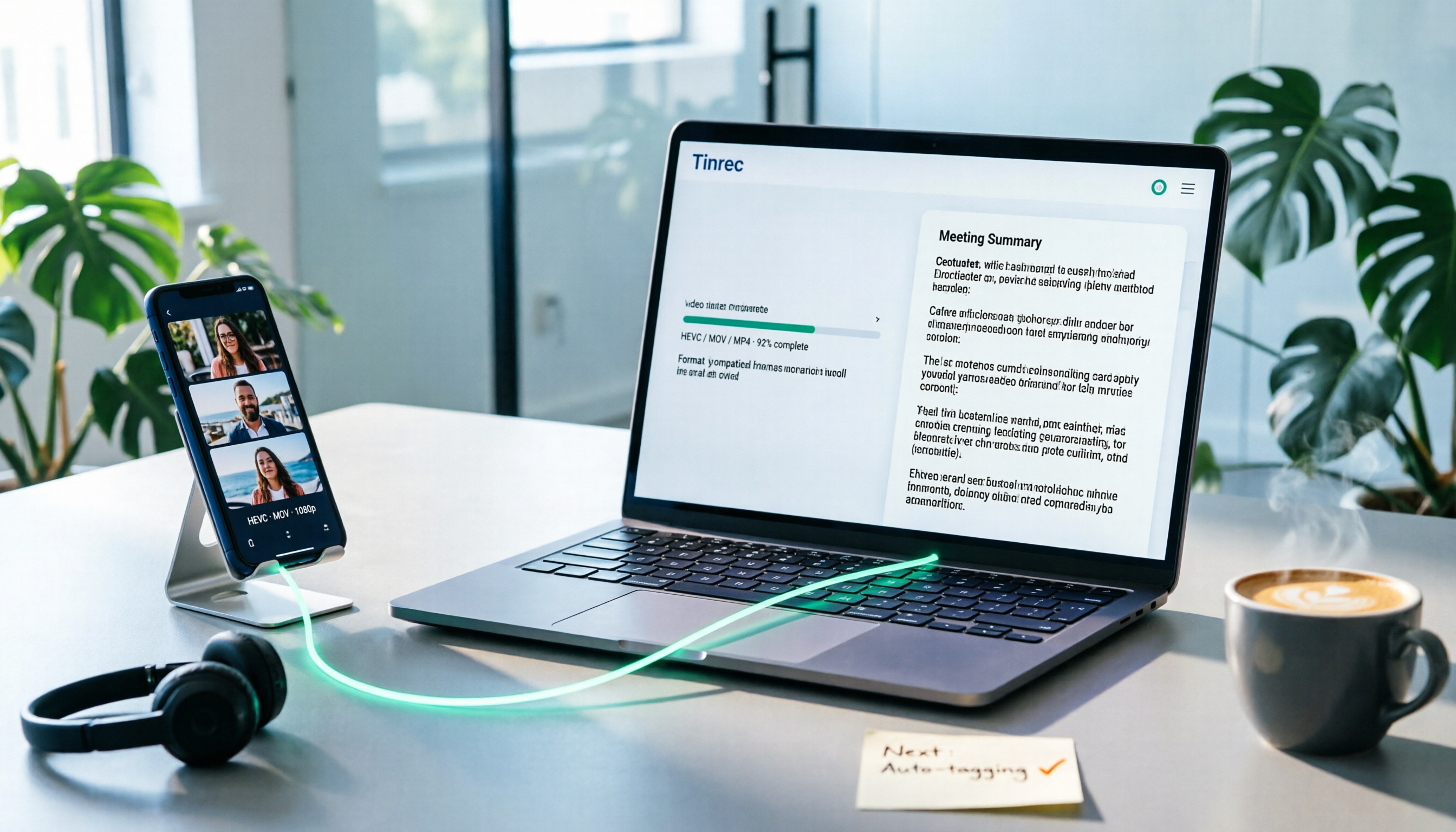
iPhone records video in HEVC/MOV by default, which often causes black screens, audio-only playback, or unsupported format errors when transferred to Windows PCs or uploaded to platforms. This article compares 5 conversion methods: changing camera settings, USB auto-conversion, iOS Shortcuts, online converters, and desktop software, explaining the limitations and use cases for each, plus a workflow for turning video content into text after conversion.

Who Made Yating Transcription in 2026? 2 AI Transcription Tools Compared
Yating Transcription is a speech-to-text service developed by Taiwan AI Labs. This article directly answers who the development team is and uses Tinrec as an example to compare AI transcription tools in meeting notes, summaries, action items, and team collaboration, helping you choose the right tool.

5 iPhone Speech-to-Text Methods Tested for 2026: Which Saves the Most Time?
How do you convert speech to text on iPhone? This guide covers 5 practical methods: keyboard dictation, Voice Memos transcripts, one-tap dictation via Shortcuts, third-party transcription apps, and AI meeting tools like Tinrec. From real-time text to post-meeting summaries, action items, and AI follow-up questions, we explain each method's best use cases, limitations, and common pitfalls to help you choose the one that truly saves time.