

Turn recordings into transcripts and summaries in minutes
Upload audio or video for multilingual transcription, AI notes, and action items
3 iPhone Recording-to-Transcript Methods Tested and Compared in 2026: Getting Text Alone Isn't Enough
"Record the audio, tap the transcript button, and that should be it, right?"
A friend of mine who does client interviews said this to me last month.
His iPhone's built-in feature really did convert all three interviews into text, but the moment he opened the file, his expression turned a bit odd—a thirty-minute conversation had become a giant wall of text with no paragraphs, no key points, and no conclusions.
In the end, he still listened to it from the beginning.
This is the most common misconception I've seen: treating "getting the text out" as the finish line.
Getting the text out is just saving the audio in a different form. What really takes time is always the part that comes after: who said what, what was decided, and who needs to do what next.
So this article isn't going to teach you where the button is. I want to talk about how to design the entire workflow so that iPhone recordings truly become "transcripts you can use for work."
Why does "tap to transcribe" still take so much time?
I've sorted through the three most common sticking points myself.
First, you have the text, but not the structure.
A transcript is linear; a meeting is not. You're looking for "the budget part" and "who promised to send the quote," but the transcript just keeps going down the page.
Second, the workflow breaks the moment you switch devices.
The recording is on the phone, the organizing happens on the computer, and the final meeting notes end up somewhere else. Every time you move a file, there's a risk of losing it.
Third, only you can see it.
This doesn't matter much for personal use, but once it becomes a team matter, it's very obvious—whoever's phone the data is on is the only one who can answer questions.
My approach is to break the whole thing into three stages: capture, transcription, and organization/reuse.
iPhone's built-in features do the first two stages pretty well, but the third stage is where the real difference is made.
What can iPhone's built-in transcription do for you?
Let's clarify the requirements first so you don't waste your time.
After iOS 18.4, the Voice Memos and Notes apps began supporting Chinese transcription. Generally, you need an iPhone 12 or later updated to the corresponding version, and actual availability is still affected by language and region settings.
The operation is short: after recording, tap "View Transcript" in the lower-left corner; or from the "More" menu, tap "Add Transcript to Notes," and the text is copied over.
(Operation location reference: the transcript button in the lower-left corner of the Voice Memos playback screen)
Its value is clear: it's free, requires no installation, and is very fast when you want to confirm what the other person just said.
But what it gives you is text, not organization. There's no summary, no to-dos, no cross-device searchable database, and it's hard to share with a team.
So my positioning is clear: it's an entry point, not the finish line.
From transcript to "usable data": Tinrec fills in this part
My actual workflow is like this: files recorded on iPhone are imported into Tinrec for transcription and organization; for online meetings, I record directly with the desktop version, without even adding a bot to the meeting room.
Take Tinrec as an example—it handles the "after the text" part.
1. Transcription itself. In addition to uploading existing audio and video files, it also supports real-time recording-to-text; the desktop version captures computer system audio to handle meetings on Zoom, Google Meet, Microsoft Teams, Webex, and similar platforms, without the need for an extra meeting bot to join as a participant.
2. Summaries and chapters. Long meetings are automatically broken into structure, so you see the conclusions and section highlights first, then decide whether to read further into the transcript.
3. To-do extraction. Who promised what during the discussion is organized into action items, rather than scattered across three thousand words.
4. AI Q&A. After transcription, you can directly ask it: "What was the budget ceiling the client mentioned?" "Did this meeting decide on a time for the next demo?" It will go back into the meeting content to find the answer.
5. Export and post-processing. Results can be exported to Notion, Google Docs, OneNote, Dropbox, and other tools, and through the Agent, you can further generate reports, tables, or meeting minutes.
In other words, what you get isn't "a transcript," but "data you can directly hand in."
(Operation location reference: the summary and chapters section on the meeting details page)
After the transcript: the 5 capabilities that really set tools apart
Summaries and chapters: so you don't have to read through a thirty-minute conversation.
The problem with transcripts isn't inaccuracy—it's length. Tinrec breaks meetings into titled sections, so you can scan the structure first and then decide which sections to read closely.
To-do extraction: turning "I'll send it to you later" into something someone actually does.
The easiest thing to miss in a meeting is this kind of verbal promise. Pull out the to-dos so you have something to check against at the next meeting.
AI Q&A: turning the transcript into a database you can converse with.
Stop organizing recordings by hand
Upload audio or video and automatically get a transcript, summary, and action items
In the past, to find a sentence again, you had to use keyword search, and often couldn't find it because the words you remembered differed from what the speaker said. Asking is faster.
Translation and bilingual view: no need to find someone to translate for cross-language meetings.
During recording, you can switch between original text, translation, or bilingual display—especially useful for those with overseas clients or cross-regional teams.
Team workspace: data belongs to the team, not someone's phone.
This is the biggest difference between the personal and team versions. The team version is an independent collaboration space where you can invite members, set roles, assign seats, and store meeting data centrally; when members change, resources can be handed over to others, so they don't disappear when someone leaves.
Practical application scenarios
Client interviews and requirements interviews
Right after the interview, import the audio into Tinrec, and you can produce the transcript, key requirements, and to-dos the same day. Rather than writing notes from memory, every sentence the other person said is preserved in the original text for verification.
Courses, lectures, and talks
For a two-hour lecture, the most painful part after getting home is listening to it again. Use summaries to grasp the structure, chapters to jump between sections, and Q&A to confirm how a term was explained—review time will be very different.
Project meetings and weekly meetings
Recurring meetings are best suited for accumulation. Every meeting goes into the same team space, so new members can directly browse historical data without asking "didn't we agree on that last time?"
Personal long-term recording data
Inspirations, podcasts, and casually recorded ideas become a sea of audio you can't find anything in over time. A database you can search and query is the real asset.
5 things to watch for when choosing a tool
1. Can it handle the audio files you already have?
Many tools only support real-time recording. What about that batch of old recordings on your phone? Tinrec supports uploading audio and video files for transcription, which is important for people who "already recorded a bunch before thinking about organizing."
2. Performance with Chinese and mixed Chinese-English.
Meetings in Taiwan often mix three English words into a Chinese sentence. When choosing a tool, testing with your own recordings is most accurate—don't just look at official claims. Tinrec's main design focus is on Chinese, Traditional Chinese, and mixed Chinese-English content, and it also supports team hotwords for technical terms.
3. Can you organize after transcription?
A tool that only gives you text is essentially throwing the work back at you. Whether it does summaries, chapters, to-dos, and Q&A determines whether you save ten minutes or two hours.
4. Will the data be retained?
Are audio files saved? Can they be recovered after deletion? Tinrec retains audio, and the team version also has an audio recycle bin, allowing recovery before permanent cleanup. This kind of feature—which you only realize is important when something goes wrong—is worth confirming in advance.
5. How is the team managed?
If multiple people will use it, you must clearly distinguish "roles" and "seats." Roles determine who can manage the team and view audits; seats determine who can record, upload, edit, and export. Tinrec's team version separates these two: members without seats can still view and play data, but cannot perform actions like uploading and editing.
Frequently asked questions
Q: What are the requirements for iPhone's built-in transcription?
A: Generally, you need an iPhone 12 or later updated to a supported iOS version. Chinese transcription is available starting around iOS 18.4, but actual availability is still affected by language and region settings. For older devices, it's recommended to use other tools to process audio files.
Q: Can old voice recordings from before also be transcribed?
A: Yes, through the "file import" route. Import the audio into Tinrec for upload transcription—no need to re-record. Importing uses the import quota in your plan.
Q: Does Tinrec require a meeting bot to join the meeting?
A: No. The desktop version directly captures the system audio played on the computer to record online meetings. But note: currently it's not an "automatically join all calendar meetings" mode—you need to open Tinrec yourself to start recording.
Q: Are transcripts 100% accurate?
A: It's not recommended to expect that. Accuracy depends on recording quality, ambient noise, accents, multiple people speaking at once, and technical terms. My habit is to go back and verify important numbers and commitments against the original text.
Q: What's the difference between the personal and team versions?
A: In the personal version, data belongs to the individual account; the team version is an independent team space with member invitations, role and seat management, shared import quota, usage analytics, audit logs, and an audio recycle bin. If meeting data needs to be shared and traced by multiple people, you should consider the team version.
Conclusion
Turning an iPhone recording into a transcript is really just a button press now.
But the part after the button is the key to whether you actually save time.
My advice: treat "converting to text" as an intermediate step, not the finish line. Let the tool take over summaries, to-dos, Q&A, and storage, so you have the chance to spend your time on what truly requires judgment.
Tinrec has a free version you can use to try a recording with the basic quota first, and move forward once the workflow feels right.
Quick start checklist
- First confirm your iPhone model and system version; if the built-in feature works, record with your phone first.
- Gather the audio files you want to organize and import them into Tinrec at once.
- Look at the summary and chapters first—don't rush to read the transcript from the first line.
- Pull out the to-dos and paste them into your existing work list.
- If you have questions, just ask the AI—don't force a keyword search.
- For team use, create a team space and set up roles and seats first.
Start by testing with the one recording you least want to listen to again—you'll quickly feel the difference.
References
- iPhone Notes and Voice Memos apps also have transcript features! Turn class, meeting, and lecture content into text in seconds: simple 4-step tutorial | BusinessNext
- iPhone Voice Memos to text tutorial: transcripts can be done without third-party apps using built-in features - Mr. Mad
- No third-party app needed! Complete guide to iPhone Voice Memos and Notes app recording-to-text | Vina's Fantasy World
- [iPhone Voice Memos to text] Complete tutorial of 3 major methods! iOS built-in, app, voice recorder—which is best?
- How to transcribe iPhone call recordings? You can also use Voice Memos to convert to text, complete tutorial at once - Apple Almond - Guoren iPhone/iOS/gadget recommendation tech media
Turn every recording into actionable outcomes
Get 60 free transcription minutes when you sign in. No credit card required.
Related Reading
You might also like

How Many Words Per Minute Is a Normal Speaking Rate in 2026? 5 Steps to Estimate and Organize Transcripts with Tinrec
A typical Chinese meeting speaking rate is about 180–220 characters per minute, daily conversation about 160–200, and English about 130–150 words per minute. This article walks you through 5 steps to estimate transcript length and explains how Tinrec turns recordings into searchable, summarizable, actionable meeting data.

5 Audio-to-Text Tools Tested and Compared in 2026: Can ChatGPT Actually Do It?
Can ChatGPT transcribe audio to text in 2026? Yes, but the 25MB file limit, lack of speaker labels, and plain text output are real pitfalls. This article compares the features, pricing, and limitations of five tools: ChatGPT, Tinrec, Notta, Otter.ai, and TurboScribe, and offers selection advice based on recording length, language, and team needs. Data verified as of August 2026.

4 Transcription Tools Compared for 2026: How Long Does Yating Take, and How Are Credits Calculated?
The question "How long does Yating take?" actually involves three different timelines: transcription processing time, how long your credits last, and how long post-meeting cleanup takes. This article verifies Yating's free credits and hourly pricing against public information, and compares Good Tape, TurboScribe, and Tinrec on meeting notes, AI summaries, and team collaboration to help you choose the right tool for your situation.

2026 AI Meeting Notes Tools Compared: Tinrec vs. Notta — Which Is Faster?
Many people think meeting notes require typing every word, but that leads to frantic scribbling during the meeting and confusion afterward. This article addresses common misconceptions and compares Tinrec and Notta on meeting capture, post-meeting organization, Chinese translation, team governance, and pricing limits to help you find a faster workflow for completing meeting notes.

What Is Speech to Text in 2026? Feature Comparison from Transcripts to Meeting Summaries
Speech to Text is more than just turning audio into text. This article explains STT principles in plain language, the 4 key factors for choosing a tool, Tinrec's meeting notes and team collaboration workflow, and compares alternatives like Granola, TurboScribe, and PLAUD to help you go from transcripts to searchable, actionable meeting data.

6 Best Audio Transcription Tools for 2026: Encryption, Deletion Policies, and Team Permissions Explained
Before you search "is Transcribe safe," understand what happens to an audio recording from upload to deletion. This guide uses four security questions to compare six transcription tools on encryption, file retention, team permissions, and pricing—so you can pick the one that fits your workflow.
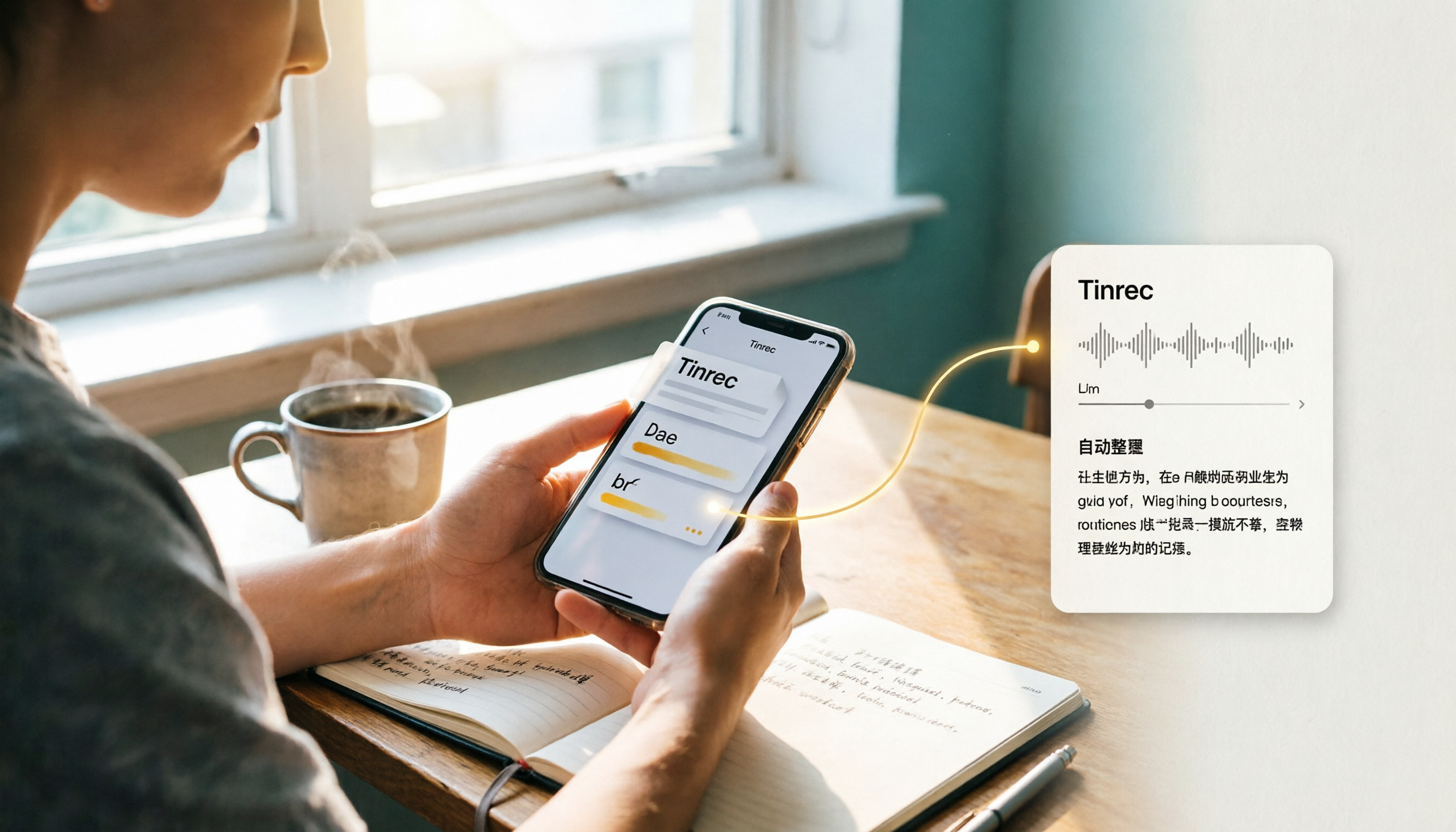
How to Change Fonts in iPhone Notes (2026): 5-Step Guide
iPhone Notes doesn't let you change fonts, but bold, italic, heading styles, and iOS 18 text colors are enough. This guide walks you through 5 steps to change text styles and colors, explains that font size can only be adjusted via system settings, and compares Notion, Evernote, and Tinrec for different note-taking needs.

Best Transcription Tools of 2026: We Tested 4, and This One Is the Most Effortless for Chinese Meetings
What does "verbatim transcript" mean? This article first breaks down the three most common misconceptions and the true definition of a transcript, then compares four tools—Tinrec, Notta, Otter.ai, and Granola—from four angles: Chinese recognition, post-meeting organization, meeting recording methods, and team data ownership. It also summarizes four key pitfalls to avoid when purchasing.
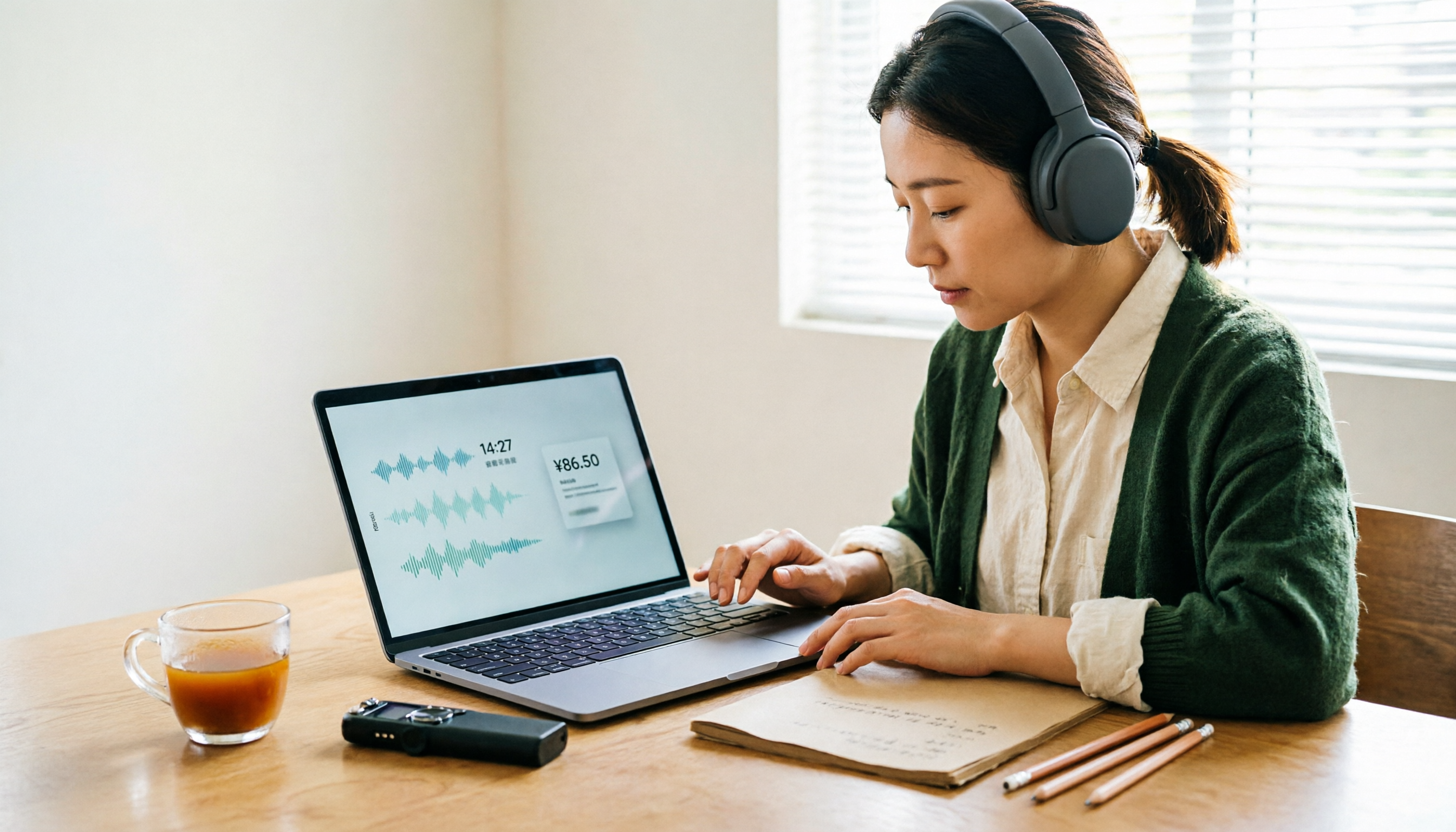
2026 Comparison of 6 Transcription Options: How Much Does Transcription Cost Per Word? Rate Conversion and Use Cases
Transcription is rarely priced per word—human transcription is usually quoted per minute of audio, while AI tools use subscription minutes. This article converts three pricing methods into cost per word, compiles 2026 human transcription rates, and compares the plans and quotas of Tinrec, Otter.ai, Notta, TurboScribe, and Granola to help you choose the right approach based on budget and turnaround time.