

Turn recordings into transcripts and summaries in minutes
Upload audio or video for multilingual transcription, AI notes, and action items
2026 Comparison of 4 Audio-to-Text Tools: Google Docs Can't Transcribe Audio Files—Which One Saves Time?
First, Answering Your Question: Can Google Docs Directly Transcribe Audio Files?
No, and many people get stuck on this point.
The voice typing in Google Docs works by you speaking into a microphone, and it types in real-time. It has no upload entry, and the official documentation does not provide a method to import or upload audio files. That recorder you have, or the 40-minute meeting recording on your phone, cannot be directly processed in Google Docs.
The workaround circulating online is: play the recording through your phone or computer speakers, and let Google Docs' microphone pick it up. This method does work, but at a cost—environmental noise gets captured too, Chinese punctuation may not appear automatically, and it won't identify who is speaking, so you still have to manually proofread from scratch. You save typing time but lose proofreading time.
So, is there something in the Google ecosystem that can directly process audio files? Yes, but you need to take a different route:
- Gemini app: Can upload audio, with a maximum length of 10 minutes; upgrading to Google AI Pro or AI Ultra extends it to 3 hours.
- Gemini Notebook (formerly NotebookLM): Importing local audio automatically transcribes it, supporting common formats like mp3, m4a, wav; the language list includes Traditional Chinese; single file limit 200 MB, free version up to 50 sources.
- Google Cloud Speech-to-Text: This is for developers, V1 offers 60 minutes free per month, V2 standard recognition is billed based on usage.
So the real question is not "how to transcribe audio files with Google Docs," but: do you want to continue piecing together free but fragmented methods, or find a tool that integrates recording, transcription, organization, and team sharing into one workflow? That's the starting point of my testing this time.
How Much Time Post-Meeting Organization Takes Is the Real Criterion for Choosing a Tool
I have about 15 meetings per week—weekly meetings, project progress meetings, one-on-ones, cross-department coordination. What used to be most annoying was not the meeting itself, but after the meeting.
When your boss asks you in the elevator "what was the conclusion on that budget last time," and you go back to your seat, flip through notes for three minutes and still can't find it—that moment is awkward. You assign a task to a subordinate, ask about progress two days later, and they say "I thought it was next week"—verbal assignments leave no record, and you have no basis for discussion. The most time-consuming part of cross-department meetings is not the meeting, but confirming afterward "who is going to do what and by when."
The common point of these three things is: what you need is not "recording," nor just "transcript," but something you can directly use after the meeting—who said what, what the conclusion is, who should do what, and when to deliver.
Before Choosing an Audio-to-Text Tool, Understand These 4 Key Points
1. Can it directly process audio files? If a tool can only capture live microphone input, then your historical recordings, client interviews, and online courses cannot be organized. Whether it can upload audio and video files is the first dividing line.
2. After transcription, how much more work do you need to do? A tool that only provides transcripts is equivalent to returning the organization work to you unchanged. What you need to look at is whether it can automatically generate summaries, chapters, and action items, so you can report progress within ten minutes after the meeting, instead of spending two hours reading the transcript.
3. Can it handle Chinese and mixed Chinese-English? Meetings in Taiwan are rarely pure Chinese; project names, system terms, and KPIs are all in English. Actual performance is affected by recording quality, background noise, accents, and overlapping speech. Don't just look at promotional numbers; test with your own meeting recordings.
4. After the quota is used up, is there a solution at the team level? Personal use and team use are two different things. For teams, you need to ask: who owns the data, what happens when a member leaves, who has permission to record and upload, how is usage tracked, and can records be audited when problems arise.
Tinrec—Our Top Choice After Testing
Tinrec is an AI meeting notes and collaboration tool for individuals and teams, covering iOS, Android, desktop, and web versions. It not only converts sound to text but turns meetings into searchable, queryable, and further processable data.
For online meetings, no need to bring in another bot. Tinrec desktop version directly captures the computer's system audio, handling meetings on Zoom, Google Meet, Microsoft Teams, Webex, etc., without inviting an extra meeting bot as a participant. For internal meetings, this is practical—no need to explain to attendees "who is that third account," and no worry about the bot getting stuck in the waiting room.
After the meeting, the transcript and action items are already there. It transcribes while recording, automatically generates summaries, chapters, and key points after the meeting, and extracts action items from the discussion. My own usage: as soon as the meeting ends, I first look at its action item list, confirm the owners and items are correct, then paste the summary into the progress report for my boss. This used to take me forty minutes.
Stop organizing recordings by hand
Upload audio or video and automatically get a transcript, summary, and action items
After recording, you can continue to ask it questions. This is my most used feature. For example, "who mentioned the budget in the last meeting," it will give an answer based on the meeting content, rather than throwing a bunch of keyword search results at you. It also supports real-time translation, viewing in original/translated/bilingual mode, and exporting results to Notion, Google Docs, OneNote, Dropbox for further use.
The actual test situation is like this. I ran a test with a recording of a department weekly meeting about 20 minutes long from last week (including mixed Chinese-English project codes and product names): the Chinese segments required almost no major changes, and after supplementing proper nouns with team hotwords, the differences were even smaller; punctuation at Chinese-English switches needed minor adjustments; segments with multiple people speaking over each other still required listening back to the recording for confirmation. I won't tell you "no proofreading needed at all," but the proofreading time is about one-fifth of manually typing a transcript.
Three advantages, to the point:
- Bot-free online meeting recording, no awkwardness for external or internal meetings.
- Output is directly usable: summaries, chapters, action items, Q&A all in one place, no need to open another tool for organization.
- The team version is an independent team space, not "multiple people sharing one account." Data belongs to the team; when a member leaves or loses their seat, it must be handed over to other members, and cannot be taken away entirely.
Limitations are also clear:
- The free version provides a basic quota for you to experience recording, import, summary, and transcription, but regular heavy use requires payment. The team version is USD 29.80 per paid seat per month, or USD 199 per paid seat per year (about USD 16.58 per month); the first eligible team trial is 7 days, 1 free seat, 300 minutes of team shared import quota, and paid seats provide 2,000 minutes of shared quota per month. Actual prices and benefits are subject to the official purchase page.
- It is not a tool for "batch processing 50 files at once." If you have hundreds of hours of historical audio files to clear in one go, that would be another choice. Also, the team version currently focuses on team-level sharing; members without a seat can view, play, and read data, but cannot upload, edit, or export.
Who it's for: Professionals who have regular meetings every week, need to report quickly after meetings, and have both online and offline meetings; and department managers who want to turn meeting records from "a folder on a personal computer" into "team-queryable assets."
Besides Tinrec, What Other Options Are There?
Google Docs/Gemini/Gemini Notebook: Free, quick to get started, and the first answer most people think of. But Google Docs itself can only capture live microphone input; the speaker playback workaround has a lot of noise and no speaker labels; Gemini audio upload has a 10-minute limit (3 hours for AI Pro/Ultra), and Gemini Notebook has a 200 MB single file limit. Suitable for people who occasionally process short recordings and don't need team collaboration. It lacks team space, seat management, and usage auditing.
Notta: Good multilingual transcription and translation performance. Free version 120 minutes per month, up to 3 minutes per session; Pro annual billing about USD 8.17 per month, 1,800 minutes per month; Business annual billing about USD 16.67 per seat per month. Suitable for those focused on file transcription and subtitles; but online meetings still require a bot or separate workflow, and post-meeting team data accumulation is not its focus.
Otter.ai: A mature choice for English meetings. Basic free 300 minutes per month; Pro annual billing about USD 8.49 per user per month, including 1,200 minutes and 10 file imports. If 90% of your meetings are in English, it's cost-effective; but Chinese and mixed Chinese-English experience is not its strong suit, and team governance and post-meeting output in Chinese scenarios are less emphasized.
Pitfall Guide: The 3 Most Common Mistakes When Choosing an Audio-to-Text Tool
Pitfall 1: Thinking Google Docs can upload audio files. This is the most common misunderstanding; actually, it only listens to the microphone. To save time, choose a tool that can directly process audio files from the start, don't take the detour of speaker playback.
Pitfall 2: Only looking at free quota, not "what you need to do after getting it." 300 free minutes is tempting, but if the output is just a blob of transcript, you still have to spend two hours organizing. Quota is just the ticket; post-meeting summaries and action items are the real time savers.
Pitfall 3: Using an AI meeting tool as a pure transcription tool. Only using it for "audio to text" means using only one-third of its features. After the meeting, directly ask it "what was the conclusion of this meeting," "which items are still unclaimed," which is much faster than manually flipping through a 30-minute transcript.
One more reminder: before recording, please confirm company policies and obtain consent from attendees when necessary. This is basic workplace etiquette and legal requirement.
Conclusion: Which One Should You Choose?
In one sentence: if your meetings are mainly in Chinese, a mix of online and offline, and you need to report up and down after the meeting, Tinrec is the most hassle-free choice in this round of testing.
By scenario:
- Many online meetings, don't want to bring in a bot: Tinrec, desktop version directly captures system audio.
- Need to immediately produce summaries and action items for the boss after the meeting: Tinrec, summaries, chapters, and action items generated at once.
- Want to directly ask about meeting details after recording: Tinrec, AI Q&A is its biggest difference from pure transcription tools.
- Team sharing, member turnover, need to manage seats and usage: Tinrec team version, data belongs to the team, has roles and seats, audit and recycle bin.
- Only occasionally process a short recording, no cost: Use Gemini or Gemini Notebook for now, sufficient within quota.
- 90% of meetings are in English: Otter.ai is still a practical choice.
My suggestion: first take a real meeting recording of your own, run it through the free version, and see if the summaries and action items it produces are something you can directly use for reporting. If it works, then consider upgrading; if not, switch to the next one. Tools are meant to save time; don't spend two extra hours proofreading to save a little money.
References
- Tutorial: Google Docs built-in voice input feature, one-click convert audio files to text | 梅問題.教學網
- Google's free tool to convert phone recordings to text, easily complete meeting transcripts
- Audio file to text - Google free online tool - amisay168's blog - udn blog
- YouTube videos, audio files automatically converted to Google Docs, translated text files
- Is Google speech-to-text free? Can Google Docs voice input transcribe audio files | Subanana
Turn every recording into actionable outcomes
Get 60 free transcription minutes when you sign in. No credit card required.
Related Reading
You might also like

2026 Vocal AI Comparison: 4 Tools Tested for Meeting Transcription vs. Vocal Separation
When you search "Is vocal AI good?" first clarify whether you need music vocal processing or meeting transcription. This article focuses on meeting notes, comparing Tinrec, Otter.ai, Notta, and TurboScribe—their differences, pricing, and use cases—plus buying criteria and pitfalls to avoid.

ChatGPT Audio Recording Guide 2026: Upload Limits and Better Alternatives
Can ChatGPT read recordings? This guide breaks down ChatGPT's recording mode and the real limits of audio uploads, including plan requirements, the 512MB cap, and format issues. It also explains why meeting notes need a more complete workflow. Using Tinrec as an example, it covers bot-free online meeting recording, real-time transcription, summary and action items, and team sharing—so you can see how to choose and use the right tool.

3 AI Meeting Recording Tools Tested for 2026: How Long Can ChatGPT Record, and What Tinrec Adds
Many people search for "how long can ChatGPT record," but the real limits are usually plan permissions, consent requirements, and what happens to the data after recording. This article addresses common misconceptions, explains the official stance and practical limits of ChatGPT's recording mode, and compares Tinrec on bot-free recording, Chinese transcription, AI Q&A, and team data retention to help you decide which is better for long-term meeting records.
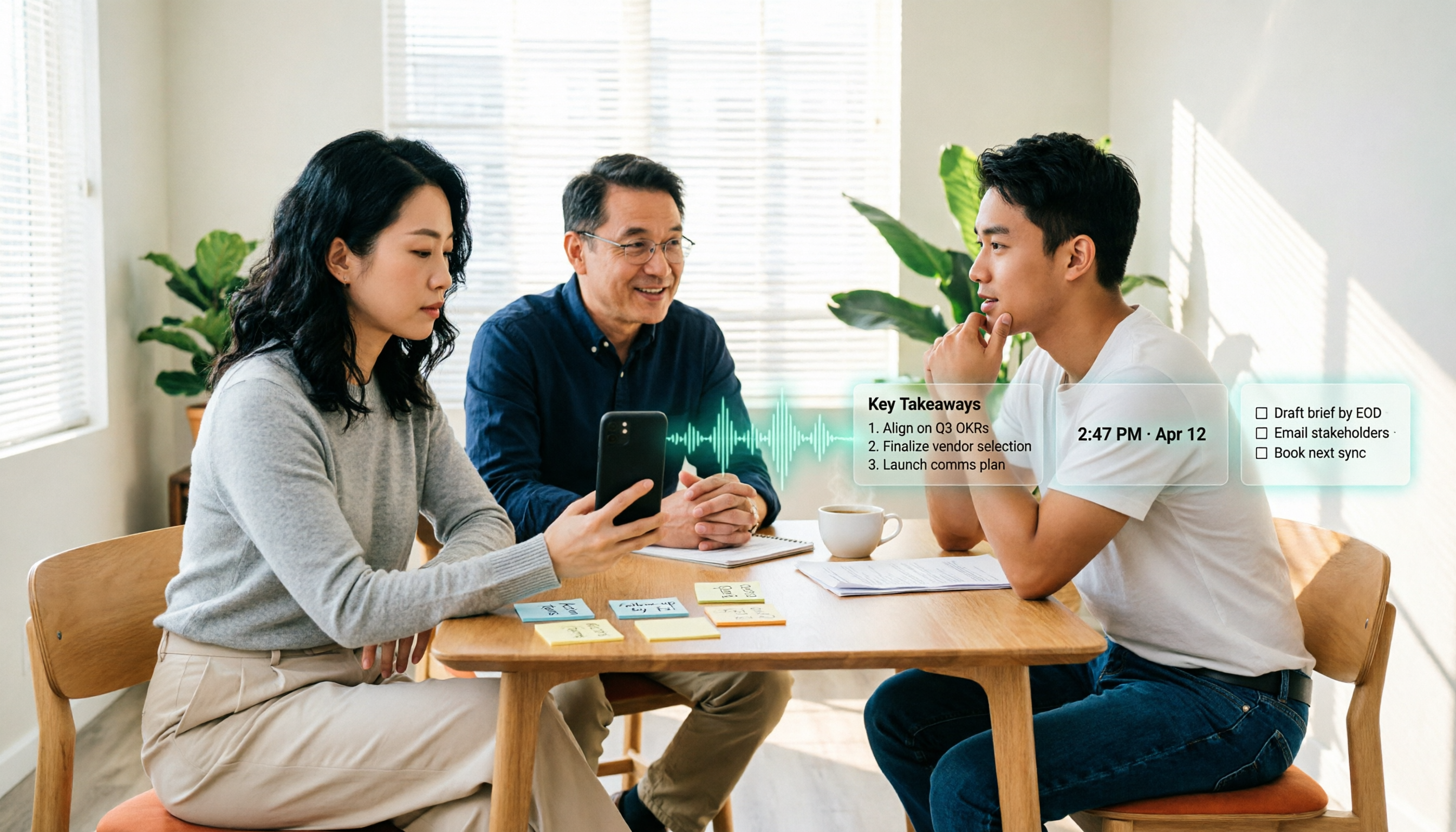
3 Free Note-Taking Recording Tools in 2026: Free Quotas and Meeting Notes Comparison
Can you record audio in Notes? iPhone, iPad, and Mac built-in Notes can record directly and transcribe. This article covers free options available as of August 2026, comparing built-in Notes, Tinrec, Notta, and Otter.ai on free terms, meeting-notes capabilities, and limitations—and explains how to turn recordings into usable data.

3 Ways to Get iPhone Recording Transcripts in 2026: Built-in Features and How Tinrec Fills the Gaps
Since iPhone 12, the Voice Memos app has a built-in transcription feature, but the button isn't obvious and many people can't find it—or they're blocked by device model, iOS version, or language settings. This article first shows you the 3 places to find iPhone recording transcripts, then discusses the limits of the built-in feature and how Tinrec fills in the gaps with summaries, action items, AI Q&A, and team collaboration.

5 Mobile Voice-to-Text Tools Compared (2026): Built-in Dictation, AI Meeting Assistants, and Recording Hardware
Mobile voice-to-text actually covers two very different scenarios: real-time dictation and converting recordings into transcripts. Choosing the wrong tool wastes your time. This guide starts from real-world use cases and compares iPhone and Android built-in dictation, Tinrec, Notta, PLAUD recording hardware, and Otter.ai—covering their differences, limitations, and pricing. It also highlights four common pitfalls to help you choose the right tool in one go.

4 Transcription Tools Tested for 2026: What Is Yating Transcription? Which Saves the Most Time?
What is Yating Transcription? This article first explains the positioning, features, and pricing of this Taiwan-based AI speech-to-text service, then compares Tinrec, Otter.ai, and Notta across four dimensions: accuracy assessment, post-meeting organization, meeting capture methods, and team collaboration. It concludes with buying criteria and pitfalls for Hong Kong office workers choosing a transcription tool.
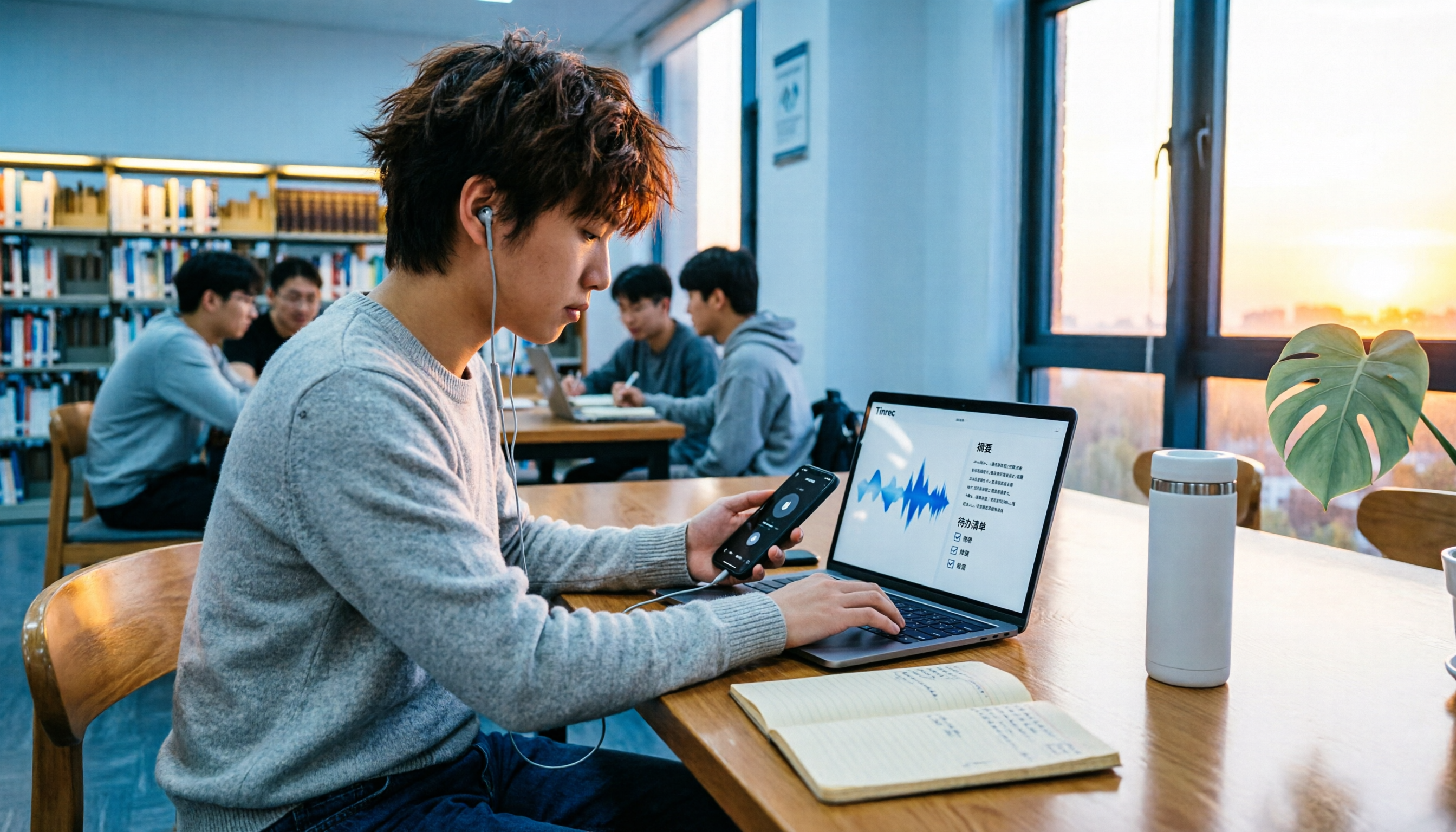
The Complete Guide to Phone Recording in 2026: iPhone Recording, Call Recording, and Transcription Made Simple
From step-by-step Voice Memos on iPhone and the requirements for call recording in iOS 18.1, to turning recordings into transcripts, summaries, and action items with Tinrec. A student's perspective on free tiers, pricing, and key factors for choosing a tool—avoiding the common misconception that 'having a recording means having notes.'

2026 Audio-to-Transcript Tools Tested: Is Gemini Good Enough?
Can Gemini really turn audio files into transcripts? I tested 5 audio-to-transcript tools in real student scenarios, comparing Chinese recognition, AI follow-up questions, free tiers, and pricing. I also share how to choose the right tool for class recordings, group discussions, and final exam review without wasting time.