

Turn recordings into transcripts and summaries in minutes
Upload audio or video for multilingual transcription, AI notes, and action items
ChatGPT Audio Recording Guide 2026: Upload Limits and Better Alternatives
Bottom line first: yes, it can—but not in the way you might think.
Many people assume that if you drop a meeting recording into ChatGPT, it will automatically produce a complete meeting summary. In practice, there are several pitfalls: audio upload isn't available on every plan, ChatGPT's "record mode" is actually live recording rather than reading a file, there are file format and size limitations to watch out for, and you still have to ask it to turn the transcript into action items.
If you just occasionally want to turn a recording into text, ChatGPT is sufficient. But if you have meetings every week, need to write minutes each time, and want colleagues to be able to search together, then the question isn't just "can it read" but "how do I use what it reads."
How well does ChatGPT actually support reading recordings?
First, it's important to distinguish two different paths in ChatGPT.
The first is "record mode," where you open the microphone directly in a conversation and record, and notes are generated automatically when you finish. The workspace owner needs to enable it under "Settings → Workspace controls"; it's off by default for Enterprise and Edu workspaces. The transcript can distinguish multiple speakers, and when names can't be identified, it uses generic labels like "Speaker 1," which you can rename afterward.
The second is "audio upload," where you attach an already-recorded file to a conversation and ask it to generate a transcript, summarize, or find specific content. It's currently available for paid subscriptions and workspaces; the free plan doesn't support it for now. The limit for a single audio file is 512 MB. Note that if a WebM or MP4 file is recognized by the system as "video" rather than pure audio, it can't be processed; very long recordings may also need to be split, or may fail due to excessive processing time.
If you don't see an upload button in your account, don't assume it's broken. Check your subscription plan, whether the app is updated to the latest version, and your current workspace settings—the issue is usually in one of these three places.
What can audio-to-text do for you?
Rather than asking "which tool can read recordings," first ask "what do I want to do with it after it's read." Here are the three most common situations for office workers.
Meeting notes go from after-the-fact recall to in-the-moment clarity In the past, after a one-hour meeting, you'd spend another forty minutes recalling who said what. With Tinrec, for example, the desktop version captures system audio directly—no need to invite a bot into Zoom, Google Meet, Microsoft Teams, or Webex. It generates a transcript while the meeting is happening, and the summary, chapters, and action items are ready after the meeting.
Interview highlights no longer rely on memory The biggest fear in client interviews is "I think they mentioned budget." Tinrec turns the entire conversation into searchable text, so later you can directly ask "What were the client's concerns about pricing?" and it will find the answer from the content—no need to re-listen to an hour.
Historical recordings become a searchable database Course, lecture, and internal training recordings sit unused after a while. After importing audio files, Tinrec generates summaries and chapters, essentially creating a table of contents for each recording.
What core capabilities do tools like Tinrec offer?
Bot-free recording of online meetings The Tinrec desktop version captures system audio directly, so you don't need to pull an extra bot into the meeting room. This is especially practical for external client meetings—you don't want an "AI assistant has joined" notification popping up in front of a client.
Real-time transcription and live translation It transcribes while recording, and for cross-language meetings you can switch between original text, translation, or bilingual view. Chinese, Chinese-English mixed, and multilingual meetings are areas it focuses on.
Summaries, chapters, and action items all in one place It doesn't just condense the transcript into a paragraph; it separates meeting topics, discussion conclusions, action items, and owners. For those who need to write follow-up emails after meetings, it saves more than just typing time.
AI Q&A and post-processing After transcription, you can directly ask follow-up questions: "What was decided in this meeting?" "Who is responsible for the budget?" You can also use Agent post-processing to turn content into reports, tables, or documents.
Team spaces and governance The team version isn't multiple people sharing one account; it's an independent team space: members, roles, and seats are managed separately, with usage analytics, audit logs, and an audio recycle bin.
Practical use cases
Weekly stand-ups and project meetings Recurring meetings are ideal for establishing a standard process: record, transcribe, summarize, action items, export to Notion or Google Docs. Tinrec supports multiple export formats, essentially sending meeting results directly into your existing workflow.
Stop organizing recordings by hand
Upload audio or video and automatically get a transcript, summary, and action items
Client interviews and requirements gathering A common pain point for sales and customer success teams is "three months later, I can't remember what the client's concerns were." The team version centralizes meeting data in a team space, so new members taking over can also access historical records; when a member leaves or loses a seat, data is transferred to other active members rather than disappearing with the individual.
Courses, lectures, and internal training Online courses often run two or three hours. Tinrec can import audio and video files for transcription and then split them into chapters. To go back and find a specific segment, searching or asking directly is faster than dragging the progress bar.
Content creation and transcript reuse Transcripts from interviews can be handed directly to Agent post-processing to generate article outlines, social media posts, or report drafts.
5 things to consider when choosing an audio-to-text tool
1. Is the input source diverse enough? Using it only for online meetings is completely different from needing to handle offline interviews, phone recordings, and existing audio files. Tinrec supports live recording, desktop meeting recording, audio and video file import, and mobile recording—this "multi-source" capability is more important in practice than whether a single feature is strong.
2. Will audio files be retained? Some tools only give you the transcript and don't keep the original recording, so you can't verify a specific sentence later. Tinrec retains audio files, and the team version has an audio recycle bin, so accidentally deleted files can be restored before permanent cleanup begins.
3. What can you do after transcription? A transcript is just the starting point. Tinrec provides summaries, chapters, action items, mind maps, AI Q&A, and third-party exports. The difference is whether you get "a document" or "data you can continue working with."
4. Chinese and multilingual performance If your meetings mix Chinese and English, be sure to test with actual recordings. Tinrec covers Chinese, Traditional Chinese, and multilingual scenarios, and also supports team hotwords—you can pre-load company-specific terminology and product codes to reduce recognition gaps. Actual results will still be affected by recording quality, accents, noise, overlapping speakers, and technical jargon—just like any tool.
5. Team and permission design This is the most overlooked point. The Tinrec team version distinguishes between "roles" and "seats": roles determine who can manage members, audits, and team settings; seats determine whether a member can record, upload, edit, and export. Active members without a seat can still view, play, and read team data, but cannot perform resource-consuming operations. Currently it's team-level sharing, not file-level granular permissions.
A note on pricing. The team version is priced per paid seat: USD 29.80 per paid seat per month, or USD 199 per paid seat per year (about USD 16.58 per month). Each paid seat provides 2,000 minutes of team shared import quota per month. Under an active plan and active seats, live recording currently does not deduct minutes; file and web imports consume the team shared quota. Eligible teams get a 7-day trial, 1 free seat, and 300 minutes of shared import quota for the first time. Actual prices and benefits are subject to the official purchase page.
Frequently asked questions
Q1: Can ChatGPT read recordings? Yes, but you need to distinguish between live recording and uploading existing files. Audio upload is currently available for paid subscriptions and workspaces; the free plan doesn't support it for now, and the single-file limit is 512 MB.
Q2: What's the difference between ChatGPT's record mode and audio upload? Record mode opens the microphone for live recording and generates notes directly when finished; audio upload processes recordings you already have. The former requires the workspace owner to enable it; the latter is subject to plan and format limitations.
Q3: How is Tinrec different from ChatGPT for processing recordings? ChatGPT is a general-purpose conversational tool where audio is just one input format; Tinrec specializes in meeting notes and team collaboration, providing a complete workflow from recording, transcription, summarization, and action items to export and team sharing—and the desktop version doesn't need a meeting bot.
Q4: Is recording content secure? It's recommended to inform participants and obtain consent before recording, and to comply with local regulations. The Tinrec team version provides roles, seats, audit logs, and a resource handover mechanism when members change, making team management easier.
Q5: Is the free version enough? The Tinrec free version provides a basic quota so you can try recording, importing, summarizing, and transcription. If you only occasionally organize a recording, use the free version first to see if the workflow suits you; if you have steady needs every week, then consider a weekly card, Pro monthly card, or annual card.
Q6: Do I have to buy many seats for the team version? No. The team version is priced per paid seat. Active members without a seat can still view, play, and read team data—they just can't upload, edit, or export.
Conclusion
ChatGPT can read recordings—there's no problem with that in itself. But it's a general-purpose tool that happens to handle audio, not something designed for meeting workflows. If your need is just to occasionally turn a recording into text, it's more than enough.
But if you have meetings every week, need to submit meeting minutes, and want colleagues to search historical records together, the real question is: can this tool turn meetings into searchable, trackable, and transferable data? With Tinrec as an example, from bot-free recording, real-time transcription, summaries and action items, to team spaces and exports, it follows a complete workflow.
Try running a meeting or two with the free version first, see how the AI-generated minutes compare to what you'd write yourself, and then decide whether to go further.
References
Turn every recording into actionable outcomes
Get 60 free transcription minutes when you sign in. No credit card required.
Related Reading
You might also like

2026 Vocal AI Comparison: 4 Tools Tested for Meeting Transcription vs. Vocal Separation
When you search "Is vocal AI good?" first clarify whether you need music vocal processing or meeting transcription. This article focuses on meeting notes, comparing Tinrec, Otter.ai, Notta, and TurboScribe—their differences, pricing, and use cases—plus buying criteria and pitfalls to avoid.

3 AI Meeting Recording Tools Tested for 2026: How Long Can ChatGPT Record, and What Tinrec Adds
Many people search for "how long can ChatGPT record," but the real limits are usually plan permissions, consent requirements, and what happens to the data after recording. This article addresses common misconceptions, explains the official stance and practical limits of ChatGPT's recording mode, and compares Tinrec on bot-free recording, Chinese transcription, AI Q&A, and team data retention to help you decide which is better for long-term meeting records.
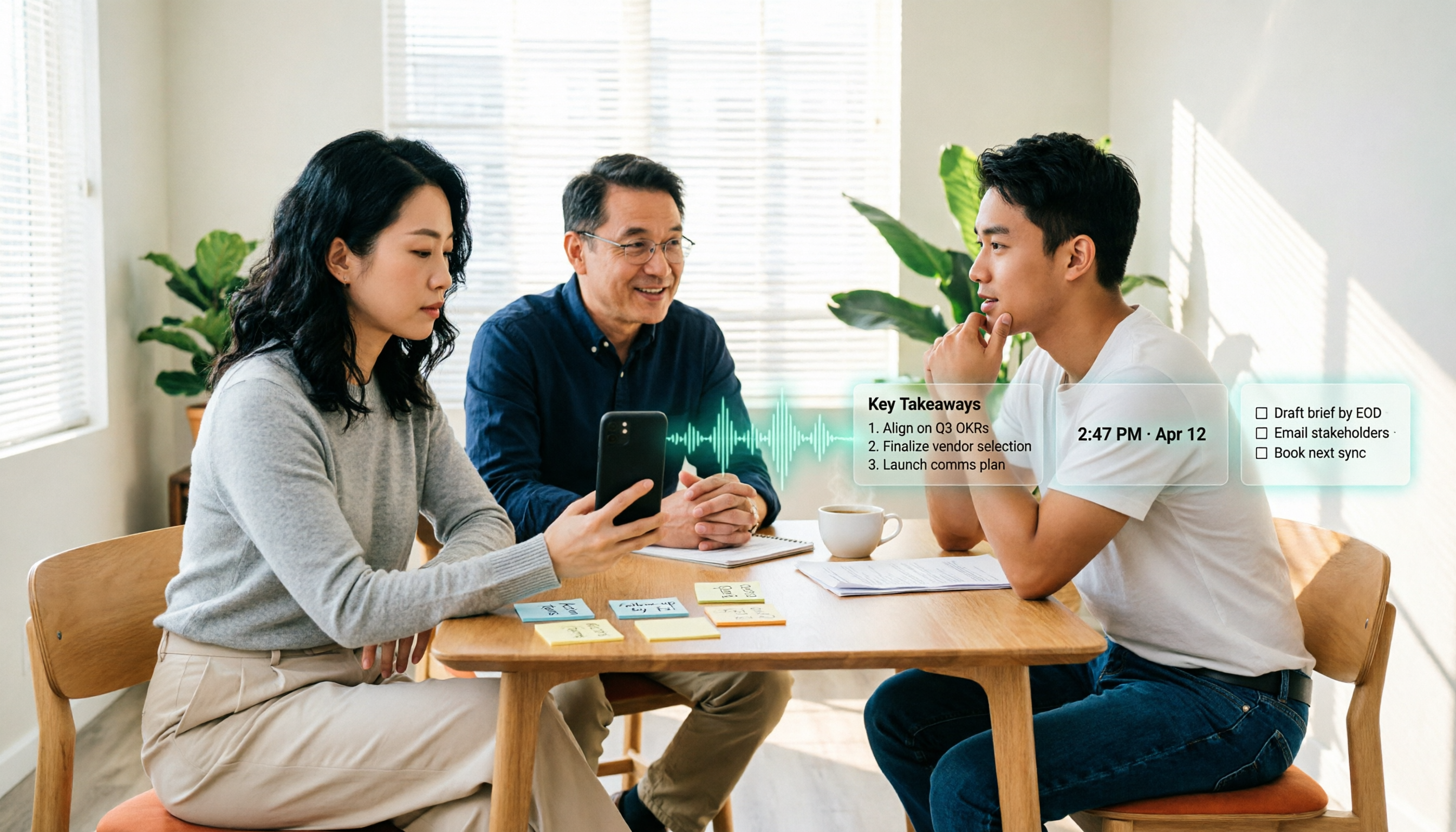
3 Free Note-Taking Recording Tools in 2026: Free Quotas and Meeting Notes Comparison
Can you record audio in Notes? iPhone, iPad, and Mac built-in Notes can record directly and transcribe. This article covers free options available as of August 2026, comparing built-in Notes, Tinrec, Notta, and Otter.ai on free terms, meeting-notes capabilities, and limitations—and explains how to turn recordings into usable data.

2026 Comparison of 4 Audio-to-Text Tools: Google Docs Can't Transcribe Audio Files—Which One Saves Time?
Google Docs cannot upload audio files for transcription; it only captures live microphone input. This article first clarifies the real limitations of Google Docs, Gemini, and Gemini Notebook, then from the perspective of a mid-level manager's post-meeting organization needs, tests and compares tools like Tinrec, Notta, and Otter.ai, summarizing key purchasing factors, pitfalls to avoid, and recommendations for different scenarios.

3 Ways to Get iPhone Recording Transcripts in 2026: Built-in Features and How Tinrec Fills the Gaps
Since iPhone 12, the Voice Memos app has a built-in transcription feature, but the button isn't obvious and many people can't find it—or they're blocked by device model, iOS version, or language settings. This article first shows you the 3 places to find iPhone recording transcripts, then discusses the limits of the built-in feature and how Tinrec fills in the gaps with summaries, action items, AI Q&A, and team collaboration.

5 Mobile Voice-to-Text Tools Compared (2026): Built-in Dictation, AI Meeting Assistants, and Recording Hardware
Mobile voice-to-text actually covers two very different scenarios: real-time dictation and converting recordings into transcripts. Choosing the wrong tool wastes your time. This guide starts from real-world use cases and compares iPhone and Android built-in dictation, Tinrec, Notta, PLAUD recording hardware, and Otter.ai—covering their differences, limitations, and pricing. It also highlights four common pitfalls to help you choose the right tool in one go.

4 Transcription Tools Tested for 2026: What Is Yating Transcription? Which Saves the Most Time?
What is Yating Transcription? This article first explains the positioning, features, and pricing of this Taiwan-based AI speech-to-text service, then compares Tinrec, Otter.ai, and Notta across four dimensions: accuracy assessment, post-meeting organization, meeting capture methods, and team collaboration. It concludes with buying criteria and pitfalls for Hong Kong office workers choosing a transcription tool.
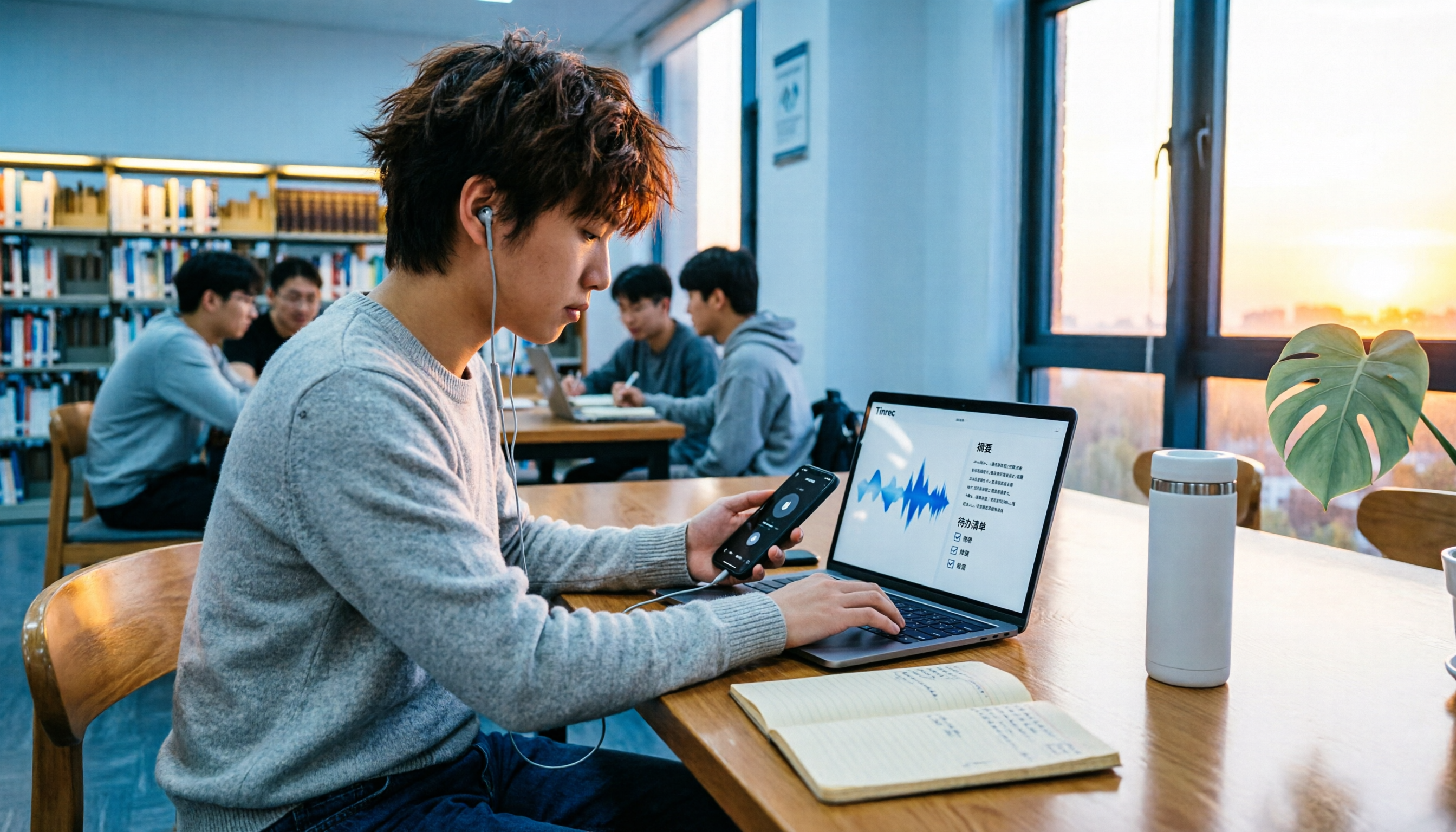
The Complete Guide to Phone Recording in 2026: iPhone Recording, Call Recording, and Transcription Made Simple
From step-by-step Voice Memos on iPhone and the requirements for call recording in iOS 18.1, to turning recordings into transcripts, summaries, and action items with Tinrec. A student's perspective on free tiers, pricing, and key factors for choosing a tool—avoiding the common misconception that 'having a recording means having notes.'

2026 Audio-to-Transcript Tools Tested: Is Gemini Good Enough?
Can Gemini really turn audio files into transcripts? I tested 5 audio-to-transcript tools in real student scenarios, comparing Chinese recognition, AI follow-up questions, free tiers, and pricing. I also share how to choose the right tool for class recordings, group discussions, and final exam review without wasting time.