
Turn recordings into transcripts and summaries in minutes
Upload audio or video for multilingual transcription, AI notes, and action items
That Picture on the Wall Was Crooked Twice — I Don't Need Theory, I Need a Tool That Solves It in Three Minutes
Last month, when the office switched desks, I personally drilled shelves into the wall. After finishing, I stepped back three paces to look — crooked. I took it down and re-did it, a little better this time, but still off. The third time, I swallowed my pride and dug through the toolbox for the bubble level I hadn't used in ten years. Five minutes of searching and I couldn't find it.
Then a colleague reminded me: that iPhone in your hand can do it. Only then did it hit me — I use this thing every day for meetings, messages, and schedules, but I never thought it could help me check if a table is flat or if a picture is crooked.
If you're also hanging pictures, installing shelves, assembling cabinets, or mounting monitor arms, and every time you struggle between "close enough to level" and "looks a bit crooked" — this article is for you. I tested all three practical methods, and I'll be honest about where it falls short.
Before Using Your iPhone as a Level, Understand These 3 Things
1. It's a "judgment aid," not a professional instrument The iPhone relies on its built-in accelerometer and gyroscope. That's plenty for everyday navigation and gaming, but compared to a bubble level or laser calibration equipment, there's an inherent accuracy gap. Apple's official description of the feature is also "determine whether an object is level or how many degrees it is off from level" — it never claims to be a professional measurement tool. Good enough for everyday DIY, not enough for precision engineering that needs to be signed off.
2. The camera bump determines how flat you can lay it This is the most critical point, and the most overlooked. When you lay a bare iPhone flat on a table, the only thing actually touching the surface is the camera ring — the body is hovering. That 0 degrees is just "the phone's idea of level." With a protective case that wraps the camera and has a flat back, the contact is completely different, and the numbers become trustworthy.
3. Are you measuring "level" or "angle difference"? One is parallel to the ground (tabletop, shelf), the other is the relative angle between two objects (slope, angle between a picture frame and a cabinet). These are different operations in the app, and using the wrong mode gives you meaningless numbers.
The Built-in Measure App Level — My Go-To After Testing
No app download needed. The iPhone's built-in Measure app has a "Level" page — tap it and you get the full toolkit. This is the one I use regularly now.
Lay it flat to measure tabletops, shelves, cabinets Open Measure, tap "Level," and place the phone flat on the surface. When the surface is level, you'll see a green 0 degrees; if not, it tells you exactly how many degrees off you are — no guessing.
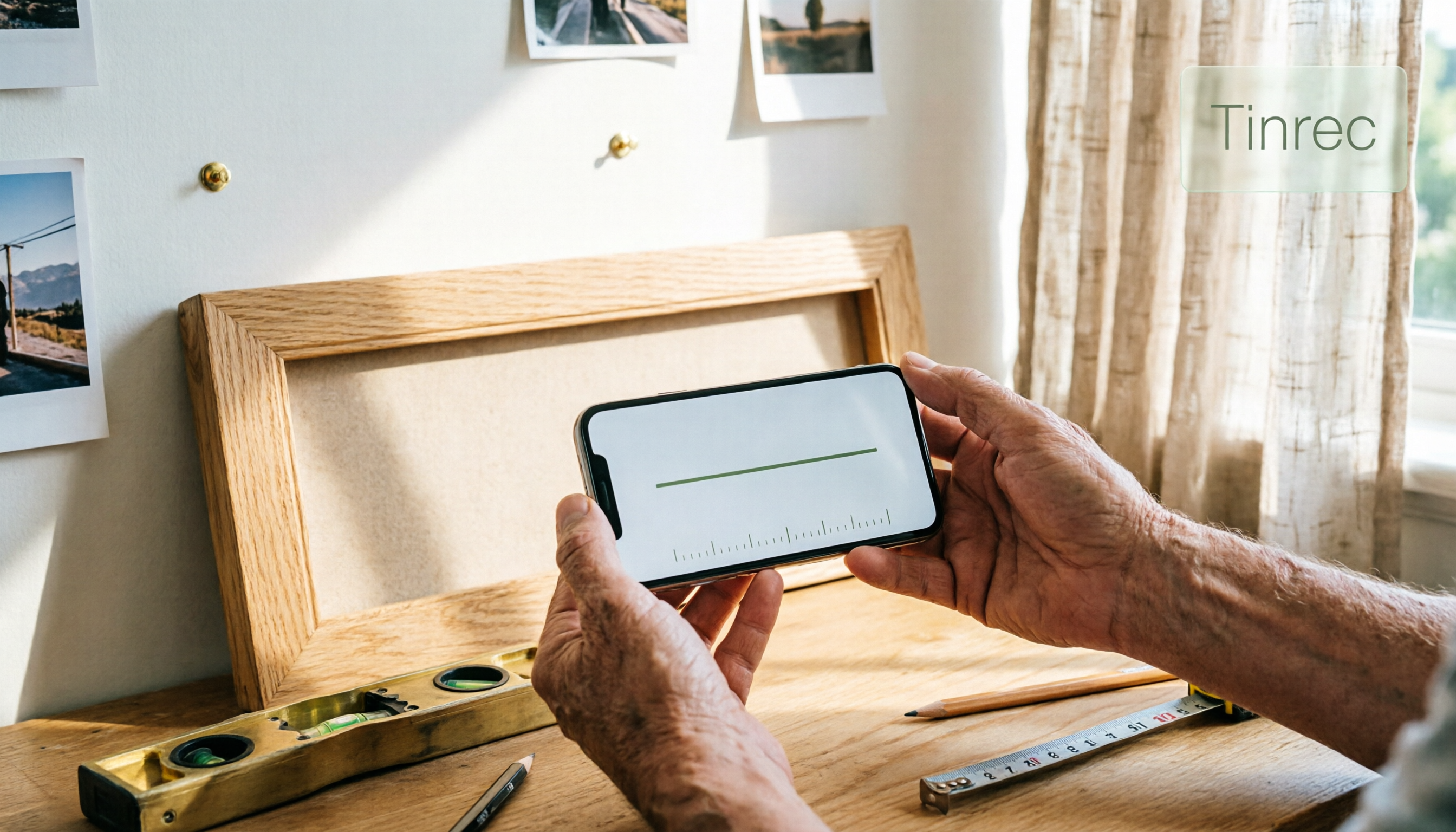
Stand it on its side against a wall or picture frame Stand the phone upright against a wall or the top edge of a frame. The interface automatically switches to vertical mode, showing a white line with dots at each end. When perfectly vertical, the line turns green; tilt it back and the screen turns red to warn you. This mode is fastest for hanging pictures — far more reliable than the naked eye. I used to step back three times to check a picture; now I just hold the phone against it and look at the line.
Measure relative angle (slope) Point the camera at the first object and tap the screen to zero it, then move to the second object. The number on screen is the angle difference. Tap again to reset.
My test conditions and results On the same solid wood tabletop, I measured in two states: with a camera-flush protective case, and bare. With the case, the result matched what I later got with a bubble level — no visible difference. Bare, because the camera bump prevents the body from sitting flush, that 0 degrees is only a reference. The conclusion is simple: whether it sits flush determines whether you can trust the number.
Three places where it actually helped me
Stop organizing recordings by hand
Upload audio or video and automatically get a transcript, summary, and action items
- Hanging pictures and installing shelves without digging through the toolbox — just grab your phone.
- It tells you exactly how many degrees off you are, not just level/not level, so you know which way to adjust.
- The red warning in vertical mode is intuitive — you don't need to interpret numbers to know you're off.
The limitations, honestly
- A bare phone is always slightly off, and the bigger the camera module, the more obvious it is. If you don't want a case, treat it as a "rough estimate" tool.
- Accuracy is phone-grade, not job-site-grade. For installations requiring minimal error, you still need professional instruments.
Who it's for Home DIY, hanging pictures, furniture leveling, checking if a newly installed shelf is wildly crooked, framing shots — more than enough. For finish carpentry that needs sign-off or installations demanding extreme precision, don't force it.
Besides the Measure App, iPhone Has These Level Tools
The level page in the Compass app Few people open the Compass app, but if you swipe right, there's a level measurement page. It also shows a green 0 degrees when level, switches to a horizontal line when held upright, and gives a red warning when tilted back. Functionally it overlaps with Measure. My habit is to use Measure — the entry point is more intuitive, one less swipe. But if you already have Compass open for direction, a quick swipe to measure is fast too.
The camera level since iOS 17 If you just don't want crooked photos or videos, you don't need Measure at all. Since iOS 17, the camera interface has a built-in level guide. Go to Settings > Camera > Composition and turn on "Level." When taking a photo, a white horizontal line appears; adjust the angle until the line aligns and changes color (yellow or green depending on version), meaning the frame is aligned with the horizon and you can press the shutter. It only serves composition — it won't give you degrees or measure a table.
Traditional bubble level / laser level For sign-off work, catching tiny errors, or establishing a baseline across an entire wall, you still need them. The downside is they're not always at hand and serve a single purpose. The iPhone's value isn't replacing them — it's saving you a trip to the toolbox when you're "just a little off."
Pitfall Guide: The 3 Most Common Mistakes When Using iPhone as a Level
Pitfall 1: Trusting the 0 degrees when the bare phone is flat. The camera bump prevents the body from sitting flush — this is the main source of negative reviews saying "the iPhone level is useless." A case that makes the back flush solves most of the problem.
Pitfall 2: Measuring on a wobbly or soft surface. Results on carpet, an unsecured shelf, or while holding it with your hand don't count. Before measuring, make sure the object itself is stable.
Pitfall 3: Forgetting to zero before measuring relative angle. Many people use the previous baseline to measure a new object, get a confusing number, and think the tool is broken. Remember to tap the screen to reset before switching objects.
Pitfall 4: Using it for precision engineering that needs sign-off. Its role is a judgment aid. After important installations, it's still wise to double-check with a traditional level — not because you don't trust the phone, but as insurance for your own work.
Summary: When to Use iPhone, When to Grab a Tool
- Hanging pictures, frames, wall shelves → Measure app "side" vertical mode
- Tabletops, cabinets, appliances level → Measure app "flat," with a case that levels the camera
- Shelf slope, aligning two surfaces → zero the relative angle, then measure
- Don't want crooked photos/videos → iOS 17 camera level (Settings > Camera > Composition > Level)
- Sign-off work, minimal error required → traditional bubble level or laser level
The iPhone isn't meant to replace the ruler in your toolbox — it's there so you don't have to make a trip when you're "just a little off." Measure with the phone first, and if it's not enough, then go get the tool — most home scenarios never reach that point.
Sources
- Apple Support (Taiwan): Use iPhone as a level
- Cool3c: [Apple Emergency Room] No help needed for renovation "measurement"! iPhone is your level
- Tinrec Blog: 2026 iPhone level feature test comparison: flat, side, with case — which of the 3 is most accurate?
- Mr. Mad: Where is the iPhone camera level? iOS 17 photo horizontal line settings and usage tutorial
- UpToGo: No help needed for hanging pictures! Can iPhone be a level? Built-in hidden features and accuracy test
Sources
- Use iPhone as a level - Apple Support (Taiwan)
- Apple Emergency Room: No help needed for renovation "measurement"! iPhone is your level + carpenter's square ~ #Chen Ning (124160) - Cool3c
- 2026 iPhone level feature test comparison: flat, side, with case — which of the 3 is most accurate? - Tinrec Blog
- No help needed for hanging pictures! Can iPhone be a level? Built-in hidden features and accuracy test - UpToGo
- Where is the iPhone camera level? iOS 17 photo horizontal line settings and usage tutorial - Mr. Mad
Turn every recording into actionable outcomes
Get 60 free transcription minutes when you sign in. No credit card required.
Related Reading
You might also like

3 Transcript Export Tools Tested for 2026: How to Export Yating Transcripts and Is Tinrec Easier?
First, a quick answer on how to export Yating transcripts, then a comparison of Tinrec from the perspectives of post-export workflow, AI organization, online meeting capture, and team collaboration to see if it better suits those who need to repeatedly organize meeting content.

ChatGPT Speech-to-Text in 2026: Testing 3 Methods to See If You Really Get a Meeting Transcript
Can ChatGPT transcribe audio? Yes, but there are three paths: mobile voice input, macOS recording mode, and the Whisper API—each with real limits like a 25MB file cap and no speaker labels. This article breaks down the boundaries of each method from a mid-level manager's real-world usage, shares 4 key factors for choosing a solution, and explains why Tinrec stood out in testing for meeting transcripts, AI summaries with action items, and team knowledge retention.
2026 Speech-to-Text Tool Comparison: Is Yating Taiwanese? Feature and Plan Differences
Is Yating Taiwanese? Two conflicting claims are circulating online. This article first sorts out verifiable sources and points of conflict, then compares Yating, Notta, TurboScribe, and Tinrec across five angles: accent recognition, post-meeting organization, online meeting recording methods, free quotas, and team data ownership, to help you decide which tool fits your meeting scenario.

ChatGPT Voice Mode vs Tinrec in 2026: 5-Dimension Comparison — Which Is More Practical for Recording Length and Post-Meeting Organization?
How long can ChatGPT Voice Mode record in a single session? OpenAI's Help Center doesn't specify a fixed minute limit, and external reports generally point to a cap of about 2 hours. This article compares ChatGPT Voice Mode and Tinrec across five dimensions — single-session recording length, Chinese recognition, post-meeting organization, team collaboration, and import sources — and highlights the most common practical pitfalls to help you decide which tool to use for meeting notes.
4 Word Video Recording Alternatives Tested and Compared in 2026: How to Choose Between Audio Recording, Transcription, and Screen Recording
Word itself cannot record video, and its built-in dictation/transcription only converts speech to text. This article clarifies the boundaries of Word's video recording, audio recording, and transcription capabilities, compares four alternative approaches—Tinrec, Word dictation, Community Clips, and Otter.ai—and organizes selection criteria, pitfalls to avoid, and team pricing to help you decide whether to use screen recording or an AI meeting notes tool.
How to Use iPhone Text-to-Speech in 2026: 4 Built-in Methods + Recording-to-Text Workflow
Your iPhone can read text aloud out of the box, but you need to pick the right path first: Live Speech, Speak Screen, or Shortcuts for audio files? This guide breaks down 4 built-in methods using real student scenarios, and explains how to have Tinrec transcribe class recordings into text first, then let your iPhone read it back to you.

2026 Vocal AI Comparison: 4 Tools Tested for Meeting Transcription vs. Vocal Separation
When you search "Is vocal AI good?" first clarify whether you need music vocal processing or meeting transcription. This article focuses on meeting notes, comparing Tinrec, Otter.ai, Notta, and TurboScribe—their differences, pricing, and use cases—plus buying criteria and pitfalls to avoid.

ChatGPT Audio Recording Guide 2026: Upload Limits and Better Alternatives
Can ChatGPT read recordings? This guide breaks down ChatGPT's recording mode and the real limits of audio uploads, including plan requirements, the 512MB cap, and format issues. It also explains why meeting notes need a more complete workflow. Using Tinrec as an example, it covers bot-free online meeting recording, real-time transcription, summary and action items, and team sharing—so you can see how to choose and use the right tool.

3 AI Meeting Recording Tools Tested for 2026: How Long Can ChatGPT Record, and What Tinrec Adds
Many people search for "how long can ChatGPT record," but the real limits are usually plan permissions, consent requirements, and what happens to the data after recording. This article addresses common misconceptions, explains the official stance and practical limits of ChatGPT's recording mode, and compares Tinrec on bot-free recording, Chinese transcription, AI Q&A, and team data retention to help you decide which is better for long-term meeting records.