
Turn recordings into transcripts and summaries in minutes
Upload audio or video for multilingual transcription, AI notes, and action items
When it comes to making text turn into speech on iPhone, most people get stuck not on "which button to press" but on choosing the wrong path entirely: they want a reusable audio file but go press Speak Screen; they want to have a live conversation but start researching Shortcut scripts. No feature is inherently better or worse—the difference is just what you need it for.
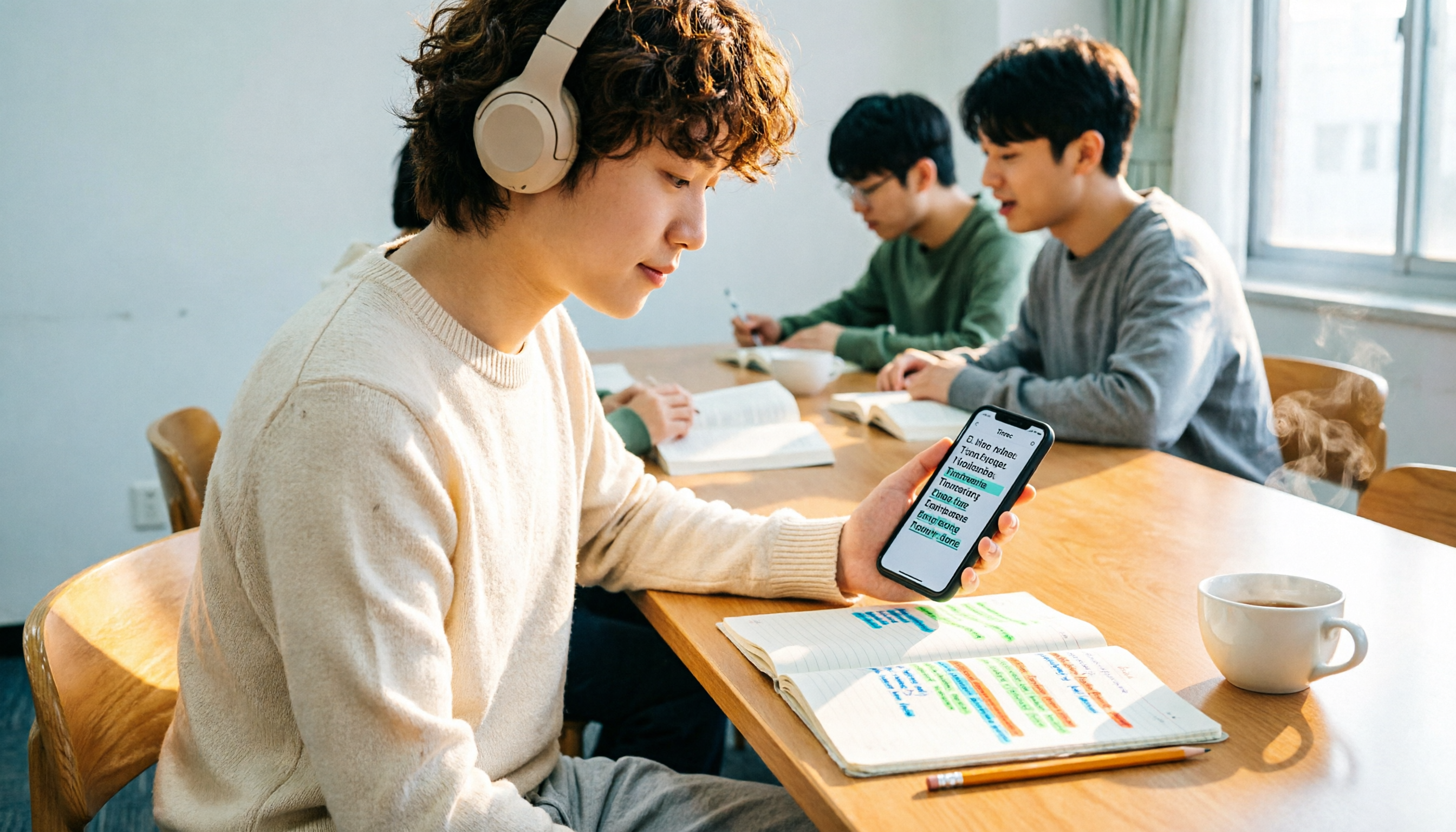
I'm taking three heavy courses this semester while racing to finish my senior project, and I've worked out a fixed routine: use Tinrec in class to turn a two-hour lecture into a transcript and key points, then during review hand the text to iPhone to read aloud—I can listen on my commute, while walking, or before bed. This article breaks it down in that order.
Bottom line first: the free, no-app-install part—iPhone can do it built-in. What actually takes time is "where does that text come from."
Key Decision: Do You Need "Live Output" or a "Replayable Audio File"?
iPhone handles text-to-speech roughly three ways—pick the right one first, then worry about which buttons to press:
- Just want your phone to say something to someone next to you right now: use "Live Speech."
- Want to read a webpage, PDF, handout, or your own notes: use "Speak Screen" or "Speak Selection."
- Want an audio file you can replay as many times as you like: use the Shortcuts app's "Make Audio from Text."
If you just want to know where the buttons are, skip ahead to the "4 Built-in iPhone Methods" section below; if you want to solve the text-source problem first, keep reading.
Understand These 4 Things First So You Don't Waste Time
1. Purpose comes first—don't put the cart before the horse. Live Speech is for situations where you can't speak but need to communicate in person; the output goes to the person in front of you or on the other end of a FaceTime call. It won't save an audio file for you. If you want an audio file, you need to use Shortcuts.
2. Language and voice support varies. Apple's official documentation notes that some languages can't use Live Speech. There are dozens of system voices to choose from, and you can even use a custom "Personal Voice," but different features don't offer the same set of voices.
3. How clean your text source is determines whether things are easy or painful later. The same content—whether you paste in a class transcript or a patchwork of scattered notes—sounds very different when read aloud.
4. Check free limits first. Built-in Speak Screen and Shortcuts are completely free; third-party voice apps mostly offer free trials; recording-to-text tools depend on how many minutes you use per month. Students are on a budget—confirm whether the free tier is enough before talking about paying.
Tinrec—Solve "Where Does the Text Come From" First
Tinrec is an AI meeting notes and collaboration tool for individuals and teams, available on web, desktop, and mobile. It doesn't do the reading aloud, but it handles turning "what you hear" into "text that can be read aloud"—which is the real pain point for most people.
Record live in class, transcribe as you go. Open Tinrec to record during an in-person lecture, and the transcript appears as you record. For classes where the professor talks fast and flips slides even faster, at least I don't have to keep my head down copying notes.
Online classes and remote talks. The desktop version captures your computer's system audio directly, so it can handle meetings played on your computer via Zoom, Google Meet, Microsoft Teams, Webex, and similar platforms—no need to pull a meeting bot into the room. Note that you need to actively open Tinrec and start recording; it doesn't automatically join every meeting on your calendar.
You can also drop in recordings and videos from your teacher. Some courses provide post-class recordings or podcasts—upload them and convert directly to text, which is far faster than pausing and playing as you listen.
After recording is where the real value is. Tinrec automatically generates summaries, chapters, and action items, so long meetings can be broken into easy-to-browse sections. You can also ask it questions directly about the content—for example, "What exactly did the professor say was on the final exam?"—and it gives answers based on the content, not just a few keywords for you to dig through yourself. For cross-language courses, you can turn on real-time translation and view the original, translation, or both. Organized material can be exported to Notion, Google Docs, OneNote, or Dropbox for further work—that's how my project literature notes got moved along.
Limitations, stated clearly. First, Tinrec won't read aloud for you—it turns sound into text; the reading-aloud step still goes to iPhone. Second, transcription quality is affected by recording quality, accents, background noise, and multiple people talking over each other; for important content, go back and check the transcript timestamps against the recording. Third, the personal free plan provides a basic quota so you can try recording, importing, summaries, and transcription; if you have steady weekly needs, consider Pro; for short-term concentrated meetings or interviews, a weekly pass is more cost-effective; for long-term data accumulation, go annual.
Stop organizing recordings by hand
Upload audio or video and automatically get a transcript, summary, and action items
For group projects, the team plan is worth a look. The team plan isn't multiple people sharing one account—it's a separate team space: you can create multiple teams, invite members via link, set owners and admins, assign or revoke seats, and store Audio, Folder, and TODO in one place. Members can view and play materials even without a seat, but recording, uploading, editing, and importing/exporting require a seat. Currently the team monthly price is USD 29.80 per paid seat per month, and annual is USD 199 per paid seat per year (roughly USD 16.58 per month); first-time eligible teams get 7 days, 1 free seat, and 300 minutes of shared team import quota, and paid seats include 2,000 minutes of shared import quota per month; live recording is currently not deducted by the minute under an active plan and seat. Prices and benefits are subject to the official purchase page. For our five-person project group, having data belong to the team rather than one student's personal account—so it doesn't all disappear when someone hands off—is more practical than anything.
4 Built-in iPhone Methods: Step by Step
Method 1: Live Speech (type, and iPhone speaks for you)
This is for situations where you can't speak but need to communicate on the spot. Once enabled, whatever you type is spoken by iPhone: paste copied text into the window, or tap the suggested words shown above the keyboard. During a FaceTime call, the content goes directly to the person on the call; when not on a call, it plays through the phone speaker. You can also pick from a list of frequently used phrases and add your own categories (e.g., separate School and Work), which is handy when you need to say the same few things on short notice.
The location varies slightly by iOS version; the easiest approach is to open Settings and type "Live Speech" in the search bar at the top to find the toggle.
Method 2: Speak Screen and Speak Selection (read webpages, PDFs, notes)
This one is great for review. After enabling "Speak Selection," long-press to select a passage and listen; then turn on "Speak Screen" to have an entire webpage or PDF read continuously. A control panel appears on screen while listening so you can adjust playback. In practice: open a reference PDF, let it read, and jot down key points on my phone—far more comfortable than staring at a small screen reading a PDF.
Method 3: Shortcuts app "Make Audio from Text" (the only one that produces an audio file)
This is my most-used method because it creates a file. Open the built-in Shortcuts app, create a new shortcut, and add three actions in order: Ask for Input → Make Audio from Text → Quick Look. Tap the arrow next to an action to adjust rate, pitch, and choose a voice. When you run it, type your text and tap Done—it converts to audio and opens a player.
The default output is a .caf file. If you want to use it elsewhere, add an action in the script to convert to M4A format, then save to Files. For more convenience, you can add an action to read clipboard contents—whatever you copy gets read; for PDFs, add an action to extract PDF text.
Method 4: Add Audio in Calls (let the other person hear your app's audio)
If you use an augmentative and alternative communication (AAC) app, you can send the app's audio into a call. Go to Settings → Accessibility → Audio & Visual → "Add Audio in Calls" and turn on "Allow Apps to Add Audio in Calls." Once enabled, both audio and microphone input go into the call; to mute everything temporarily, just mute the microphone.
Besides Tinrec, What Else Is Out There?
Speechify: A veteran text-to-speech service with many language options, many natural-sounding voices, and even some celebrity voices available; free trial available. Its strength is "sounding good"—if you already have clean text and just want better voice quality, it's worth trying. But it won't turn your class recordings into text, and it doesn't keep the original recording for you to check later—that's what Tinrec does.
VanillaVoice: An online service—open your browser, paste text, and generate an audio file; great for video voiceovers, no installation needed. The downside is it only processes the text you paste in—no transcript management, no summaries or action items, and no way to ask questions about an entire meeting's content. If you just need a few dozen seconds of voiceover, it's plenty; if you're organizing a whole semester of classes, it won't help.
Pitfall Guide: 4 Most Common Mistakes
Pitfall 1: Assuming "Live Speech" saves an audio file. It's mainly for live output—once it's done, it's gone. If you want an audio file, use Shortcuts, or you'll waste time pressing buttons for nothing.
Pitfall 2: Shortcuts outputs .caf, and some players won't accept it. I got stuck here the first time I made a presentation voiceover. The fix: convert to M4A directly in the script and save to Files—then it works wherever you put it.
Pitfall 3: Paste text, listen, and nothing is left afterward. This is the least efficient way to use it. First organize the source into a structured transcript or summary, then have it read—what you hear will be the key points, not noise.
Pitfall 4: Resetting your phone at the first sign of a glitch. Some people online suggest doing a full factory reset of your iPhone—that's too costly. First check your system version, confirm the language is supported, and confirm the setting is turned on; only consider backing up and resetting if none of that works.
Summary: Which One Should You Actually Use?
- Need your phone to speak for you on the spot (interviews, FaceTime): use built-in "Live Speech"—free, no install needed.
- Need to read webpages, PDFs, handouts: use "Speak Screen" or "Speak Selection."
- Need a replayable audio file (commute review, presentation voiceover): use Shortcuts' "Make Audio from Text," and remember to convert to M4A.
- Text source is class recordings, online lectures, interview files: first use Tinrec to transcribe into a transcript and summary, then hand the organized content to iPhone to read aloud. This path takes the most time upfront but has the highest payoff.
- Group project needs multiple people sharing meeting materials: look at Tinrec's team plan for space, seats, and usage management.
- Just want better voice quality for reading aloud: a third-party voice service like Speechify is a better fit.
Advice for fellow students: built-in Live Speech, Speak Screen, and Shortcuts are all free—get comfortable with these three first, without spending a dime. For recording-to-text, start with Tinrec's free plan basic quota for a week or two, see how much you actually use per month, then decide whether to upgrade—don't rush to pay at the start of the semester; let real usage speak first.
References
- Use Live Speech on iPhone to type to speak - Apple Support (Taiwan)
- iPhone text-to-speech: secrets to making your Apple phone talk
- iPhone voice-to-text setup tips: 5 ways to achieve recording-to-text - Mr. Mad
- iPhone text-to-speech audio: Shortcuts app built-in actions, no third-party tools needed - Xiaoyao Info
- How to enable text-to-speech on iPhone | Speechify
Turn every recording into actionable outcomes
Get 60 free transcription minutes when you sign in. No credit card required.
Related Reading
You might also like

4 Word Video Recording Alternatives Tested and Compared in 2026: How to Choose Between Audio Recording, Transcription, and Screen Recording
Word itself cannot record video, and its built-in dictation/transcription only converts speech to text. This article clarifies the boundaries of Word's video recording, audio recording, and transcription capabilities, compares four alternative approaches—Tinrec, Word dictation, Community Clips, and Otter.ai—and organizes selection criteria, pitfalls to avoid, and team pricing to help you decide whether to use screen recording or an AI meeting notes tool.

2026 Vocal AI Comparison: 4 Tools Tested for Meeting Transcription vs. Vocal Separation
When you search "Is vocal AI good?" first clarify whether you need music vocal processing or meeting transcription. This article focuses on meeting notes, comparing Tinrec, Otter.ai, Notta, and TurboScribe—their differences, pricing, and use cases—plus buying criteria and pitfalls to avoid.

ChatGPT Audio Recording Guide 2026: Upload Limits and Better Alternatives
Can ChatGPT read recordings? This guide breaks down ChatGPT's recording mode and the real limits of audio uploads, including plan requirements, the 512MB cap, and format issues. It also explains why meeting notes need a more complete workflow. Using Tinrec as an example, it covers bot-free online meeting recording, real-time transcription, summary and action items, and team sharing—so you can see how to choose and use the right tool.

3 AI Meeting Recording Tools Tested for 2026: How Long Can ChatGPT Record, and What Tinrec Adds
Many people search for "how long can ChatGPT record," but the real limits are usually plan permissions, consent requirements, and what happens to the data after recording. This article addresses common misconceptions, explains the official stance and practical limits of ChatGPT's recording mode, and compares Tinrec on bot-free recording, Chinese transcription, AI Q&A, and team data retention to help you decide which is better for long-term meeting records.
3 Free Note-Taking Recording Tools in 2026: Free Quotas and Meeting Notes Comparison
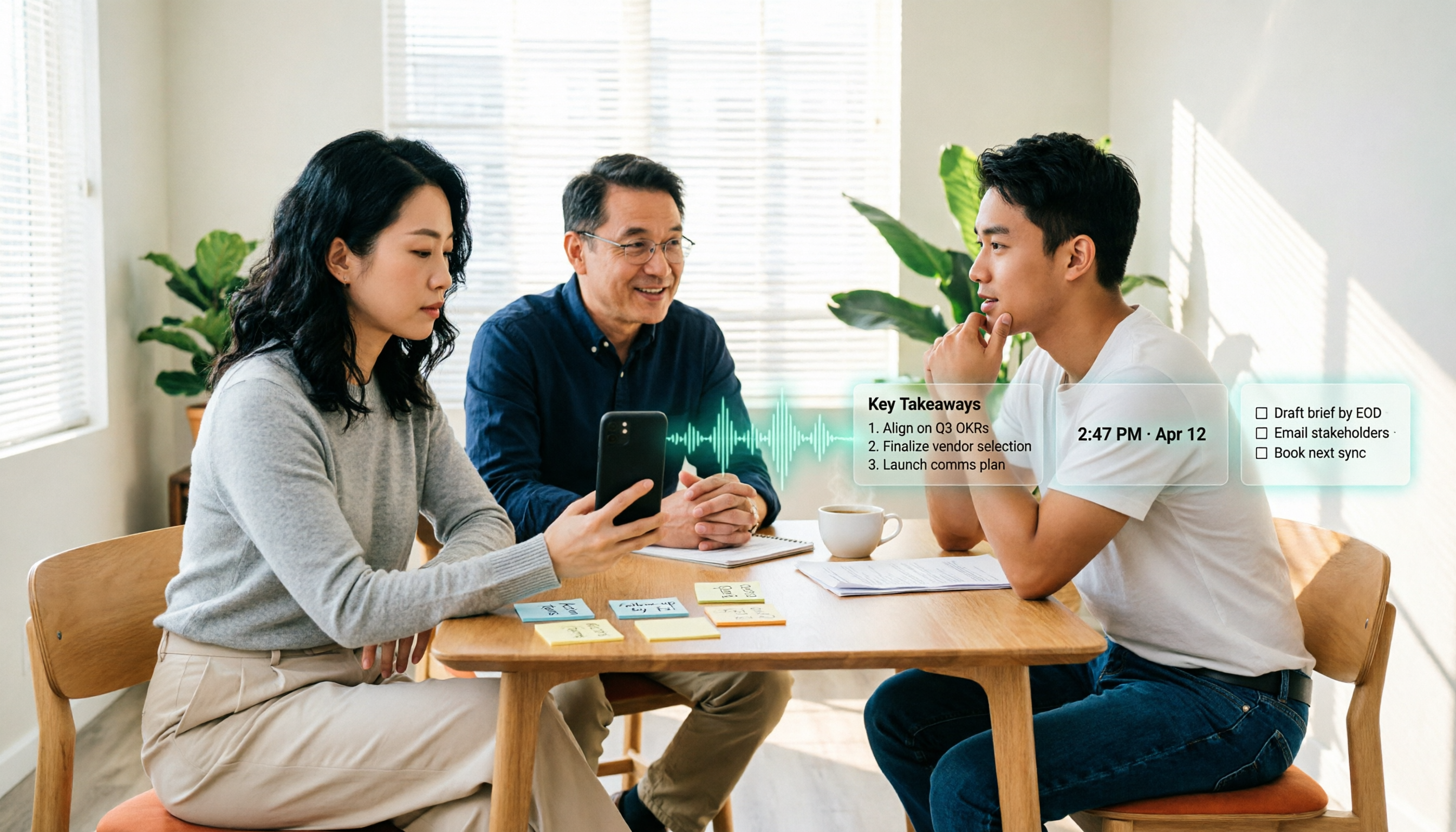
Can you record audio in Notes? iPhone, iPad, and Mac built-in Notes can record directly and transcribe. This article covers free options available as of August 2026, comparing built-in Notes, Tinrec, Notta, and Otter.ai on free terms, meeting-notes capabilities, and limitations—and explains how to turn recordings into usable data.

2026 Comparison of 4 Audio-to-Text Tools: Google Docs Can't Transcribe Audio Files—Which One Saves Time?
Google Docs cannot upload audio files for transcription; it only captures live microphone input. This article first clarifies the real limitations of Google Docs, Gemini, and Gemini Notebook, then from the perspective of a mid-level manager's post-meeting organization needs, tests and compares tools like Tinrec, Notta, and Otter.ai, summarizing key purchasing factors, pitfalls to avoid, and recommendations for different scenarios.

3 Ways to Get iPhone Recording Transcripts in 2026: Built-in Features and How Tinrec Fills the Gaps
Since iPhone 12, the Voice Memos app has a built-in transcription feature, but the button isn't obvious and many people can't find it—or they're blocked by device model, iOS version, or language settings. This article first shows you the 3 places to find iPhone recording transcripts, then discusses the limits of the built-in feature and how Tinrec fills in the gaps with summaries, action items, AI Q&A, and team collaboration.

5 Mobile Voice-to-Text Tools Compared (2026): Built-in Dictation, AI Meeting Assistants, and Recording Hardware
Mobile voice-to-text actually covers two very different scenarios: real-time dictation and converting recordings into transcripts. Choosing the wrong tool wastes your time. This guide starts from real-world use cases and compares iPhone and Android built-in dictation, Tinrec, Notta, PLAUD recording hardware, and Otter.ai—covering their differences, limitations, and pricing. It also highlights four common pitfalls to help you choose the right tool in one go.

4 Transcription Tools Tested for 2026: What Is Yating Transcription? Which Saves the Most Time?
What is Yating Transcription? This article first explains the positioning, features, and pricing of this Taiwan-based AI speech-to-text service, then compares Tinrec, Otter.ai, and Notta across four dimensions: accuracy assessment, post-meeting organization, meeting capture methods, and team collaboration. It concludes with buying criteria and pitfalls for Hong Kong office workers choosing a transcription tool.