
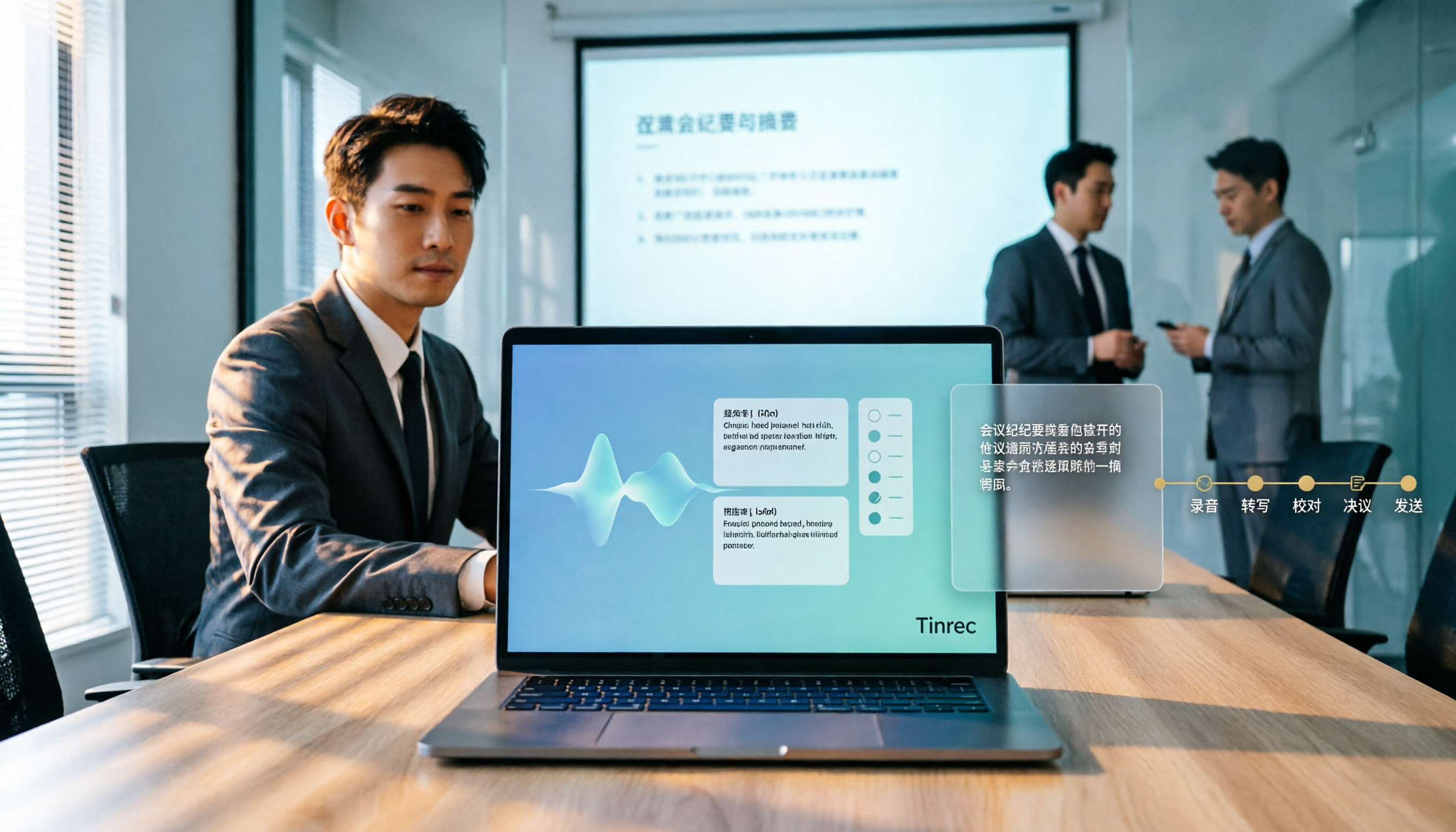
Turn recordings into transcripts and summaries in minutes
Upload audio or video for multilingual transcription, AI notes, and action items
How to Transcribe Meeting Recordings in 2026: 5 Steps from Platform Recording to Send-Ready Meeting Minutes
Last week a reader wrote to me saying their team holds six online meetings every week, all on Zoom and Teams.
After each meeting, the recording sits quietly in the cloud. If you actually need to go back and find out "who agreed to handle that customer complaint last month," you have to drag the timeline and listen segment by segment.
He said something that stuck with me: "It's not that we don't have recordings—it's that after recording, we're afraid to use them."
The problem was never the recording itself. It's that the path from recording to text, from text to decisions, and from decisions to action items is broken.
This article aims to reconnect that path. It's not about introducing the features of a particular tool, but about a repeatable method: turning platform meeting recordings into meeting minutes you can send out directly.
After reading, you'll understand why each step is designed the way it is, where mistakes are most likely to happen, and when to use built-in platform features versus when to switch to a standalone tool.
First, Clarify: Do You Want a Verbatim Transcript or Meeting Minutes?
This is the thing I correct most often when coaching teams.
A verbatim transcript is raw material; meeting minutes are the output.
The production logic for the two is completely different.
If you need legal evidence, academic interviews, or occasions requiring precise quotations, then you should pursue transcription quality itself—names, numbers, and dates must be accurate, and speakers must be correctly attributed.
If what you need is meeting minutes you can email to your manager on Monday morning, then the verbatim transcript is just an intermediate product. What you really need is: what was decided, who will do what, when it will be completed, and what remains unresolved.
Many people's dilemma is getting an 18,000-word verbatim transcript and then getting stuck.
Because no one told them that after the verbatim transcript, there's still an "organizing" step.
So the first step of this method is not opening a tool—it's thinking clearly about where your endpoint is.
Step 1: Choose the Right Recording Source—Confirm Company Account and Regulations First
In practice, there are two paths for recording online meetings.
The first is the meeting platform's own recording and transcription features. Zoom, Google Meet, and Microsoft Teams all have built-in capabilities, but whether you can use them depends on your company account's plan and administrator settings.
My advice is simple: ask IT first.
Not because platform features are bad, but because this path usually most easily passes company security compliance. Data stays within the original platform, and you don't need to separately evaluate a new service's data processing policy.
The second path is standalone recording or transcription tools.
There's a key difference worth noting here. Traditional meeting bots join meetings as "participants," adding an extra name to the meeting room list. For some client meetings, this is impolite, and some companies even block it.
Another approach is desktop software that directly captures the computer's system audio. Tinrec Desktop works this way—no additional bot joins the meeting; users simply open the software and start recording.
If your meeting participants are external clients, this difference matters more than you might think.
One more thing must be handled before recording: confirm local regulations and participant consent. Especially for client meetings and international meetings, this isn't a formality—it's risk management.
Step 2: Start Transcription the Right Way, Not as an Afterthought
Recording quality determines transcription quality. This sounds obvious, but I've seen too many people cut corners here.
Three concrete practices.
First, check your network. Real-time transcription and AI summaries both require connectivity. Check the meeting room Wi-Fi before recording—don't wait until after the meeting to discover the file didn't sync.
Second, microphone placement. If recording an in-person meeting with a phone or laptop, place the device near the main speaker or connect a Bluetooth microphone. In a meeting room with multiple people sitting around a table, a tabletop microphone usually performs better than a laptop placed in a corner.
Third, use the pause function. For breaks, casual chat, or private discussions during the meeting, press pause to avoid recording noise. This will make subsequent transcription much cleaner.
As for real-time transcription versus post-meeting upload, my judgment is this:
Real-time transcription suits online meetings—you can verify content accuracy during the meeting and immediately adjust your speaking or add clarification if you notice errors.
Post-meeting upload suits in-person meeting recordings, or when you already have MP3 or M4A files downloaded from Zoom or Teams.
Neither scenario is inherently better—only more or less suitable.
Step 3: Proofread—and Only Proofread What Needs Proofreading
This is the step most people want to skip, and the one you should least skip.
But let's be clear first: proofreading doesn't mean reading all 18,000 words word by word.
My approach is to verify only three things.
First, names. Who committed to what—if names are wrong, the entire record's validity is compromised.
Second, numbers and dates. Budgets, timelines, version numbers, contract deadlines—this type of information is most easily mis-transcribed and most likely to cause subsequent misunderstandings.
Third, proper nouns. Product names, project codes, technical terms.
Here's a practical tip: if your team frequently uses fixed terminology, create a hotword list. Tinrec Team Edition has a team hotword feature that lets teams maintain commonly used terms to improve recognition of professional vocabulary. The logic is easy to understand—a general model won't know what your company's project code is called.
As for everything else—modifiers, filler words, repeated sentences—ignore them.
Stop organizing recordings by hand
Upload audio or video and automatically get a transcript, summary, and action items
Verbatim transcripts aren't meant for publication.
One more thing to be honest about: no tool should claim 100% accuracy. Actual recognition performance is affected by recording quality, noise, accents, overlapping speakers, and technical terminology. Rather than pursuing zero errors, design a process that quickly catches key errors.
Step 4: Organize the Verbatim Transcript into Decisions, Action Items, and Open Issues
This is the core of the entire method, and the step I think is most worth designing carefully.
Meeting minutes that drive action have only three sections:
Decisions: things already settled—write the conclusion, not the discussion process.
Action items: who, does what, by when. All three elements are essential.
Open issues: topics discussed but not concluded—list them and note when to address them next time.
Just these three. Everything else is a bonus, not a necessity.
If you use Tinrec, this step can be handled by AI summary, chapters, and action item extraction—producing a first draft, then letting a human decide what goes into decisions and what goes into open issues.
Here's a prompt template I actually use—you can copy and paste it directly:
The following is a meeting verbatim transcript. Please help me organize it into meeting minutes with only three sections:

1. Decisions: items already settled, write the conclusion in one sentence
2. Action items: format as "who / does what / deadline", mark missing fields as "to be confirmed"
3. Open issues: topics discussed but not concluded, note the next handling time

Please note:
- Do not summarize the discussion process, only write results
- If a statement cannot be determined as a decision or casual chat, put it in open issues
- Preserve names, numbers, and dates as-is; do not rewrite
The last line is important.
AI is very good at making language flow smoothly, but smooth doesn't equal correct. Requiring it to preserve key information as-is can greatly reduce your cost of going back to verify.
Step 5: Export and Put It Where the Team Can Access It
If meeting minutes are written but only exist in one person's account, they might as well not exist.
This step involves two considerations: format and ownership.
For format, choose what the team actually uses. Going into Notion—export Markdown; going into Google Docs—export document format; archiving—PDF. Tinrec supports exporting results to Notion, Google Docs, OneNote, Dropbox, and other tools, and also supports generating reports, tables, and documents—the goal is to bring meeting results into your existing workflow, not to create another place to store them.
For ownership, this is the dividing line between personal tools and team tools.
Personal edition data is managed under individual accounts. If the colleague responsible for note-taking leaves, those meeting minutes leave with them.
Team edition works differently. Tinrec Team Edition provides an independent team space where meeting data belongs to the team, and new members can view the team's historical data. When a member exits, is removed, or loses their seat, their team resources need to be handed over to other active members.
Here's an easily misunderstood detail worth explaining: Team Edition distinguishes between "roles" and "seats." Roles determine who can manage the team and members; seats determine whether members can record, upload, edit, and export. Active members without seats can still view, play, and read team data—they just can't perform resource usage operations.
So if you ask "can all team members see all data," the answer is: currently team-level sharing is the primary model—all active members can read team data. This is not a file-level granular permission system; understand this clearly when evaluating.
How to Choose Tools? Look at Where Your Bottleneck Is
The method is explained; now back to tool selection. I don't like listing a bunch of spec sheets because every team's bottleneck is different.
Here are three questions I would ask.
Question one: Does your meeting involve Chinese or mixed Chinese-English?
Mixed Chinese-English is common in Taiwanese workplaces, sometimes even involving Taiwanese Hokkien. If your meetings are like this, the tool's ability to handle language switching is key. Tinrec covers Chinese, Traditional Chinese, and multilingual meeting scenarios, and supports real-time translation and bilingual viewing. This is where it has an advantage over international tools.
Question two: Do you need to keep the recording file?
Some tools only provide verbatim transcripts without keeping audio files. If your scenario requires listening back for verification—such as details of client commitments or contract-related discussions—then whether audio files can be retained is a hard requirement.
Question three: Who will ultimately use these minutes?
If only you read them, personal edition is enough. If they need to be available for team lookup, handover, or沉淀 into knowledge assets, then you need team space, member management, usage, and audit capabilities.
Tinrec Team Edition pricing is currently USD 29.80 per paid seat per month, or USD 199 per paid seat per year. Eligible teams can enjoy a 7-day trial, 1 free seat, and 300 minutes of team shared import quota on first qualification; paid seats provide 2,000 minutes of team shared import quota per seat per month. Under an active team plan, real-time recording is currently not deducted by minutes; file and web imports use the team shared quota.
(The above is internal information verified in August 2026; actual prices, currencies, and promotions should be based on the official purchase page.)
What This Method Changes
Looking back at that reader's problem, what they lacked wasn't a tool—it was a method to connect the process.
Let me summarize the practical benefits this approach brings:
- Finding answers shifts from "dragging the timeline and re-listening" to "searching the transcript"
- Meeting minutes shift from "recalling after the meeting" to "capturing in the moment"
- Decisions and action items have clear sources—you can trace back who said what in which meeting
- New hires can read historical meeting materials without waiting for someone to guide them
- When members change, meeting assets don't disappear with them
Quick Start Checklist
If you need to use this tomorrow, here's my six-step simplified version:
- Ask IT first—confirm whether your company account's platform transcription feature is available
- Choose your recording method: platform built-in, or desktop system audio capture (no bot joining)
- Before recording, confirm network, microphone placement, and participant consent
- After transcription, verify only three things: names, numbers/dates, and proper nouns
- Use the prompt template to organize the verbatim transcript into three sections: decisions, action items, open issues
- Export in the format your team actually uses, and store it where the team can access it
Test step by step, and you'll gradually find the rhythm that suits your team. Tools will change; the method remains.
If you're also building a meeting data process for your team, feel free to write to me and share the obstacles you encounter—I'll find opportunities to break them down in future articles.
References
- [Speech-to-Text] How to Choose Between Recording-to-Transcript and AI Meeting Minutes: Word, Google Docs, Mobile, and Dedicated Service Comparison
- [Tutorial] 2026 Meeting Recording to Text: 5 Steps to Complete Verbatim Transcript and Meeting Minutes - Tinrec Blog
- How to Use AI for Meeting Minutes? How to Organize Meeting Transcripts? | AI Speech-to-Transcript Tutorial | 104 Workplace
- Tinrec Online Meeting Platform Recording-to-Text Tutorial: 4 Steps to Generate Verbatim Transcript and AI Summary - Tinrec Blog
- 2026 Meeting Minutes Speech-to-Text Guide: 5 AI Tool Reviews and Tinrec Hands-On Tutorial - Tinrec Blog
Turn every recording into actionable outcomes
Get 60 free transcription minutes when you sign in. No credit card required.
Related Reading
You might also like

2026 Comparison of 4 Meeting Transcription Platforms: From Upload to Meeting Minutes, Which Saves the Most Post-Meeting Time?
After a meeting, do you want a verbatim transcript or a meeting record you can send out directly? This article compares the actual capabilities and limitations of four meeting transcription platforms—Tinrec, Otter.ai, Notta, and Granola—across five stages: import, transcription, summarization, action items, and export. It also compiles pricing and quotas verified in August 2026 to help you choose the right platform based on your needs.
Best Meeting Transcription Tools of 2026: 4 Tested, This Free Version Is Enough for Students
Starting from real struggles with class recordings and group discussions, we tested four meeting transcription tools—Tinrec, Otter.ai, Notta, and TurboScribe—comparing free tiers, Chinese and mixed Chinese-English recognition, post-meeting summaries, and export capabilities. We also outline key decision points and three common pitfalls to help budget-conscious students find a tool they'll actually stick with.

5 Meeting Transcription Tools Tested and Compared for 2026: A Complete Guide from Recording to Meeting Minutes
Meeting transcription isn't as simple as pressing record and getting minutes. This guide covers the actual positioning, operation, and pricing of 5 tools, plus common pitfalls before, during, and after recording, to help you choose the right tool for your scenario.

2026 Complete Guide to Meeting Recording Transcription: Chinese Transcripts, AI Summaries, and Tool Comparison
How to choose a meeting recording transcription tool? This article breaks down 5 key purchasing factors, from Chinese recognition, meeting recording methods, post-meeting organization, quota calculation, to team data governance, and compares Tinrec, Otter.ai, Notta, and TurboScribe in terms of use cases and pricing to help you pick the one that saves the most time.

2026 Comparison of 4 Meeting Transcription Tools: Free Tiers, AI Summaries, and Team Collaboration
How to choose a meeting transcription tool? This article starts from the decision point of 'do you want a verbatim transcript or actionable meeting results?' and covers 4 key selection criteria, hands-on testing of Tinrec, Otter.ai, Notta, and Granola, and honestly explains free tiers, team seats, and pricing to help you avoid common pitfalls like focusing only on accuracy or buying a tool just for transcription.

5 Meeting Transcription Methods Tested and Compared in 2026: The Verbatim Transcript Is Just the Beginning
Meeting transcription isn't just about turning audio into text. This article addresses three common misconceptions and breaks down the actual workflows for real-time transcription, bot-free recording, AI summaries, action item extraction, AI Q&A, and team knowledge retention. It also covers 5 key purchasing checkpoints and FAQs to help you find a method that truly saves time.

2026 Meeting Transcription Comparison: Bot-Free Recording + Auto-Generated Minutes
Tired of spending two hours after every meeting organizing notes? This guide tackles real workplace pain points and compares Tinrec, Notta, Otter.ai, and Granola for meeting transcription. It covers bot-free recording, Chinese and mixed Chinese-English transcription, post-meeting summaries and action items, team data ownership, and pricing. Includes 5 key buying criteria, 4 common pitfalls to avoid, and scenario-based recommendations (prices and plans verified as of August 2026).

2026 Comparison of 4 Meeting Transcription Tools: Which Saves the Most Time from Transcript to Meeting Minutes?
How to choose a meeting transcription tool? This article starts from the decision point: do you need a verbatim transcript or meeting minutes you can send out directly? It covers 4 key selection criteria and compares Tinrec, Otter.ai, Notta, and Granola in Chinese transcription, post-meeting organization, audio retention, and team collaboration, with 3 common pitfalls and scenario-based recommendations.

4 Free Meeting Transcription Tools in 2026: Free Tiers and Transcript Workflow Comparison
Turning meeting recordings into text is easy; turning transcripts into sendable meeting minutes is the hard part. This article compares Tinrec, Otter.ai, Notta, and TurboScribe from a practical workflow perspective—covering free tiers, speaker labeling, export formats, and post-meeting organization—plus four common pitfalls and selection advice. Data verified August 2026.