

Turn recordings into transcripts and summaries in minutes
Upload audio or video for multilingual transcription, AI notes, and action items
You Finished the Meeting and Realized You Bought the Wrong License—These Scenarios Probably Sound Familiar
IT finally got the Chromebox set up in the conference room, only to discover the day before the meeting that Google Meet hardware licenses are sold separately—and they're billed annually.
The meeting ends, and when you try to find out who said to change the specs, all you have is a recording. No transcript. And no one remembers.
Cross-department meetings are even messier: everyone jots down different points, and after everyone leaves, no one knows who owns which action item.
If you're searching for how to buy Google Meet licenses, first figure out whether you're solving a meeting room equipment problem or a meeting content problem. The budgeting and purchasing processes for these two are completely different, and mixing them up can easily cost you extra.
5 Key Things to Understand Before Buying Google Meet Licenses
1. Hardware licenses and Workspace subscriptions are separate
Google's official documentation is clear: Meet hardware licenses are additional to your Google Workspace subscription.
In other words, having a Workspace subscription doesn't mean your conference room devices are ready to go. You need to buy hardware licenses separately.
2. One license per device, valid for one year from purchase date
Hardware licenses are annual. If you add more mid-term, Google prorates the expiration date to align with your original batch for easier management.
Count your conference room devices before purchasing—this is the step most people overlook.
3. Small quantities can be self-served; larger orders go through resellers
According to Google's documentation, you can self-purchase in the Google Admin console under Billing → Buy or upgrade → Devices & Browser → Google Meet hardware (billing admin permissions required).
However, above a certain quantity, you must purchase through a reseller. This threshold varies across sources—some say 10, others say 50. Before ordering, check the current rules shown in your Admin console or on the official page.
4. If you don't renew, devices will be deactivated
Google sends reminder emails before your license expires. If you don't renew before expiration, your subscription enters a limited grace period. If you still don't renew, it gets canceled—the Google Meet hardware section in Admin console becomes inaccessible, and devices are gradually deactivated.
Renewal typically requires contacting your original reseller or Google account manager; it won't auto-renew. Add those reminder emails to your procurement calendar.
5. Ask yourself: are you buying equipment or content?
If you need "that machine in the conference room to work properly," then hardware licensing is the way to go.
But if you need "a searchable, queryable, handoff-ready record after the meeting," that's a different problem—and it usually doesn't require buying any hardware.
This article isn't a spec sheet comparison. It lays out the officially published licensing rules alongside the actual workflows you'll encounter.
Tinrec: The Choice for Those Who Don't Want to Buy Another License Just for Recording
Tinrec is an AI meeting notes and collaboration tool for individuals and teams, available on iOS, Android, and web, with desktop handling online meetings.
Bot-free online meeting recording: After installing the desktop app, Tinrec captures your computer's system audio directly. Whether you're in Google Meet, Zoom, Teams, or Webex, you don't need to invite a meeting bot as a participant, and you don't need to upgrade your meeting platform plan just to record. Open Tinrec before the meeting, and the transcript builds in real time. Note: this isn't automatic calendar-based joining—you initiate recording yourself.
Automatic post-meeting organization: As soon as the meeting ends, AI summaries, chapters, key points, and action items are generated automatically. Who's responsible for what and by when—no need to re-listen to a 60-minute recording. For anyone with three or four meetings a week, this typically saves that last hour before quitting time.
AI Q&A is where the gap is biggest: After recording, you can ask directly, "Who mentioned the budget in the last meeting?" or "What are the top three customer complaints this quarter?" It answers based on meeting semantics rather than dumping a list of keyword search results. Most tools in the same price range still stop at "here's your transcript, Ctrl+F it yourself." Results can also be exported to Notion, Google Docs, OneNote, and other tools for further processing, and you can use Agent to generate reports, tables, and meeting minutes.
Stop organizing recordings by hand
Upload audio or video and automatically get a transcript, summary, and action items
Chinese meeting experience: Chinese and mixed Chinese-English meetings are where it particularly shines. It supports real-time translation during recording with original/translated/bilingual views, and the team plan lets you maintain "team hotwords" so internal product codes and jargon are recognized more consistently.
Limitations, honestly: The free plan offers basic quota—good for trying it out. Long-term regular use requires payment. Transcription quality is affected by recording environment, accents, multiple people speaking simultaneously, and specialized terminology. For important content, cross-check with transcript timestamps and recording playback; don't rely on it as your only source.
About the team plan: If an entire department is using it, the team plan provides a separate team space where meeting data belongs to the team rather than individuals. You can manage members, roles, and seats, view usage trends, and query and export audit logs. Current pricing is USD 29.80 per paid seat per month, or USD 199 per paid seat per year (about USD 16.58/month). Each paid seat includes 2,000 minutes of shared team import quota per month. First-time eligible teams can try 7 days with 1 free seat and 300 minutes of shared import quota. Prices and benefits are subject to the official purchase page.
Who it's for: People who frequently hold Chinese-language meetings, don't want to buy another platform license just for recording, and want to query key points right after the meeting ends.
Besides Tinrec, What Else Is Out There?
Otter.ai: A mature choice for English business meetings. Basic free plan includes 300 minutes per month; Pro annual billing works out to about USD 8.49 per user per month. It also offers desktop capabilities, not just a meeting bot, but Chinese meeting experience and team hotwords aren't its strengths. If 90% or more of your meetings are in English, it'll feel more intuitive than Tinrec.
Granola: Also bot-free, using desktop system audio and microphone for real-time transcription. Basic is free; Business is USD 14 per user per month. Note that it doesn't retain meeting audio and doesn't support uploading existing recording files—if you want to verify original audio afterward or organize past meeting recordings, Tinrec's design of retaining recordings and supporting file imports is more suitable.
Notta: Good multilingual transcription and translation. Free plan includes 120 minutes per month (3-minute limit per session); Pro annual billing works out to about USD 8.17 per month. It leans toward transcription, subtitles, and file processing. If you need bot-free online meeting recording, post-meeting AI Q&A, and team knowledge retention, Tinrec's complete workflow is a closer fit.
Pitfall Guide: 3 Most Common Mistakes When Buying Google Meet Licenses
Pitfall 1: Assuming Workspace includes hardware licenses. These are billed separately—hardware licenses are annual, one per device. Many teams discover this on installation day, almost derailing their launch meeting.
Pitfall 2: Ignoring renewal timing. Missing renewal first triggers a grace period, then cancellation. The Meet hardware section in Admin console becomes inaccessible, and devices get deactivated. By the time devices go offline, you're usually re-running the entire procurement process.
Pitfall 3: Solving "recording" but not "using." Plenty of teams spend money on equipment and licenses, then still rely on manual transcript cleanup after meetings. Before purchasing, clarify what output you actually need—a transcript, a summary, or trackable action items? Different answers mean different tools to invest in.
One more reminder: recording and transcription involve personal data and local regulations. Get participant consent before recording—this matters more than which tool you buy.
Summary: Which One Should You Actually Buy?
- To keep conference room devices running → Google Meet hardware licenses. Small quantities can be self-purchased in Admin console; larger orders go through resellers. Remember to add renewal dates to your calendar.
- Mostly Chinese meetings, need transcript + summary + action items → Tinrec
- Want to ask AI "who mentioned the budget last time" right after recording → Tinrec (AI Q&A is currently where it stands out most from similar tools)
- Need to use on phone, tablet, and computer → Tinrec (iOS, Android, web, plus desktop bot-free recording)
- An entire department needs to share meeting data → Tinrec team plan (team space, seat and usage management, audit logs)
- Almost exclusively English meetings, zero budget → Otter.ai Basic (one of the few exceptions in this article)
We suggest starting with Tinrec's free plan. The basic quota is enough for a few meetings to experience the "meeting ends, notes are already organized" workflow. Upgrade only if it works for you—no need to pay upfront.
References
- Buy Meet hardware licenses | Meet Hardware | Google Workspace Help
- Buy Google Meet Hardware Annual License - Cloudfresh
- How to buy Google Meet Hardware license for devices? - Google Meet Community
- Google Meet Adds Self-Service to Hardware Licensing Options
- Google Meet License Renewal – Gecko Technology Partners, Inc
Turn every recording into actionable outcomes
Get 60 free transcription minutes when you sign in. No credit card required.
Related Reading
You might also like

2026 Teams Meeting Transcription Tools Buying Guide: 4 Tested Picks and Recommendations
Teams built-in transcription can generate transcripts, but real-time translation and smart summaries require additional paid licenses. This article explains how to start Teams transcription and its limitations, and compares Tinrec, Otter.ai, and Notta to help you choose the best meeting transcription solution.
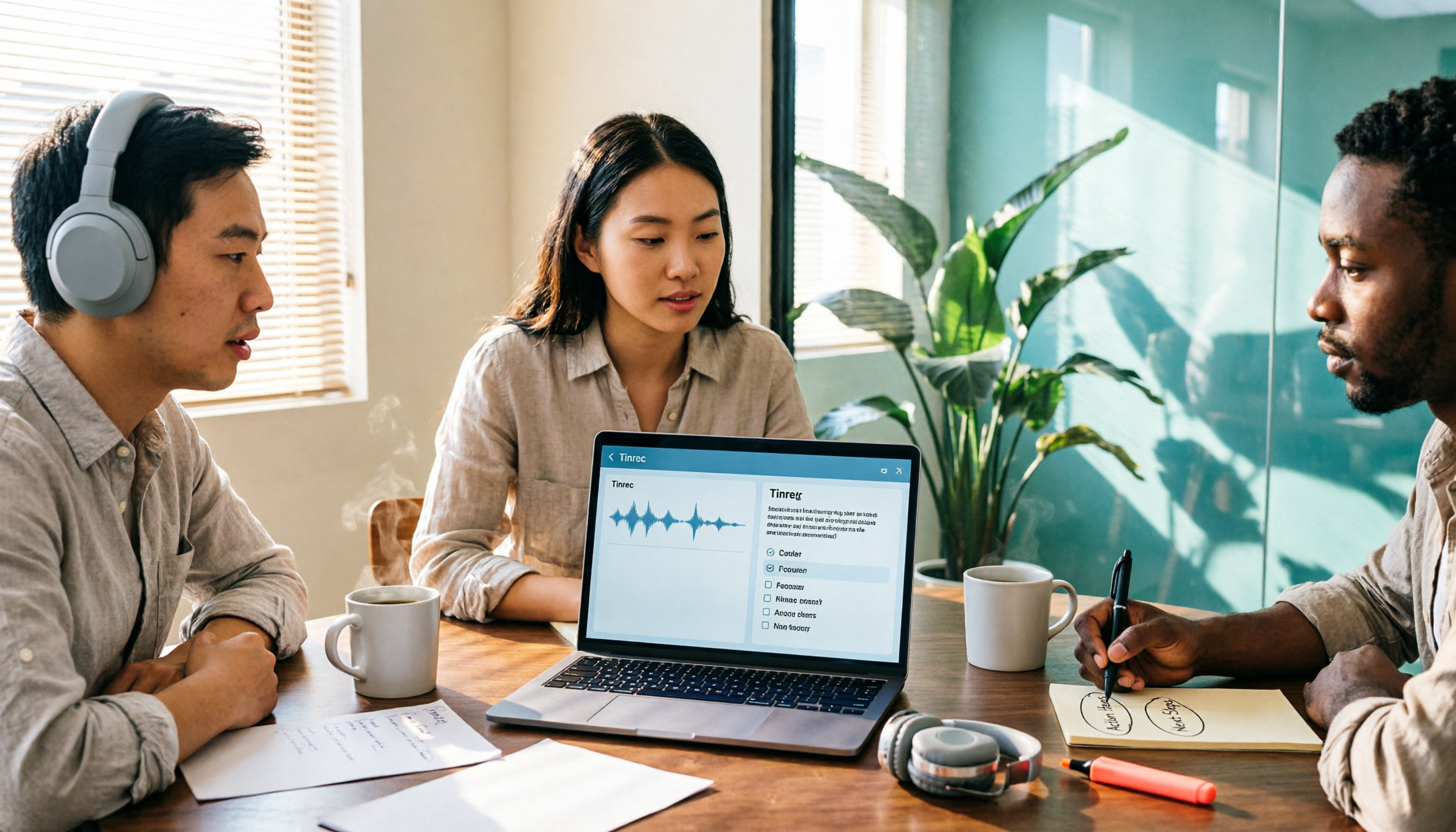
4 YouTube Transcript Tools Tested and Compared in 2026: Which Free Tier Gives You the Most?
A comparison of four free YouTube transcript tools covering free usage limits, support for videos without captions, timestamps, and export formats. It also explains how Tinrec fits in after transcription with summaries, AI Q&A, and team collaboration, helping you decide which tool to use.
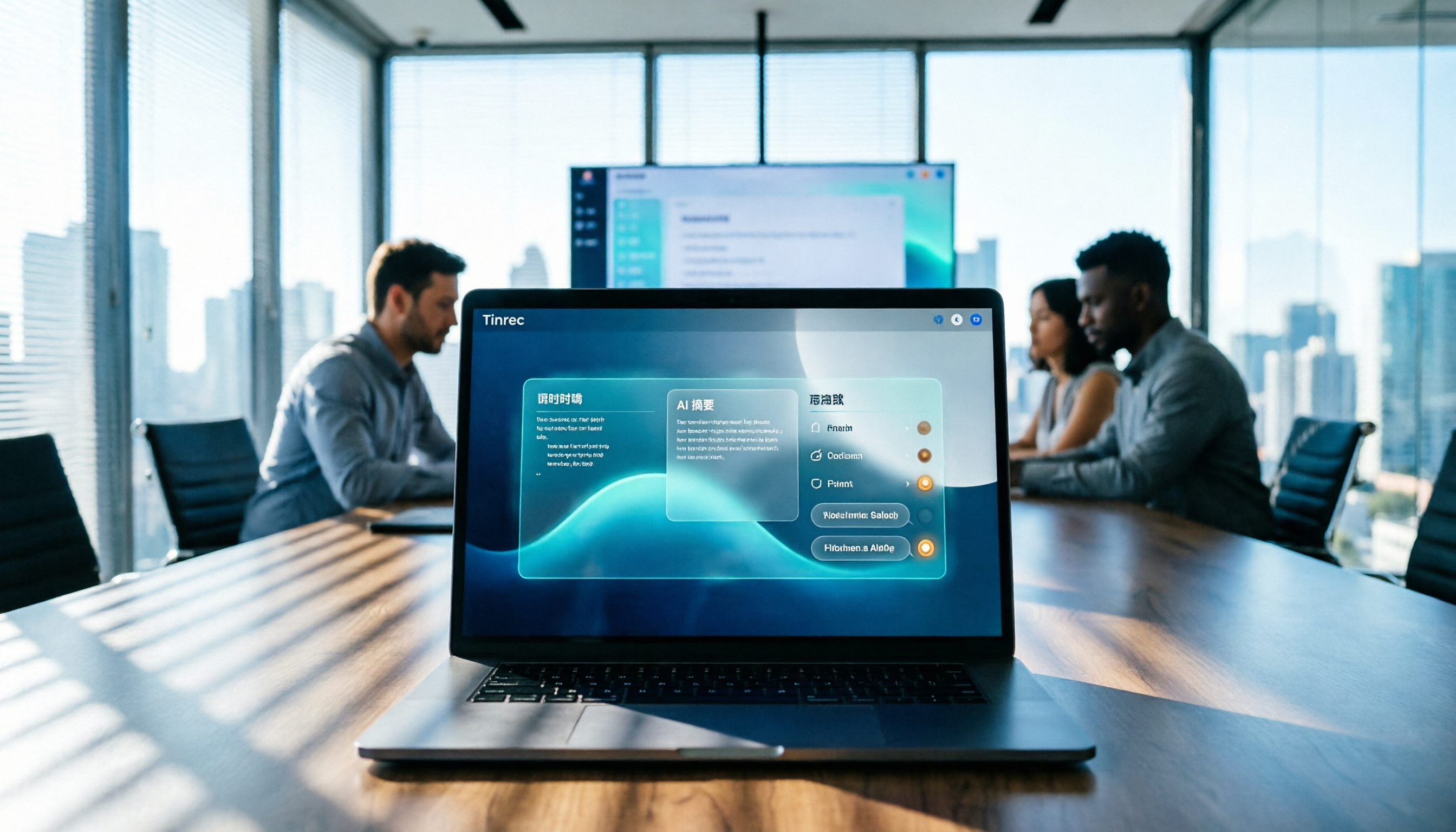
4 Teams Meeting Transcription Tools Tested in 2026: Built-in Transcription vs. Tinrec — Which Is Enough?
Complete guide to Teams meeting transcription: first, the requirements and common pitfalls of Teams built-in transcription, then a 5-step walkthrough using Tinrec for recording, transcript, summary, action items, and team export, plus troubleshooting tips.
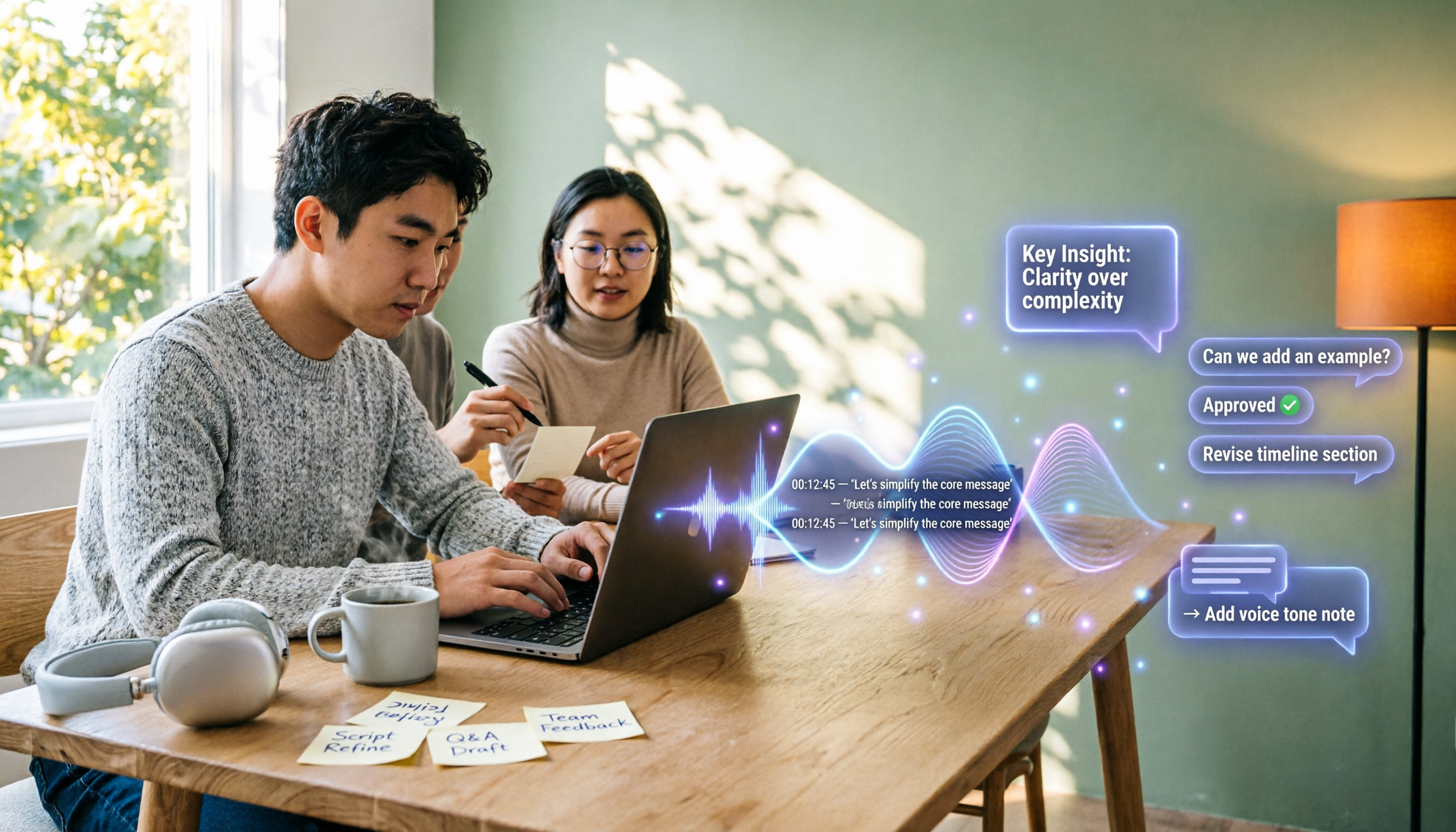
Tinrec Meeting Notes 2026: Auto Summaries + Action Items, a Notion Template Alternative
Notion meeting note templates are great for manual organization, but typing while listening and filling in action items afterward can be time-consuming. This article features Tinrec voice recording, comparing bot-free recording, real-time transcription, AI summaries, action item extraction, AI Q&A, Notion export, and team spaces. It also covers free and team pricing to help you decide if you should add an automated meeting notes workflow.

Which YouTube Transcript Tool Is Best? 2026 Hands-On Test of 4 Options—This Free, No-Login One Is the Easiest
How do you choose a free YouTube transcript tool? This article starts with common misconceptions, then hands-on tests and compares 4 transcript tools. It explains the difference between grabbing captions and AI speech-to-text, the traps of free quotas, and outlines the best use cases for Tinrec, youtube-transcript.ai, Notta, and TurboScribe.

2026 Teams Meeting Notes Tools Buyer's Guide: 4 Tested Picks and Selection Tips
Tired of messy Teams meeting transcripts? We tested 4 tools and organized a guide covering capture methods, post-meeting organization, audio retention, and free tiers so you can choose with confidence.

2026 Teams Meeting Transcription Comparison: 3 Tools Tested for Ready-to-Use Transcripts
Teams built-in transcription only gives you a transcript; organizing, searching, and tracking action items are still on you. This article starts from real meeting scenarios, outlines 4 key buying factors, and compares Teams built-in transcription, Otter.ai, Notta, and Tinrec to show which one truly helps you wrap up meeting notes.

6 Zoom Meeting Transcription Tools Tested and Compared for 2026: How to Choose for Chinese Meetings and Free Plans
A practical guide to common misconceptions and methods for getting Zoom meeting transcripts, with hands-on comparisons of six options (Tinrec, Zoom built-in, Otter.ai, Fireflies.ai, Notta, Granola) covering positioning, pricing, and ideal users, plus notes on recording permissions, participant consent, free quotas, and team seats.

2026 Teams Meeting Transcription: Auto Transcribe + AI Summary Guide
Teams built-in transcription only gives you a raw transcript, summaries require an add-on license, and transcripts expire after 120 days by default. This article addresses common misconceptions, breaks down 4 key factors for choosing a Teams meeting transcription tool, shares hands-on experience with Tinrec, and covers alternatives and pitfalls to help you build a truly workable meeting notes workflow.