

Turn recordings into transcripts and summaries in minutes
Upload audio or video for multilingual transcription, AI notes, and action items
Why do many people have trouble finding the iPhone 16 recording feature?
"Where is the iPhone 16 recording feature?" I was asked this at least five times last semester—not by people who don't know how to use an iPhone, but by those stuck on three common misconceptions.
Misconception 1: Thinking you need to download a separate app. Actually, the recording feature has always been there—it's the built-in Voice Memos app. It's just not on the first page of the home screen, so many people give up after swiping a couple of times.
Misconception 2: Thinking it's a new feature exclusive to iPhone 16. Recording itself exists on older models too. What iPhone 16 Pro and iPhone 16 Pro Max add is "layered recording" starting with iOS 18.2—allowing you to overlay vocal tracks on existing instrumental recordings.
Misconception 3: Thinking finding the record button is the end. This is the real pain point. After recording a two-hour class, you're left with an audio file and still have to listen from start to finish before finals.
If you're stuck on the third misconception, tools like Tinrec are worth looking into—they don't solve "how to record" but "how to use the recording afterward."
Where exactly is the iPhone 16 recording feature? Start with the built-in system
General recording: Open the Voice Memos app and record, using your iPhone as a portable recording device. Recordings are named "New Recording" or by location; tap the recording and then the name to rename it. After selecting "Stereo" or "Spatial Audio" in Settings, it uses multiple microphones on the iPhone for left and right channel recording.
Call recording: Starting with iOS 18.1, you can record calls directly with a button during the call. After the call ends, the recording is automatically saved to Voice Memos, and iPhone shows a "Recording Saved" notification; tap it to view directly.
Layered recording: This is a feature on iPhone 16 Pro and iPhone 16 Pro Max after iOS 18.2, powered by the A18 Pro chip. It uses processing technology and machine learning to isolate vocals, creating two separate tracks that can later be mixed in professional apps like Logic Pro. It also syncs across devices via Voice Memos on Mac.
At this point, your question "where is the recording feature" is answered. But the real question follows: how do you grasp the key points from a 90-minute audio file in the 20 minutes before an exam? That's why I switched to Tinrec.
Tinrec vs. Voice Memos: What's the core experience difference?
At the moment you finish recording, do you have an audio file or text?
Voice Memos gives you audio; to understand the content, you have to listen again. Tinrec transcribes as you record—the transcript grows while recording, and by the time the meeting or class ends, the text is ready. The practical difference for college students: after an evening class, you don't need to spend double the time re-listening; just read the text to review.
How to find key points: listen from start to finish, or just ask?
This is the biggest difference. Voice Memos only lets you drag the waveform and rely on memory to find segments. Tinrec automatically generates summaries, chapters, and key points, breaking long content into a browsable structure. More importantly, AI Q&A—you can directly ask "What were the three exam key points the teacher mentioned in this class?" or "Who was assigned to do what in the group discussion?" It answers based on semantic understanding, without manually searching the transcript.
Online classes and cross-device: Is phone recording enough?
Many classes are now online. Tinrec's desktop version captures computer system audio to handle Zoom, Google Meet, Microsoft Teams, Webex, and other meetings without inviting an extra meeting bot. The mobile app is suitable for in-person classes, interviews, and quick notes. This means you use the same workflow for online and offline organization, without switching between two sets of habits.
Output and post-processing: Can you continue using it after recording?
Voice Memos lets you share recordings and save them to the Files app. Tinrec can export results to Notion, Google Docs, OneNote, Dropbox, and other tools for further editing, and can use Agent post-processing to generate reports, tables, or documents from meeting content. For project work, the difference is "organized material goes directly into the workflow" rather than exporting and retyping.
Team collaboration: Does data stay on personal phones or in a team space?
Voice Memos recordings are stored on personal devices; group members have to send files to each other. Tinrec's team version is a separate team space where meeting data belongs to the team. Members can view and play team historical data. When a member leaves or is removed, resources are transferred to other active members and do not disappear with the individual.
Stop organizing recordings by hand
Upload audio or video and automatically get a transcript, summary, and action items
Tinrec's core features at a glance
Real-time recording to text: Generates transcripts while recording, suitable for in-person classes, interviews, and live notes. It handles Chinese, Traditional Chinese, and mixed Chinese-English content; actual performance is affected by recording quality, accent, ambient noise, and overlapping speakers.
Bot-free online meeting recording: The desktop version directly captures system audio to handle Zoom, Meet, Teams, Webex, and other online meetings without taking up an extra participant slot or showing a strange account on the professor's list.
AI summaries, chapters, and action item extraction: Automatically structures long content and extracts action items from discussions. Most useful for group discussions—when no one remembers the conclusion afterward, just check the organized results.
AI Q&A: Continue asking questions about single or multiple sessions, ideal for finals review by treating a semester's recordings as a database.
Real-time translation and bilingual view: Switch between original text, translation, or bilingual during recording—great for foreign language lectures.
Multi-format export and Agent post-processing: Bring transcripts and summaries into Notion, Google Docs, OneNote, Dropbox, or further generate reports, tables, and meeting minutes.
Team space: Centrally store and share meeting data, with member, role, seat management, usage analytics, audit logs, audio recycle bin, and team hotwords. The team version distinguishes "roles" and "seats"—roles determine who can manage the team and settings; seats determine whether one can record, upload, edit, and export. Members without seats can still view, play, and read team data but cannot perform resource-consuming operations like uploading or editing.
Practical use cases
General education lectures: Two-hour classes where the professor speaks fast and slides flip even faster. Use Tinrec for real-time transcription; the transcript is ready after class, then use summaries to capture exam key points and chapters—cutting review time in half.
Group discussions and project meetings: Four or five people talking over each other, and often no one remembers the conclusion. Start recording and let AI extract action items—who is responsible for what and what's due next time is clear at a glance. If the whole group works on a semester-long project, create a team space to centralize materials.
Graduation project interviews: Interview recordings often last an hour; use AI Q&A to directly ask "What are the three main pain points the interviewee mentioned?"—much faster than listening again.
Online lectures and mock internship interviews: Record online lectures with the desktop version without a bot; record mock interviews and review the transcript to see where you rambled.
Points to consider when choosing an audio-to-text tool
1. Chinese and mixed Chinese-English recognition performance. Taiwanese classes and meetings often mix Chinese and English. When choosing a tool, test with a real recording of your own—more accurate than any review.
2. Whether original audio is retained. Transcripts can have errors, so being able to check back against the recording is important. Tinrec supports audio retention, and the team version has an audio recycle bin that can be restored before permanent deletion (currently 30-day retention; action items are not covered by the recycle bin).
3. Free quota and pricing. Students care most about this. Tinrec's personal version has a free tier for basic quota to experience recording, import, summaries, and transcription; short-term intensive use (e.g., finals week) has a weekly card; steady weekly use suits the Pro monthly card; for long-term data accumulation, the annual card has a lower monthly equivalent. Actual quotas and prices are subject to the official purchase page.
4. Cross-platform coverage. It should work on phone, desktop, and web so that online and in-person classes don't become two separate workflows.
5. Legality of recording and transcription. Follow local laws before recording and obtain participant consent when needed—this is more important than tool features.
Conclusion: Is Tinrec worth a try?
If you only occasionally record a memo, the built-in iPhone Voice Memos is completely sufficient—find it by searching the App Library, and call recording and iPhone 16 Pro layered recording are all integrated into the same app.
But if, like me, your pain point is "recorded a lot but can't find key points when reviewing," Tinrec solves the second half: transcripts, summary chapters, action item extraction, AI Q&A, and export—turning audio files into data you can search, query, and put directly into Notion.
For students, I recommend starting with the free version and testing it on a class you really didn't understand—if the transcript quality saves you re-listening time, then consider a weekly card or Pro. If the whole project group wants to use it, the team version has a 7-day trial, 1 free seat, and 300 minutes of shared team import quota to try out; paid plans are USD 29.80 per paid seat per month, or USD 199 per paid seat per year (about USD 16.58 per month), with each paid seat providing 2,000 minutes of shared team import quota per month. Real-time recording is currently not deducted by minutes under an active team plan and active seat. Actual prices and benefits are subject to the official purchase page.
One final reminder: no matter how powerful the tool, important content should still be verified against transcript timestamps and audio playback—especially when grades and money are involved.
References
- Voice Memos update brings Layered Recording to iPhone 16 Pro lineup - Apple (Taiwan)
- Record in Voice Memos on iPhone - Apple Support (Taiwan)
- Where is the iPhone recording feature? 2026 iOS audio-to-text tool review and selection guide - Tinrec Blog
- [Phone Tips] 2026 iPhone built-in call recording feature tutorial! iOS enable call recording/key points - Jyes Communication
- Uncover where the iPhone recording feature is? One-tap activation and call recording tips - UpToGo
Turn every recording into actionable outcomes
Get 60 free transcription minutes when you sign in. No credit card required.
Related Reading
You might also like

3 iPhone Call Recording Methods Tested for 2026: Recording Is Easy, Organizing Is the Hard Part
How do you record calls on iPhone? This article compares three common approaches: iOS 18.1 built-in call recording, local capture with Voice Memos, and using Tinrec to turn recordings into searchable, queryable transcripts and action items. It covers version and region restrictions, notification and legal risks, four common pitfalls, and selection advice.
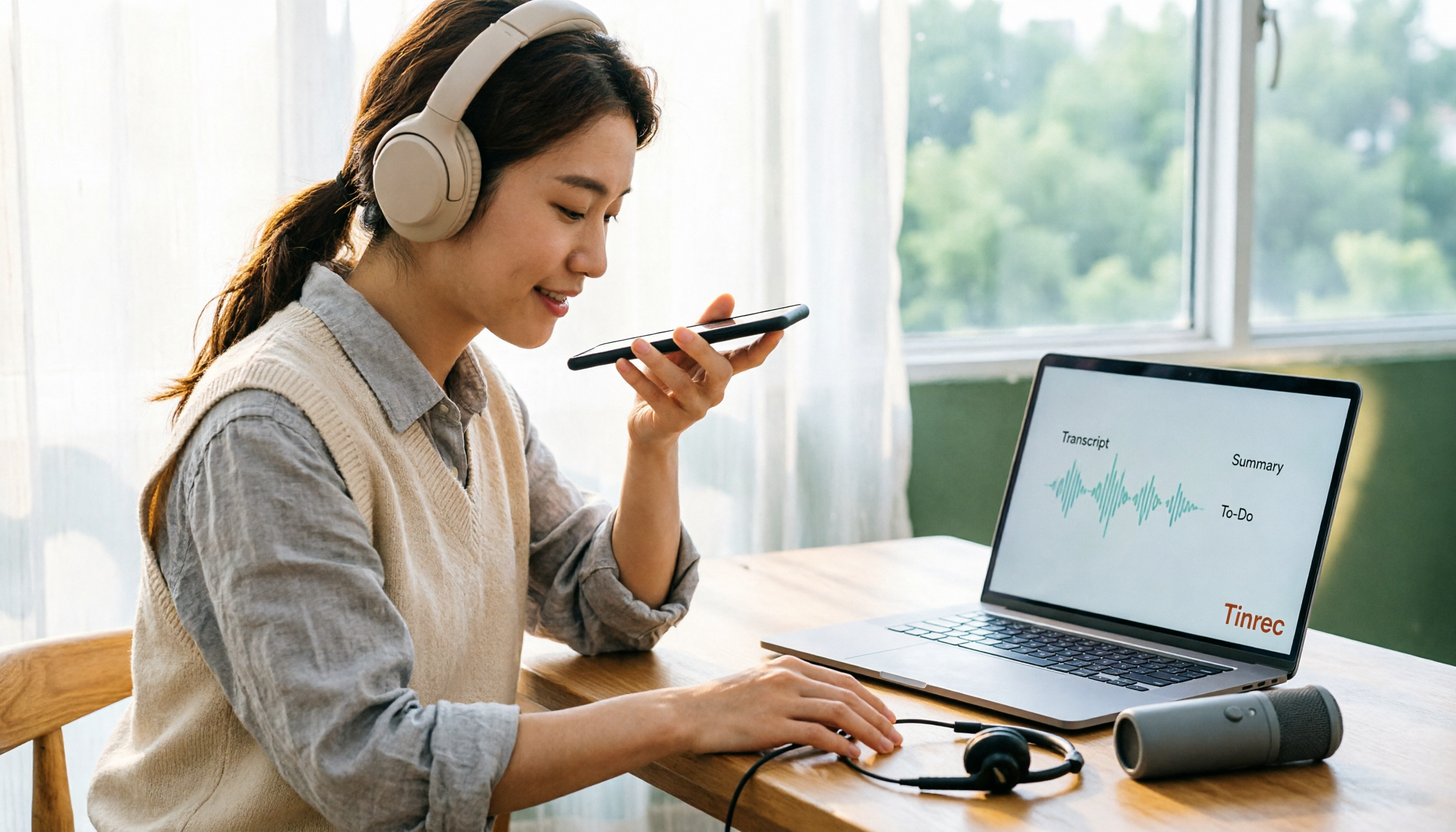
4 Ways to Record Audio on iPhone with Headphones in 2026: AirPods, Wired Headsets, and External Mics Compared
Can you record audio while wearing headphones? This article addresses common misconceptions and breaks down the differences, compatibility pitfalls, and key considerations of four headphone recording methods on iPhone. It also explains how to use Tinrec to organize transcripts, summaries, and action items after recording.

6 iPhone Recording Alternatives Tested for 2026: What to Choose When Built-in Features Fail
When iPhone recording doesn't work, the problem is often not the phone itself. This guide first helps you distinguish three situations: call recording limited by region and model, dictation not working, and Voice Memos cutting off mid-recording. Then it tests and compares 6 alternatives—Tinrec, Notta, Otter.ai, Granola, TurboScribe, and PLAUD—listing costs, limitations, and best-use scenarios so you can pick the right tool in 10 minutes.
How to Record LINE Calls on iPhone in 2026: Built-in Steps + Auto Transcription
Can iPhone record LINE calls? LINE has no built-in recording button, but iPhone can capture calls as audio files via system-level recording. This guide walks through the steps, speakerphone requirements, and version differences, then shows how to use Tinrec to turn recordings into transcripts, summaries, and action items—so your recordings are actually useful.

3 iPhone Recording Workflows Compared in 2026: Auto-Transcription Saves the Most Time
Many people use iPhone recording only to capture audio, then spend extra time re-listening and organizing. This article compares 3 recording workflows from a decision-making perspective: instead of just finding the record button, choose a tool that turns recordings into transcripts, summaries, and action items. Using Tinrec as an example, it explains how to automatically organize, query, and share iPhone recordings with your team.

3 iPhone Recording Methods Compared in 2026: Built-in Voice Memos, Call Recording, and AI Transcription
You don't need to download extra apps to record on your iPhone. This article debunks three common misconceptions, explains how to set up quick recording with Voice Memos, the Lock Screen, and the Action button, covers the built-in call recording in iOS 18.1, and compares how to organize your recordings afterward. It also details Tinrec's practical uses and limitations for transcription, summaries, and team collaboration.

How to Record Calls on iPhone in 2026: Built-in Steps & Transcript Tips
iPhone has built-in call recording starting with iOS 18.1. This guide starts from the everyday scenario of realizing you missed key points after hanging up, covers activation steps, two-party notification, and regional restrictions, and compares built-in features with post-call solutions like Tinrec to help you choose the right approach.
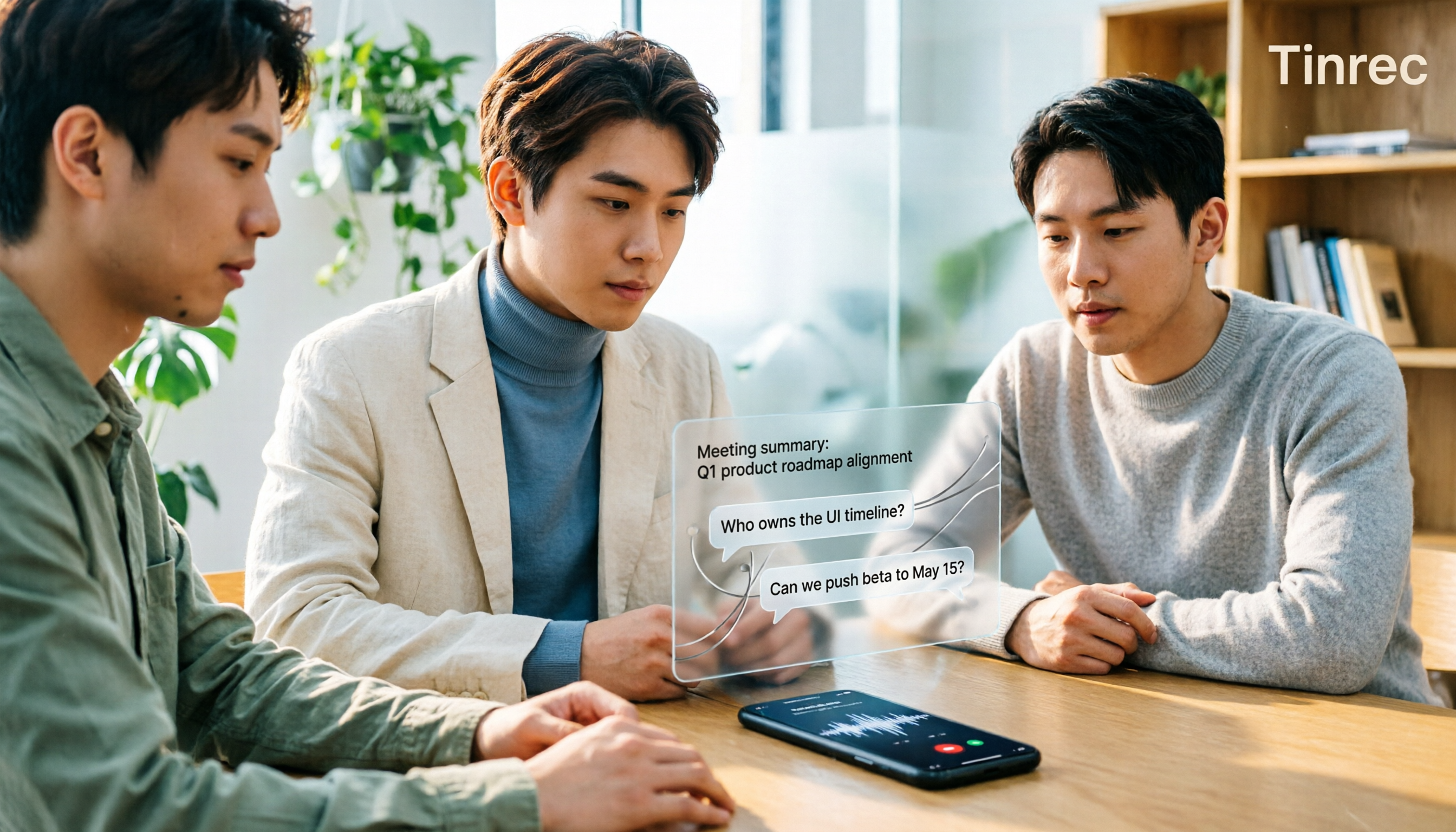
iPhone Audio to Text Guide 2026: 3 Methods Tested and Recommended
Your iPhone can turn recordings into transcripts, but device models, iOS versions, and language support all have requirements. This guide covers three built-in methods—Voice Memos, Notes app, and Dictation—and compares them with Tinrec for meeting notes, AI Q&A, and team collaboration. It includes selection criteria and 4 common mistakes to help you choose the right method for your situation.

How to Record Audio on iPhone with Headphones in 2026: 4 Connection Methods Tested + Auto Transcription
Recording on an iPhone with headphones seems simple, but plugging in headphones doesn't guarantee the headphone mic is used. This guide covers the real differences between four setups—AirPods, EarPods, USB-C headsets, and external microphones—how to check connector types, Bluetooth range risks, and how to use Tinrec to turn recordings into transcripts, summaries, and action items, saving you hours of re-listening.