

Turn recordings into transcripts and summaries in minutes
Upload audio or video for multilingual transcription, AI notes, and action items
8 Audio Recorders Compared in 2026: Free Open-Source, Built-In, and AI Meeting Notes
Most people looking for audio recording software make the same mistake: they focus on whether it can record at all.
Recording is easy. Windows has a built-in Voice Recorder, and your phone can record with one tap. What really slows you down is what happens after: a 60-minute meeting takes over an hour to replay, another hour to type notes while listening, and you still might not find that one key conclusion.
So this article doesn't just ask "can it record?" It asks "how much effort does it take to make the recording useful?"
Note: This article is based on official public information, feature specs, and existing reviews, with data verified as of August 18, 2026. We did not run uniform timed tests, so we don't provide numbers like "upload takes X seconds, transcription takes Y seconds." Features and pricing may change; please refer to official pages for current plans, and we recommend testing with your own audio file.
What Affects Post-Recording Processing Speed
Turning a recording into usable data usually involves four stages, each affecting how much time you spend in the end.
First, capturing the audio source. Are you recording microphone input, computer playback from a meeting, or both? Some tools only do one, which means extra work later.
Second, converting to text. Pure recording software won't do this for you; you'll need a separate transcription tool or type it yourself.
Third, organizing. A transcript is just raw material. Summaries, chapters, and action items are what most people actually need to deliver.
Fourth, exporting and sharing. Keeping files on your computer versus a searchable team space makes a big difference in long-term cost.
Simply put, recording software falls into two categories: "just records" and "records and organizes." Figure out which you need before talking price.
Tools Compared
We included 8 common tools and added a few alternatives with different approaches.
| Type | Tool | Positioning |
|---|---|---|
| Free open-source / free editing | Audacity | Cross-platform multi-track recording and audio editing |
| Free editing | WavePad | Recording plus effects processing, by NCH |
| Built-in | GarageBand | Free multi-track recording for Apple devices |
| Built-in | Windows Voice Recorder | Basic recording built into Windows |
| Free recording | Free Sound Recorder | Free Windows recording, simple interface |
| Browser tool | Cleanfeed | No install, broadcast-quality online recording |
| AI meeting notes | Tinrec | Recording, transcription, summaries, action items, team collaboration |
| AI meeting notes | Notta | Multilingual transcription and meeting notes |
Disclosure: This article includes product information about Tinrec, compiled by the Tinrec team. We note limitations for Tinrec and present strengths of other tools fairly; for competitor pricing and terms, refer to their official pages.
Testing Method and Conditions
Since we did not run uniform timed tests, this section explains the comparison criteria, not benchmark scores.
- Data verification date: August 18, 2026, based on official product pages and public documentation.
- Comparison dimensions: Supported platforms, available audio sources, transcript output, summary and action items, export methods, free tier limits.
- Conditions not standardized: Free tier limits are calculated differently (minutes, file count, per-file length), so we can't convert them to a single number; we present official wording in the table.
- Not tested: Transcription accuracy, processing speed, performance with overlapping speakers. We make no promises because results vary with recording quality, accent, noise, and technical terms.
- Labeling principle: Items not publicly disclosed or not confirmed are marked "unconfirmed," not left blank or zero.
Features and Data Processing Overview
| Tool | Platform | Audio sources | Transcript | Summary / Action items | Pricing |
|---|---|---|---|---|---|
| Audacity | Windows / macOS / Linux | Microphone, system audio | No | No | Free open-source |
| WavePad | Windows / macOS | Microphone, system audio | No | No | Free + paid |
| GarageBand | macOS / iOS | Microphone, instrument input | No | No | Free (Apple devices) |
| Windows Voice Recorder | Windows | Microphone or system audio (not both) | No | No | Built-in free |
| Free Sound Recorder | Windows | Microphone, system audio | No | No | Free |
| Cleanfeed | Browser | Microphone, remote connection | No | No | Requires account |
| Tinrec | Web / desktop / mobile | Microphone, system audio, audio/video files, some web links | Yes | Yes | Free + paid plans |
| Notta | Web / desktop / mobile | Microphone, meetings, files | Yes | Yes | Free + paid plans |
"No" means the tool itself doesn't offer the feature, not that it's impossible; you can record with one tool and send it to another for transcription, just with extra steps.
User Experience and Use Cases
Audacity: Most Features, But Takes Time to Learn
Audacity is a cross-platform open-source recording and editing tool for Windows, macOS, and Linux. It supports multi-track, editing, and export, and is completely free.
Note the steep learning curve and dense interface. Noise reduction often requires third-party plugins, which can be hard for beginners.
Best for: Those willing to invest time, needing multi-track and precise editing, such as podcasters or music creators.
WavePad: Recording Plus Effects, Engineering-Style Interface
WavePad by NCH records system audio and online audio, and offers effects like amplify, balance, reverb, and echo. It exports to over 50 formats, up to 192kHz/320kbps.
Limitations: The interface feels dated, mostly English, and capturing internal audio requires enabling Stereo Mix in system settings, which is cumbersome.
Best for: Users needing basic effects and specific export formats.
GarageBand: Free Starting Point for Apple Users
GarageBand is Apple's free recording tool for Mac and iOS, a simplified Logic Pro. It supports multi-track recording, editing, and mixing, great for podcasts or music, with automatic iCloud saving.
Stop organizing recordings by hand
Upload audio or video and automatically get a transcript, summary, and action items
Limitations: Tied to Apple ecosystem, unavailable on Windows; music-oriented, so overkill for meeting notes.
Best for: Mac/iPhone users, those also doing music or voiceover.
Windows Voice Recorder: Quickest Start, But Only One Source
Windows built-in Voice Recorder requires no install. It can record computer audio or external microphone for ambient and voice.
Drawback: It can't record internal and external audio simultaneously, so hybrid meetings (online + in-person) may miss a segment.
Best for: Quick memos, low audio quality needs.
Free Sound Recorder: One-Button Start
This free Windows recorder requires no registration for full features, has clear buttons, and auto-names files to avoid overwriting.
Limitation: It's purely a recording tool, no transcription or organization; you handle post-processing yourself.
Best for: Zero budget, just need to save audio.
Cleanfeed: Record Right in Your Browser
Cleanfeed focuses on broadcast and online recording. No download; sign up and record in browser on PC or mobile, with automatic mixing.
Limitation: Geared toward remote interviews and broadcast production; meeting notes still need separate handling.
Best for: Remote interviews, no-install preference.
Tinrec: Connects Recording to Post-Processing
Tinrec is an AI meeting notes and collaboration tool for individuals and teams. The desktop app captures system audio directly, so for Zoom, Google Meet, Microsoft Teams, Webex, etc., no bot needs to join.
After recording, it generates transcripts, summaries, chapters, and action items, supports follow-up questions, real-time translation, multi-format export, and sending results to Notion, Google Docs, etc.
Limitations: Tinrec is not a "bot that auto-joins all meetings"; you must start recording via the desktop app. Transcription quality varies with environment, accent, overlapping speech, and technical terms; not 100% accurate, so verify important content against timestamps and audio.
Best for: Heavy meeting load, need Chinese transcripts and action items, want data in team space.
Notta: Common Choice for Multilingual Transcription
Notta covers multi-platform transcription, meeting notes, file import, and translation. Official free plan: 120 minutes/month, max 3 minutes per session; Pro annual ~USD 8.17/month, 1,800 minutes/month.
Limitation: Free per-session length is short, easily exceeded in real meetings; refer to official page for plans and limits.
Best for: Multilingual transcription, file-based processing.
Other Options: Otter, Fireflies, Granola, TurboScribe, PLAUD
For more specific needs, these are often compared: Otter.ai free 300 min/month, Pro annual ~USD 8.49/month with 1,200 min/month and 10 file imports; Fireflies.ai annual Pro USD 10/seat/month, strong in meeting automation and integrations; Granola also bot-free, focuses on "your notes + AI enhancement," doesn't support pre-recorded uploads or store meeting audio; TurboScribe for long documents and batch transcription, free 3 files/day, 30 min/file; PLAUD is recording hardware, NotePin USD 159, Note Pro USD 189.
Pricing and Free Tier Comparison
All official public info verified August 18, 2026, in original currency; actual checkout depends on platform.
| Tool | Free plan | Paid plan | Notes |
|---|---|---|---|
| Audacity | Full features free | None | Open-source |
| WavePad | Limited free version | See official page | Specific pricing unconfirmed |
| GarageBand | Free | None | Requires Apple device |
| Windows Voice Recorder | Free | None | Built-in |
| Free Sound Recorder | Free | None | No registration |
| Cleanfeed | Requires account | See official page | Specific pricing unconfirmed |
| Tinrec Personal | Free basic quota | Weekly, Pro monthly, Pro annual | Pricing on official site |
| Tinrec Team | 7-day trial for eligible first-time users, 1 free seat, 300 shared import minutes | Monthly USD 29.80/paid seat/month; annual USD 199/paid seat/year (~USD 16.58/month) | 2,000 shared import minutes per paid seat/month; live recording not deducted by minute under active plan |
| Notta | 120 min/month, max 3 min/session | Pro annual ~USD 8.17/month (1,800 min); Business annual ~USD 16.67/seat/month | See official page |
| Otter.ai | Basic 300 min/month | Pro annual ~USD 8.49/month (1,200 min + 10 file imports) | See official page |
| Fireflies.ai | Free | Annual Pro USD 10/Business USD 19/Enterprise USD 39 (per seat/month) | Unlimited transcription subject to storage and quota rules |
| Granola | Basic | Business USD 14/user/month; Enterprise USD 35/user/month | No pre-recorded upload |
| TurboScribe | 3 files/day, 30 min/file | Unlimited annual USD 120 | Paid max 10 hours or 5 GB per file |
| PLAUD | Starter 300 min/month | Pro USD 99.99/year (1,200 min); Unlimited USD 239.99/year | Device purchase required |
For team sharing, Tinrec Team is not "multiple people sharing one personal account" but a separate team space: data owned by team, roles and seats distinguished. Members without seats can view, play, and read team data, but need a seat to record, upload, edit, and export. Deleted audio can be restored from trash within retention period (currently 30 days); action items are not covered.
Conclusion: Choose by Need
Based on our comparison criteria, here's how to decide:
- Just record, zero budget: Windows users start with built-in Voice Recorder, add Audacity for editing.
- Music or multi-track creation: Mac use GarageBand; cross-platform use Audacity or Ardour.
- No install: Browser tools like Cleanfeed are easiest, but organization is on you.
- Heavy meetings, need transcripts and action items: AI meeting tools like Tinrec save the most post-work time, provided you accept manual recording start and human verification of transcripts.
- Team sharing meeting data: Prioritize roles, seats, usage, and data ownership over minutes per person per month.
Final note: We did not run uniform timed tests, and samples don't include your actual recording environment. The most reliable approach is to run your own meeting audio through two tools, compare transcript readability and organization time, then decide on payment.
FAQ
Q1: What's the difference between recording software and AI meeting note tools?
Recording software saves audio; AI meeting note tools further transcribe, summarize, create chapters and action items, and support follow-up questions and export. The difference shows in how much time you spend organizing afterward.
Q2: Is free recording software enough?
Depends on whether you need transcription. For just saving audio, free tools are sufficient; for transcripts, most free plans are tight, e.g., 120 min/month or 3 min/session, often insufficient for real meetings.
Q3: Why can't some tools record computer audio and microphone simultaneously?
It's related to system audio architecture. Windows built-in Voice Recorder can't record internal and external audio at once; for hybrid meetings, use other tools or separate tracks.
Q4: Can transcription accuracy be guaranteed?
We don't recommend expecting that. Performance varies with recording quality, noise, accent, overlapping speech, and technical terms. A practical approach is to choose tools with timestamps for playback verification and manually confirm key numbers and decisions after important meetings.
Q5: What's the difference between team and personal plans?
Personal data belongs to the individual account; team plans have separate space, member and role management, seat allocation, usage analytics, audit logs, and audio trash. When members leave, data stays with the team and can be handed over.
Q6: What to note before recording?
Follow local laws and obtain participant consent when needed. For highly regulated scenarios like healthcare, legal, and finance, confirm compliance statements and authorization before adopting tools.
References
- 2026 Free Computer Recording Software Recommendations: 8 Windows/Mac Tools Tested and Compared
- 9 Highly Practical Recording Software Recommendations for 2026: Easily Handle Audio Recording and Editing!
- Free Recording Software Recommendations: 10 Computer Recording Tools [2026 Latest]
- 14 Highly Practical Free Recording Software Recommendations [2026 Latest Comprehensive Review]
- [2025 Best Recording Software] 6 Recording Programs, Free Download 🎶🎶 - EaseUS
Turn every recording into actionable outcomes
Get 60 free transcription minutes when you sign in. No credit card required.
Related Reading
You might also like
2026 Complete Guide to the Legal Validity of Meeting Minutes: From Evidentiary Weight to Team Practices
Do meeting minutes have legal validity? This article breaks down the difference between meeting minutes and meeting summaries from evidentiary weight, signature confirmation, to team practices, and explains how to use Tinrec to make meeting minutes more complete and traceable.
Can You Record LINE Calls in 2026? 5 Steps from Recording to Transcript
Can you record LINE calls? This article first debunks 3 common misconceptions, then explains in 5 steps the process from call recording to transcript, summary, and action items. Using Tinrec as an example, it shows how to turn LINE call audio files into searchable, queryable meeting data, and covers personal vs. team plan benefits, legal reminders, and FAQs.
3 Screen Recording Methods Compared in 2026: How to Launch Shortcuts and Organize Your Recordings
How do you launch screen recording? This guide covers three built-in shortcuts: Windows Win+G, Mac Command+Shift+5, and iPhone Control Center. It explains their limitations and common pitfalls, then shows how to import recordings into Tinrec to turn them into searchable transcripts, summaries, and action items.

Recording Mediation Committee Meetings in 2026: Legal Boundaries, Consent Process, and Organizing Recordings
Can you record a mediation committee meeting? The answer isn't a simple yes or no. This article compiles Ministry of Justice interpretations, Ministry of Labor regulations, and court practices to explain whose consent is required for mediation recordings, why unauthorized recordings are often deemed inadmissible, and how to use tools to turn lawful recordings into searchable, reviewable records.
Is Recording at Work Legal in 2026? 5 Real-World Scenarios Compared: What Protects You and What Gets You in Trouble
Whether recording at work is legal depends not only on whether you pressed record, but also on the privacy of the setting, the purpose of the recording, and how it is later used. This article outlines the four key judgment points and five common misconceptions, and explains how to turn a lawful recording into searchable, summarizable, and collaborative meeting data with Tinrec. It also covers team plan differences in roles, seats, and data governance.
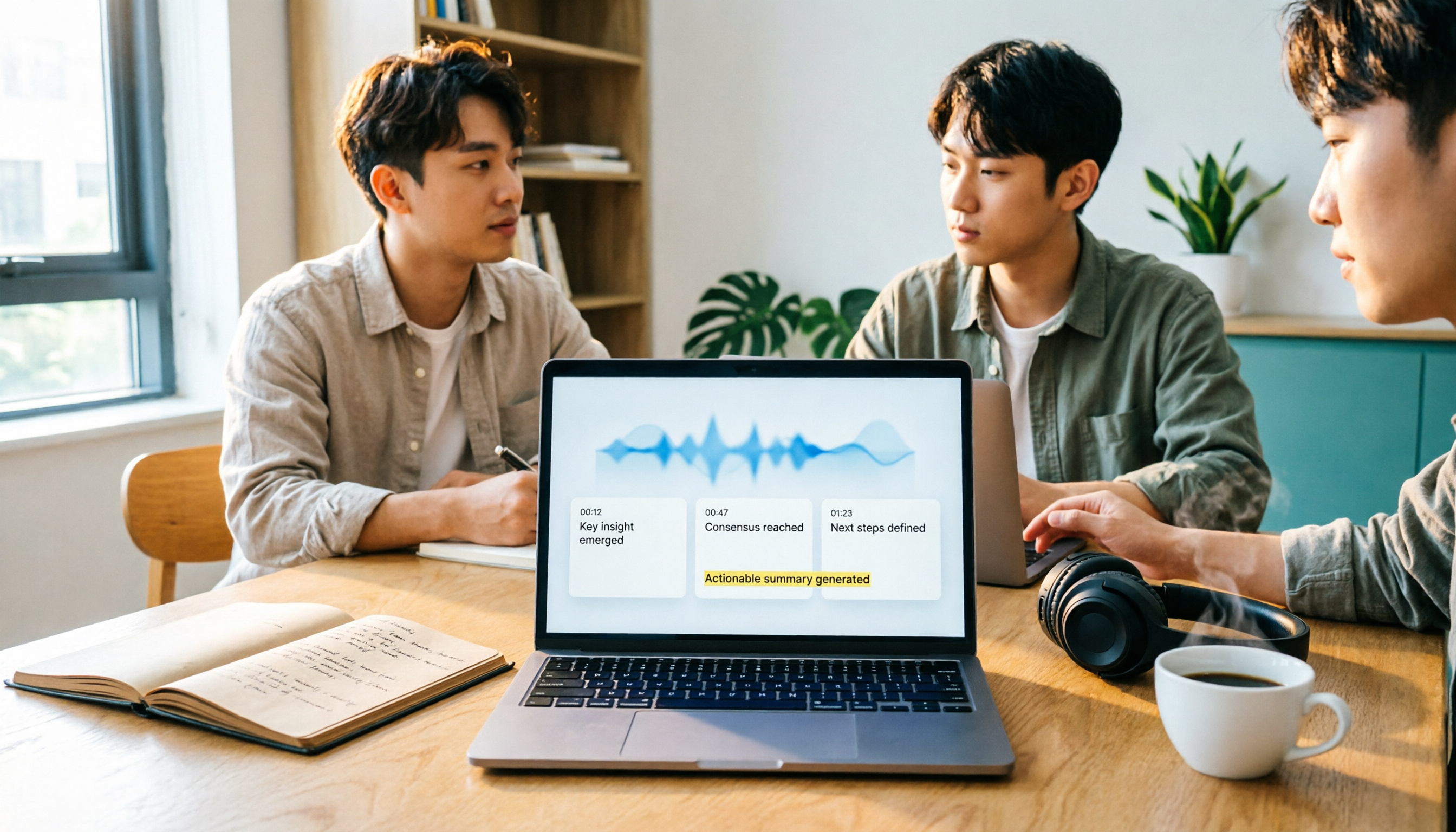
3 Ways to Record Audio on a Desktop Computer in 2026: Built-in Recorder vs. Online Tools vs. Tinrec
Desktop computers can definitely record audio, but most people start off on the wrong foot. This article tackles the common misconception that "being able to record doesn't mean you'll use it" and compares Windows/Mac built-in recorders, free online tools, and Tinrec. It also covers practical use cases for students recording lectures, online seminars, group discussions, and project interviews, along with quotas and purchasing considerations.

5 Screen Recording Methods Compared in 2026: Where the Button Is and How to Record Instantly
Where do you press to record your screen? On Windows it's Win+Alt+R, on Mac it's QuickTime Player > File > New Screen Recording, and on iPhone it's the circular button in Control Center. This guide explains the button locations, how to stop, and where files are saved on four major platforms, plus common pitfalls and how to turn meeting recordings into searchable, queryable transcripts and action items with Tinrec.

2026 Comparison of 5 Computer Recording Solutions: Recording Is Just the Start—Post-Meeting Organization Is Key
Can a computer record audio directly? Yes, but the real challenge usually comes after recording. This article reviews five computer recording solutions: built-in recording tools on Windows and Mac, Tinrec, Otter.ai, Notta, and PLAUD Note. It compares recording sources, post-meeting transcription and organization, cross-platform use, team collaboration, and free tiers, and includes buying criteria, common pitfalls, and scenario-based recommendations.

How to Record Computer Audio in 2026: A Complete Guide from Free Tools to Transcripts
This article starts with common recording mistakes and covers 5 free ways to record computer audio, including Windows Sound Recorder, Stereo Mix, Audacity, OBS Studio, and Tinrec desktop. It includes a free quota comparison table and recommended use cases to help you understand the difference between system audio and microphone audio.