
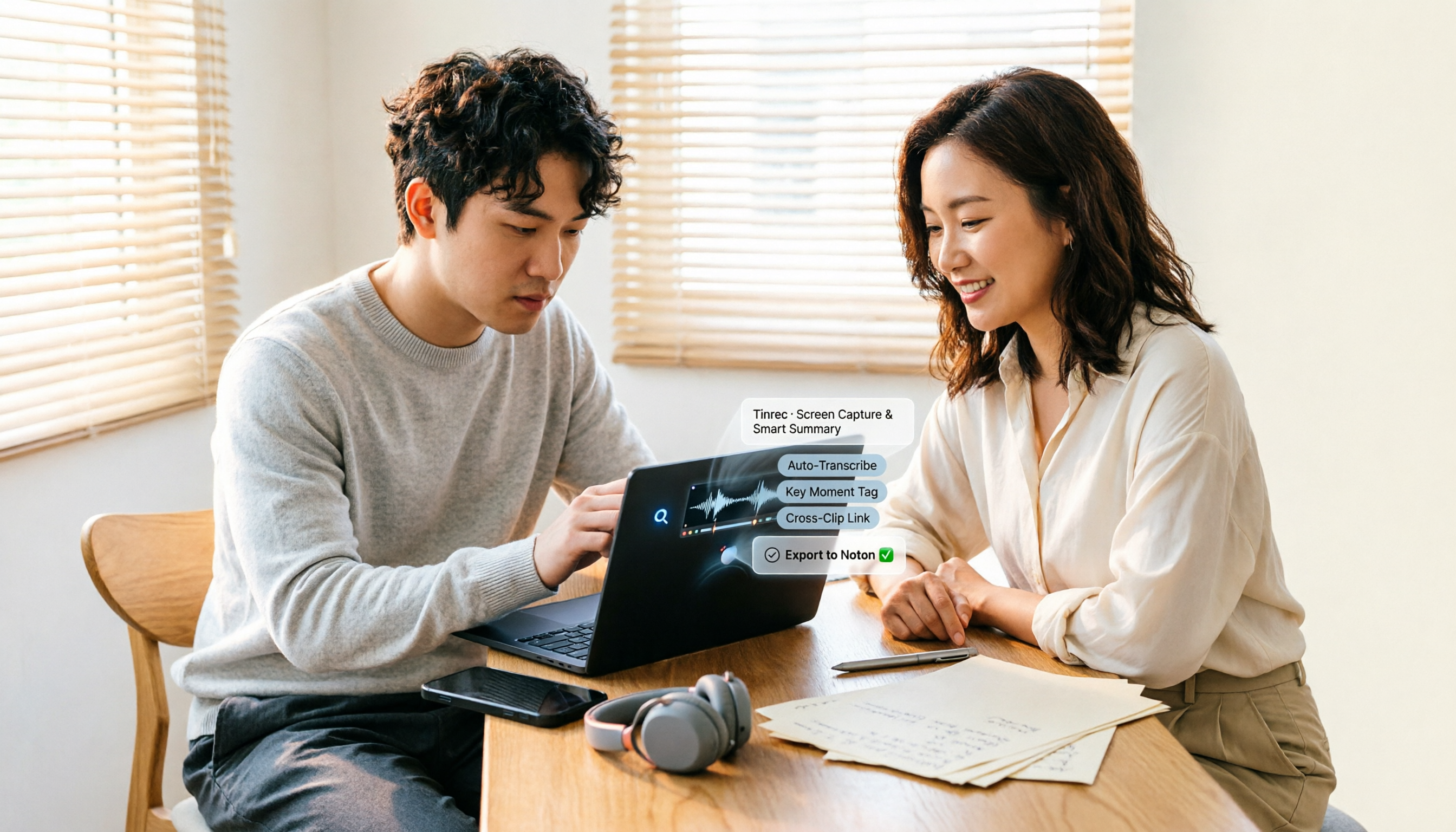
Turn recordings into transcripts and summaries in minutes
Upload audio or video for multilingual transcription, AI notes, and action items
Five minutes before an online meeting starts, you want to record the workflow you're about to demonstrate. You move your mouse around the screen twice but still aren't sure where to click. This is probably the most common scenario for "how do I launch screen recording."
Honestly, most people know how to record—they just don't know where the shortcut is hidden. Windows, Mac, and iPhone all have built-in options, and launching them usually takes less than three seconds. This article will first summarize the three shortcuts for you, then address a question many people overlook: after recording, how do you turn that video file into a transcript, summary, and action items?
Quick Answer: Screen Recording Shortcuts for Windows, Mac, and iPhone
| Device | How to Launch | Start and Stop | Things to Note |
|---|---|---|---|
| Windows 10/11 | Press Win+G to open Game Bar |
Press Win+Alt+R to start or stop; Win+Alt+M to turn on microphone |
Cannot record desktop or File Explorer; mainly suitable for a single window or game screen |
| Mac | Press Command+Shift+5 to bring up the toolbar |
Choose "Record Entire Screen" or "Record Selected Portion," then click Record | macOS Mojave or later; test recording first to confirm audio source |
| iPhone | Tap the "Screen Recording" button in Control Center | Tap again to stop; long-press the button to enable microphone | You need to add the button to Control Center first |
Windows Game Bar is a feature built into Microsoft's game bar. The first time you record a non-game app, the system may ask you to check "Remember this is a game." Once checked, recording works normally. Mac's Command+Shift+5 integrates screenshots and screen recording into one toolbar—screenshots on the left, recording on the right. If the iPhone button isn't in Control Center, go to Settings → Control Center to add it.
Before Choosing a Screen Recording Method, Understand These 3 Key Points
The first key point is: "Do you want to record the entire desktop or a single window?" Windows Game Bar's advantage is speed, but it cannot record the desktop or File Explorer—this is the most common complaint. If you need to record desktop operations or multi-window switching, Mac's selected area or third-party tools are more suitable.
The second key point is: "Do you want to record audio too?" Many people only discover after recording that there's picture but no sound. On Windows, you can press Win+Alt+M to turn on the microphone; on Mac and iPhone, you also need to confirm microphone permissions and audio sources first. Before recording for real, do a 10-second test recording and play it back to confirm that video, microphone, and system audio are all captured.
The third key point is: "Do you need to organize the recording afterward?" If you just want to save a video of an operation, built-in tools are completely sufficient. But if you're recording a meeting, class, or interview, the real time sink is usually not recording—it's re-listening, typing transcripts, and organizing action items afterward. This is where tools like Tinrec come in.
Tinrec (秒聽錄音) — After Recording, Turn Audio and Video into Searchable Meeting Materials
Tinrec (秒聽錄音) is an AI meeting notes and collaboration tool for individuals and teams. It doesn't just convert audio to text—it organizes meeting recordings into searchable, summarizable, queryable, and exportable materials.
The first practical scenario is "recording online meetings without a bot." Tinrec's desktop version directly captures computer system audio and can handle online meetings on Zoom, Google Meet, Microsoft Teams, Webex, and more without inviting an extra meeting bot to join. Note that this is not "automatically joining all meetings"—you still need to actively open Tinrec to start recording. But for situations where you don't want a bot appearing in the participant list, this approach is much cleaner.
The second scenario is "converting already-recorded screen videos into transcripts." If you've already recorded an operation video or meeting screen with Windows, Mac, or iPhone, you can import the audio/video file into Tinrec, and it will convert it into a transcript and automatically generate summaries, chapters, and action items. For people who "recorded ten minutes but don't want to re-listen for ten minutes," this step saves the most obvious time.
Stop organizing recordings by hand
Upload audio or video and automatically get a transcript, summary, and action items
The third scenario is "continue asking questions after recording." Tinrec supports AI Q&A around meeting content—you can directly ask "What was the conclusion of this meeting?" "Who is responsible for what?" "What objections did the client mention?" It doesn't just give you keyword search results; it answers based on semantic understanding. Additionally, results can be exported to Notion, Google Docs, OneNote, Dropbox, and other tools to continue writing reports or tables.
If a team needs to share meeting notes, Tinrec's Team plan has independent team spaces where meeting data belongs to the team, not the individual uploader. The Team plan allows creating multiple team spaces, inviting members via join links, setting owners, admins, and regular members, and assigning or reclaiming seats. It's important to distinguish between "roles" and "seats": roles determine who can manage the team, members, audits, and team settings; seats determine whether members can record, upload, edit, import, and export. Members who are active but have no seat can still view, play, and read team materials—they just cannot perform resource-usage operations.
Limitations should also be clearly stated. Tinrec is not a screen recording tool—it doesn't record your screen, but processes meeting audio and audio/video files. Transcription quality is affected by recording quality, accents, noise, overlapping speakers, and technical terminology, so it should not be treated as a 100% accuracy guarantee. The free version provides a basic quota suitable for light use; heavy use requires payment. The Team plan is priced per paid seat: currently USD 29.80/paid seat/month for monthly billing, USD 199/paid seat/year for annual billing (approximately USD 16.58/month); eligible teams get a 7-day, 1 free seat, 300-minute team shared import quota for the first time. Actual prices, currencies, and benefits are subject to the official purchase page on the website.
If you frequently need to record online meetings and want transcripts and summaries right after recording, or if your team needs to accumulate meeting materials, Tinrec is more suitable than a simple screen recording tool. If you only occasionally record an operation video, built-in shortcuts are enough.
Other Options: Practical Limitations of Built-in Recording on Windows, Mac, and iPhone
Windows Game Bar: Press Win+G to launch, Win+Alt+R to start recording—completely free. Note that it cannot record the desktop or File Explorer; it's mainly suitable for a single window or game screen. After recording, you only get a video file—it won't generate a transcript for you. If you need to turn video content into text, Tinrec can import and process audio/video files.
Mac built-in screen recording: Command+Shift+5 brings up the toolbar; you can record the entire screen or a selected area. Available on macOS Mojave and later. Its advantages are clean, free, and quick to learn; but after recording you also only get a video, with no summary or action items. If you need a meeting transcript, consider handing the file to Tinrec.
iPhone Control Center: First add the "Screen Recording" button to Control Center, then pull down to tap it. Long-press the button to enable the microphone. It's suitable for recording app operations or phone screens, but not for organizing long meetings; converting to text still requires separate handling. Tinrec supports mobile recording and audio/video file import, so you can add transcripts and summaries afterward.
Pitfall Guide: The 4 Most Common Screen Recording Mistakes
The first pitfall is thinking you need to download an app. Windows, Mac, and iPhone all have built-in options—try the shortcuts first; you don't need to install a bunch of software right away.
The second pitfall is pressing Win+G but not being able to record the desktop. Game Bar simply doesn't support the desktop or File Explorer—your computer isn't broken. If you need to record the desktop, switch methods instead of stubbornly trying the same key.
The third pitfall is saving only the video after recording, then spending more time re-listening later. If you're recording a meeting or class, consider importing the audio/video file directly into Tinrec after recording so it can generate a transcript, summary, and action items. This is much faster than manually re-listening.
The fourth pitfall is ignoring recording consent and privacy. Before recording a meeting or call, confirm local regulations and company policies, and obtain participant consent when necessary. No matter how convenient the tool is, this step cannot be skipped.
Conclusion: Which One Should You Actually Use?
Just want to quickly record an operation video → Use Windows Win+G, Mac Command+Shift+5, or iPhone Control Center—free and fast enough.
Need to record an online meeting but don't want a bot to join → Use Tinrec desktop to capture system audio and generate a transcript simultaneously; it doesn't record the screen, but it preserves the meeting content.
Already have a screen recording file and need a transcript → Import the audio/video file into Tinrec to generate summaries, chapters, and action items.
Team needs to share meeting notes → Use Tinrec Team plan to manage team spaces, roles, and seats, turning meeting materials into searchable team assets.
We recommend running a test with your own meeting recording first to confirm that transcription quality meets your needs before deciding whether to upgrade. After all, everyone's recording environment is different—actual results are best verified by trying it yourself.
References
- How to Launch Screen Recording? Windows/Mac/iPhone Shortcut Tutorial and Audio-to-Text Tool Recommendations - 秒聽錄音Blog
- 3 Screen Recording Methods Compared in 2026: Built-in Shortcuts Work, But How Do You Organize the Files? - 秒聽錄音Blog
- 2025 Guide - Beginner Tutorial: How to Screen Record? (Phone / Computer / Windows / Mac / iOS / Android)
- 2026 Complete Screen Recording Guide: From Windows to Mobile, Start Recording with One Press - 秒聽錄音Blog
- Windows 10/11 Built-in Screen Recording Settings and Usage Tutorial | KJie Notes
Turn every recording into actionable outcomes
Get 60 free transcription minutes when you sign in. No credit card required.
Related Reading
You might also like

2026 Complete Guide to the Legal Validity of Meeting Minutes: From Evidentiary Weight to Team Practices
Do meeting minutes have legal validity? This article breaks down the difference between meeting minutes and meeting summaries from evidentiary weight, signature confirmation, to team practices, and explains how to use Tinrec to make meeting minutes more complete and traceable.

Can You Record LINE Calls in 2026? 5 Steps from Recording to Transcript
Can you record LINE calls? This article first debunks 3 common misconceptions, then explains in 5 steps the process from call recording to transcript, summary, and action items. Using Tinrec as an example, it shows how to turn LINE call audio files into searchable, queryable meeting data, and covers personal vs. team plan benefits, legal reminders, and FAQs.

8 Best Audio Recorders in 2026: Tinrec vs Audacity and Which to Choose for Meeting Notes
Looking for the best audio recording software? This guide compares 8 popular recording apps in 2026, from free open-source Audacity and built-in system recorders to AI meeting note tools like Tinrec and Notta. We break down input sources, transcription, summary and action items, export options, and pricing, and explain the real limits of free versions to help you pick the right tool for your needs.

Recording Mediation Committee Meetings in 2026: Legal Boundaries, Consent Process, and Organizing Recordings
Can you record a mediation committee meeting? The answer isn't a simple yes or no. This article compiles Ministry of Justice interpretations, Ministry of Labor regulations, and court practices to explain whose consent is required for mediation recordings, why unauthorized recordings are often deemed inadmissible, and how to use tools to turn lawful recordings into searchable, reviewable records.

Is Recording at Work Legal in 2026? 5 Real-World Scenarios Compared: What Protects You and What Gets You in Trouble
Whether recording at work is legal depends not only on whether you pressed record, but also on the privacy of the setting, the purpose of the recording, and how it is later used. This article outlines the four key judgment points and five common misconceptions, and explains how to turn a lawful recording into searchable, summarizable, and collaborative meeting data with Tinrec. It also covers team plan differences in roles, seats, and data governance.
3 Ways to Record Audio on a Desktop Computer in 2026: Built-in Recorder vs. Online Tools vs. Tinrec
Desktop computers can definitely record audio, but most people start off on the wrong foot. This article tackles the common misconception that "being able to record doesn't mean you'll use it" and compares Windows/Mac built-in recorders, free online tools, and Tinrec. It also covers practical use cases for students recording lectures, online seminars, group discussions, and project interviews, along with quotas and purchasing considerations.

5 Screen Recording Methods Compared in 2026: Where the Button Is and How to Record Instantly
Where do you press to record your screen? On Windows it's Win+Alt+R, on Mac it's QuickTime Player > File > New Screen Recording, and on iPhone it's the circular button in Control Center. This guide explains the button locations, how to stop, and where files are saved on four major platforms, plus common pitfalls and how to turn meeting recordings into searchable, queryable transcripts and action items with Tinrec.

2026 Comparison of 5 Computer Recording Solutions: Recording Is Just the Start—Post-Meeting Organization Is Key
Can a computer record audio directly? Yes, but the real challenge usually comes after recording. This article reviews five computer recording solutions: built-in recording tools on Windows and Mac, Tinrec, Otter.ai, Notta, and PLAUD Note. It compares recording sources, post-meeting transcription and organization, cross-platform use, team collaboration, and free tiers, and includes buying criteria, common pitfalls, and scenario-based recommendations.

How to Record Computer Audio in 2026: A Complete Guide from Free Tools to Transcripts
This article starts with common recording mistakes and covers 5 free ways to record computer audio, including Windows Sound Recorder, Stereo Mix, Audacity, OBS Studio, and Tinrec desktop. It includes a free quota comparison table and recommended use cases to help you understand the difference between system audio and microphone audio.